
Knowledge Base - Smart Flows

User Authentications Tab

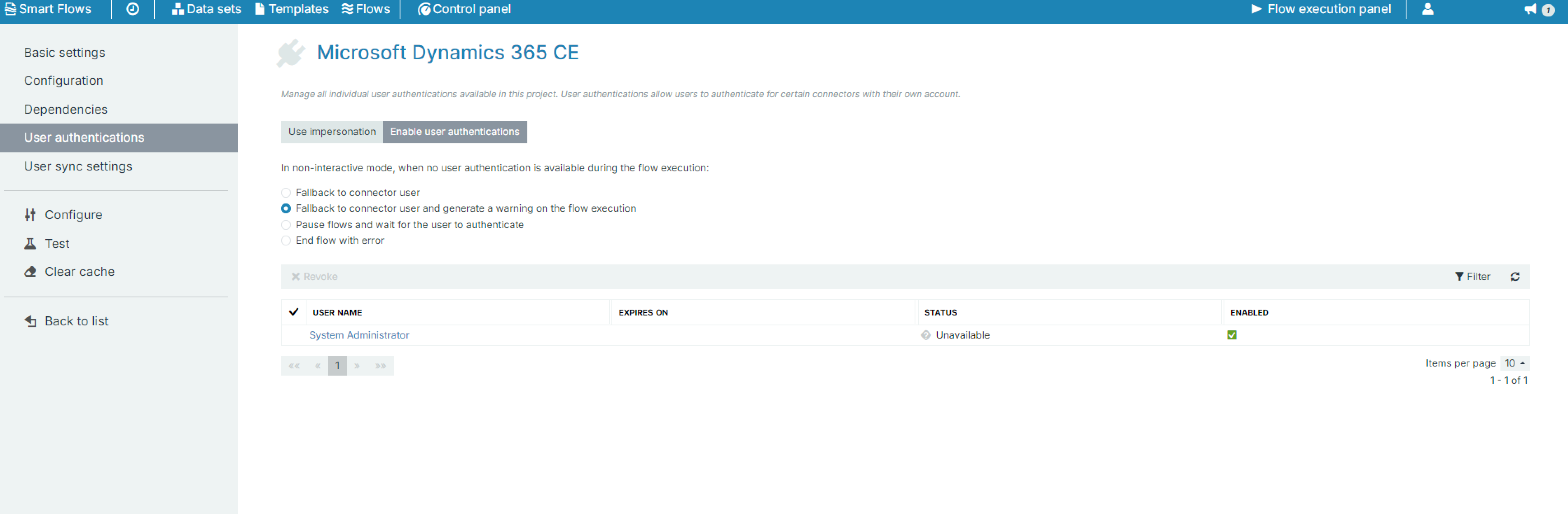
Enabling user authentication allows individual users in your Smart Flows project to authenticate via the connector. As an Administrator, this is advantageous because it allows you to trace user actions based on who completed the actions instead of seeing all actions as if they were taken by the user who created the connector. By default, individual user authentication is not enabled, so a Smart Flows administrator must enable it.
User Authentications.png

User Authentication Parameters

Parameter

Description

Enable user authentications for this connector

Checked(ON): Users with authentication-enabled connectors can initiate flow executions. The execution of steps associated with the authentication-enabled connector will be carried out using the individual user's authentication credentials.

Unchecked(OFF): All data transactions will be carried out under the identity of the service users authenticated during connector setup. This matches the functionality of Smart Flows before the implementation of individual user authentications.

In non-interactive mode

Non-interactive flow executions skip all user input and are triggered through the flows/executions/start endpoint of the Experlogix Smart Flows API, see Using the API for more information.

The user may be required to authenticate for a flow in non-interactive mode with enabled user authentications, depending on the selected setting:

  • Fallback to connector user

  • Fallback to connector user and generate a warning on the Flow Execution Panel

  • Pause flows and wait for the user to authenticate

  • End flow with error

The user will be required to re-authenticate if the tokens related to the existing authentication have expired.

Fallback to connector user

The flow will run via impersonation using the identity of the user who originally created the connector.

Fallback to connector user and generate a warning on the flow execution

The flow will run via impersonation using the identity of the user who originally created the connector and generate a warning in the Flow Execution Panel.

Pause flows and wait for the user to authenticate

The flow waits with the status "Authentication needed,” until the user completes authentication via the authentication-enabled connector.

End flow with error

The flow ends with an error message.

Enable User Authentication

Administrators must manually enable user authentication for their connectors using the process below. Please ensure your connector supports user authentication before proceeding.

Connectors Supporting User Authentication

The following connectors support individual user authentication. However, Administrators must enable the feature in their application. Please refer to Managing Users for more details. For users who have the User authentication enabled and trigger a flow containing any of the specific flow steps described below, they will need to authenticate the first time they execute such a flow. If the refresh token expires, users will need to authenticate again.

When running a flow with user authentication, the system creates a user authentication in Connectors with the owner not being the connector user but the user who did the user authentication.

User authentication impacts various steps, not just document creation. For example, in the Edit Document step in Experlogix Documents, the 'modified by' property of the document will reflect the user who made the change instead of the connector user when the option is enabled. No new documents are created in this step.

User Authentications are disabled for SharePoint Server (Username/Password).

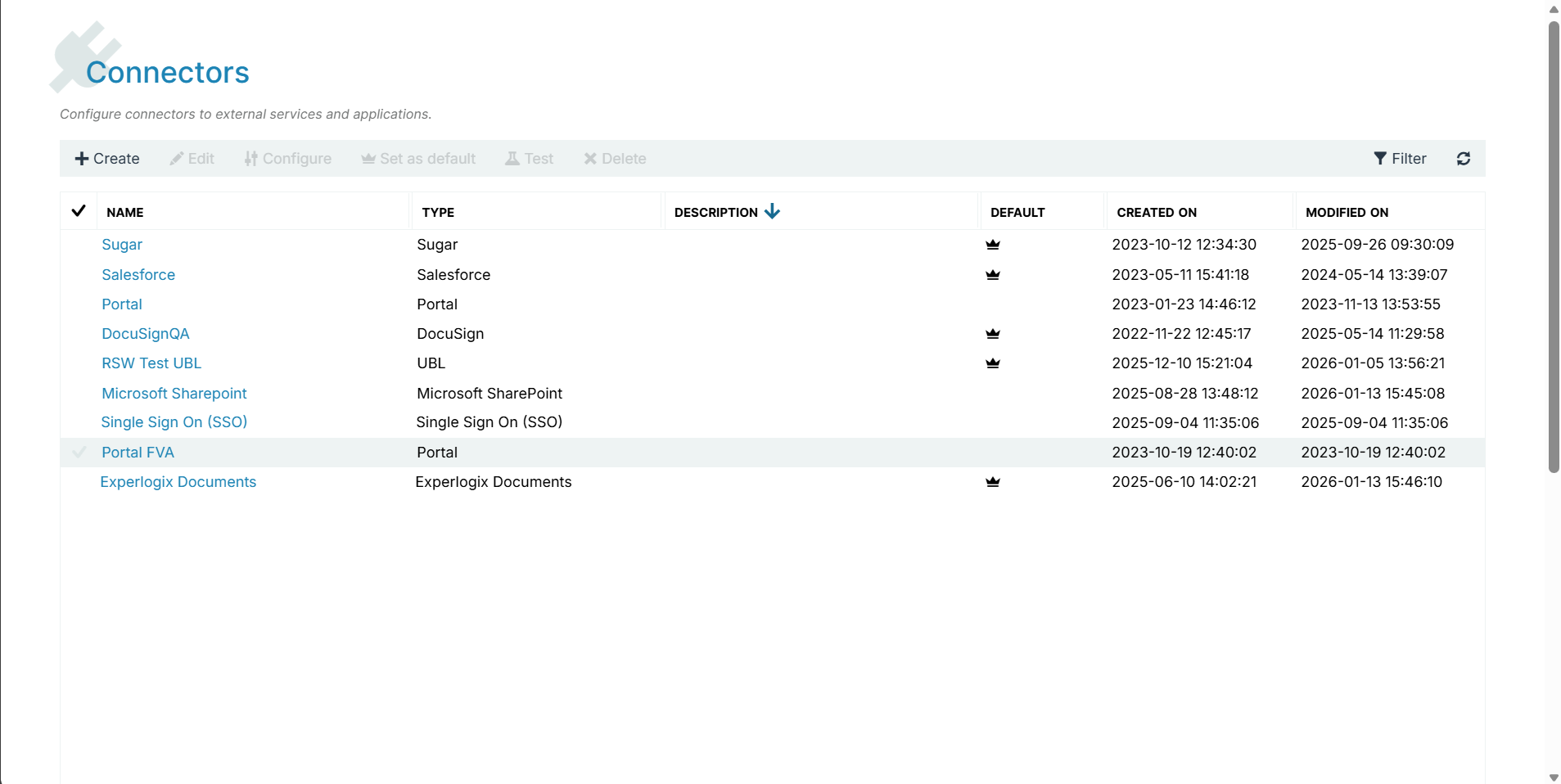
  1. In the Control Panel, select Connectors.

  1. In the Connectors List view, select an authentication-enabled connector.
    Connectors List View.png
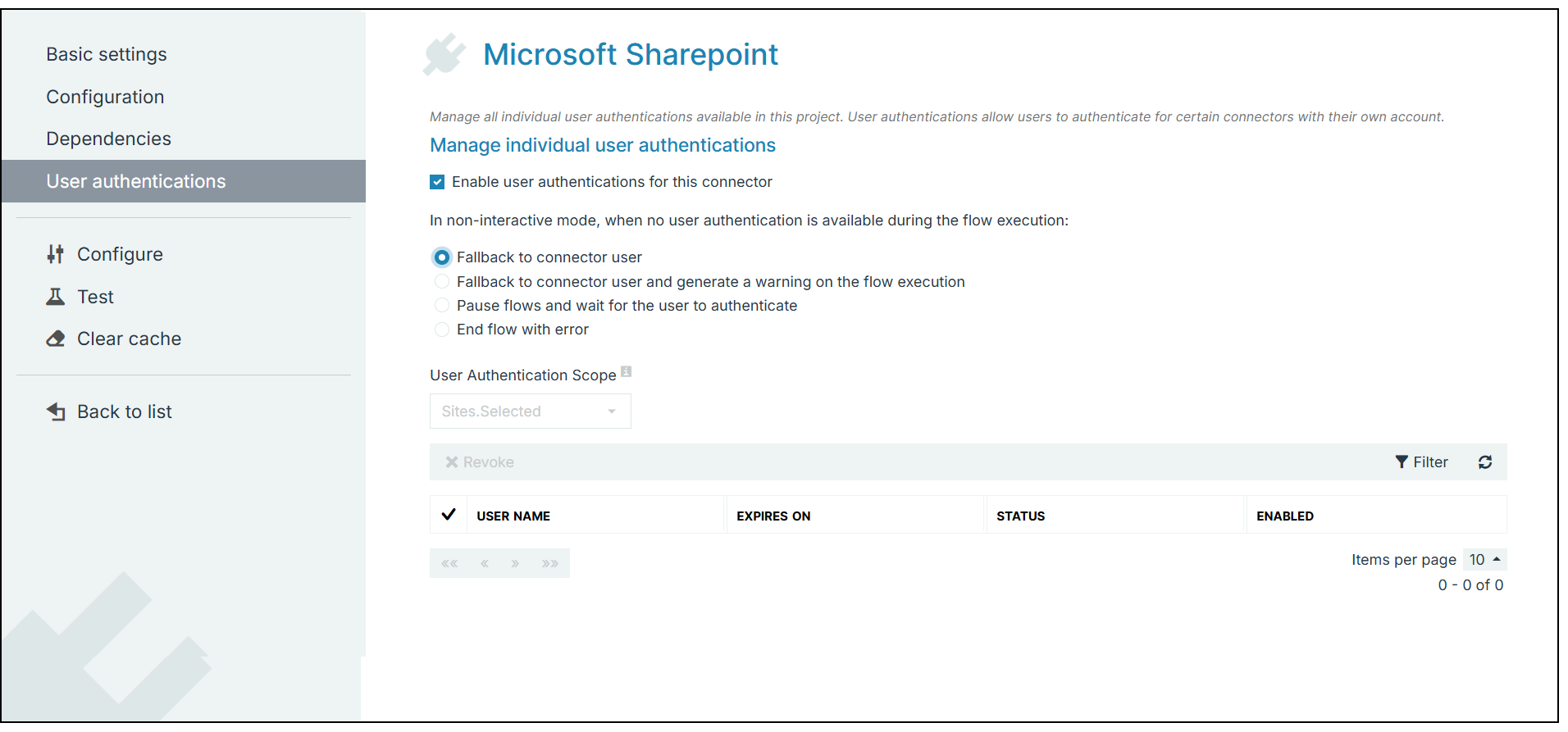
  1. In the left-hand navigation, select the User authentications tab.

  1. Next to Enable user authentications for this connector, select the checkbox.
    User Authentication Tab.png
  2. Under in non-interactive mode, when no user authentication is available during the flow execution, select an option.

Select to display parameter options

Parameter

Description

Enable user authentications for this connector

Checked(ON): any authentication-enabled connector users can start flow execution. The user’s individual authentication will be used to execute the steps related to the authentication enabled connector.

Unchecked(OFF): the connector behaves like in previous Smart Flows versions, meaning that all data transactions will be carried out under the identity of the service users authenticated during connector setup.

In non-interactive mode

Non-interactive flow executions skip all user input and are triggered through the flows/executions/start endpoint of the Experlogix Smart Flows API. Flows that run in a non-interactive mode as a background process cannot ask a user to authenticate in the rare case that the user’s authentication token has expired. Last sentence is not necessarily true, the behavior depends on the selected setting out of the 4 listed below.

Fallback to connector user

The flow will run via impersonation using the identity of the user who originally created the connector.

Fallback to connector user and generate a warning on the flow execution

The flow will run via impersonation using the identity of the user who originally created the connector and generates a warning in the Flow Execution Panel.

Pause flows and wait for the user to authenticate

The flow pauses with the status "Authentication needed" until the user completes authentication via the authentication-enabled connector. From this point, the authenticated user's credentials will be used. This option provides a fully personalized experience when the Enable user authentications for this connector checkbox is selected, allowing any authentication-enabled connector users to initiate flow execution.

End flow with error

The flow ends with an error message.

  1. In the bottom right, select the Save changes button.

Your connector is now enabled to support user authentications.