
The Edit Document flow block facilitates efficient document customization within the flow. Item powers users to make real-time edits before finalizing the document and continuing the workflow. This capability is crucial for ensuring that documents meet specific needs without interrupting the workflow. When you run the flow, the user gets a link to edit the document in Experlogix Documents, you can edit the document and then return to the flow.
Microsoft locks the documents in the browser if the documents are undergoing an update. On the other hand, the document is untouched in the Edit Document flow block of Smart Flows. Once the document is saved, Microsoft unlocks the document. After this, Smart flows continues to the next step of the flow execution. This built-in mechanism allows Smart Flows to generate the latest document, sometimes leading to slower execution of the flow.
Flow Block Parameters
The dropdown menus below provide all of the flow block's configuration options with detailed information and recommendations to help you configure your flow block.
Flow block customization buttons
You can further customize your flow block's parameters in several ways
-

-

-

Flow output
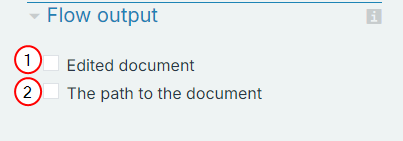
The Flow Output section shows all the output parameters that are available for the block. When checked, the value of the output parameter is presented to the user who is executing the flow. Each setting that composes this output information is described in detail below:
|
Index No. |
Field name |
Function |
|---|---|---|
|
1 |
Edited document |
When checked, a download link to the last edited version of the document is provided when the system completes the flow. |
|
2 |
The path to the document |
When checked, the path to the document within the Experlogix Documents Content Manager is given. |
Basic settings
|
Index No. |
Field name |
Function |
|---|---|---|
|
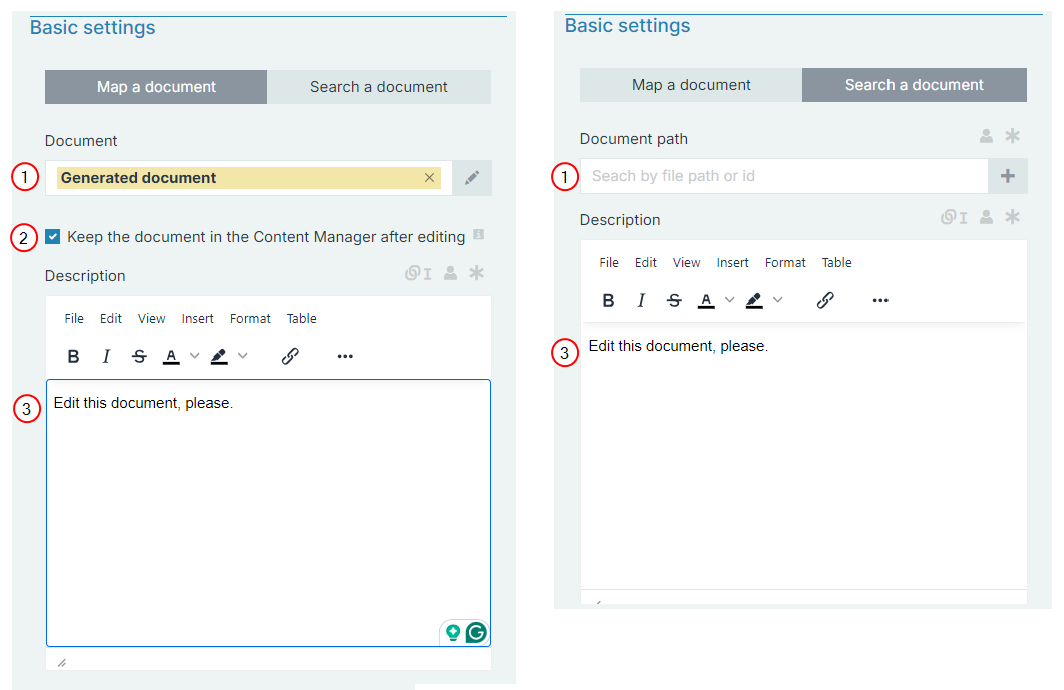
1 |
Document/Document Path |
The original document that needs to be edited. Generated document: Pulls in the initial generated version, not accounting for any edits made after generation. Search document path: Pulls in the most recently edited document, always retrieving the latest version if changes have been made. |
|
2 |
Keep the document in the Content Manager after editing |
When checked, this option saves the edited document in the Content Manager. |
|
3 |
Description |
A short message that is displayed along with the link to the document in Content Manager. The default message is displayed in the image above. This message can be changed and customized. |
Documents are stored by default in the Smart Flows work folder. This location can be changed by going to the requisite connector and selecting Basic settings. This can only be done by an Administrator.