
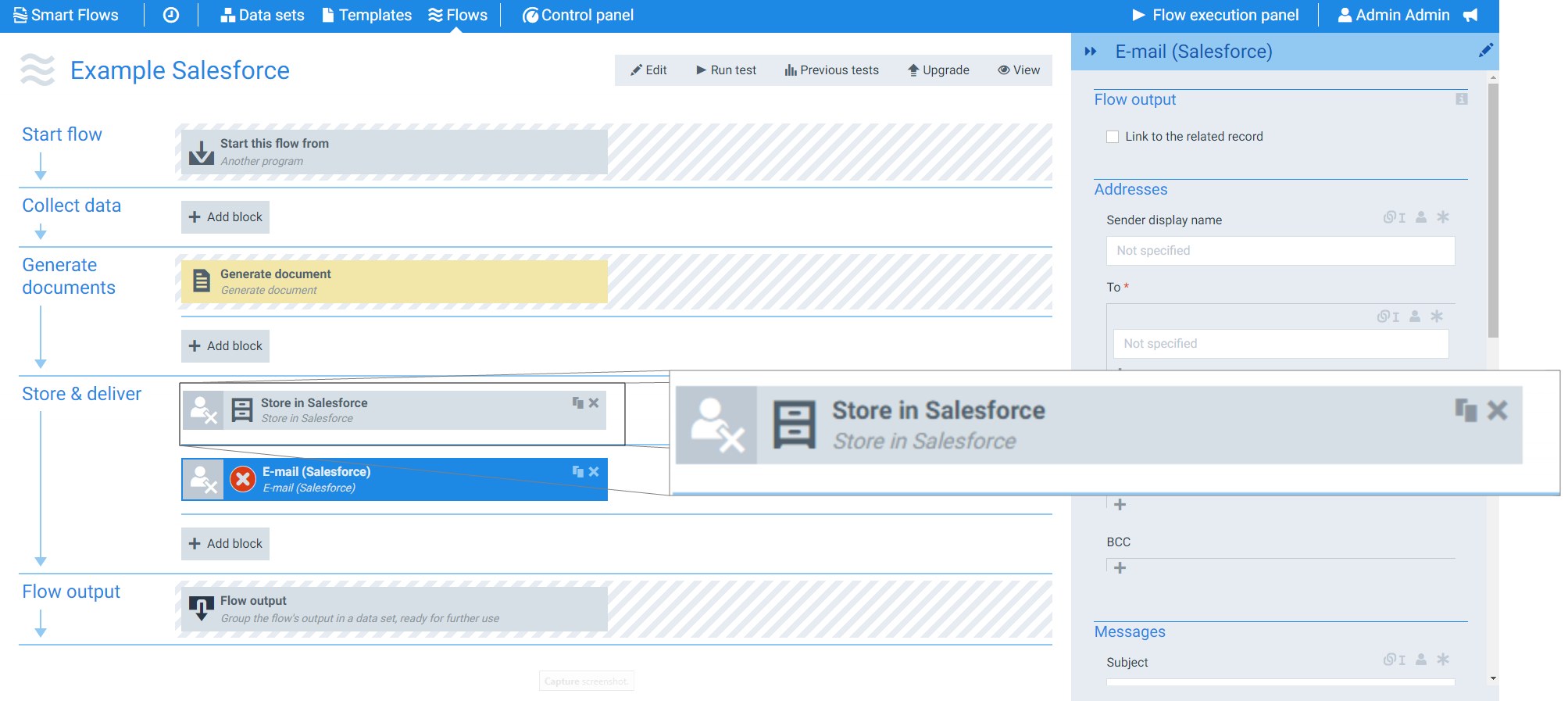
The E-mail (Salesforce) flow block creates and sends e-mails from your Salesforce account.
Flow Block Parameters
The dropdown menus below provide all of the flow block's configuration options with detailed information and recommendations to help you configure your flow block.
Flow block customization buttons
You can further customize your flow block's parameters in several ways
-

-

-

Flow output
The Flow Output section shows all the output parameters that are available for the block. When checked, the value of the output parameter are presented to the user who is executing the flow. Each setting that composes this output information is described in detail below:

|
Index No. |
Field name |
Description |
|---|---|---|
|
1 |
Link to a related record |
When checked, after the flow, the system provides a link to the record related to the e-mail sent from your Salesforce instance. |
Addressees
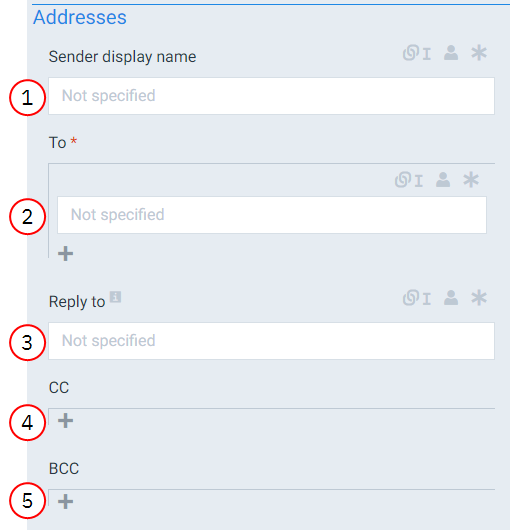
The Addresses settings determine whom the e-mail appears to come from and to whom the e-mail should be sent.
|
Index No. |
Field name |
Description |
|---|---|---|
|
1 |
Sender display name |
Fills in the From field for your e-mail. If you don't specify an address, the system uses the current user's e-mail address (the user running the flow). We recommend converting this setting to a linked field and using Entity references. You can also use rich text as long as the e-mail address matches the e-mail address of a User. |
|
2 |
To |
Fills in the To field for your e-mail. We recommend converting this setting to a linked field and using Entity references. You can also use rich text as long as the e-mail address matches the e-mail address of a User |
|
3 |
Reply to |
Sets the e-mail to which replies to the e-mail are sent. |
|
4 |
CC |
Fills in the CC field for your e-mail. We recommend converting this setting to a linked field and using Entity references. You can also use rich text as long as the e-mail address matches the e-mail address of a User. |
|
5 |
BCC |
Fills in the BCC field for your e-mail. We recommend converting this setting to a linked field and using Entity references. You can also use rich text as long as the e-mail address matches the e-mail address of a User. |
Messages
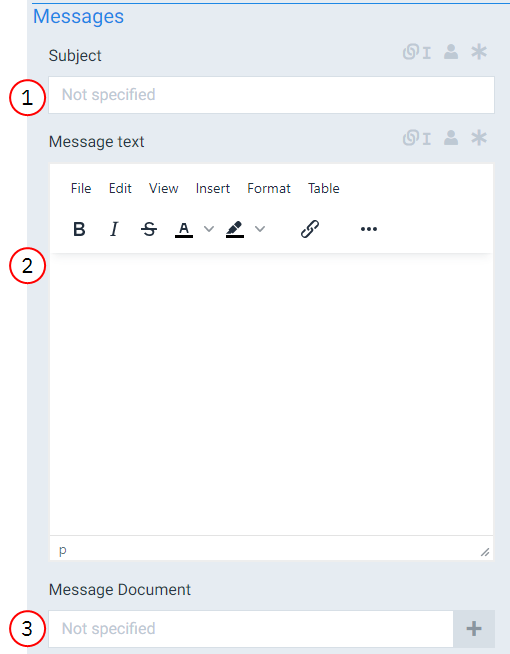
The Messages settings control the subject and body of the e-mail message. The message can be composed as plain text or created via a message document such as the generated document.
|
Index No. |
Field name |
Description |
|---|---|---|
|
1 |
Subject |
Fills in the Subject field of your e-mail. |
|
2 |
Message text |
Defines where to get the content of your message with the following options: Rich text The system uses the text you enter into the message source field. , Document Uses a generated document from within the current flow. , Template Uses the message source set by the template. |
|
3 |
Message document |
Fills in the body of the email. |
Attachments
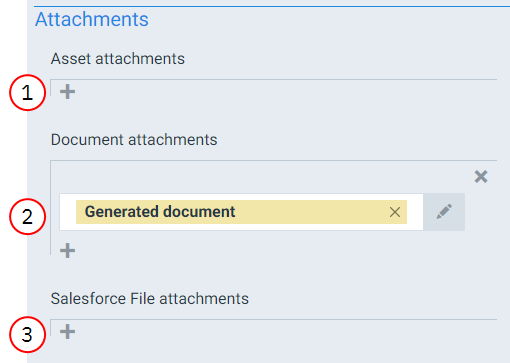
The Attachments settings determine what should be attached to the e-mail, such as pre-created assets, the generated document, or assets from within your Salesforce system.
|
Index No. |
Field name |
Description |
|---|---|---|
|
1 |
Asset attachments |
Sets the preexisting assets not created during the flow to attach to the e-mail. |
|
2 |
Document attachments |
Defines which documents created during the flow to attach to the e-mail. |
|
3 |
Salesforce File attachments |
Defines which Salesforce file attachments to attach to the e-mail. |
Salesforce properties
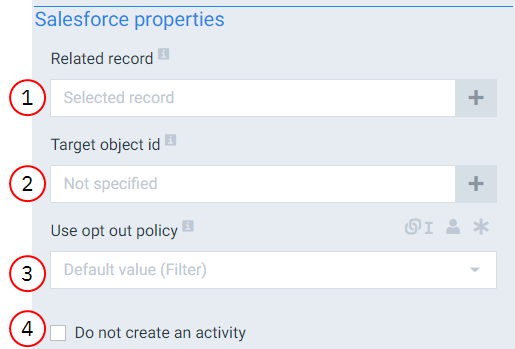
|
Index No. |
Field name |
Description |
|---|---|---|
|
1 |
Related record |
Defines the record related to this field. The Related record field value must be one of the following types: Account, Asset, Campaign, Case, Contract, Opportunity, Order, Product, Solution, Custom |
|
2 |
Target object id |
The entity reference of the contact, lead, or user the system should send the e-mail to. The object id you enter sets the context and ensures that the merged fields in the template contain the correct data. All e-mails must have a recipient value in at least one of the following fields: toaddresses, ccaddresses, bccadresses, targetobjectid |
|
3 |
Use opt out policy |
The opt-out policy field applies to recipients in the e-mail's To, CC, and BCC lists. This setting denotes how the flow block functions based on users who have opted out of e-mails with thefollowing options:
|
|
4 |
Do not create an activity |
When selected, the system does not register the action performed in the E-mail (Salesforce) step in the Activities panel in Salesforce. You must check this if you are sending an email from Salesforce. |