
The Create letter flow block creates letters with the option to attach an additional document during the flow block output step.
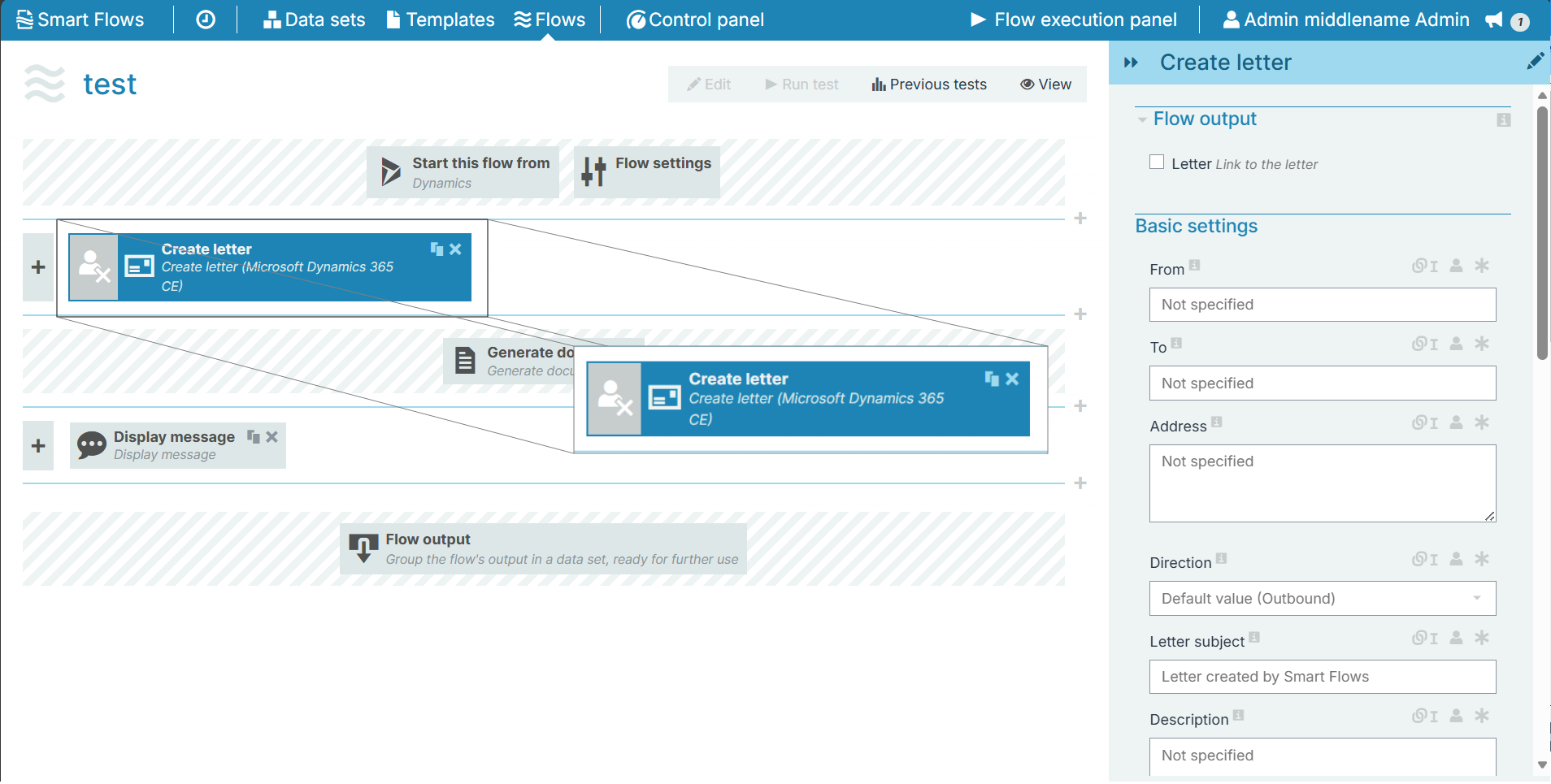
Flow Block Parameters
The dropdown menus below provide all of the flow block's configuration options with detailed information and recommendations to help you configure your flow block.
Flow block customization buttons
You can further customize your flow block's parameters in several ways
-

-

-

Flow output
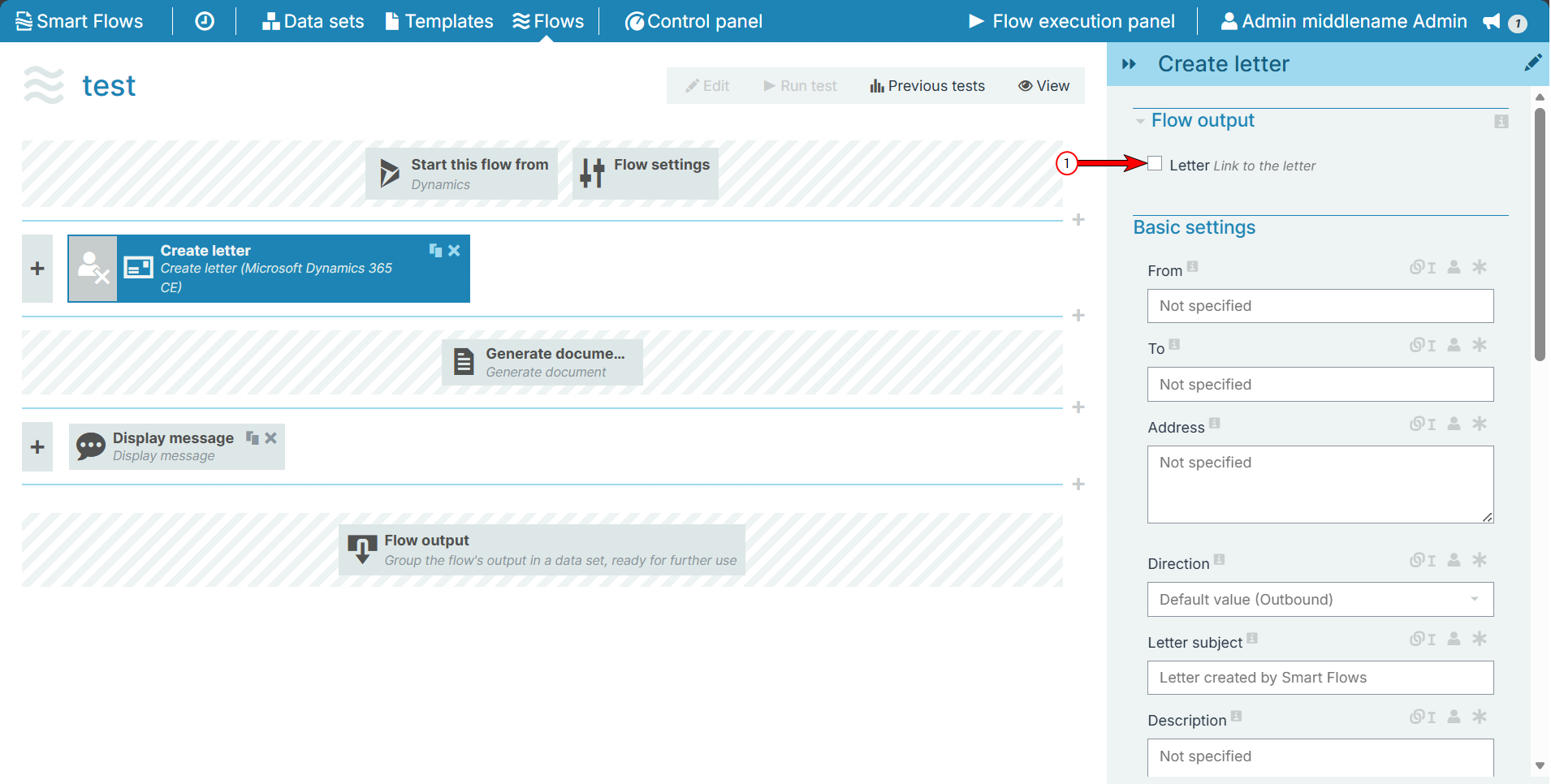
|
Index No. |
Field name |
Function |
|---|---|---|
|
1 |
Letter |
When checked, a link to letter is provided when the system completes the Flow output step. |
Basic settings
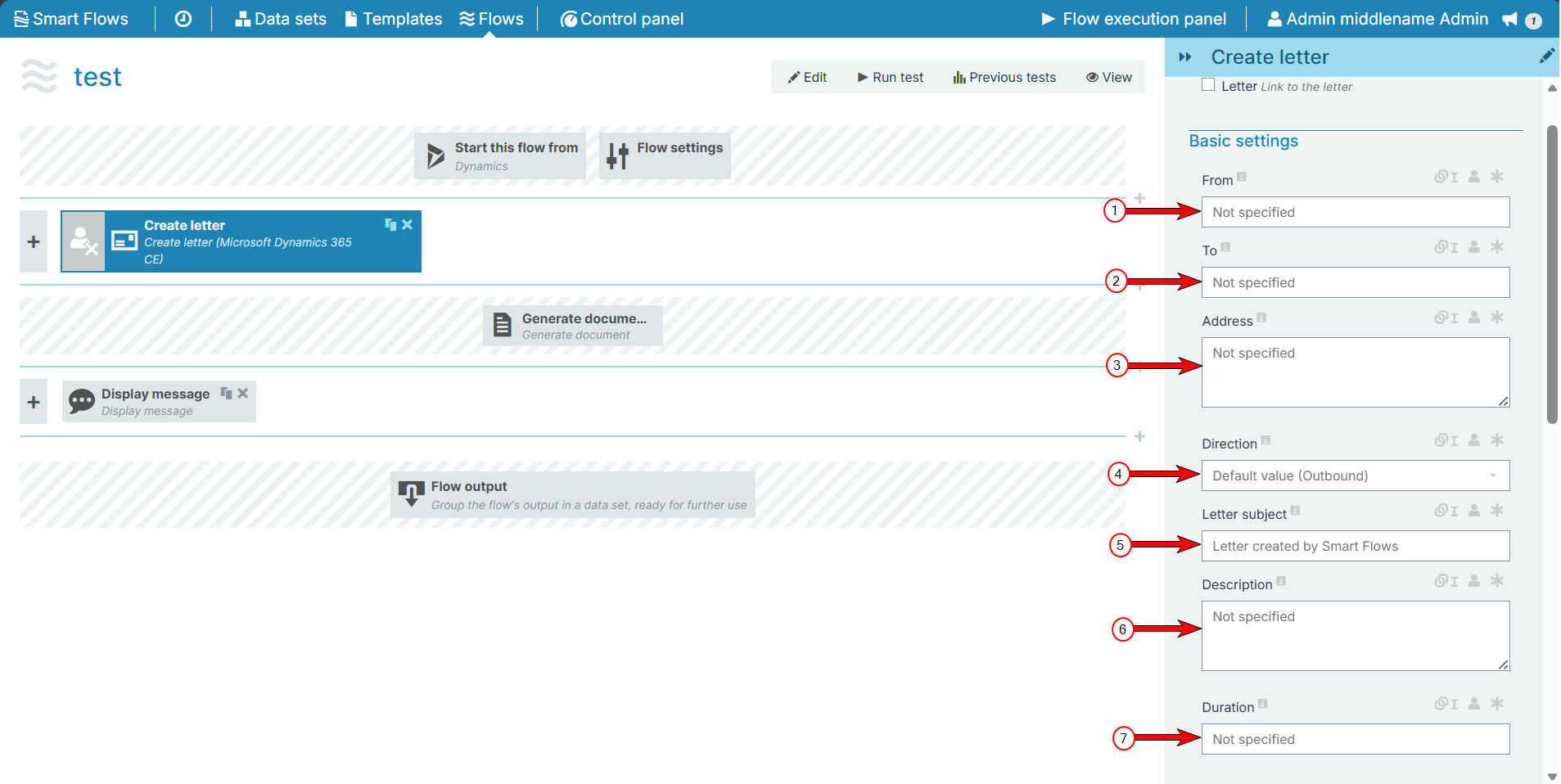
|
Index No. |
Field name |
Function |
|---|---|---|
|
1 |
From |
Sets who the letter appears to be from entity references can be used to automate this field to be context sensitive. |
|
2 |
To |
Sets who the letter should be sent to entity references can be used to automate this field to be context sensitive. |
|
3 |
Address |
Sets the address for the recipient. |
|
4 |
Direction |
Sets the direction of the letter; inbound vs. outbound. |
|
5 |
Letter subject |
Fills in the subject field for the letter. |
|
6 |
Description |
What should be in the letter. |
|
7 |
Duration |
The time before the letter expires. |
Attach document
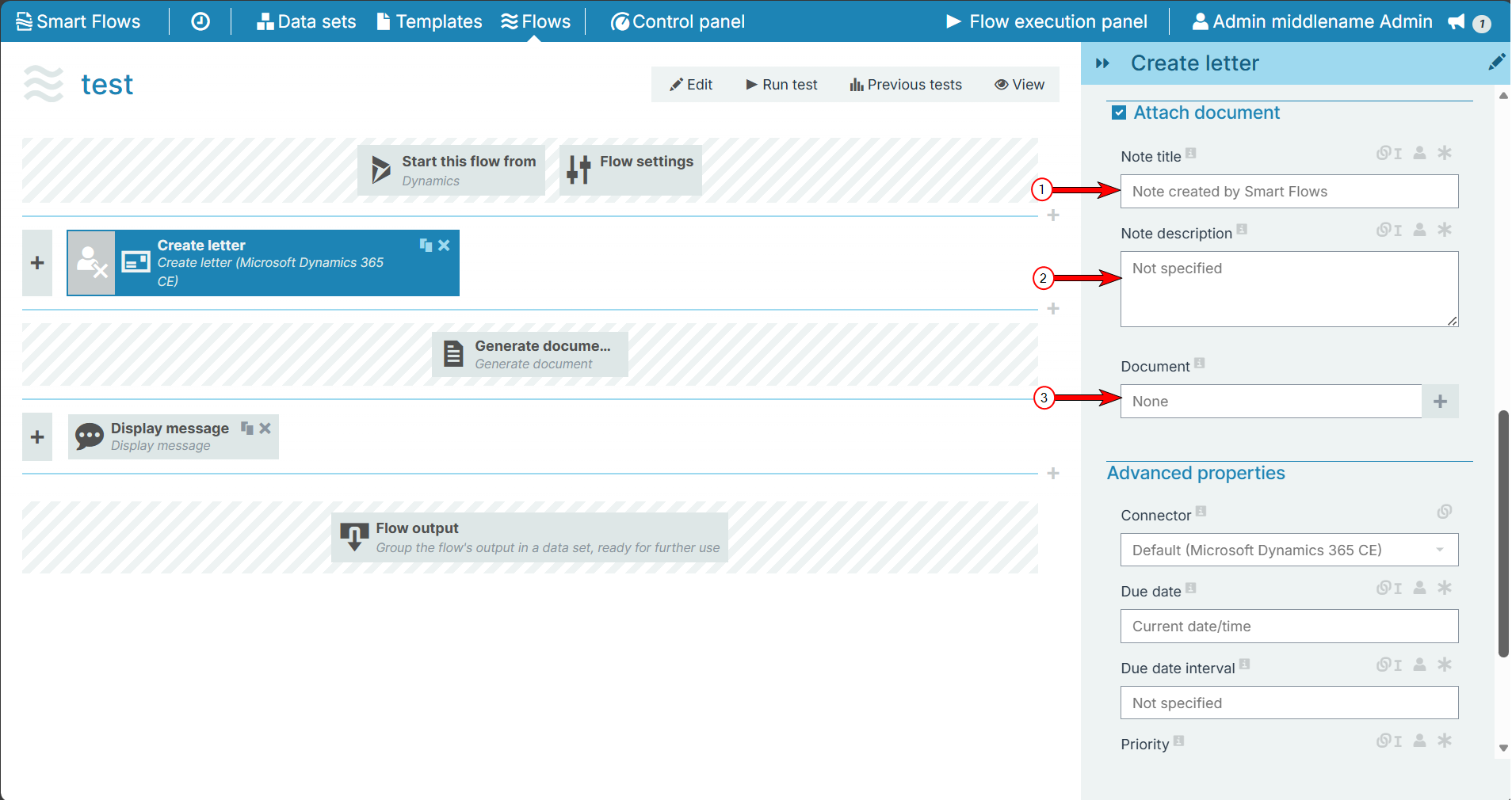
|
Index No. |
Field name |
Function |
|---|---|---|
|
1 |
Note Title |
Fills in the title for the note. |
|
2 |
Note description |
Sets the description for the note. |
|
3 |
Document |
Sets the document to find and attach to the created letter. |
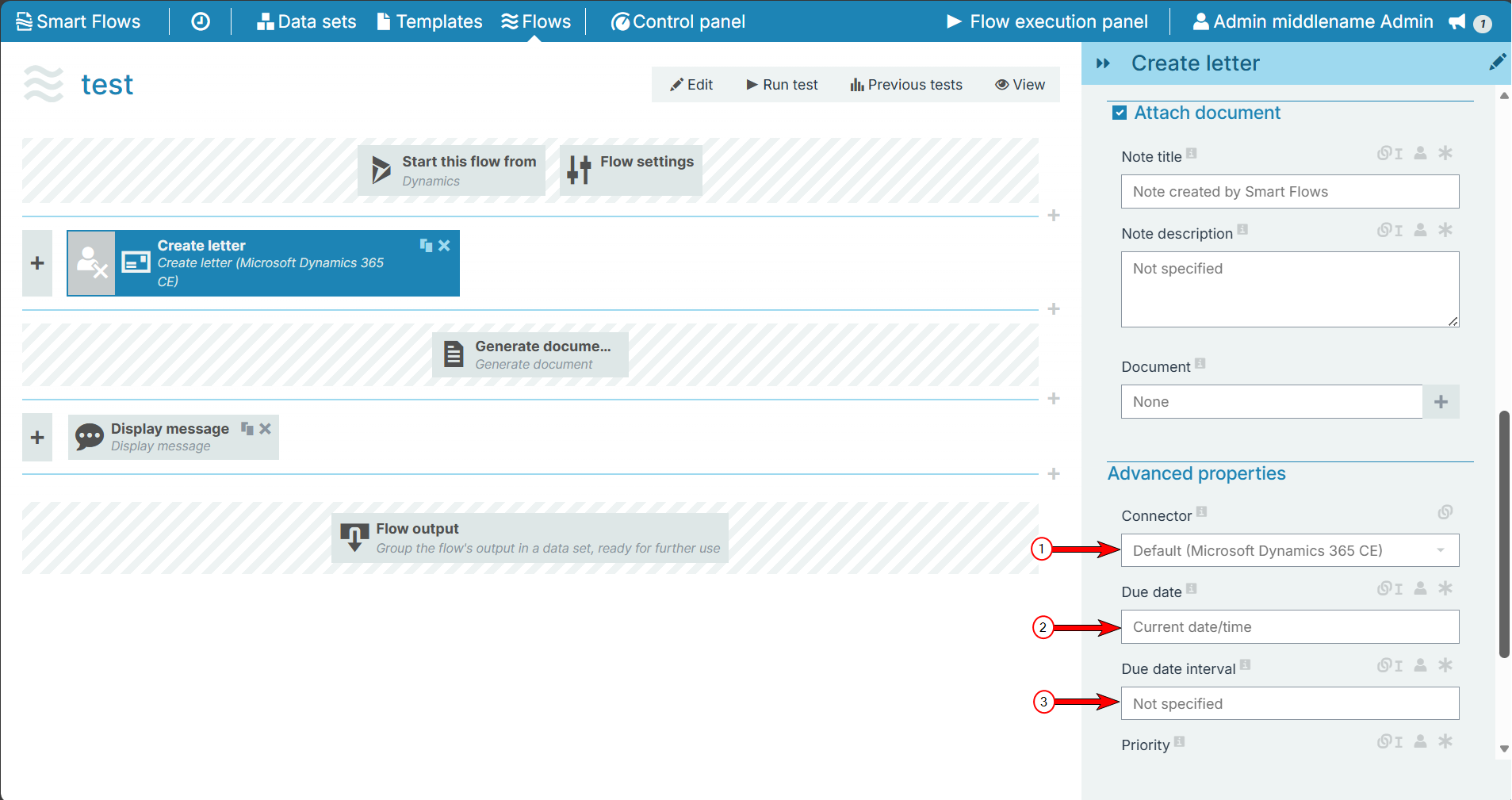
Advanced properties
|
Index No. |
Field name |
Function |
|---|---|---|
|
1 |
Connector |
The Dynamics connector to use, if you have only one Dynamics connector the system selects it by default. |
|
2 |
Due date |
Sets a date for the system to alert you via your activity list. If a value is not set for this field, the system automatically uses the current date. |
|
3 |
Due date interval |
Allows the system to use a relative period of time instead of a due date. You can use the ISO8601 period format to specify a time period. Click here to see examples
|
|
4 |
Priority |
Sets the importance of the letter created letter. The Priority options to select are high, normal or low. |
|
5 |
Regarding |
The record the letter will be attached to. By default, this is the selected record, but it can also be a related record. |
|
6 |
Status |
The status of the letter: open, draft, received, sent or canceled. |