
The Create task flow block creates tasks and gives users the option to use the Create note flow block to attach documents to the new tasks. These tasks can then be view in your CRM such as Dynamics and Sugar.
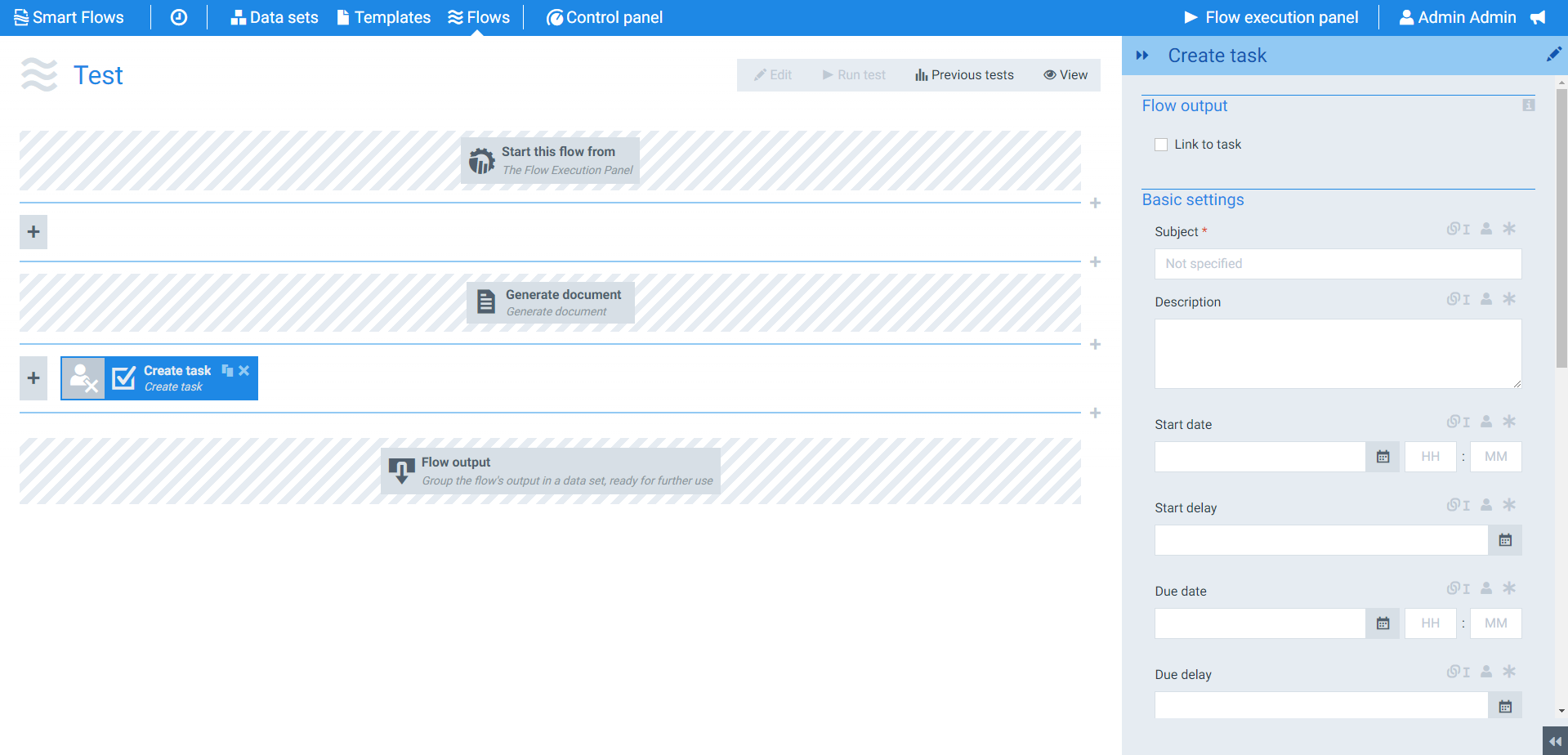
Flow Block Parameters
The dropdown menus below provide all of the flow block's configuration options with detailed information and recommendations to help you configure your flow block.
Flow block customization buttons
You can further customize your flow block's parameters in several ways
-

-

-

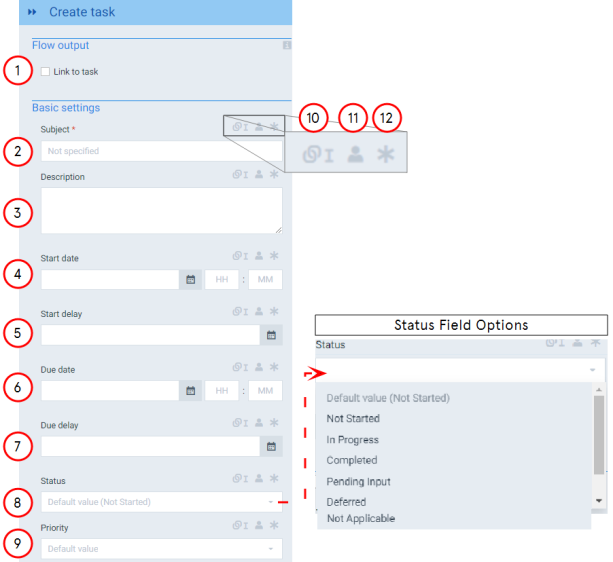
Flow output and Basic settings for Sugar
|
Index No. |
Field name |
Description |
|---|---|---|
|
1 |
Link to task |
When running the flow, the flow output will give a link to the task created in CRM. |
|
2 |
Subject |
Sets the subject field for the task. |
|
3 |
Description |
Fills in the description field of the task. |
|
4 |
Start date |
Designates the day to start the task in the activity list. Start date uses the date of the flow execution as the default value. |
|
5 |
Start delay |
Adds time to Start Date value to create later date. The Start delay time ranges from seconds to years. |
|
6 |
Due date |
Sets a date for the system to alert you via your activity list. If a value is not set for this field, the system automatically uses the current date. |
|
7 |
Due delay |
Adds time to Due delay value to create a later date. The Due delay time ranges from seconds to years. |
|
8 |
Status |
Sets the status of the task in the activity list after the flow runs and the task is created. |
|
9 |
Priority |
Sets the priority of the created task with the following options: high, normal or low. |
|
10 |
Toggle normal/linked field |
Changes the field between a normal text entry field and linked field that uses Entity references. Displays dark gray when enabled. |
|
11 |
Toggle user editable |
Sets whether a user running the flow can edit the field to meet their need. Displays a dark gray silhouette when enabled. |
|
12 |
Toggle Required |
Sets where the user running the flow must use the field in order to use the flow. |
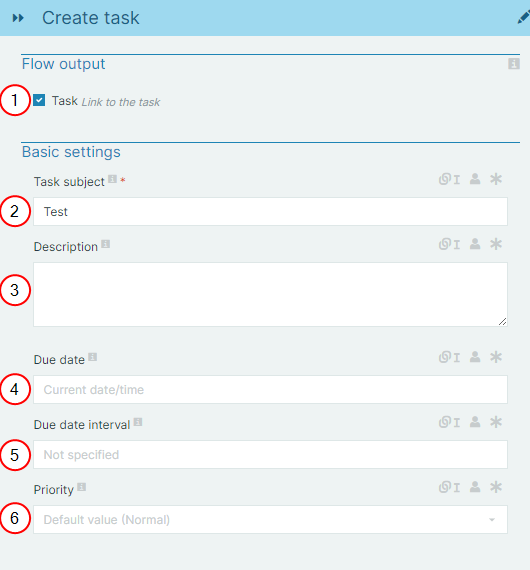
Flow output and Basic settings for Microsoft Dynamics 365 CE
|
Index No. |
Field name |
Description |
|---|---|---|
|
1 |
Task |
When running the flow, the flow output will give a link to the task created in CRM. |
|
2 |
Task subject |
Sets the subject field for the task. |
|
3 |
Description |
Fills in the description field of the task. |
|
4 |
Due date |
Sets a date for the system to alert you via your activity list. If a value is not set for this field, the system automatically uses the current date. |
|
5 |
Due date interval |
Adds time to Due date value. The Due date interval ranges from seconds to years. |
|
6 |
Priority |
Sets the priority of the created task with the following options: high, normal or low. |
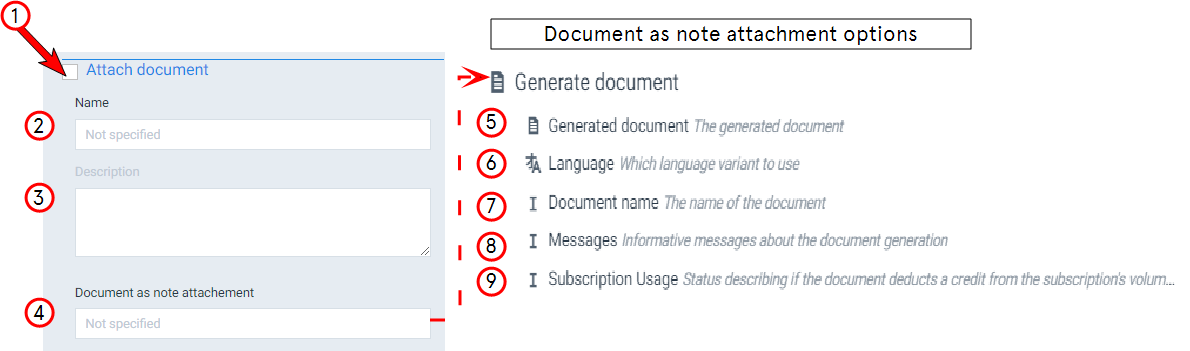
Attach document Settings
|
Index No. |
Field name |
Description |
|---|---|---|
|
1 |
Attach document |
Checking this box creates a note if linked to a Convert or Generate document flow block. You can then attach a document to the newly created note. If no document creation flow block is connected, the system only creates the task. |
|
2 |
Name |
Sets the title of the created note. |
|
3 |
Description |
Fills in the description field for the note. |
|
4 |
Document as note attachment |
Sets the document to attach to the note. When selected the user has multiple options for what to attach such as the document generated earlier in the flow. |
|
5 |
Generated document |
Attaches the document created from the Generate document flow block. |
|
6 |
Language |
Defines the language variant of a document to use. Must be linked to document creation flow block to function. |
|
7 |
Document name |
Uses the Document name as note title. |
|
8 |
Messages |
Sets the system to display any messages you've configured via the Display Message flow block. |
|
9 |
Subscription usage |
When enabled, the system informs you whether the document created counts toward your license subscription to Smart Flows. |
Advanced settings
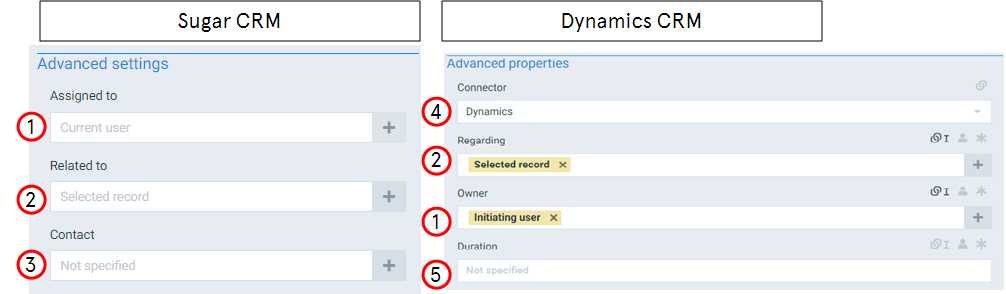
|
Index No. |
Field name |
Description |
|---|---|---|
|
1 |
Assigned to/ Owner |
Defines the owner of the task, by default the user who run's the flow becomes the owner. We recommend using Entity references to maximize the impact of the flow block. the impact of the flow block, |
|
2 |
Related to/ Regarding |
Creates a between the new task and item within your CRM you want to connect to the task. |
|
3 |
Contact |
Defines the contact name to use when creating the task. |
|
4 |
Connector |
Sets the Dynamics connector to use when creating the task. |
|
5 |
Duration |
Sets the time before the task expires. |