
The Review and Approve document flow block enables users to submit a document for review, make necessary adjustments, and either approve or decline it.
This flow block is particularly useful in scenarios such as a salesperson drafting an offer and sending it to the Sales Manager for review before finalizing it as an official client proposal. Real-time editing capabilities enhance the efficiency of the automation process.
During the flow creation, Designers can configure the Review and Approve document flow block to either allow the flow to continue or stop the flow if a document is declined.
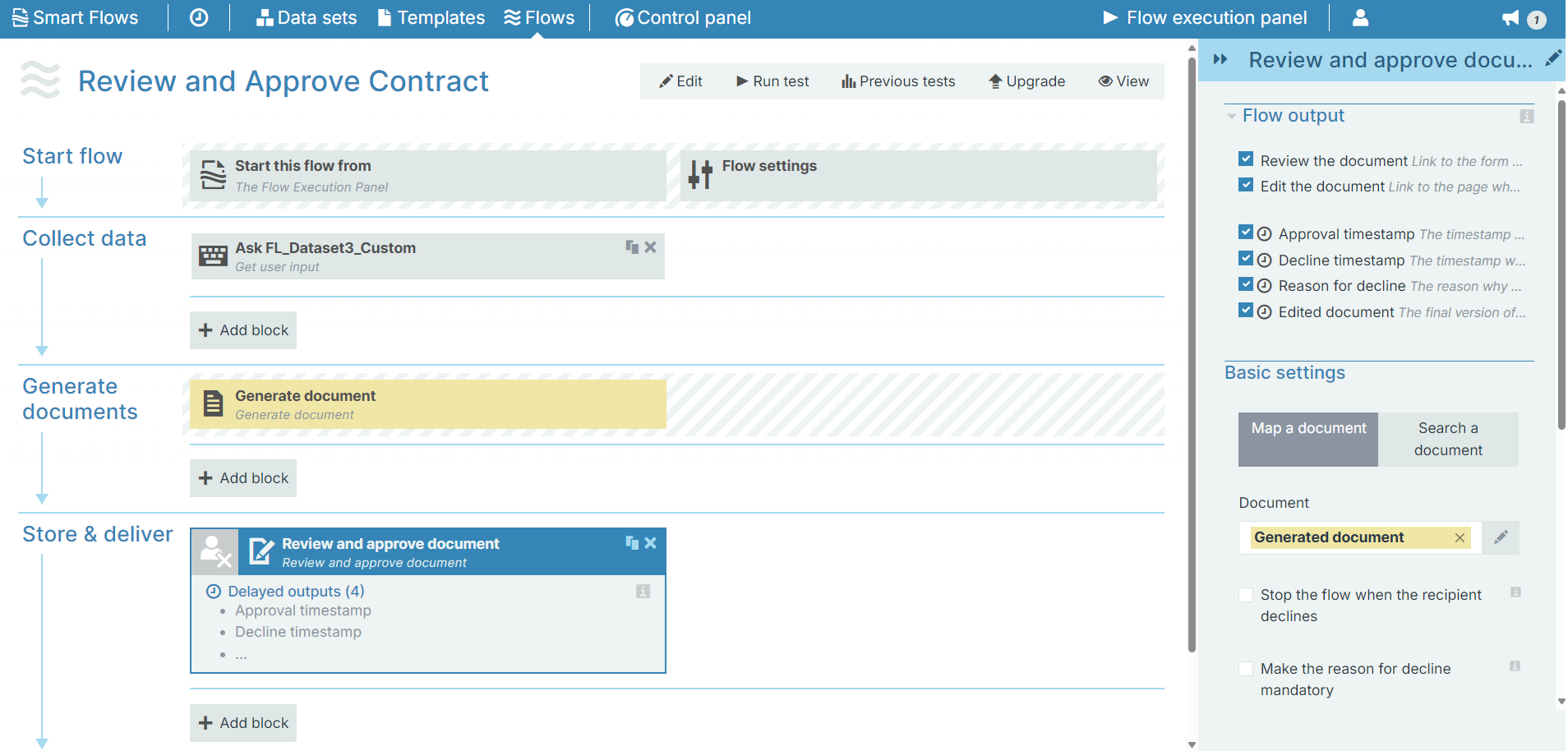
Flow Block Parameters
The dropdown menus below provide all of the flow block's configuration options with detailed information and recommendations to help you configure your flow block.
Flow block customization buttons
You can further customize your flow block's parameters in several ways
-

-

-

Flow Output
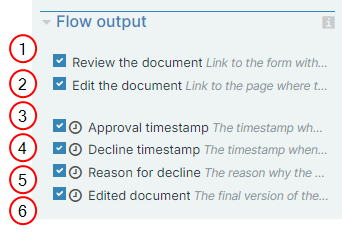
The Flow Output section shows all the output parameters that are available for the block. When checked, the value of the output parameter are presented to the user who is executing the flow. Each setting that composes this output information is described in detail below:
|
Index No. |
Field name |
Description |
|---|---|---|
|
1 |
Review the document |
A link to the form with the edit document URL, the approval, and the decline options. |
|
2 |
Edit the document |
A link to Microsoft Word Online where the document can be edited. |
|
3 |
Approval timestamp |
During the flow output, the timestamp when the document was approved will be provided. |
|
4 |
Decline timestamp |
During the flow output, the timestamp when the document was declined will be provided. |
|
5 |
Reason for decline |
During the flow output, the reason why the document was declined will be provided. |
|
6 |
Edited document |
During the flow output, the final version of the document after editing will be provided. |
Basic settings
|
Index No. |
Field name |
Description |
|---|---|---|
|
1 |
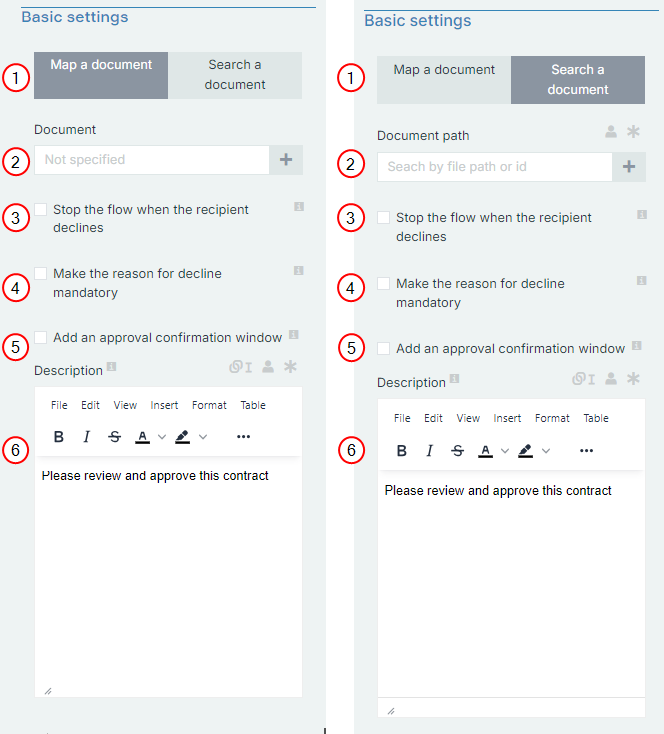
Map a document/Search a document |
Map a document: Select this to map the document. Search a document: Input the document path to find the document stored in Content Manager. |
|
2 |
Document |
Defines the document to use for the review and approval flow block. |
|
3 |
Stop the flow when the recipient declines |
Unchecked by default. When unchecked, the flow continues to the next step.
|
|
4 |
Make the reason for decline mandatory |
Unchecked by default.
When unchecked, it is not mandatory for the recipient to input a reason for declining the document before submitting it. |
|
5 |
Add an approval confirmation window |
Unchecked by default.
|
|
6 |
Description |
Rich text editor for adding a description. |