
The E-mail (Dynamics) flow block creates and sends e-mails from your Microsoft Dynamics 365 CE CRM.
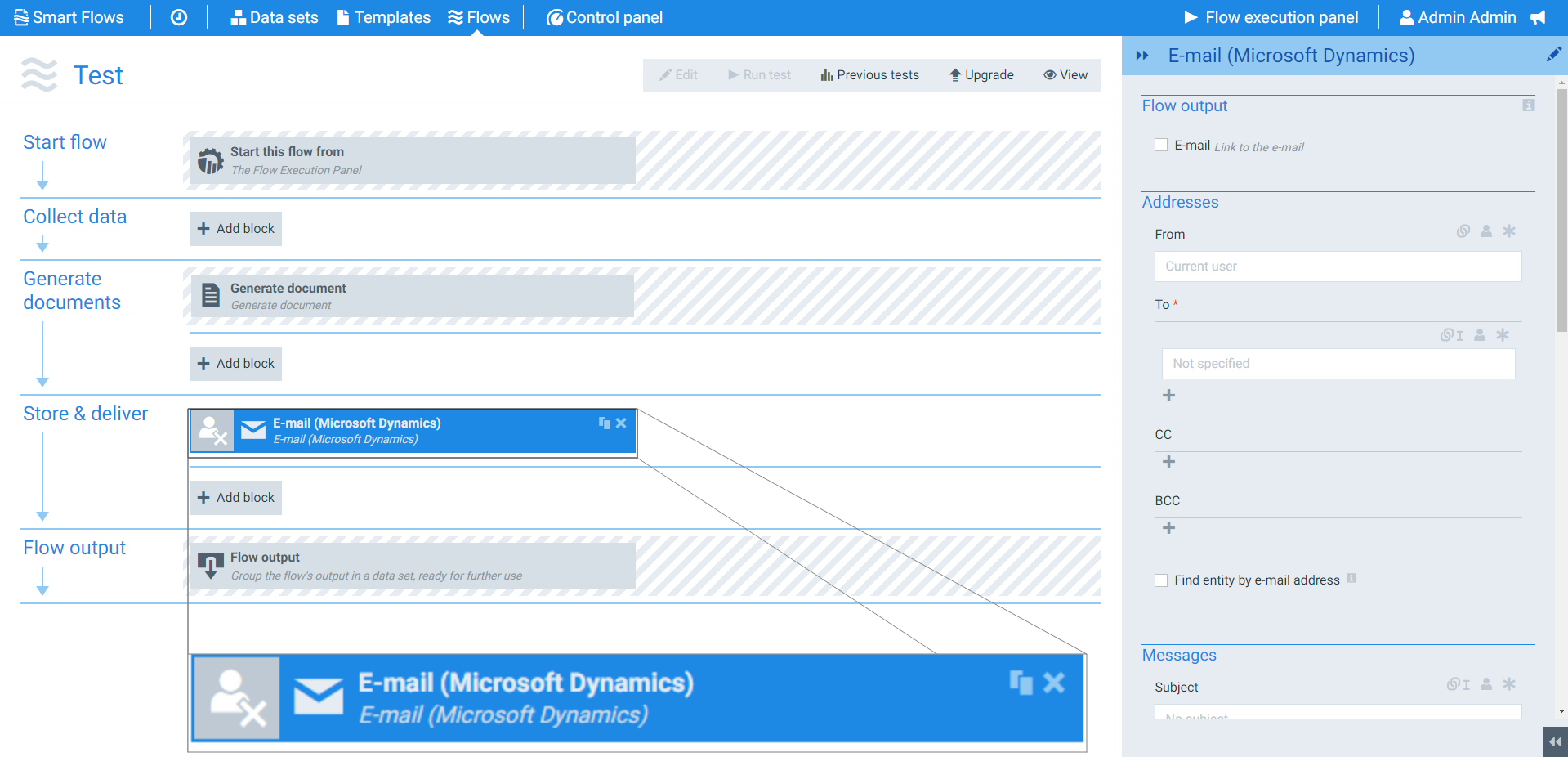
Flow Block Parameters
The dropdown menus below provide all of the flow block's configuration options with detailed information and recommendations to help you configure your flow block.
Flow block customization buttons
You can further customize your flow block's parameters in several ways
-

-

-

Flow Output

|
Index No. |
Field name |
Function |
|---|---|---|
|
1 |
|
When checked, a link to the created e-mail displays during the flow output step. |
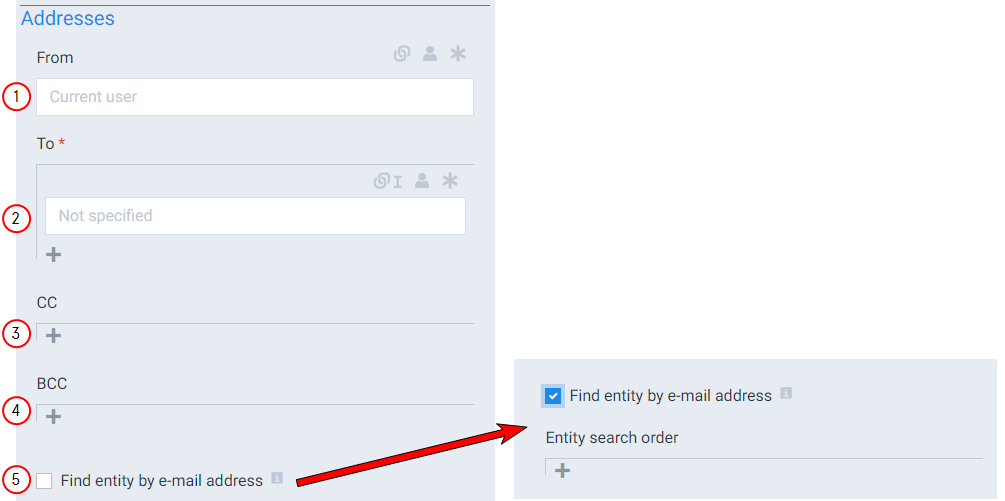
Addresses
|
Index No. |
Field name |
Function |
|---|---|---|
|
1 |
From |
Fills in the From field for your e-mail. If you don't specify an address, the system uses the current user's e-mail address (the user running the flow). We recommend converting this setting to a linked field and using Entity references. You can also use rich text as long as the e-mail address matches the e-mail address of a User or a Queue in Dynamics. |
|
2 |
To |
Fills in the To field for your e-mail. We recommend converting this setting to a linked field and using Entity references. You can also use rich text as long as the e-mail address matches the e-mail address of a User or a Queue in Dynamics. |
|
3 |
CC |
Fills in the CC field for your e-mail. We recommend converting this setting to a linked field and using Entity references. You can also use rich text as long as the e-mail address matches the e-mail address of a User or a Queue in Dynamics. |
|
4 |
BCC |
Fills in the BCC field for your e-mail. We recommend converting this setting to a linked field and using Entity references. You can also use rich text as long as the e-mail address matches the e-mail address of a User or a Queue in Dynamics. |
|
5 |
Find entity by e-mail addresses |
When checked, the system searches your CRM for a record with e-mail addresses. Select for more info. The system resolves the From, To, CC, BCC field into an entity reference. It's possible that the same e-mail address occurs in multiple types of records, such as example.com could be the e-mail address of an Account and a Contact. You can specify the Entity search order to inform the system on which record takes priority. For example, suppose Contact is put before Account on the search order. In that case, the system converts the e-mail for Contact into an entity reference. The system cannot accept user input collected at run-time. |
Sending e-mails to multiple recipients
Applies to: To, CC and BCC
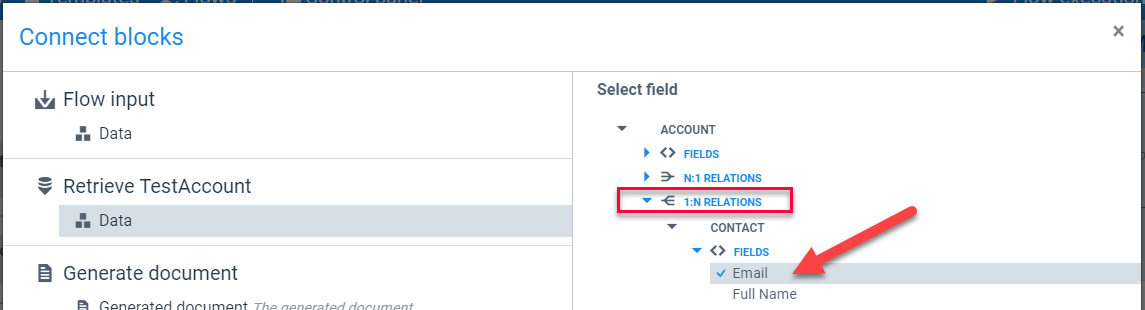
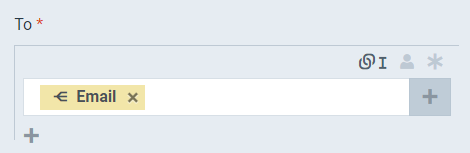
When need to send e-mails to multiple recipients and want that list to be dynamically generated, you can use a 1:N relation. You need to use a linked field and select the e-mail address Field from that 1:N relation.
If the selected field is coming from a 1:N relation, the icon of the linked field will show the 
Messages
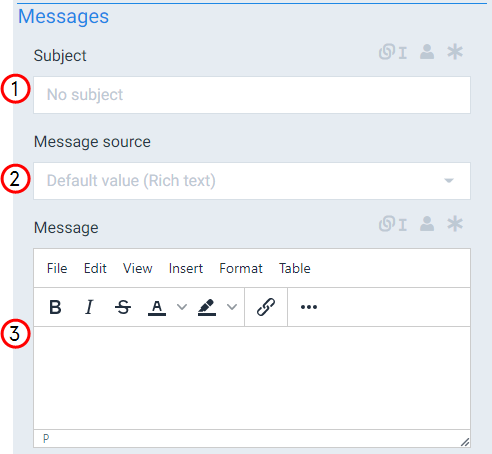
|
Index No. |
Field name |
Function |
|---|---|---|
|
1 |
Subject |
Fills in the Subject field of your e-mail. |
|
2 |
Message source |
Defines where get the content of your message with the following options: Rich text The system uses the text you enter into the message source field. , Document Uses a generated document from within the current flow. , Template Uses the message source set by the template. |
|
3 |
Message |
Fills in the body of the email. |
Attachments
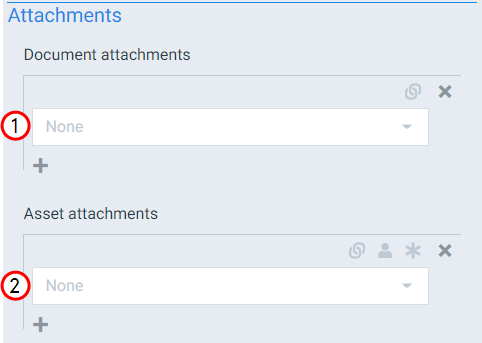
|
Index No. |
Field name |
Function |
|---|---|---|
|
1 |
Document attachments |
Defines which documents created during the flow to attach to the e-mail. |
|
2 |
Asset attachments |
Sets the preexisting assets not created during the flow to attach to the e-mail. |
Advanced Properties
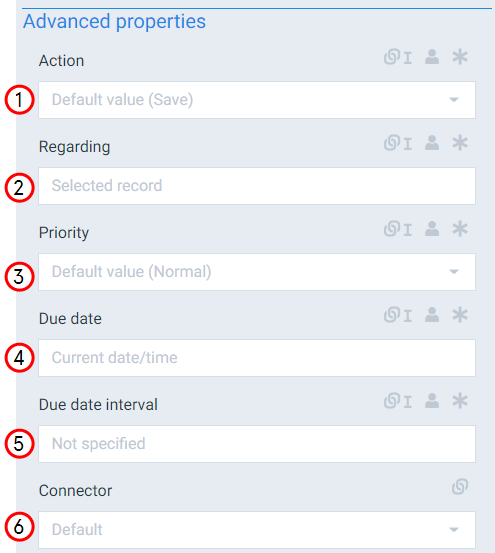
|
Index No. |
Field name |
Function |
|---|---|---|
|
1 |
Action |
Sets whether to save or send the e-mail during the E-mail Dynamics step. By default, the system saves the e-mail. |
|
2 |
Regarding |
Sets the record in the CRM system on which to attach the note. By default, this is the selected record, but it can also be a related record. |
|
3 |
Priority |
Sets the priority of the created email with the following options: high, normal or low. |
|
4 |
Due date |
Sets a date for the system to alert you via your activity list. If a value is not set for this field, the system automatically uses the current date. |
|
5 |
Due date interval |
Allows the system to use a relative period of time instead of a due date. You can use the ISO8601 period format to specify a time period. Click here to see examples
|
|
6 |
Connector |
Defines the connector the system should use. If none is selected, the system uses the default connector. |