Connectors are the link between Smart Flows and other systems, such as E-signing providers, CRM systems, and storage systems.
Any data that comes from outside Smart Flows comes through a connector. Connectors serve as the data between Smart Flows and external platforms.
For example, a connector is required for the following purpose:
-
Getting data from a Microsoft Dynamics 365 CE system
-
Saving a file to a file system
-
Sending a file to an e-sign provider
Available Connector Types
CRM and ERP systems
-
Microsoft Dynamics 365 CE — Connect Smart Flows to Microsoft Dynamics 365 Customer Engagement to pull CRM data, trigger flows from within Dynamics, and write outputs back as notes, emails, or tasks.
-
Microsoft Dynamics 365 F&O Connector — Connect Smart Flows to Microsoft Dynamics 365 Finance & Operations for document generation driven by ERP data.
-
Microsoft Dynamics 365 BC — Connect Smart Flows to Microsoft Dynamics 365 Business Central.
-
Salesforce — Connect Smart Flows to Salesforce to retrieve CRM data and support individual user authentication for flow actions.
-
SugarAI Connector — Connect Smart Flows to SugarCRM as a data source for flows and templates.
E-Signature
-
DocuSign Connector — Send generated documents to DocuSign for signing. Supports recipient configuration, identity verification, authentication methods, and delayed output to wait for completed signatures.
-
Adobe Acrobat Sign (E-sign) — Send documents to Adobe Acrobat Sign for electronic signature collection.
-
ConsignO Cloud Connector — Integrate with ConsignO Cloud for e-signature workflows.
-
OneSpan Sign Configuration — Configure OneSpan Sign as an e-signature provider for your flows.
Storage & Content Management
-
Microsoft SharePoint — Store generated documents directly in SharePoint Online or SharePoint Server. Supports individual user authentication.
-
Experlogix Documents Connector — Connect to Experlogix Documents for document storage, sharing, editing, review, and approval workflows.
-
Filesystem Connector — Save generated documents to a server file system path.
-
Http(s) — Send documents or data to external endpoints via HTTP or HTTPS requests.
Printing
-
PrintNode — Bridge Smart Flows to physical printers via PrintNode, enabling cloud-based print jobs. Requires a separate PrintNode account.
Portal & Integration
-
Experlogix Portal — Connect to Experlogix Portal to enable Smart Form data sets with dynamic form inputs for end users.
-
Experlogix CPQ (Preview) Connector — Connect Smart Flows to Experlogix CPQ to retrieve product configuration data for use in document generation.
-
Microsoft Power Platform Connector — Integrate Smart Flows with Microsoft Power Platform to trigger flows via Power Automate.
-
Single Sign-On Connector — Configure SSO for Smart Flows to allow users to authenticate using your organization's identity provider.
Communication
-
SMTP — Configure an SMTP server connection for sending emails from within a flow.
Default connector
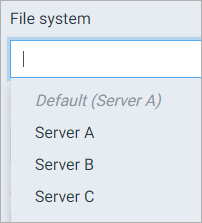
Each connector type has a default connector. This connector is used when you don't specify any other connector. The default connector can be identified by the crown in the connector’s row.
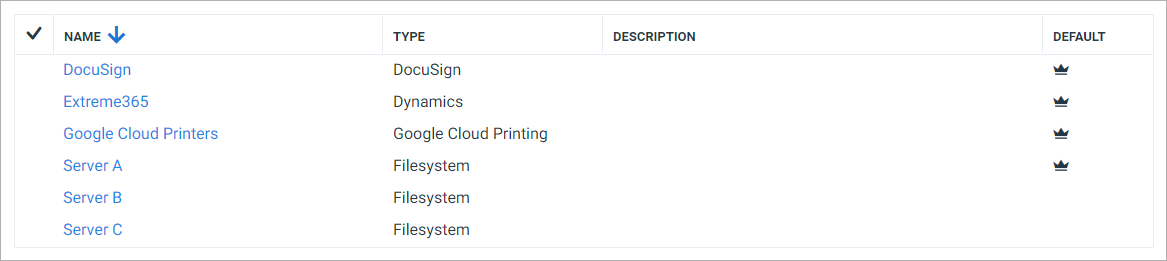
Connector Example
In the example above, Server A is the default Filesystem connector. Smart Flows will use Server A if you do not specify a connector in the Filesystem when creating a flow block.
Let’s look at an example using a Save to file block flow block.