Backing up your Project
Backing up your Smart Flows project uses the export process to download all your assets into one file. Backing up means exporting everything from your project: Connectors, Language, Tags, Assets, Flows, Templates, Data sets, and more.
-
In Project Console, select Control Panel > Backup & Restore.
-
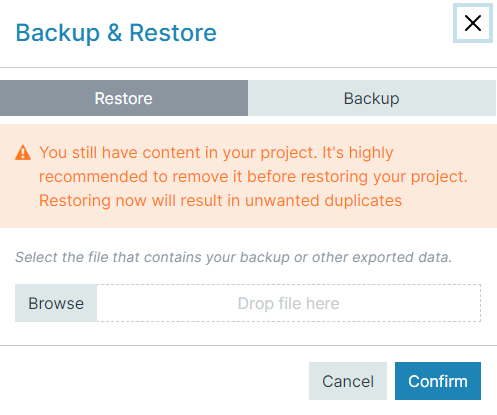
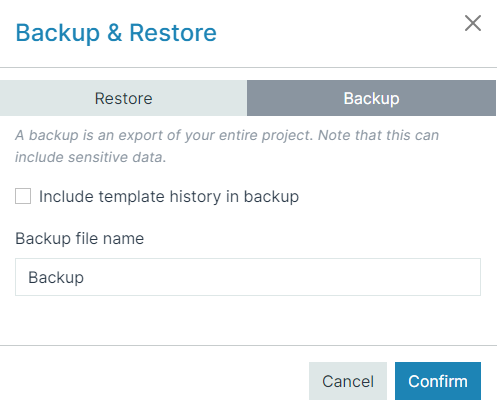
Select the Backup tab.
-
(Optional) Select include template history in backup.
Decision Point
If you are doing a full back up of a Smart Flows project and moving everything from one project to another empty project, we recommend selecting "include template history in backup. For example, if you're moving from a development project to deploy to a Production project via the restore process. The template history will not affect function, only the size of the backup.
-
In the Backup file name field, input a unique file name for the backup.
-
Select Confirm.
The system creates a backup.
Depending on the size of your project, creating a backup may take a while.
Restoring your Project
Restoring a project uses the import process. The only difference is that you are importing all the assets for your Smart Flows project at one time. The restore process requires that your project is empty before beginning.
Make sure your projects are empty before you start.
-
In the Project Console, select Control Panel > Backup & Restore.
-
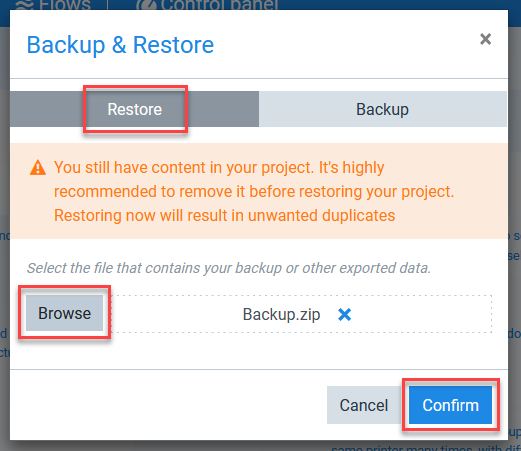
Select the Restore tab.
-
Select Browse and select your backup file.
-
Select Confirm.
The restore process begins.