
Overview
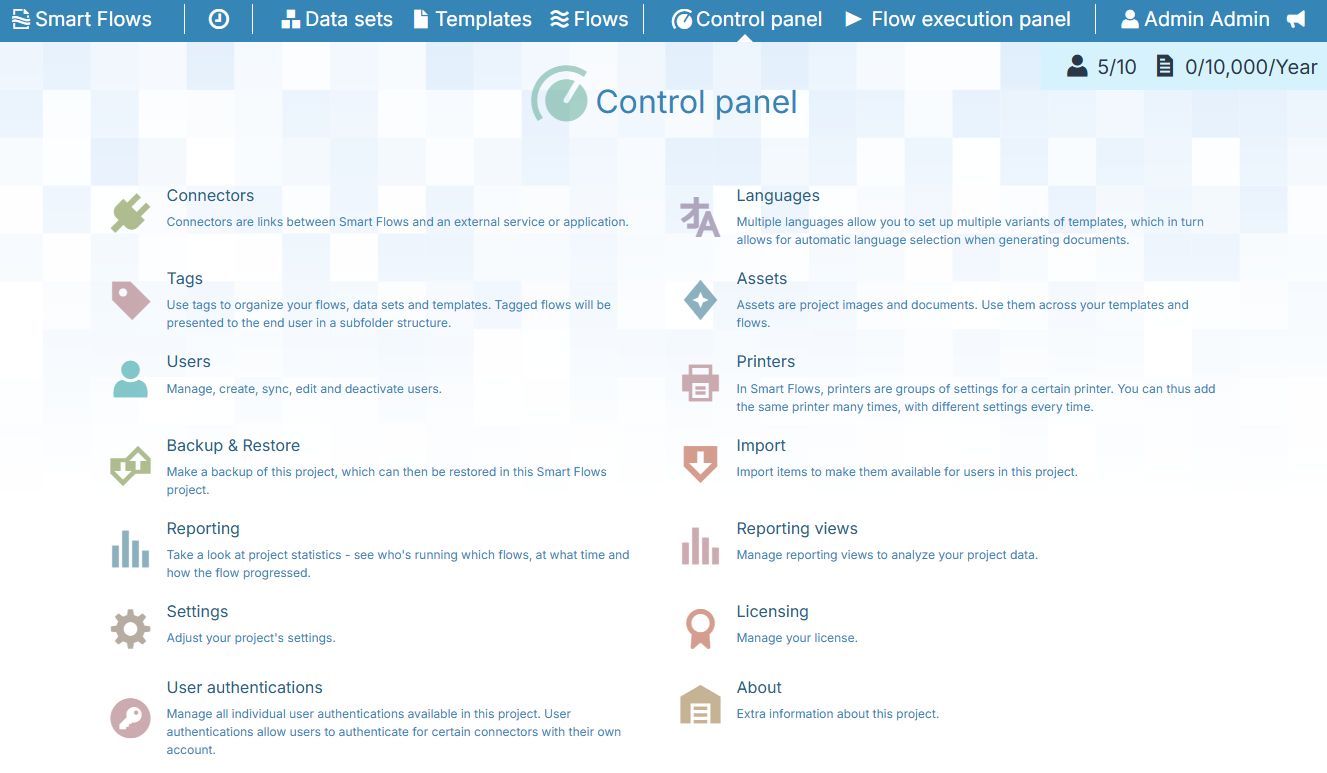
The Control panel is the administration area of the Experlogix Smart Flows Project Console. It gathers everything that is needed to configure and maintain a project: connections to external systems, languages, users, assets, reporting, licensing, and project settings.
To open it, select Control panel in the main navigation bar of the Project Console.
Permissions
The Control panel is role-based.
Where an administrator manages the languages of the project, a designer can only add aliases to the languages that already exist. In the About page, an administrator additionally sees the server properties of the installation, while a designer sees only the general project information.
-
Administrators: Manage the full configuration of the project and have access to all tools within the Control Panel.
-
Designers: Get the subset of tools that they need while designing data sets, templates, and flows: Tags; Add a Language Alias, About, Assets, Import
-
Users: Do not get the administration tools of the Control panel. Their work happens in the Flow Execution Panel, where they run flows to generate documents, and where no project configuration is exposed.
Read more about Smart Flows Users and Roles in Users.
License Counter
A license counter is displayed in the top right corner of the Control panel. It gives an immediate indication of the document consumption of the project against its license. Select the counter to open the Licensing section.
Control Panel Sections
Connectors
Connectors are links between Smart Flows and an external service or application, such as a CRM system, a storage provider, or an e-signature service. In this section you create connectors, configure them, and follow up on their configuration tasks.
Languages
Languages allow you to set up multiple variants of a template, which in turn allows for automatic language selection when a document is generated. In this section you manage the languages that are available for your document templates, and the aliases that map incoming language codes onto them.
Tags
Tags organize your flows, data sets, and templates. Tags are grouped into tag groups, and tagged flows are presented to end users in a subfolder structure in the Flow Execution Panel. In this section you create and manage tag groups and their tags.
Assets
Assets are the project images, fonts, and documents that you reuse across templates and flows. All fonts in this list are available for document generation, in addition to the fonts installed on the server.
Executable files cannot be uploaded as assets. For details, see .
Users
In this section you manage the people who have access to the project. You can create and edit native users and Single Sign-On users, assign them a role and a status, and deactivate them.
You can also synchronize users from an external application. For connected users, the role and status are managed in the external application.
Printers
In Smart Flows, a printer is a group of settings for a specific physical or virtual printer. You can therefore add the same printer several times, with different settings each time, and select the appropriate configuration in a flow.
Backup & Restore
Creates a backup of the project, which can then be restored into this Smart Flows project. Use it before a large configuration change, or to keep a recovery point for the project as a whole.
Import
Imports items into the project to make them available to its users. Use it to bring in items that were exported from another project, or delivered as a package.
The import runs in stages: you upload the archive, pick the items you want to import, and map them onto the items that already exist in the project.
Reporting
Shows project statistics: who is running which flows, at what time, and how each flow progressed. The Reporting section covers both monitoring data, which is intended for troubleshooting recent activity, and reporting data, which is intended for analyzing adoption and utilization over a longer period.
Reporting Views
A reporting view is a custom perspective on a reporting category. It defines which columns are shown, in which order, and which filter is applied to the data. In this section you manage the reporting views that are available in the Reporting section.
Settings
The project settings. Here you adjust how the project behaves as a whole, including its general properties and the configuration options that apply across data sets, templates, and flows.
Licensing
Shows the current license of the project and lets you manage it. The page presents:
-
the document consumption of the project against the limits of the license,
-
the validity of the license,
-
the edition of the license,
-
the limits of the license, and any active request to upgrade them,
-
the plugins that the license includes,
-
the option to upload a new license file, or to activate the project.
User Authentications
Lists all individual user authentications that exist in the project. Individual user authentications allow users to authenticate for certain connectors with their own account instead of a shared service account. In this section you review these authentications and remove the ones that are no longer needed.
About
General information about the project, including its display name, its identifier, and the version of Smart Flows that it runs on.
Administrators additionally see the server properties of the installation. The list shows only the properties that are relevant for the plugins included in the project license.