
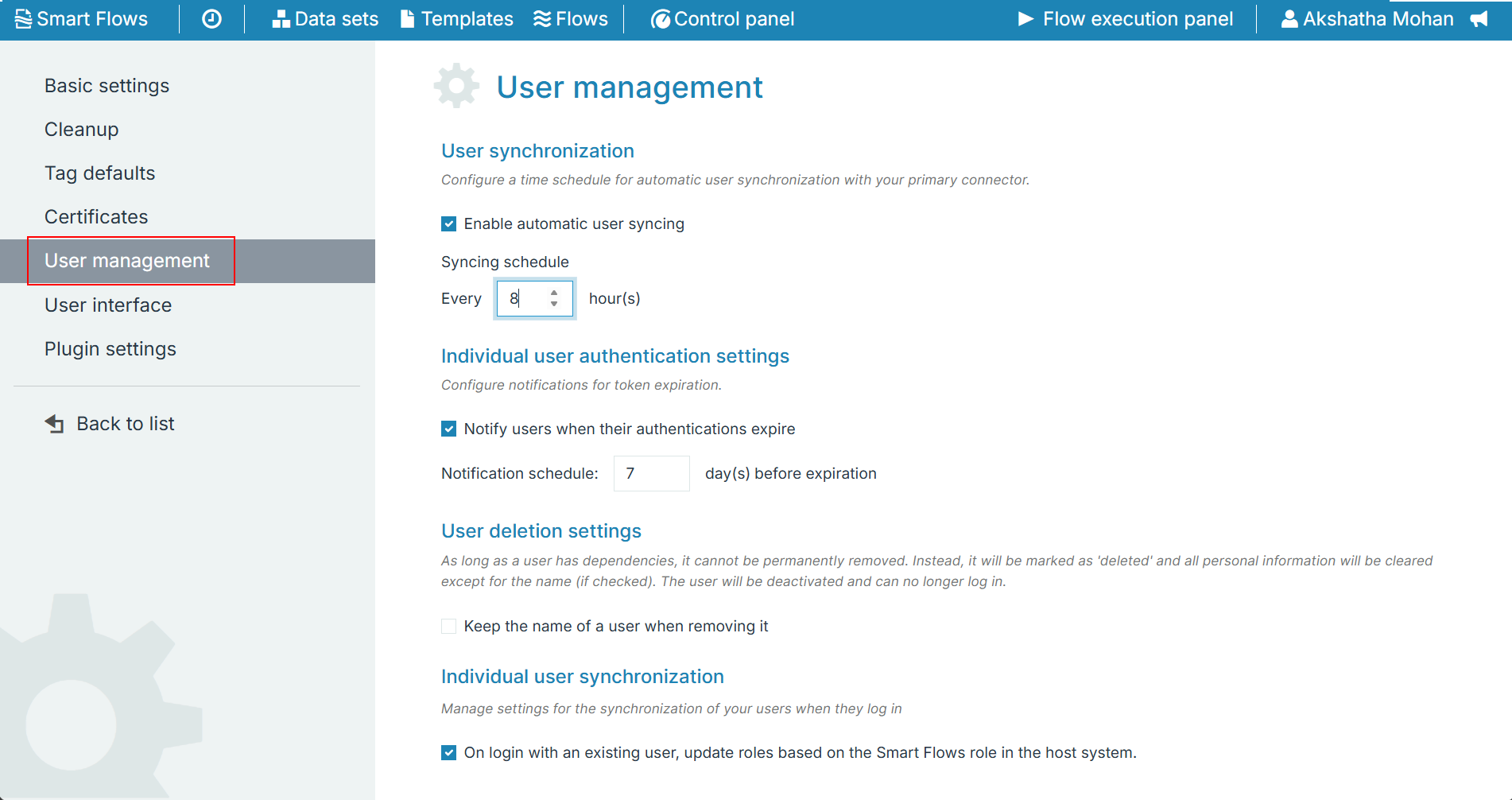
If you’re using a connector to synchronize users, you can activate automatic user synchronization and configure individual user authentication settings. For more details, please refer to Users.
|
Setting |
Description |
Options/Fields |
|---|---|---|
|
User synchronization |
Configure automatic user synchronization with the primary connector. Displayed only when automatic user synchronization is available for your project. |
Enable automatic user syncing checkbox. |
|
Syncing schedule: the interval in hours. |
||
|
Individual user authentication settings |
Configure notifications for token expiration. |
Notify users when their authentications expire checkbox.
|
|
Notification schedule: the number of days before expiration. Available only when the checkbox is selected. |
||
|
User deletion settings |
Manage how users with dependencies are removed. A user with dependencies cannot be permanently removed. Instead, the user is deactivated and marked as deleted, and all personal information is cleared. |
Keep the name of a user when removing it checkbox.
|
|
Individual user synchronization |
Manage the synchronization of users when they log in. |
On login with an existing user, update roles based on the Smart Flows role in the host system checkbox.
|
|
Welcome message |
Control whether a welcome message is shown to new users on their first login. |
Welcome message display: Default (follows the system setting, which is shown in parentheses), Enabled, or Disabled. |
Not all roles can access all components of Smart Flows. For example, if you are assigned a User role in Smart Flows, you won't be able to log in to the Project Console. If you attempt to use the sync user at login functionality to access a component Smart Flows that isn't allowed by your role, you'll receive an error message.
Enabling Automatic User Sync
-
In the Project Console, select Control panel > Settings > User management.
-
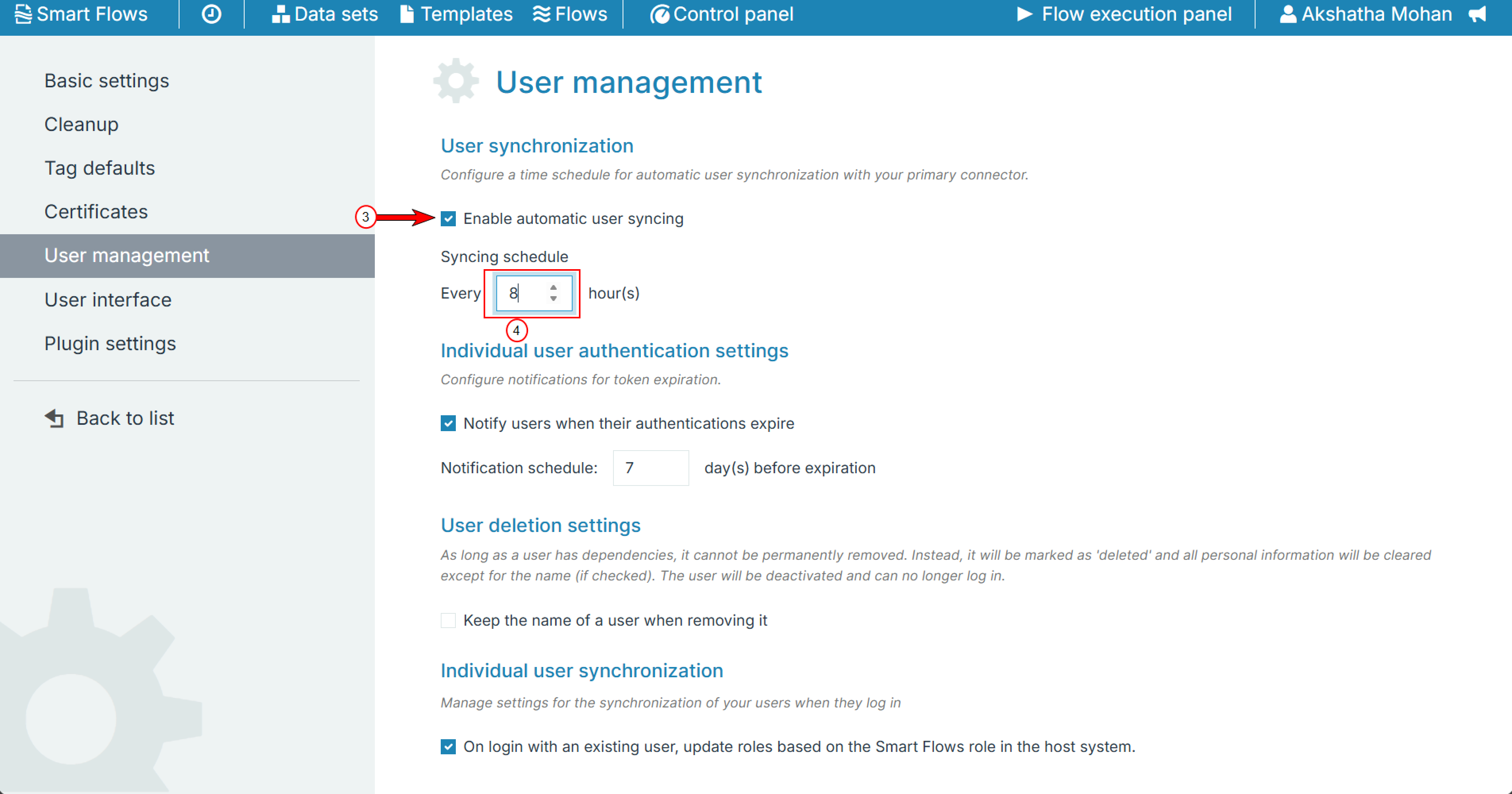
Select Enable automatic user syncing.
-
In Syncing schedule, enter the interval in hours.
-
Select Save changes.
Notifying Users About Expiring Authentications
-
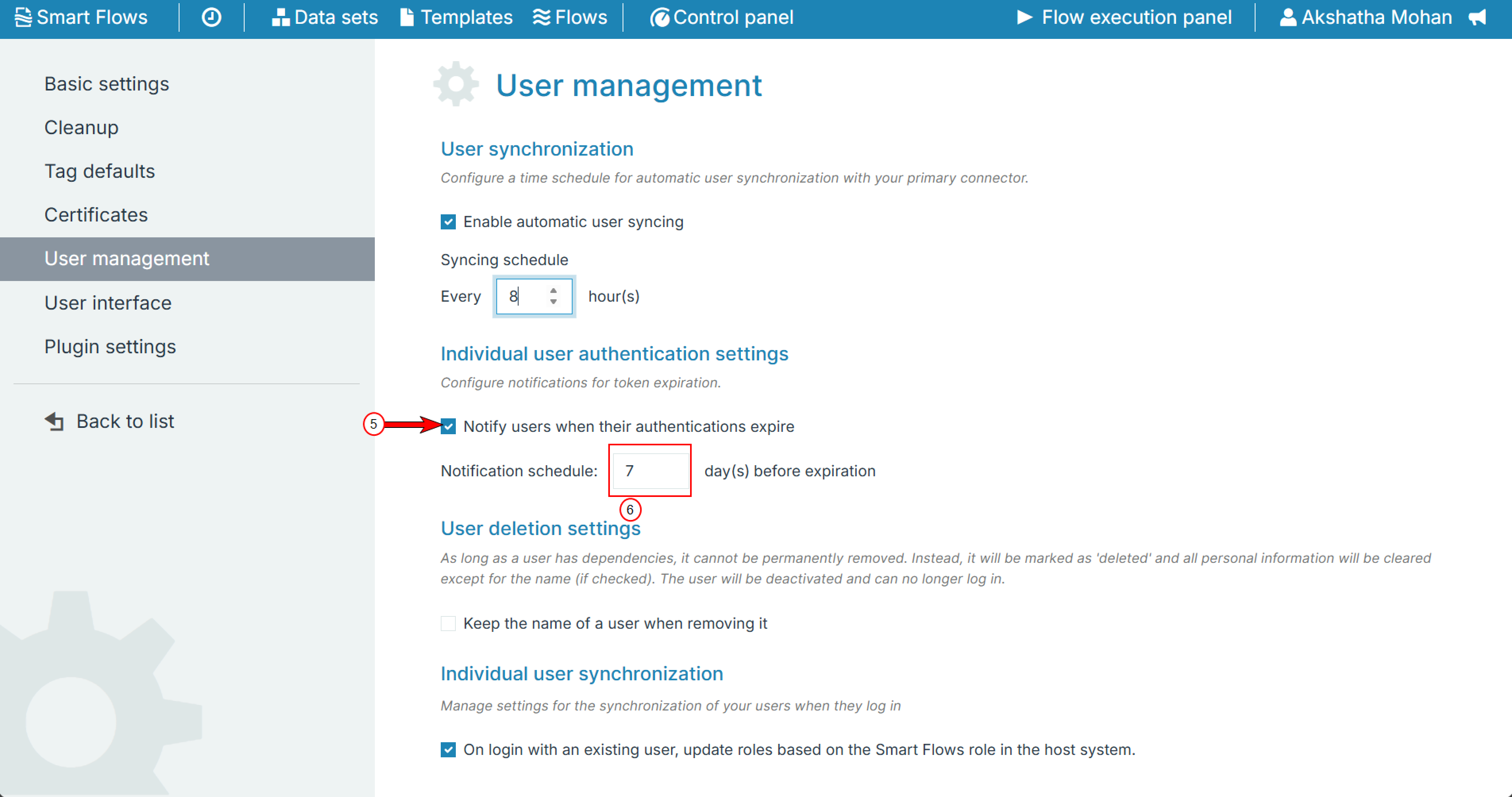
On the User management tab, select Notify users when their authentications expire.
-
In Notification schedule, enter how many days before expiration users are notified.
-
Select Save changes.