Basic Project Settings
Basic settings are grouped into four sections: Project identity, Defaults, Flow and document behavior, and Compatibility and access.
|
Group |
Field |
Description |
|---|---|---|
|
Project identity |
Name |
The name of the project, displayed on the Project Console home screen. |
|
Description |
(Optional) The description of the project. |
|
|
Defaults |
System language |
(Optional) The default user interface language of the project for all users. Each user can override it. The login page is always displayed in this language. |
|
Default landing page |
The default landing page, either Project Console or Flow Execution Panel. You can go directly to the Project Console by adding "/project" to the URL, or to the Flow Execution Panel by adding "/client". |
|
|
Time zone |
(Optional) The default time zone used during document generation for date or date-time mappings in a template. |
|
|
Flow and document behavior |
Watermark test and preview documents |
If checked, a watermark is applied to documents generated in a flow test run or previewed from Template Builder. These documents do not count toward your document volume. |
|
Create flow snapshots on run |
If checked, each flow run creates a snapshot of the flow at the time of execution. Changes to a flow no longer affect a flow run once it has started. |
|
|
Default flow priority |
The priority used to pick flow executions from the waiting queue. Values range from 0 (lowest) to 9 (highest). The default value is 4. It can be overwritten per execution when using the API. |
|
|
Compatibility and access |
Import and reuse legacy Portal v3 templates |
If checked, the "Data Provider" data set type is added so that you can import and reuse legacy Portal v3 templates connected to a Microsoft Dynamics 365/CRM data provider. |
|
Enable support tools |
If checked, the Support tools tab is displayed in the Settings page. For more information, see Support Tools |
|
|
Additional CORS origins |
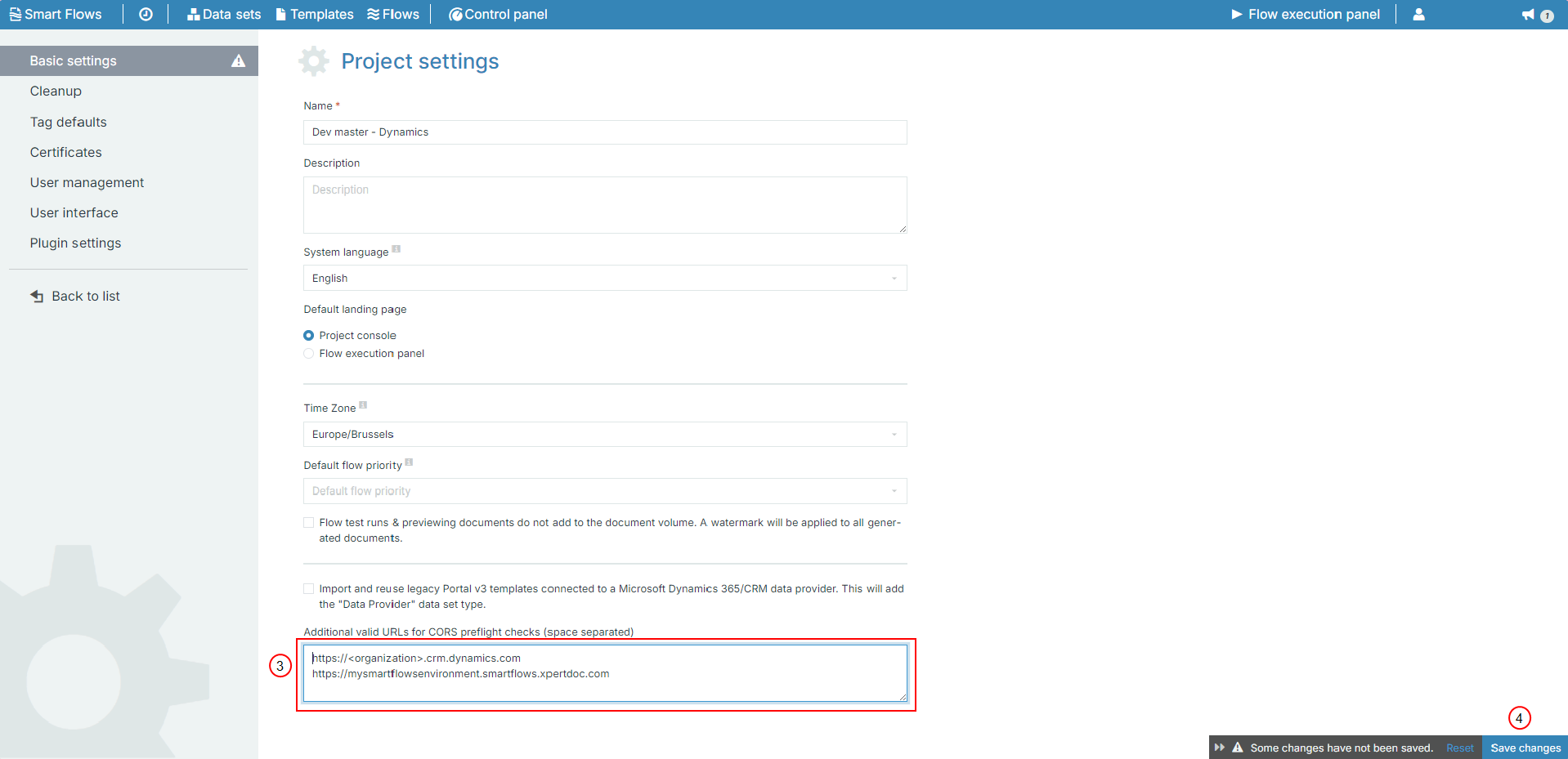
Additional valid URLs for CORS preflight checks (space separated). |
Manually Allowlist a URL
The Allowlist or Whitelist is a list of foreign applications that are allowed to connect with Smart Flows. Allowlisting the URLs used by your organization can serve as a workaround for CORS connection errors. If your app is not part of this list, you will not be able to do any API calls to us. Administrators can manually add foreign application URLs in the Project Console.
Before the Xpertdoc Smart Flows 4.12.0 release, Smart Flows cross origin resource sharing used an "allow all" approach. As long as the URL was associated with the Connector URL, it would be allowed to access entities within Smart Flows and the connector. However, after the 4.12.0 release, URLs will require both enterprise name and the connector naming.
Add a URL to the Allowlist:
-
Navigate to the Project Console > Control panel > Settings.
-
At the bottom of the page, in the Additional valid URLs for CORS preflight checks field, copy and paste the URLs here.
-
Save the changes.