
The Plugin settings tab is displayed only when at least one plugin in the project provides settings. Only plugins for which you have a license display on this tab.
Select a plugin in the list to see its settings.
|
Plugin |
Section |
Settings |
|---|---|---|
|
Microsoft Dynamics 365 CE |
OAuth settings |
Use PKCE (recommended)
|
|
Claim Ownership |
Auto claim ownership |
|
|
Data set settings |
Folder structure for SharePoint document locations, and the method used to fetch data (OData or FetchXML) |
|
|
Microsoft Dynamics 365 Finance & Operations |
OAuth settings |
Use PKCE (recommended)
|
|
Claim Ownership |
Auto claim ownership |
|
|
Microsoft Dynamics 365 Business Central |
OAuth settings |
Use PKCE (recommended) |
|
Claim Ownership |
Auto claim ownership |
|
|
Salesforce |
Connector Model Version |
Allow configuring connectors that use the v1 model (deprecated)
|
|
Claim Ownership |
Auto claim ownership |
|
|
OAuth settings |
Use PKCE (recommended)
|
|
|
Docusign |
OAuth settings |
Use PKCE (recommended)
|
|
Adobe Acrobat Sign |
OAuth settings |
OAuth Scope Level |
|
SugarAI |
API settings |
SugarAI API version |
|
Data set settings |
Use fields of type "relate" or "flex relate" as N:1 relations |
Common settings
-
Use PKCE (recommended): Enables Proof Key for Code Exchange (PKCE) for the identity provider client.
-
Auto claim ownership: Automatically starts claim ownership when the user is not yet known. When cleared, claim ownership must be requested explicitly with the
X-User-Claimheader.
OAuth Settings for Plugins
Under Control panel > Settings > Plugin settings, you can configure authentication settings for supported plugins.
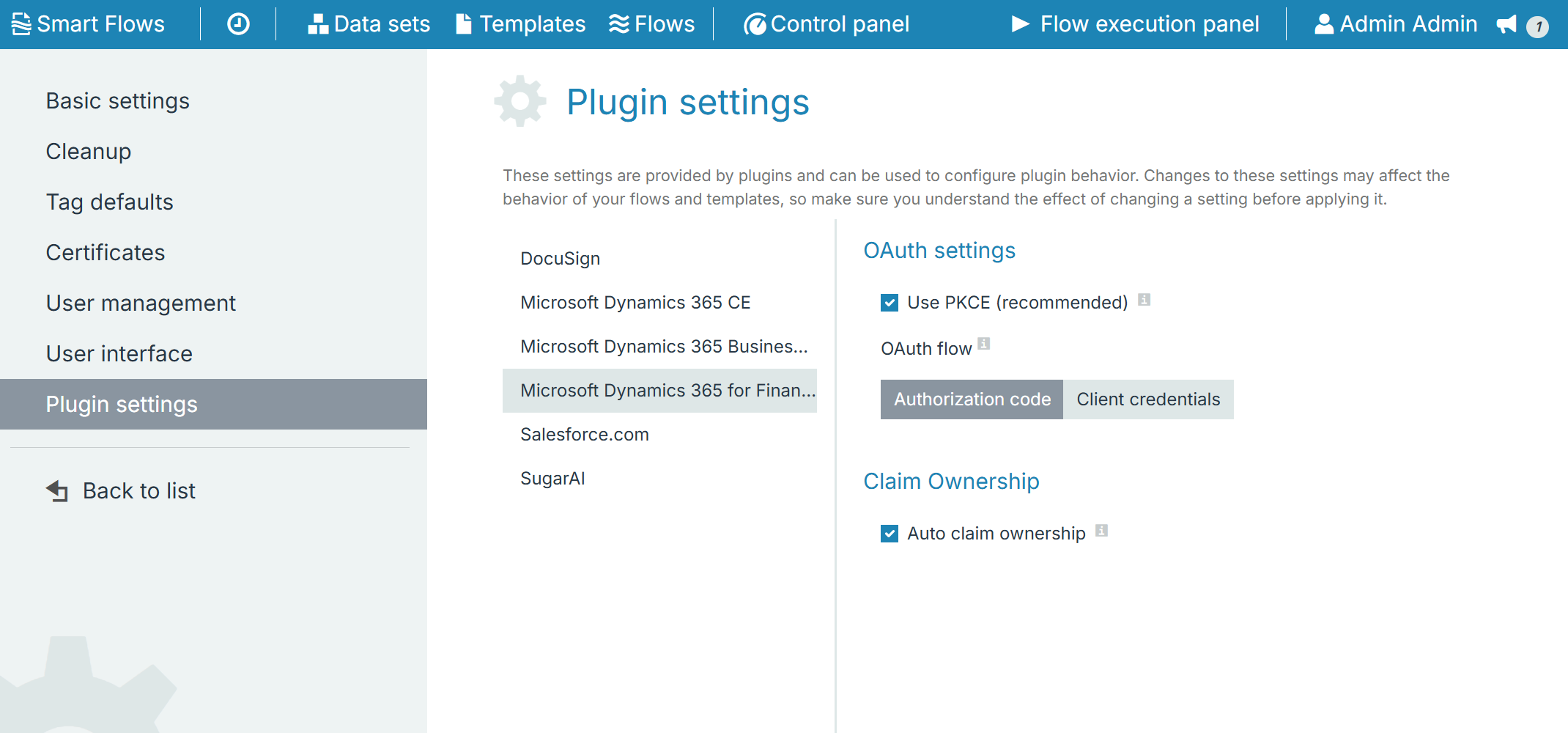
Under OAuth settings, the OAuth flow option determines how connectors of that plugin type authenticate with the external system:
-
Authorization code (Default): Connectors authenticate using interactive user credentials. Setting up a connector requires selecting Authorize to log in with an integration user account.
-
Client credentials: Connectors authenticate as an application using a Client ID and Client Secret. This option eliminates the need to consume a dedicated CRM user license for the connector user.
Note: All connectors of the same plugin type within a project share the configured OAuth flow. Selecting Client credentials replaces the Authorize button with Client ID and Client Secret input fields during connector setup.