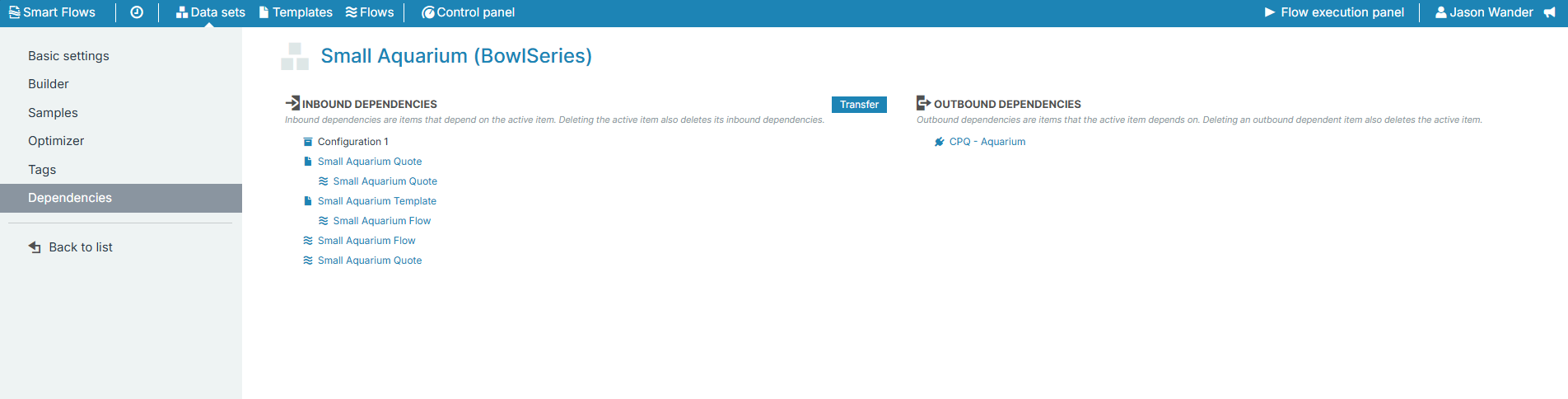
After creating an Experlogix CPQ connector, you can review the configuration and data set information by selecting your Experlogix CPQ (Preview) data set in the Data Set List view. You are automatically taken to the Basic settings page after creating a connector.
There is no limit to the number of Experlogix CPQ (Preview)connectors that can be included in a Smart Flows project. If multiple Experlogix CPQ (Preview) connectors exist, the correct one will be selected based on the host connection stored in the CPQ connection, that is linked to the host environment that integrates the Experlogix CPQ Configurator
Basic Settings Overview
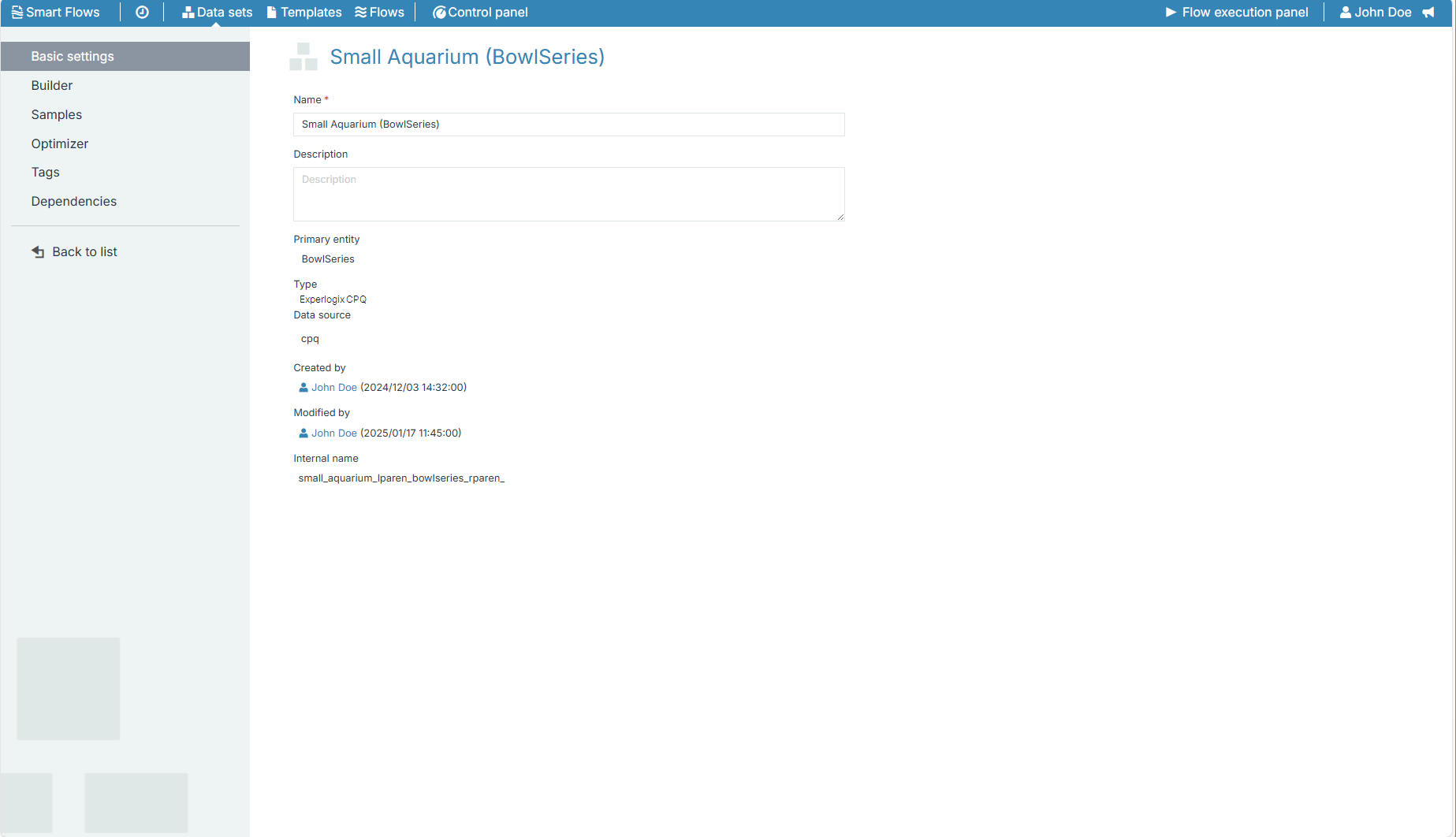
The Basic Settings tab defines key data set parameters in Smart Flows, including entity relationships, record identifiers, and indexing. The available fields vary based on the selected Experlogix CPQ connector.
|
Field name |
Description |
|---|---|
|
Name |
Sets the name for your Experlogix CPQ (Preview) connector. |
|
Description |
A text box for additional details about the connector. Admins and Designers often leverage it to provide more details about the environment or use case for a Experlogix CPQ (Preview) connector. |
|
Primary entity |
The main entity associated with this Experlogix CPQ (Preview) connector. |
|
Type |
Displays the type of connector. |
|
Data Source |
Displays the Experlogix CPQ (Preview) data source used for this connector. |
|
Created By |
Displays the user and time stamp of when the data set entry was created. |
|
Modified By |
Displays the user and time stamp of the last modification to the data set entry. |
|
Internal Name |
A display name allowing you to identify the configuration. When not specified, |
Builder Tab Experlogix CPQ (Preview)
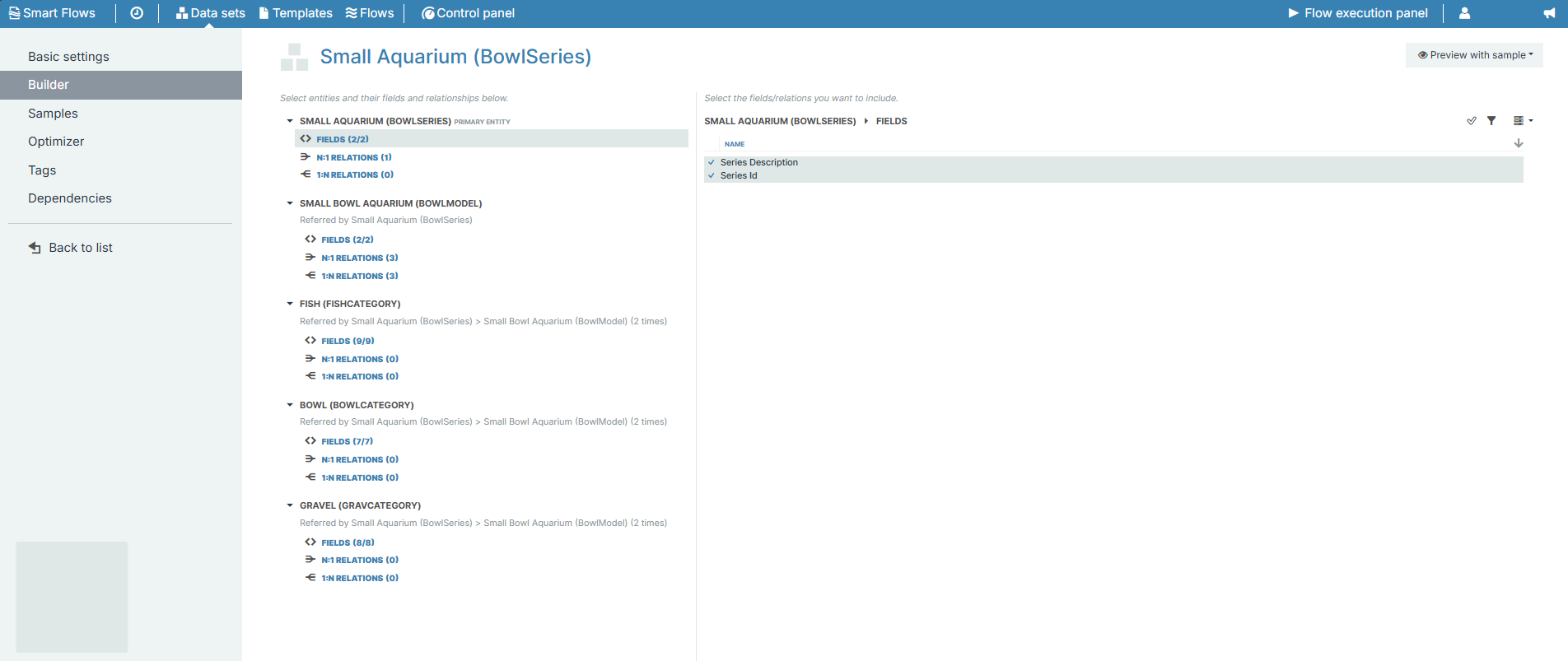
The Builder tab for your Experlogix CPQ (Preview) connector defines the data available in Smart Flows, allowing you to select entities, fields, and relationships from your CPQ system. By including only relevant data, we ensure that flows run efficiently without querying or leveraging unnecessary data. Users can configure 1:N and N:1 relations, refine field selection and structure their data set to align with business needs. For detailed guidance on using the Data Set Builder, refer to Using the Data Set Builder.
Samples Tab Experlogix CPQ (Preview)
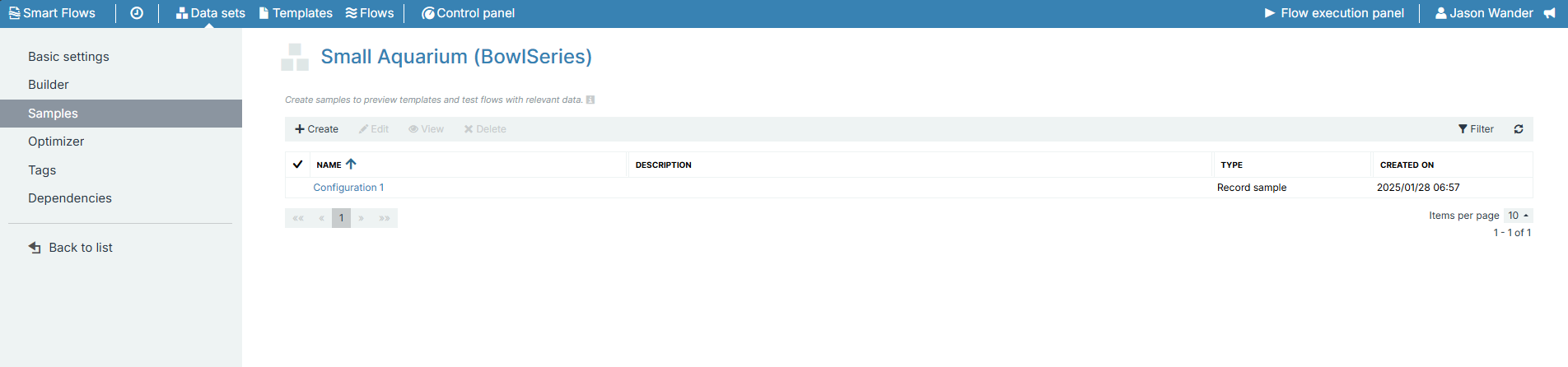
The Samples tab in the Experlogix CPQ (Preview) connector lets you create and manage data samples for previewing and testing how fields and relationships will appear in final documents. You can generate samples directly in the Data Sets Builder or create more comprehensive samples through the Samples tab, which helps you confirm that your data set aligns with business requirements. For full details on creating and working with samples, see Samples in Project Console.
Creating Samples for an Experlogix CPQ (Preview) Connector
Samples let you preview how data will appear in Smart Flows outputs, ensuring your configuration meets business needs. In an Experlogix CPQ (Preview) data set, you can create samples to test and refine data mappings before finalizing your templates and flows.
-
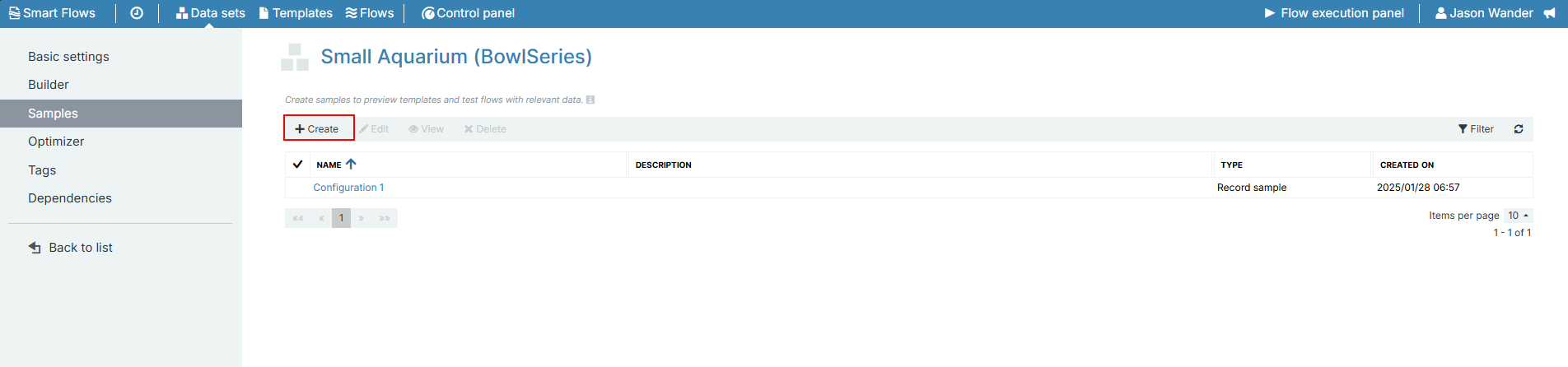
Navigate to the Samples tab for your Experlogix CPQ (Preview) connector.
-
Select the +Create button.
-
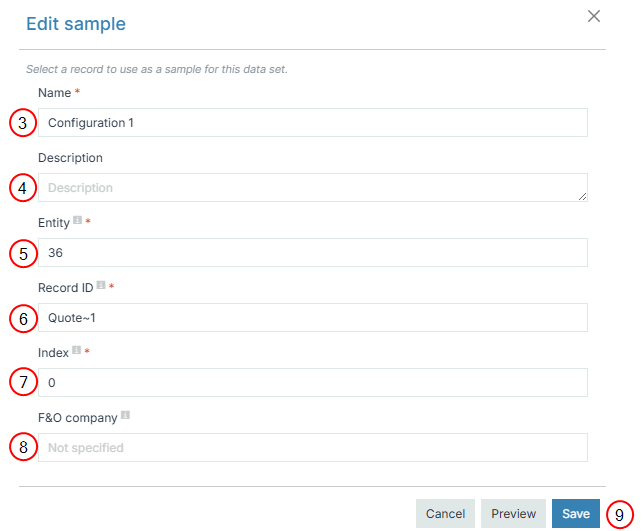
In the Name field, enter a name for the sample.
-
(Optional) In the Description field, enter a description for the sample.
-
In the Entity field, enter primary the entity to use for the sample.
Extracting the Entity ID and Index from the Web Configurator URL
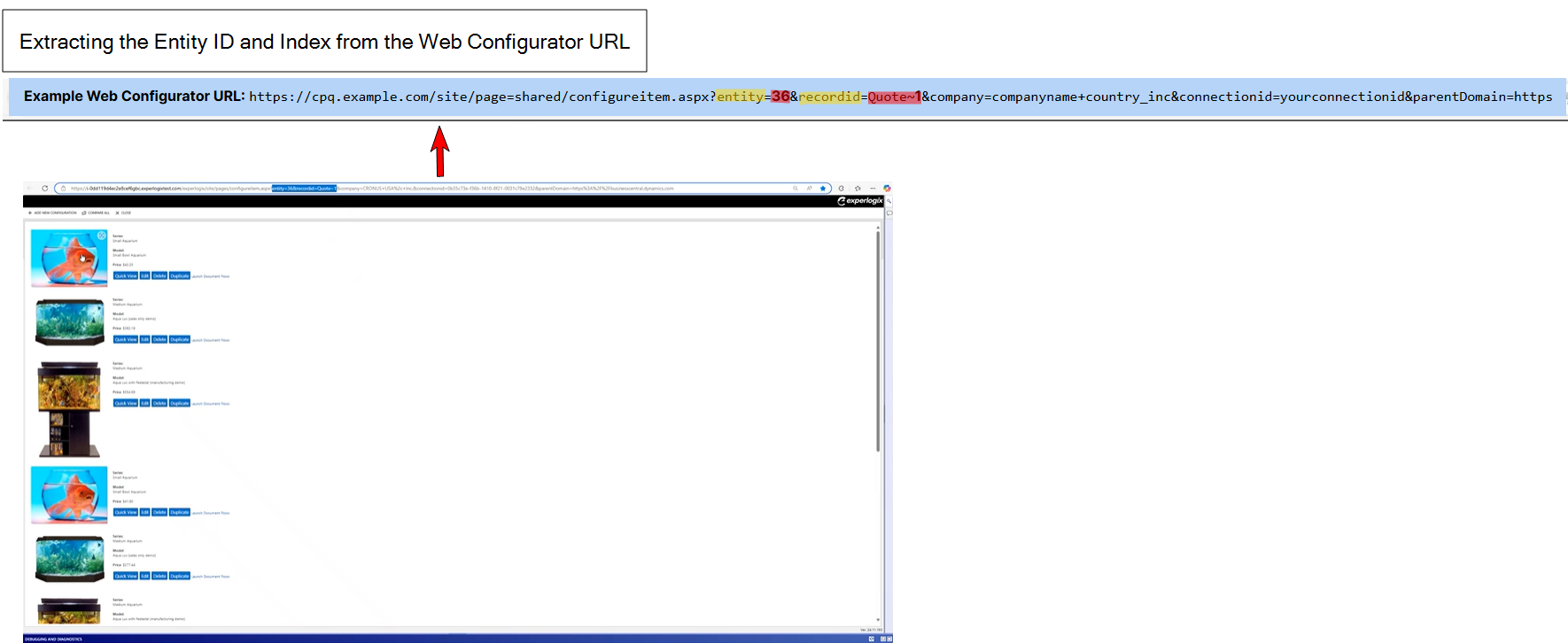
When you launch the CPQ configuration from your Configurator, the URL contains parameters such as the entity ID and the recordid you can use to create samples. So, when you open the Web Configurator from your connector system, you can use the URL in your address bar to extract the required values to create your sample. For example, you might see something like:
Example Web Configurator URL: https://cpq.example.com/site/page=shared/configureitem.aspx?entity=36&recordid=Quote~1&company=companyname+country_inc&connectionid=yourconnectionid&parentDomain=https
-
Entity ID
-
The unique identifier for the entity.
-
In this example, the entity value is 36.
-
-
Recordid
-
Indicates the type of record being referenced and the unique identifier for that record type.
-
In this example, the record type is Quote, and the value for recordid for that quote is 1.
-
-
In the Record ID field, enter the ID for the record in your Experlogix Configurator URL that contains the configuration data.
-
In the Index field, enter the index integer for your configuration.
-
(Optional)In the F&O company field, indicate which Microsoft Dynamics 365 F&O company to use for the sample if you work in an multi-company/Intercompany environment. This field is only required for Microsoft Dynamics 365 F&O CPQ environments.
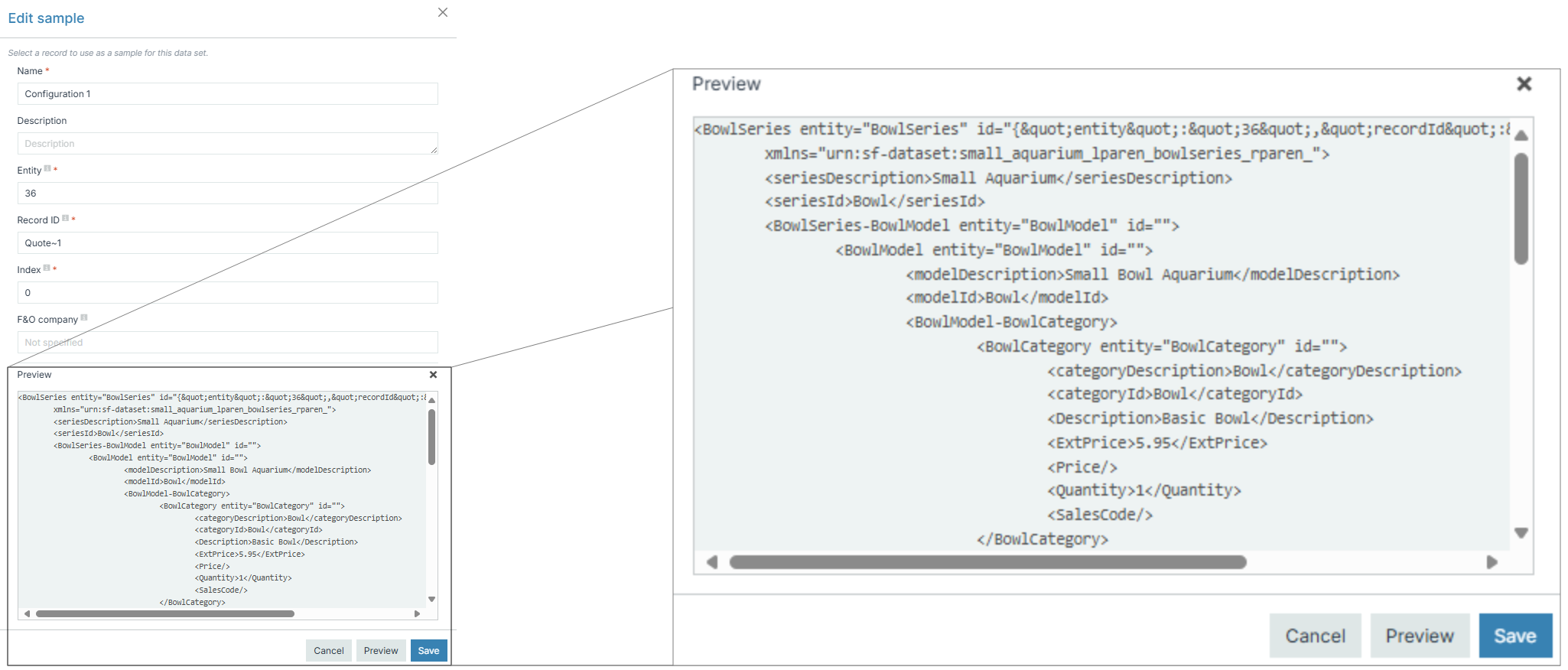
Before saving, you can select Preview to review how your sample data will appear based on the data you've configured in the Sample Dialog. Designers can leverage this functionality to test the data sample before designing and producing templates based on the data set.
-
Select Save.
Your sample displays in the Sample List view.
Now that you've confirmed with your Sample that you are pulling the expected data, you can design a template based on that data. See Templates for more details.
Optimizer Tab for the Experlogix CPQ (Preview) Connector
The Optimizer tab in the Experlogix CPQ (Preview) connector identifies and removes unused fields to improve Smart Flows efficiency. Analyzing dependencies across flows and templates ensures that only relevant data remains, reducing complexity and optimizing retrieval.
For a detailed guide on using the Optimizer tab, including analyzing dependencies and optimizing data sets, see Using the Data Set Builder.
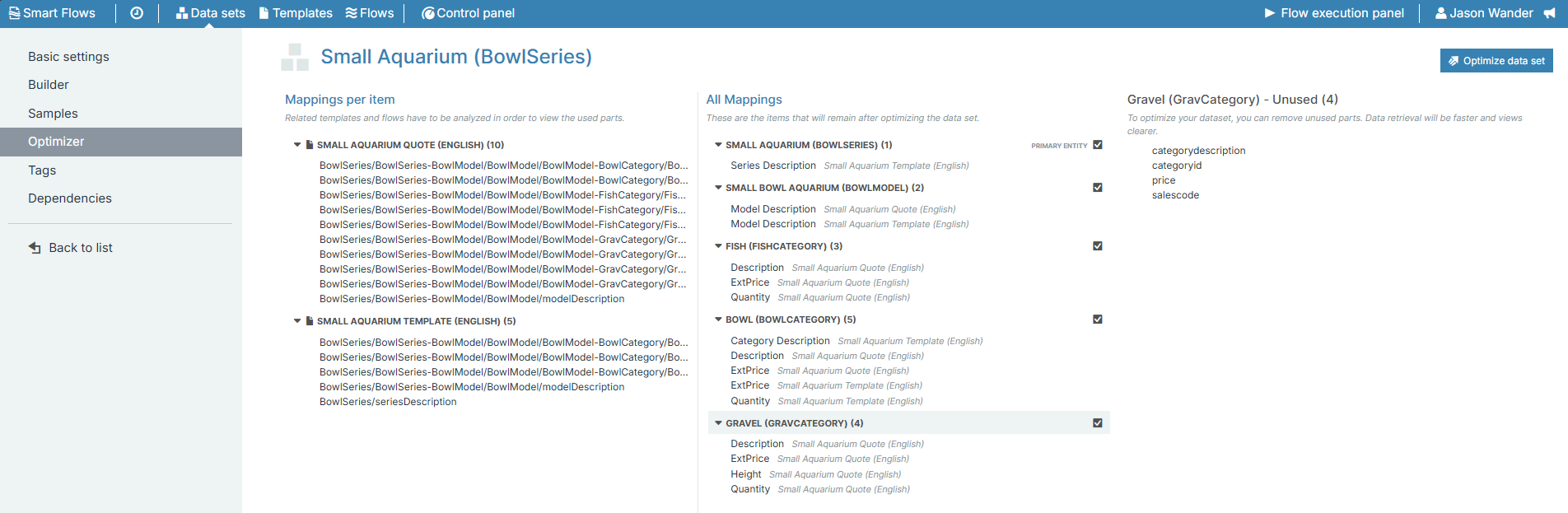
Optimizer Tab Area Overview
|
Interface name |
Description |
|---|---|
|
Mapping per item |
This provides an overview of your project's items linked to the selected data set and all in-use fields. The fields are listed based on their dependencies, whether from a flow or a template. |
|
All mappings |
Provides a list of the in-use fields. After you optimize your data set, the fields in this list will remain. |
|
Mapping- Unused(#) |
Provides a list of all unused fields in your data set, which you can remove via the Optimize data set process. |
|
Optimize data set button |
When clicked, activates the data set optimization process and opens the Optimize data set dialog. |
Tags Tab in the Experlogix CPQ (Preview) Connector
Tags in the Experlogix CPQ (Preview) connector help organize and filter data sets, templates, and flows, making managing content within Smart Flows. By applying tags and tag groups, users can quickly locate relevant configurations.
For a deeper dive into tag creation, management, and system tags, see Tags.
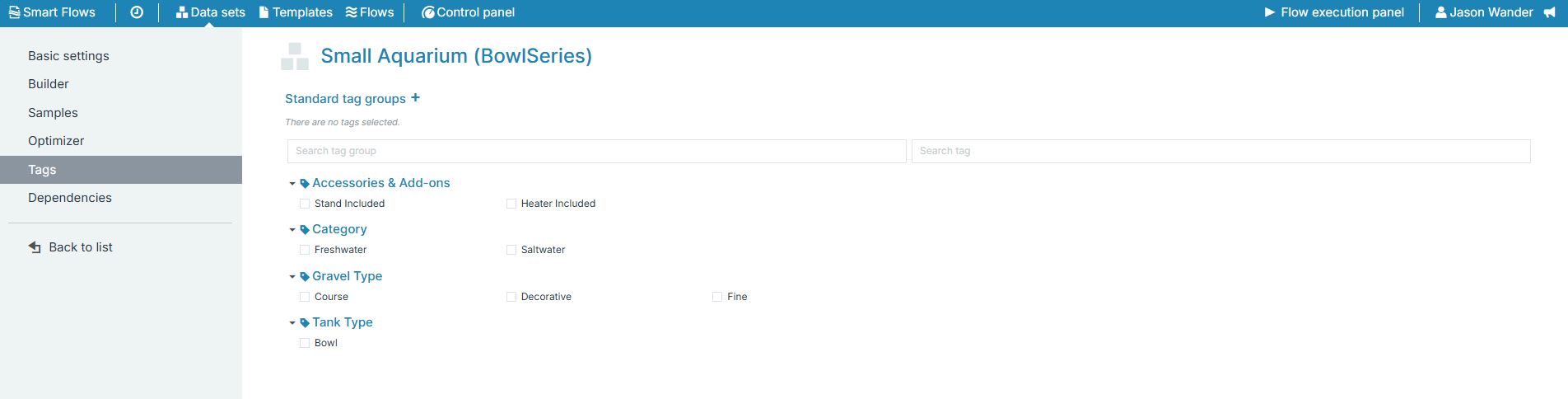
Example Use Case: Aquarium Model Configurator
In an Aquarium Model Configurator, tags help categorize configurations for better filtering and selection. For example, if configuring Aquariums, you could set up the following basic tag structure.
-
Tag Group: Accessories & Add-ons
-
Stand Included
-
Heater Included
-
-
Tag Group: Category
-
Freshwater
-
Saltwater
-
-
Tag Group: Gravel Type
-
Coarse
-
Decorative
-
Fine
-
-
Tag Group: Tank Type
-
Bowl
-
Dependencies Tab in the Experlogix CPQ (Preview) Connector
The Dependencies tab in the Experlogix CPQ (Preview) connector offers a centralized view of inbound and outbound references for data sets, templates, flows, and user ownership.