
The Store in Experlogix Documents Content Manager flow block allows users to automate the process of saving documents in the Smart Flows platform. Content Manager in Experlogix Documents is a centralized repository that allows generated documents to be stored, organized, and secured. For more information, see Store in Xpertdoc Content Manager.
Basic flow block settings
The flow block has the following parameters in the Basic Settings section:
Document (required)
Use the Document parameter to select the document that should be stored in Content Manager.
This typically references the output of a previous flow block, such as a document generation or conversion step.
Only one document can be stored per execution of this flow block.
Folder path (optional)
Use the Folder path parameter to define where the document should be stored in Content Manager.
-
The path is relative to the root folder of Content Manager.
-
Folders do not need to exist in advance; they will be created automatically if needed.
-
If a document with the same name already exists in the specified folder, a new version of that document is created instead of overwriting the existing one.
Metadata (optional)
In addition to storing the document, you can attach metadata by referencing a data output from a previous flow block.
-
Select a data output that contains the metadata values.
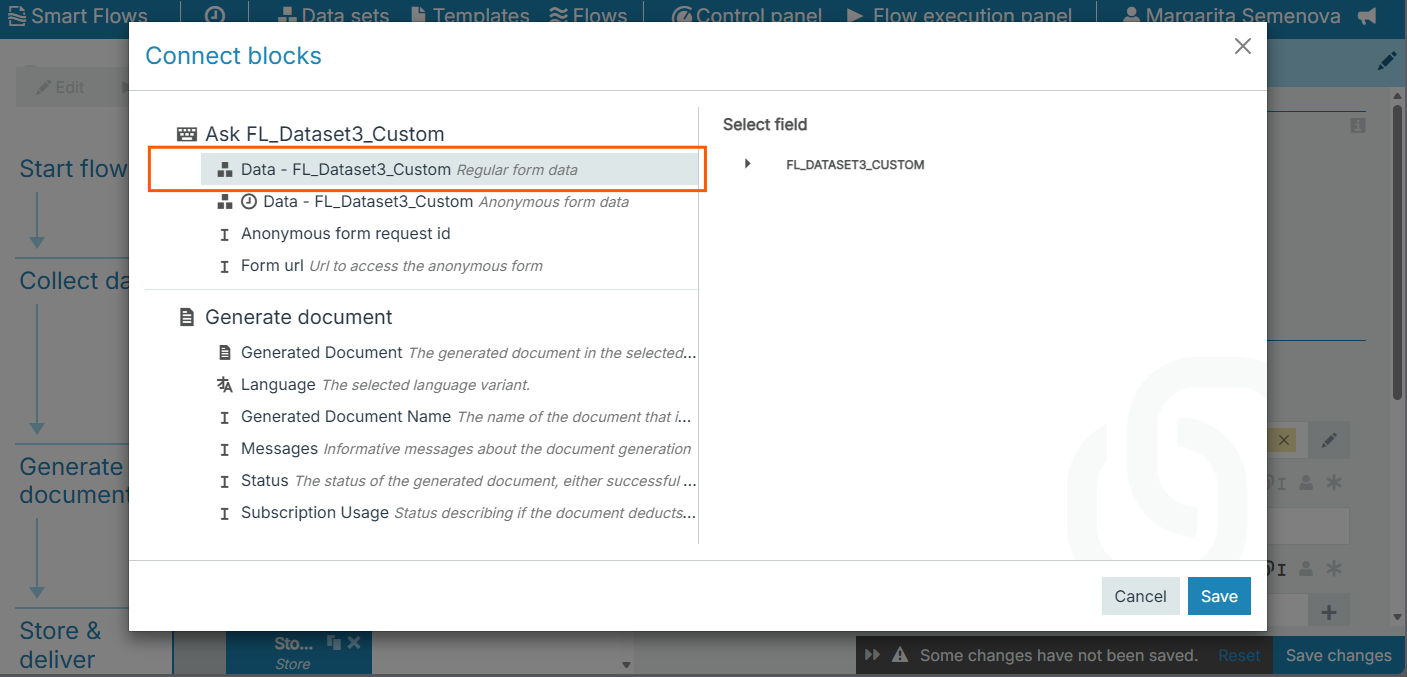
To ensure metadata links correctly, make your selections exclusively within the left pane (as shown below) and avoid selecting any nodes in the right-pane dataset tree.
-
If the selected data matches a form data set in Experlogix Documents, the form is automatically associated with the stored document.
-
Metadata fields are then stored alongside the document and can be used for searching, filtering, and lifecycle management.
This makes it easy to enrich stored documents with business context such as customer, invoice number, status, or category, without manual input.
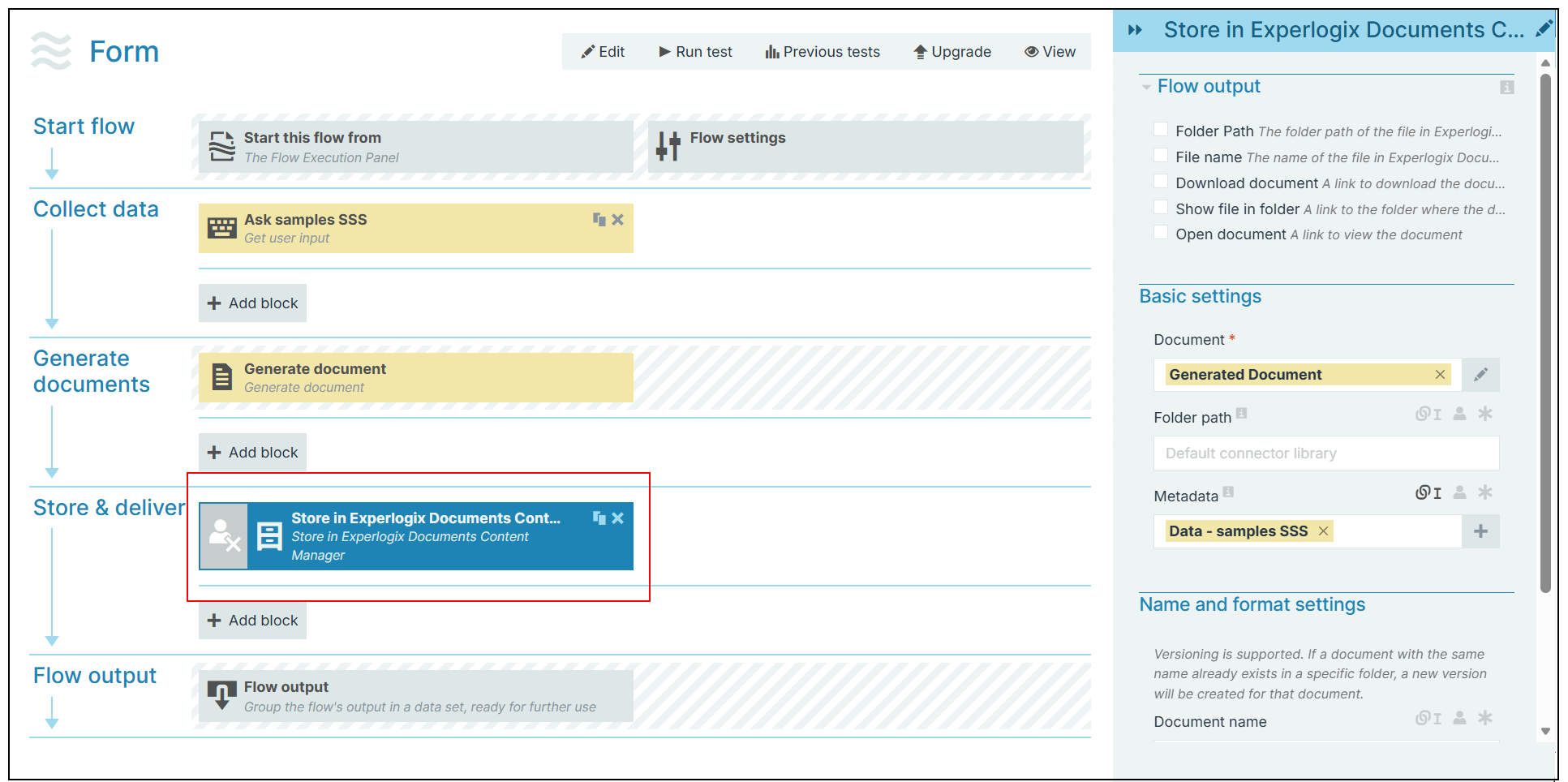
Parameters
The dropdown menus below provide all of the flow block's configuration options with detailed information and recommendations to help you configure your flow block.
Flow block customization buttons
You can further customize your flow block's parameters in several ways
-

-

-

Flow Output
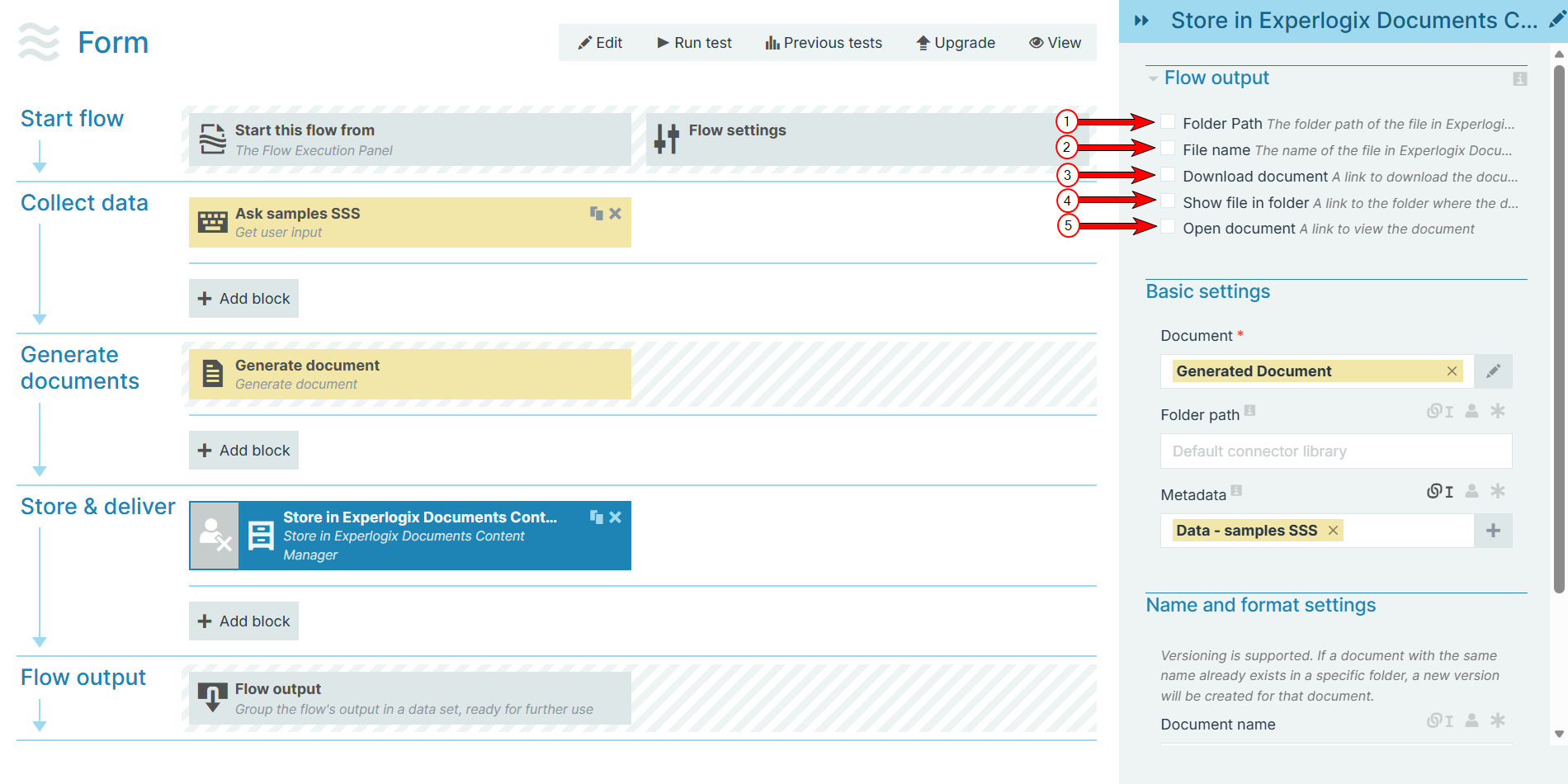
The Flow Output section shows all the output parameters that are available for the block. When checked, the value of the output parameter are presented to the user who is executing the flow. Each setting that composes this output information is described in detail below:
|
Index No. |
Field name |
Function |
|---|---|---|
|
1 |
Folder path |
When checked, the flow provides the folder path of the file in Experlogix Documents Content Manager. |
|
2 |
File name |
When checked, the flow outputs the name of the stored file in Experlogix Documents Content Manager. |
|
3 |
Download document |
When checked, the flow creates a link to download the document from Experlogix Documents Content Manager. |
|
4 |
Show file in folder |
When checked, the flow creates a link to the file's location on Experlogix Documents Content Manager. |
|
5 |
Open document |
When checked, the flow creates a link that opens the document for viewing in Experlogix Documents Content Manager if your browser supports viewing the document file type in the browser. |
Basic settings
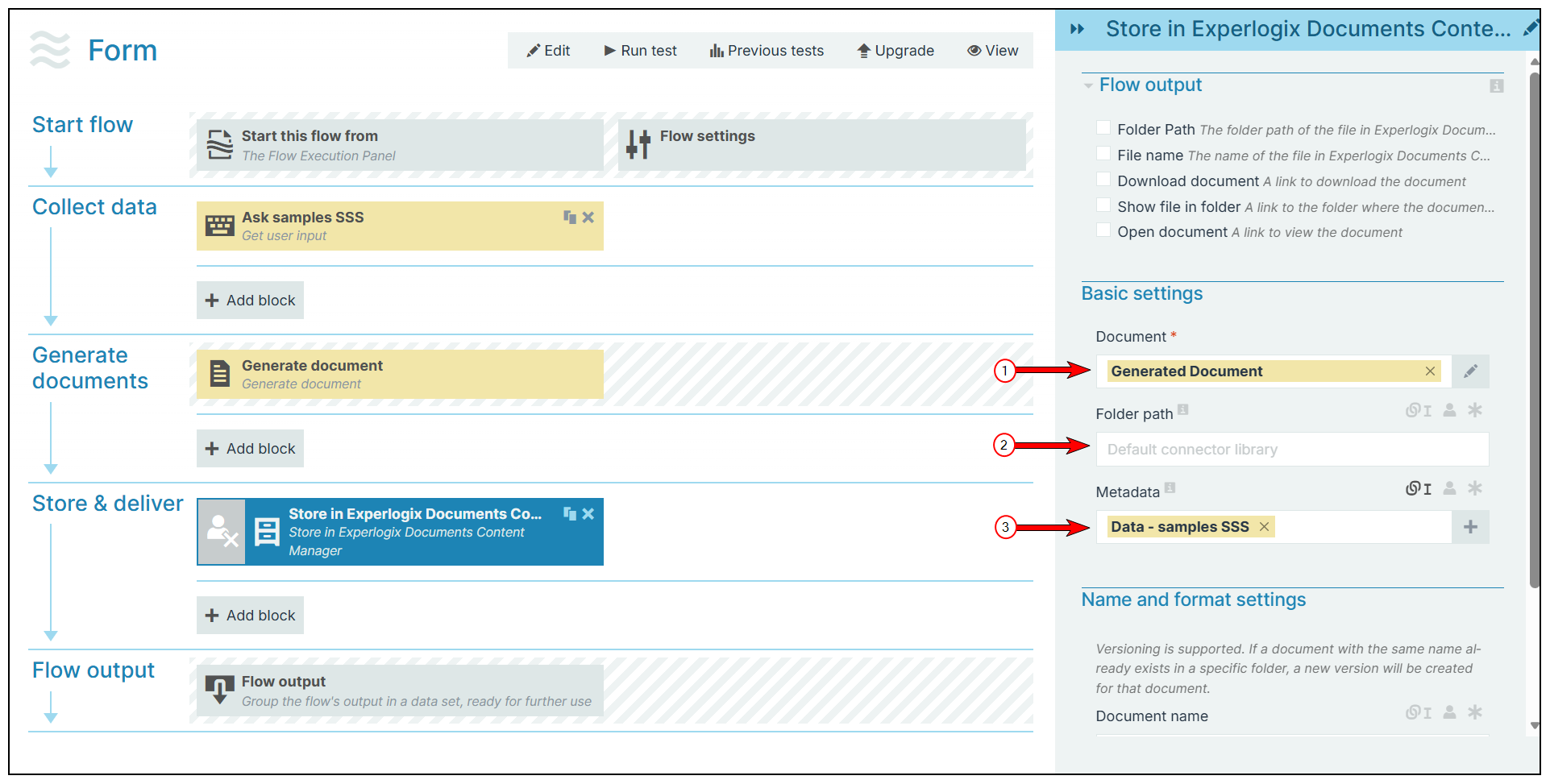
The Basic settings of the Missed Store in Experlogix Documents Content Manager flow block refer to the name used to save the document, location for saving the document, and add metadata to the stored document.
|
Index No. |
Field name |
Function |
|---|---|---|
|
1 |
Document |
The document to store in Microsoft Experlogix Documents Content Manager. |
|
2 |
Folder Path |
Specifies the storage folder on the site. You can use either an absolute path (complete URL) or a relative path (relative to the content manager's root directory). |
|
3 |
Metadata |
Add a metadata to stored document. Metadata can be sourced from any data outputs of a prior flow block. To ensure metadata links correctly, make your selections exclusively within the left pane (as shown below) and avoid selecting any nodes in the right-pane dataset tree.
|
Name & format settings
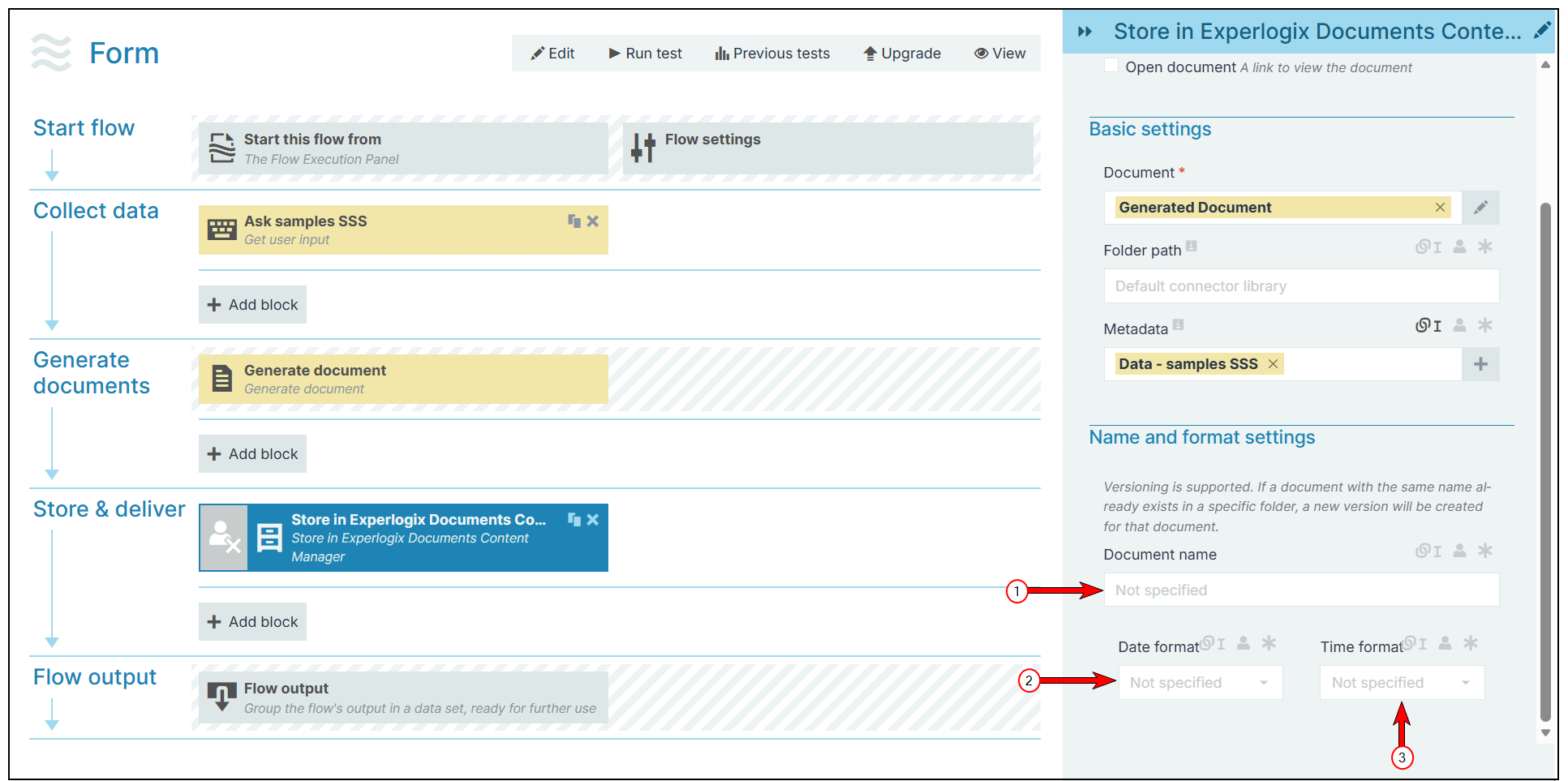
|
Index No. |
Field name |
Function |
|---|---|---|
|
1 |
Document name |
The name of the stored document. |
|
2 |
Date format |
Sets the date format. When you make a selection, the system adds a timestamp to the document's name. The timestamp is separated into date and time, but when you link a field here, both the date and time fields can accept all date and time symbols. Refer to Date & Time Patterns for more information. |
|
3 |
Time format |
Sets the time format for the field. |