
The Send to ConsignO Cloud flow block sends a document to ConsignO Cloud, allowing Designers and users to output a signed document. This signed document can then be linked into subsequent steps.
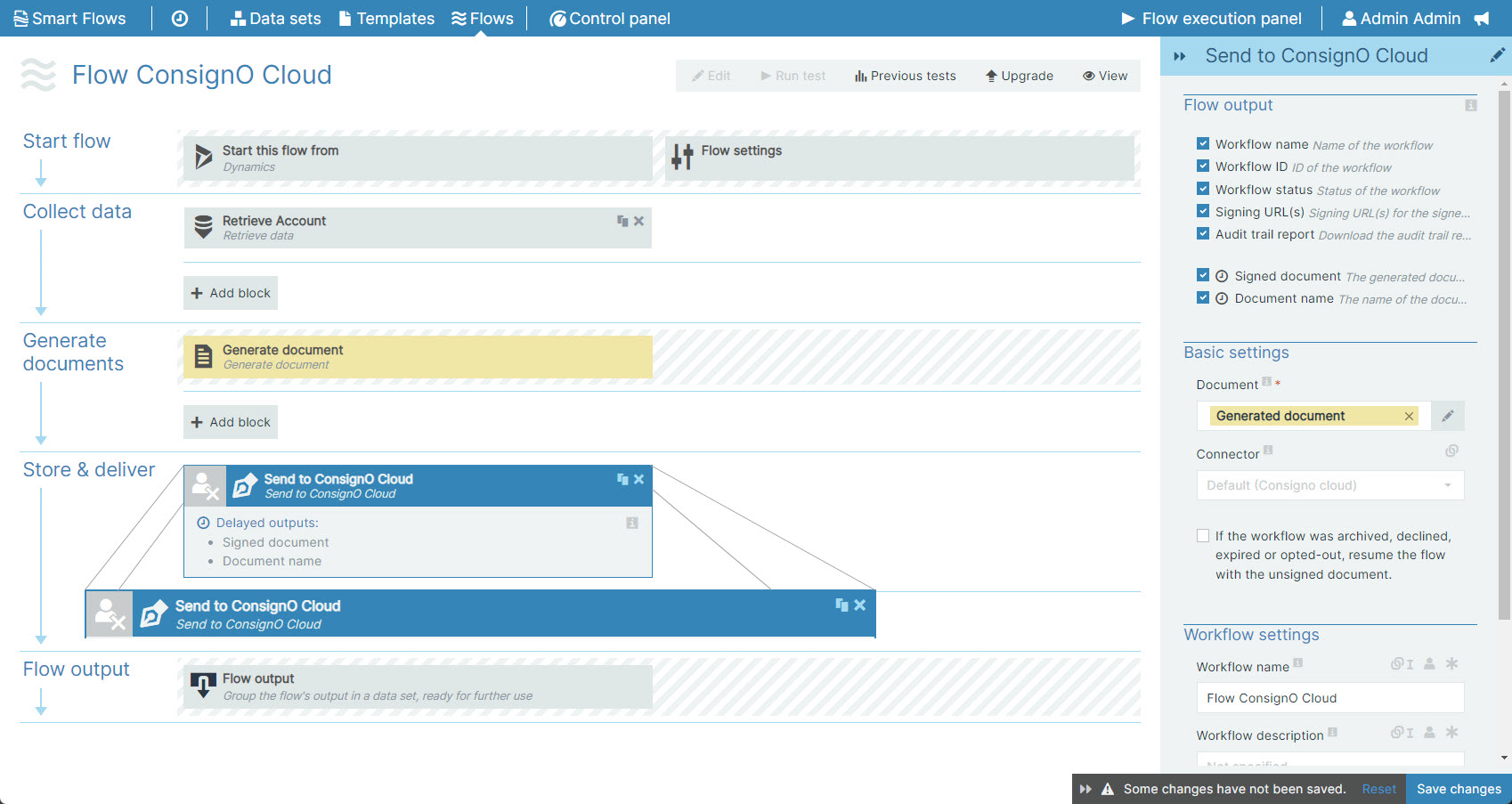
Flow Block Parameters
The dropdown menus below provide all of the flow block's configuration options with detailed information and recommendations to help you configure your flow block.
Flow block customization buttons
You can further customize your flow block's parameters in several ways
-

-

-

Flow output
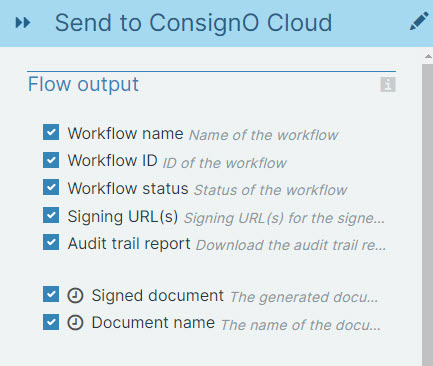
The Flow Output section shows all the output parameters that are available for the block. When checked, the value of the output parameter are presented to the user who is executing the flow. Each setting that composes this output information is described in detail below:
|
Index No. |
Field name |
Description |
|---|---|---|
|
1 |
Workflow name |
Displays the name of the workflow. In ConsignO Cloud, a signature project is also called a workflow. |
|
2 |
Workflow ID |
Displays the ID of the workflow. |
|
3 |
Workflow status |
The status of the workflow displays for the user during the flow block output step |
|
4 |
Signing URL(s) |
Displays the URL(s) for a embedded signers to sign the document. If there are several embedded signers with the same routing order, several signing URLs will be shown. If there are no embedded signers, there won't be any signing URLs. This can be managed in the template. |
|
5 |
Audit trail report |
You get a link to the audit trail report. The audit trail gives more information about each step in workflow. It's a digitally sealed audit log that incorporates the signed document (PDF/A-3), making legal reliability of the signing process easy to prove. |
|
6 |
Signed document |
This provides a download link to the signed document. |
|
7 |
Document name |
The system displays the name of the signed document during the flow block output. |
Basic settings
|
Index No. |
Field name |
Description |
|---|---|---|
|
1 |
Document |
Defines the document to send to ConsignO Cloud. The template of the document you are sending must contain E-signatures configured using Template Builder. |
|
2 |
Connector |
Defines the connector the system should use. If none is selected, the system uses the default connector. |
Workflow settings
|
Index No. |
Field name |
Description |
|---|---|---|
|
1 |
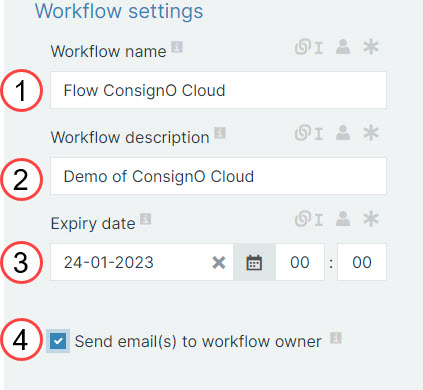
Workflow name |
Defines name of the workflow. |
|
2 |
Workflow description |
Defines description of the workflow. |
|
3 |
Expiry date |
Defines expiry date of the workflow. |
|
4 |
Send e-mail(s) to the workflow owner |
The workflow owner is associated with the API key configured during the ConsignO Cloud connector setup. When this setting is enabled, the workflow owner receives several e-mails while processing the workflow. |