
The Flow Execution Panel is a centralized interface for monitoring, managing, and interacting with flow executions. It provides users with real-time visibility into flow statuses, execution history, and ongoing runs, while offering powerful filtering, customization, and account management options. Administrators can further enhance the experience through branding, theming, and integration management features.
Flow Execution Panel Overview
The Flow Execution Panel Flow Execution Panel provides a streamlined interface for managing and tracking execution statuses. This document outlines its key features, including monitoring tools, filtering options, and customization settings to enhance user experience.
-
Flow Execution Panel Dashboard – Displays an overview of active and past flow executions, including history, unfinished runs, and execution details.
-
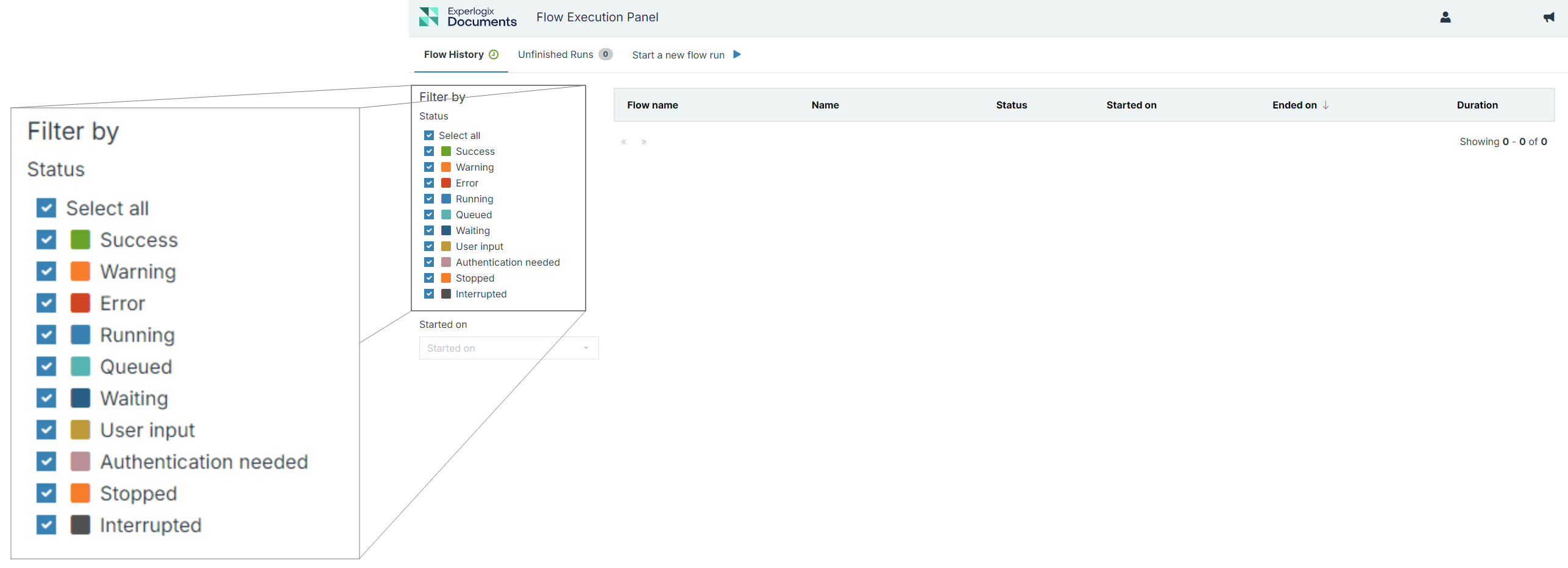
Filtering – Allows flow filtering based on status, date, or name to find relevant executions quickly.
-
Settings – Provides access to personal information, UI preferences, password management, and connected apps.
-
Theming – Enables Administrators to apply custom branding, including colors, logos, and display names.
-
Execution Interactions – Start new flow runs, view execution details, and track progress within the panel.
Some settings are admin-level only, so they may not be visible in all user views.
Flow Execution Panel Dashboard
Flow Execution Panel is a dashboard that provides a comprehensive view of the status and progress of various flows for the logged-in users within an organization. Each time you log in to Flow Execution Panel, you are directed to the dashboard. Flow Execution Panel Dashboard displays four main areas:
-
Flow History
-
Unfinished Runs
-
Start a new flow run
-
Flow results for a selected flow
Flow Execution Panel users, including administrators, can only view their own flow executions. However, in the Reporting section of Project Console, administrators have comprehensive access to all flow executions and their reporting data. Interacting with a flow, regardless of its context, opens a new tab that displays the flow’s current step.
Filtering
You can easily filter and sort flows to quickly find what you need.
-
Filter by:
-
Completion status
-
Date (Started at section)
-
Additional parameters
-
-
Sorting options in the list view include:
-
Chronology – Started at or Ended on (ascending/descending)
-
Alphabetical order – Status names (A–Z or Z–A)
-
Flow Execution Panel Settings
Flow Execution Panel Settings provide users with control over their personal preferences, UI configurations, and account settings. This section outlines the available customization options, including personal information management, interface preferences, password updates, and integrations.
Accessing the Flow Execution Panel Settings Page
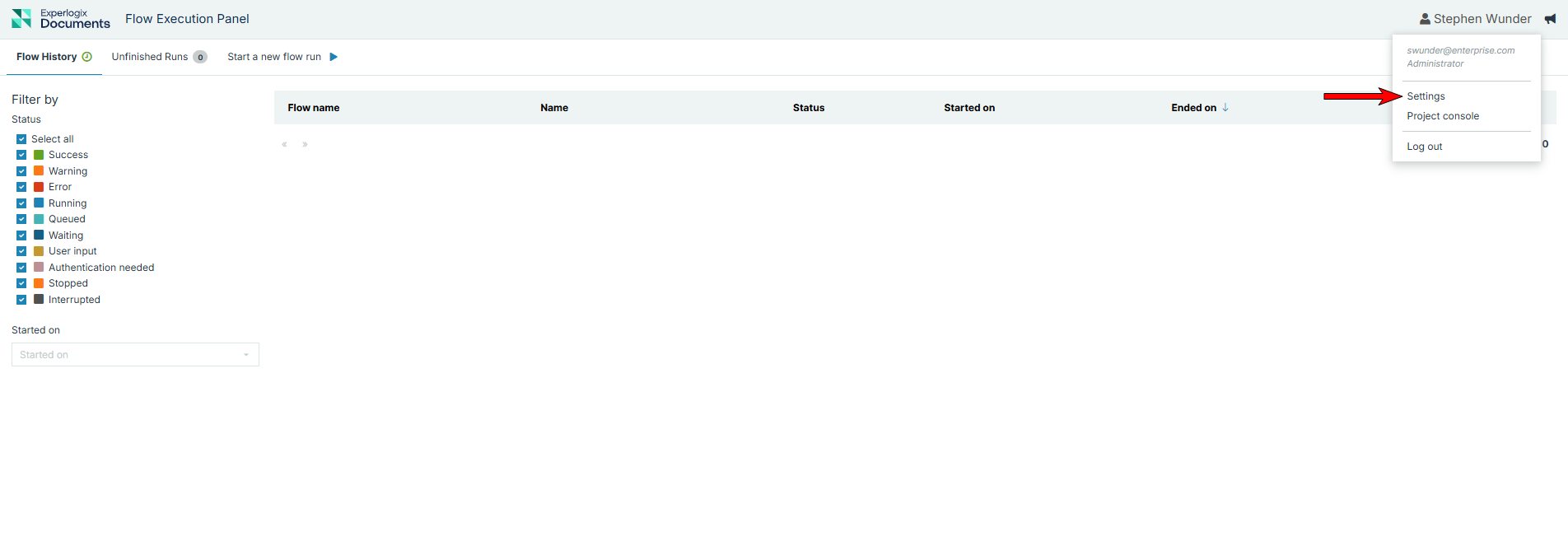
To access the settings page, follow these steps:
-
In the top-right corner of the Flow Execution Panel, select your profile name.
-
In the dropdown menu, select Settings.
Personal Information Tab
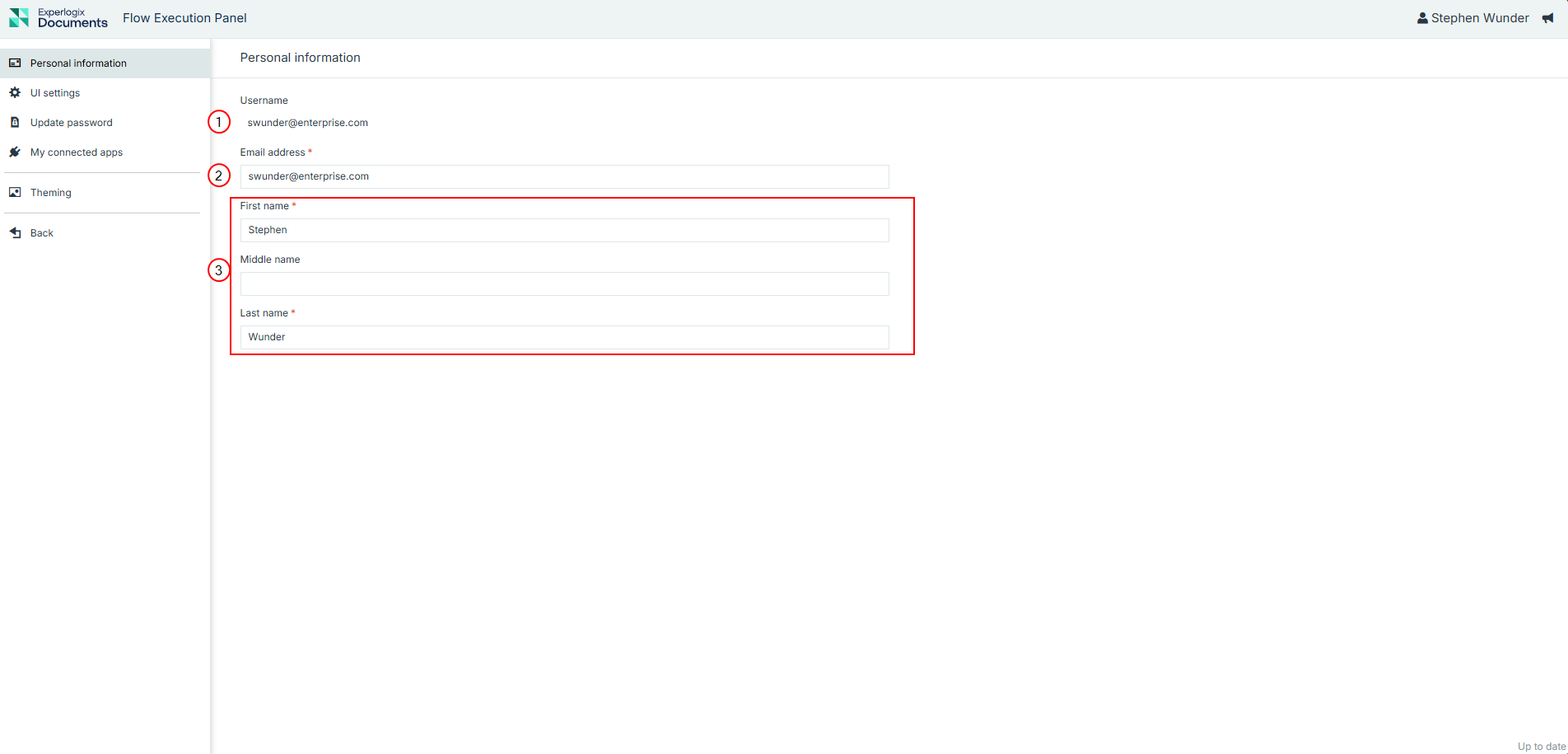
The Personal Information tab allows users to manage their profile details.
|
Index No |
Field |
Description |
|---|---|---|
|
1 |
Username |
Displays the user’s login name. |
|
2 |
Email address |
Sets the primary e-mail associated with the user’s account. |
|
3 |
First name, Middle name, Last name |
This sets the user's personal information for the first, middle, and last names. The first and Last names are required, and the middle name is optional. |
UI Settings Tab
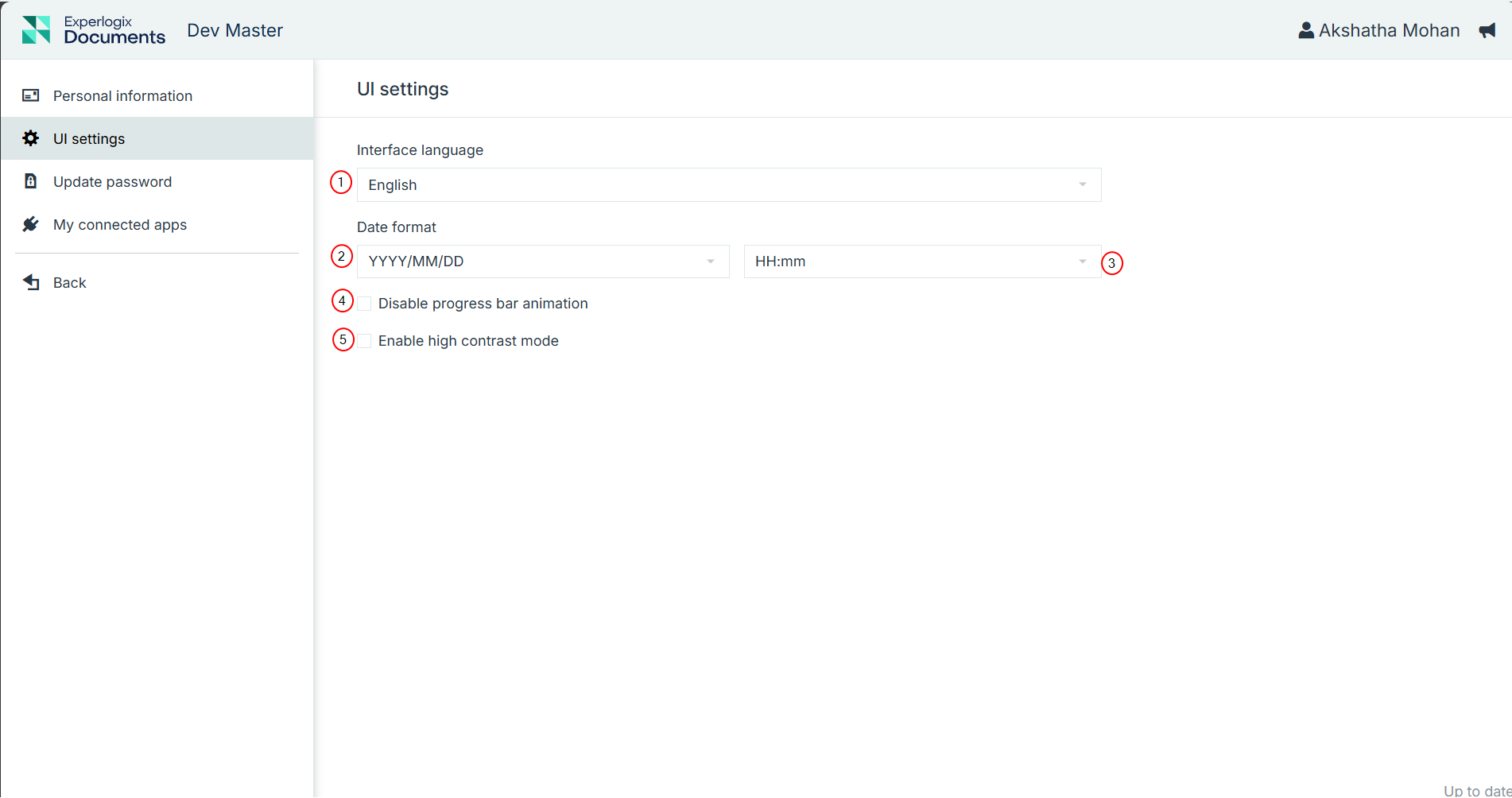
The UI Settings tab allows Administrators to configure interface preferences related to language and time formatting in Flow Execution Panel.
|
Index No |
Setting |
Description |
|---|---|---|
|
1 |
Interface Language |
Sets the language used throughout Flow Execution Panel. |
|
2 |
Date Format |
Sets the preferred date format (e.g., YYYY/MM/DD) for the current user only. This setting does not apply globally to all users in the instance. |
|
3 |
Time Format |
Sets the preferred time format (e.g., HH:mm) for the current user only. Changes made here do not affect other users or enforce a system-wide format. |
|
4 |
Disable progress bar animation |
Click the option to disable the animation in the progress bar. |
|
5 |
Enable high contrast mode |
Click the option to increase the User Interface contrast for a better visibility. The contrast of a.o. form control borders increases to a minimum ratio of 4.5:1. 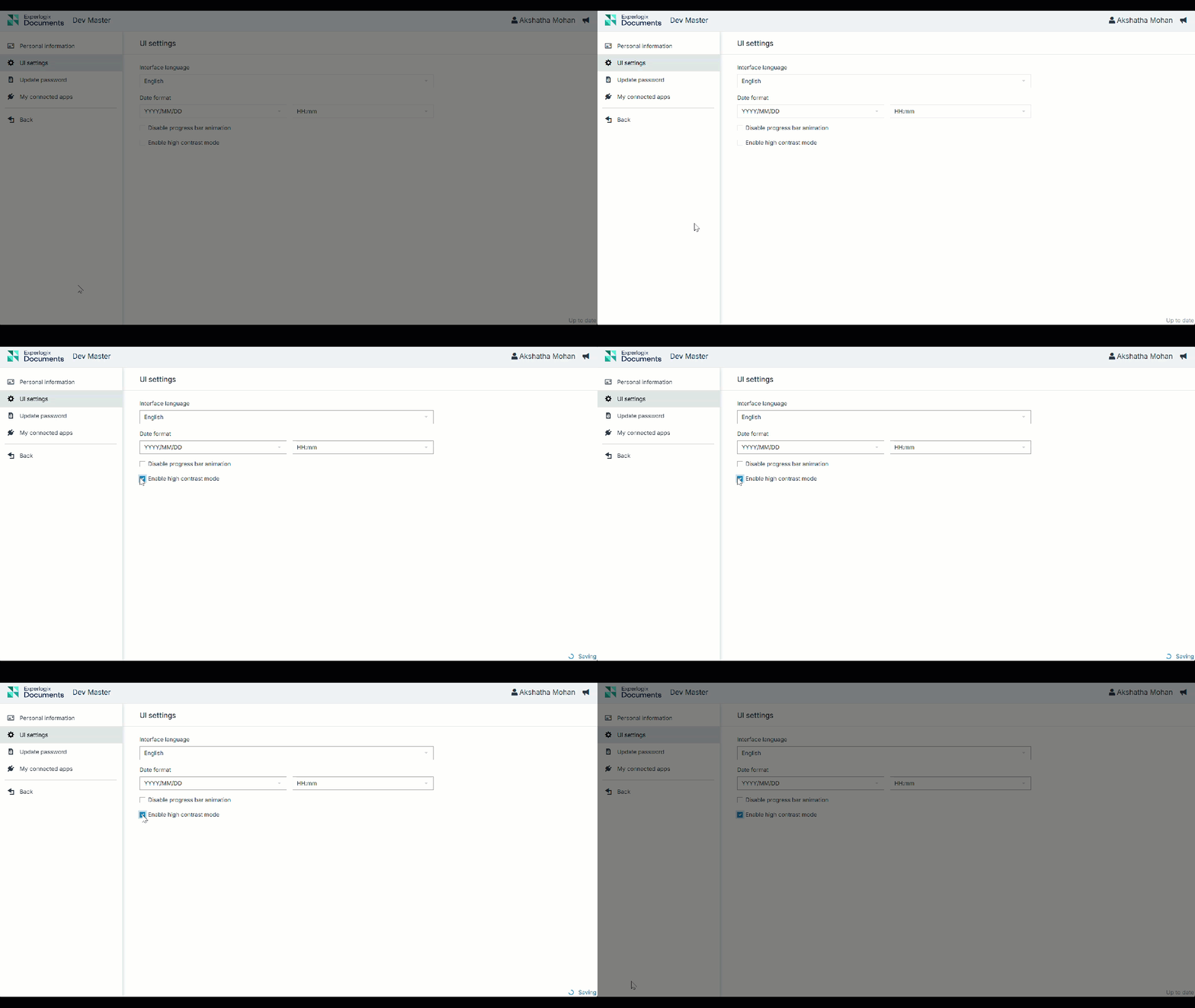
|
Update Password Tab
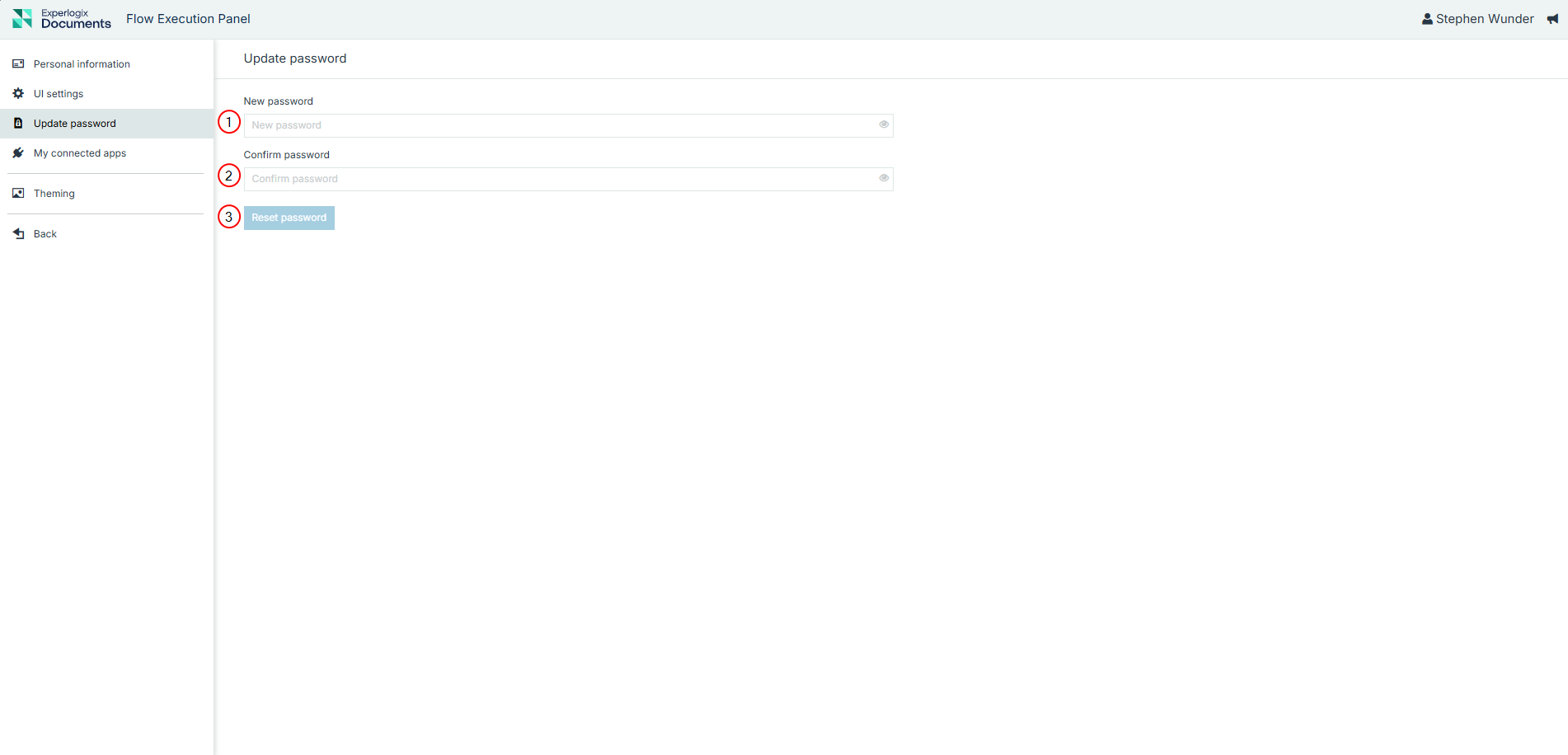
Users can update their account password through this tab.
|
Index No |
Action |
Description |
|---|---|---|
|
1 |
New password |
Input a new password. |
|
2 |
Confirm new password |
Re-enter the chosen password to confirm. |
|
3 |
Reset password |
Select the Reset password button to finalize the update to the user's password. |
Updating your Password in Flow Execution Panel
-
Log in and navigate to the Update password tab.
-
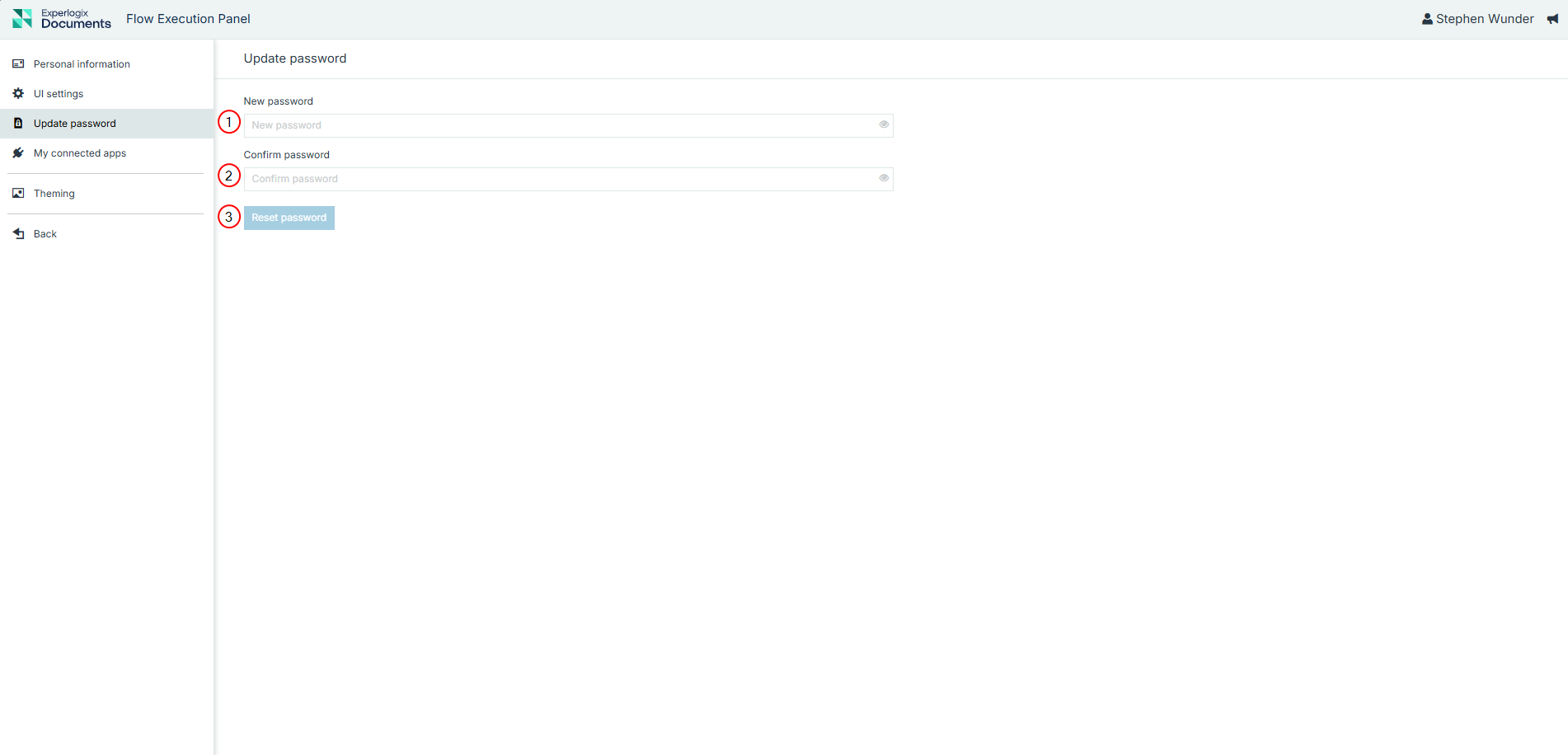
In the New Password field, enter a secure password.
-
In the Confirm Password field, re-enter the same password.
-
Select the Reset password button.
If the Reset Password button is disabled, ensure both password fields are filled with an identical password.
If you forget your password, use the Forgot Password option on the login screen. See Login for more details.
A confirmation message displays upon successful password change.
My Connected Apps
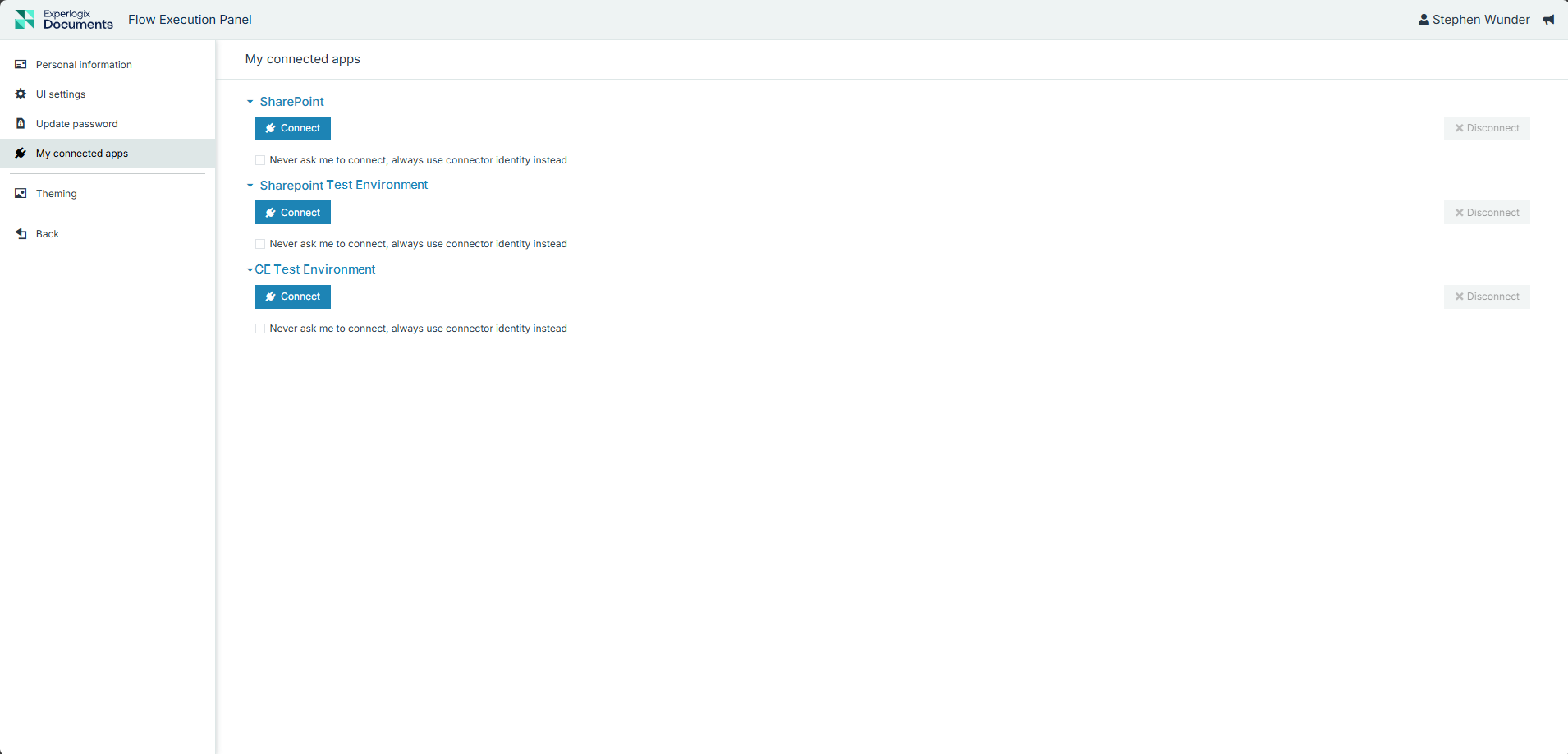
In the My Connected Apps section, Administrators can manage integrations with third-party applications. Available connections include:
|
Action/Field |
Description |
|---|---|
|
Connect |
Initiates a connection with a supported third-party service. |
|
Never ask me to connect, always use connector identity instead |
Reuse a connector identity without additional prompts. When checked, the connection uses impersonation, applying the credentials of the user who originally created the connector instead of requiring individual user authentication. See Individual User Authentication for more details. This setting applies only to the individual user selecting it and does not override or enforce settings in the Project Console. Additionally, Designers and Users do not have access to this checkbox. It is available only to administrators. |
|
Disconnect |
Removes a connection with the indicated connector. The Disconnect button becomes active only after the user has authenticated for the specific connector. Once authenticated, users can remove the connection by selecting this option. |
Theming Tab
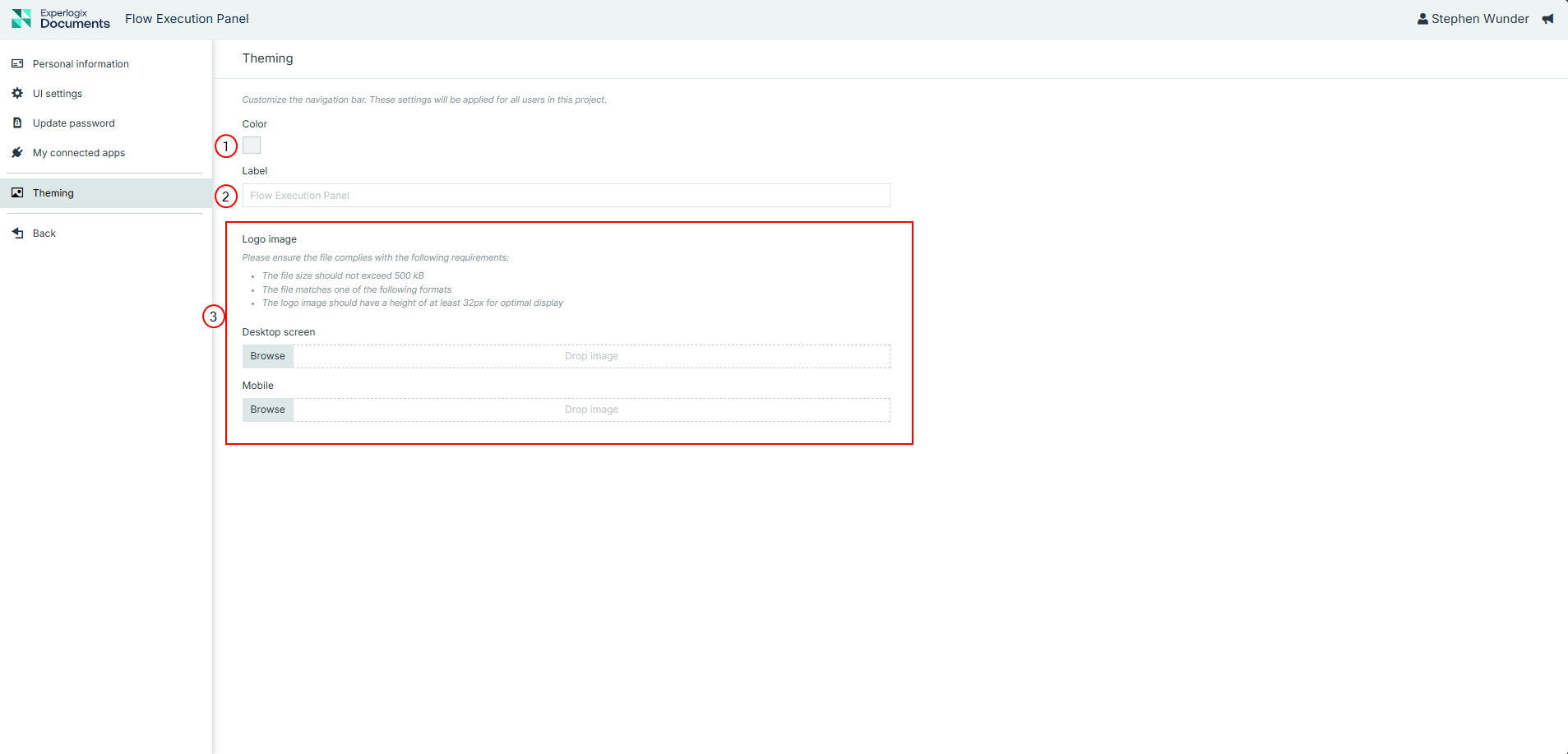
Administrators can use the Theming section to customize the navigation bar and appearance of Flow Execution Panel, aligning it with organizational branding. Administrators can update the logo, titling, and coloring of their Flow Execution Panel via the Theming tab. Changes in the Theming tab take effect immediately without requiring a save action.
|
Index No |
Option |
Description |
|---|---|---|
|
1 |
Color |
Select a preferred header bar color using a hex code dialog. The header bar color automatically selects the font text color and hovers effects to maximize visibility. |
|
2 |
Label |
Set a custom label for Flow Execution Panel that replaces the title Flow Execution Panel in the heading bar. The label's font color will adjust automatically between a light and dark font depending on the color selected in the Color field. |
|
3 |
Logo Image |
Upload a custom logo with the option to use a different image file depending whether the user is viewing on desktop and mobile. Logo Image Limitations Maximum file size: 500 KB Supported file formats: {png,svg,jpeg,jpg} Minimum height: 32px for optimal display |