
The Send to Sertifi flow block sends a document to Sertifi. You can use the Send to Sertifi flow block's output to wait for a signed document. After signing, you can use the signed document in subsequent steps.
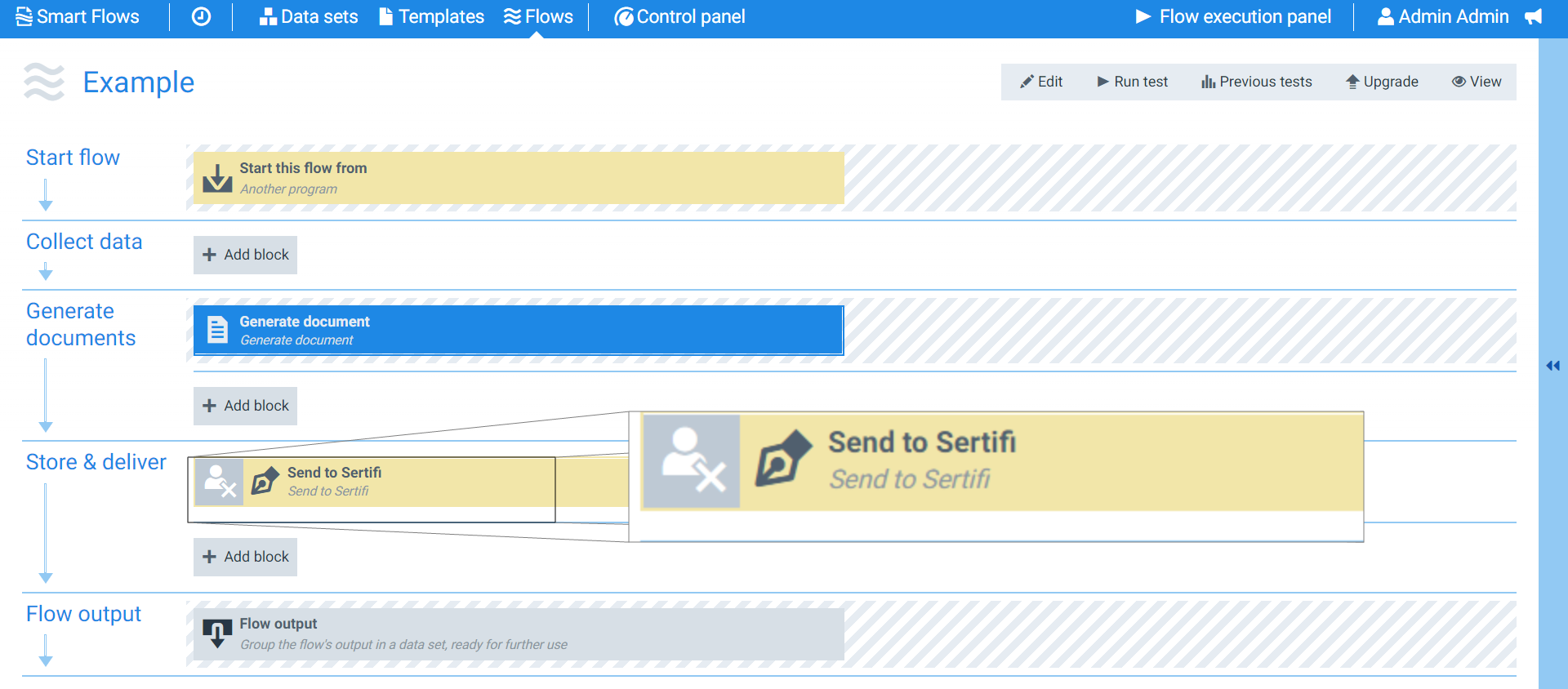
Flow Block Parameters
The dropdown menus below provide all of the flow block's configuration options with detailed information and recommendations to help you configure your flow block.
Flow block customization buttons
You can further customize your flow block's parameters in several ways
-

-

-

Flow output
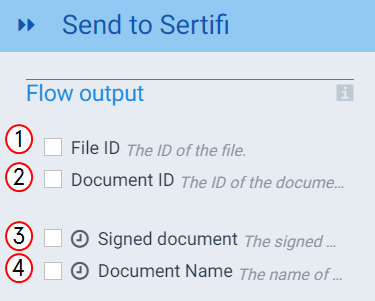
The Flow Output section shows all the output parameters that are available for the block. When checked, the value of the output parameter are presented to the user who is executing the flow. Each setting that composes this output information is described in detail below:
|
Index No. |
Field name |
Description |
|---|---|---|
|
1 |
File ID |
When checked, the system displays the unique Sertifi File ID in the Flow Output. |
|
2 |
Document ID |
When checked, the system displays the unique Sertifi Document ID in the Flow Output. |
|
3 |
Signed Document |
When checked, the system provides a link to the signed document in the Flow Output . This is a Delayed Output, and your flow enters a waiting state until your recipient signs the document. The system can then use the signed documentin subsequent steps. When unchecked, the flow continues without waiting for a signature. |
|
4 |
Document name |
When checked, your flow enters a waiting state until your recipient signs the document. The signed document can then be used in subsequent steps. The Flow Output shows the name of the signed document (without linking to it). When unchecked, the flow continues without waiting for a signature. |
Basic settings
|
Index No. |
Field name |
Description |
|---|---|---|
|
1 |
Document |
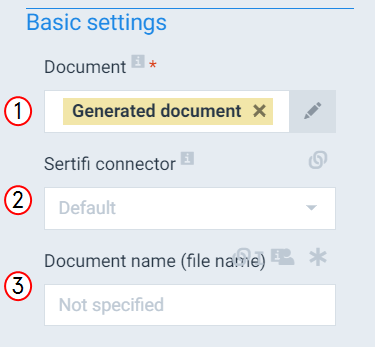
Defines the document to send to Sertifi. The template of the document you are sending must contain E-signatures configured using Template Builder. The system uses your generated document by default. |
|
2 |
Sertifi connector |
Defines the Sertifi connector to use for the flow block's run. If you only have one Sertifi connector, the system uses that document by default. |
|
3 |
Document name(file name) |
The name of the stored document. |
E-mail settings
|
Index No. |
Field name |
Description |
|---|---|---|
|
1 |
Sender e-mail |
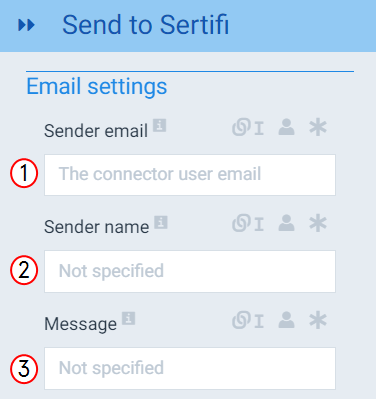
Fills in the From field of your e-mail. |
|
2 |
Sender name |
Sets the display name for the sender of the e-mail. |
|
3 |
Message |
Fills in the body of the e-mail. |
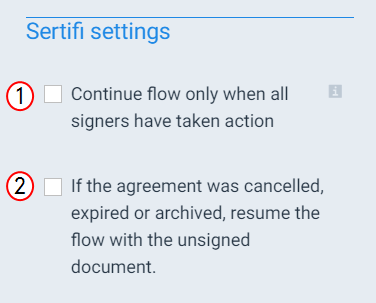
Sertifi settings
|
Index No. |
Field name |
Description |
|---|---|---|
|
1 |
Continue flow only when all signers have taken action |
When checked, the system waits until all signers have completed the signing ceremony before moving on to the next flow step. This box should be checked if you plan to use the signed document in subsequent steps. When unchecked, the flow continues after the first step occurs. |
|
2 |
If the agreement was cancelled, expired or archived, resume the flow with the unsigned document |
When checked, the system continues the flow with the unsigned document. When left unchecked, the flow throws an error. |