
The Send to OneSpan flow block sends a document for electronic signature via OneSpan Sign. Once the system moves the document into OneSpan Sign, you can use the Send to OneSpan flow block's output to produce a signed copy that the flow can use in subsequent steps.
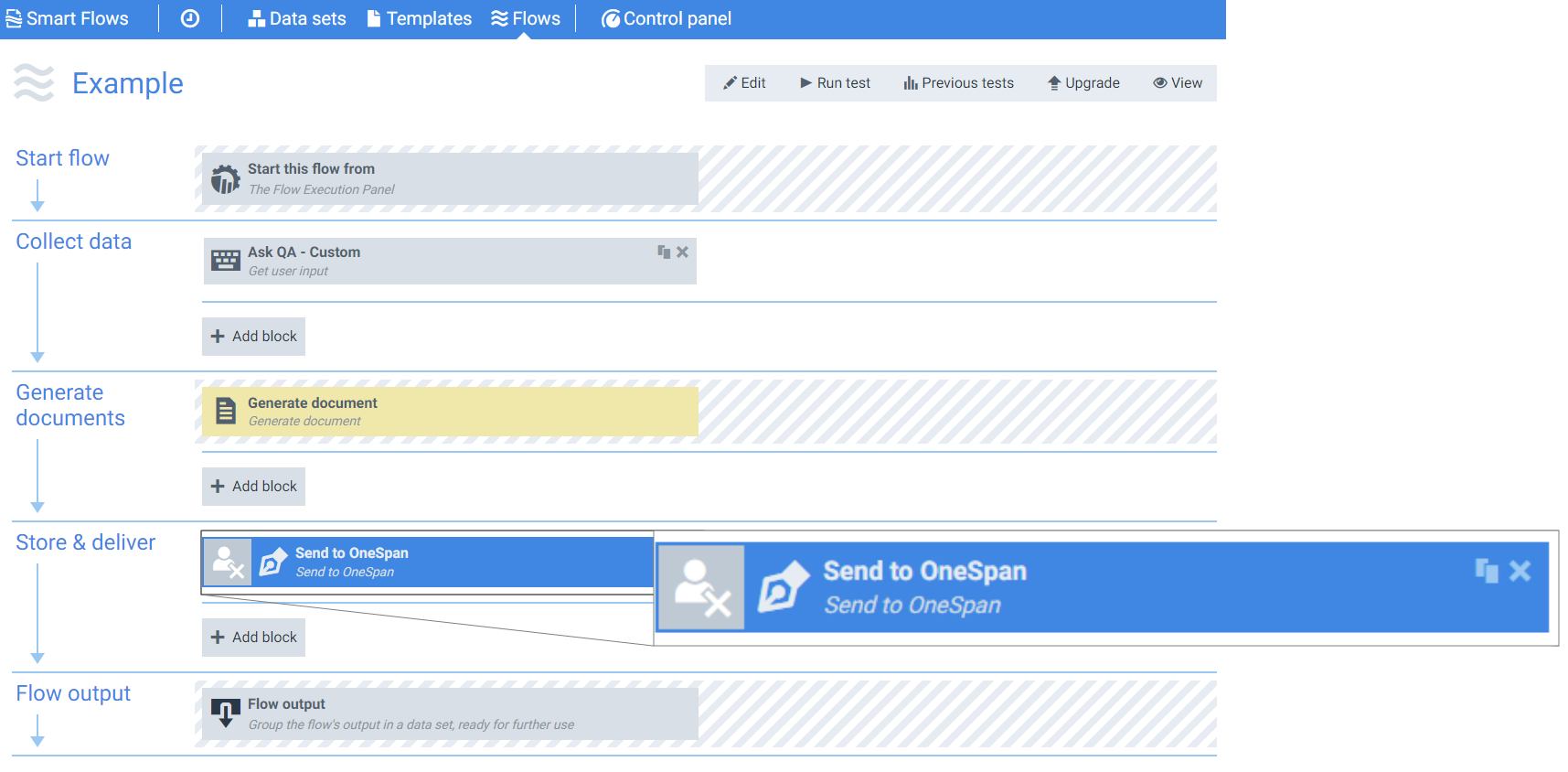
Flow Block Parameters
The dropdown menus below provide all of the flow block's configuration options with detailed information and recommendations to help you configure your flow block.
Flow block customization buttons
You can further customize your flow block's parameters in several ways
-

-

-

Flow output
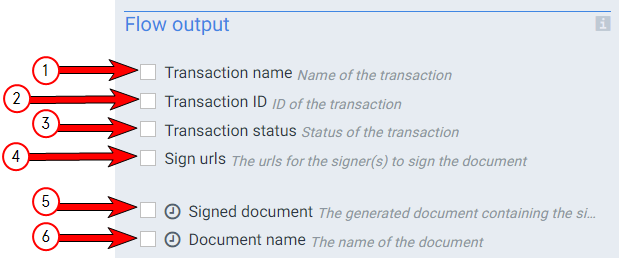
The Flow Output section shows all the output parameters that are available for the block. When checked, the value of the output parameter are presented to the user who is executing the flow. Each setting that composes this output information is described in detail below:
|
Index No. |
Field name |
Description |
|---|---|---|
|
1 |
Transaction name |
When checked, the system displays the OneSpan Sign transaction name in the flow output. The Transaction name value sets this value. |
|
2 |
Transaction ID |
When checked, the system displays the OneSpan Sign transaction name in the flow output. |
|
3 |
Transaction status |
When checked, the system displays the status of the Send to Onespan transaction in the flow output. |
|
4 |
Sign urls |
When checked, the system shows the URLs for the signers during the flow output to allow for sign in person. The Sign urls setting is only effective when sign in person setting is checked under Basic settings. |
|
5 |
Signed document |
When checked, the system provides a link to the signed document during the flow output. Checking this box causes the flow to enter a wait mode until all signers complete the signing ceremony. |
|
6 |
Document name |
When checked, the system outputs the filename of the signed document during the flow output step. Checking this box causes the flow to enter a wait mode until all signers complete the signing ceremony. |
Basic settings
|
Index No. |
Field name |
Description |
|---|---|---|
|
1 |
Document |
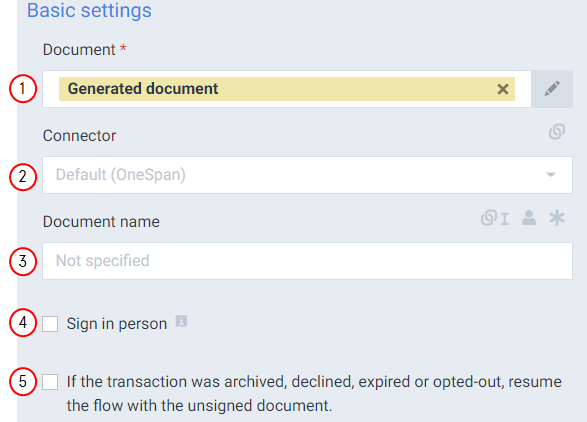
Represents the document to send for signature via OneSpan Sign. The system uses the Generated document by default. If your Template does not contain e-signatures, configured with the Template Builder, the system displays an error when testing the flow. |
|
2 |
Connector |
Determines the OneSpan connector to use. If you only have one OneSpan connector, the system uses it by default. |
|
3 |
Document name |
Sets the document name for the document sent via OneSpan Sign. The system uses the Template name by default. |
|
4 |
Sign in person |
Configures the system to use sign in person for the document. You must also check the sign urls setting in the flow output. |
|
5 |
If the transactions was archived, expired or opted-out, resume the flow with unsigned document |
When checked, the system continues the flow even if the a signature is not received for the document. |
E-mail settings
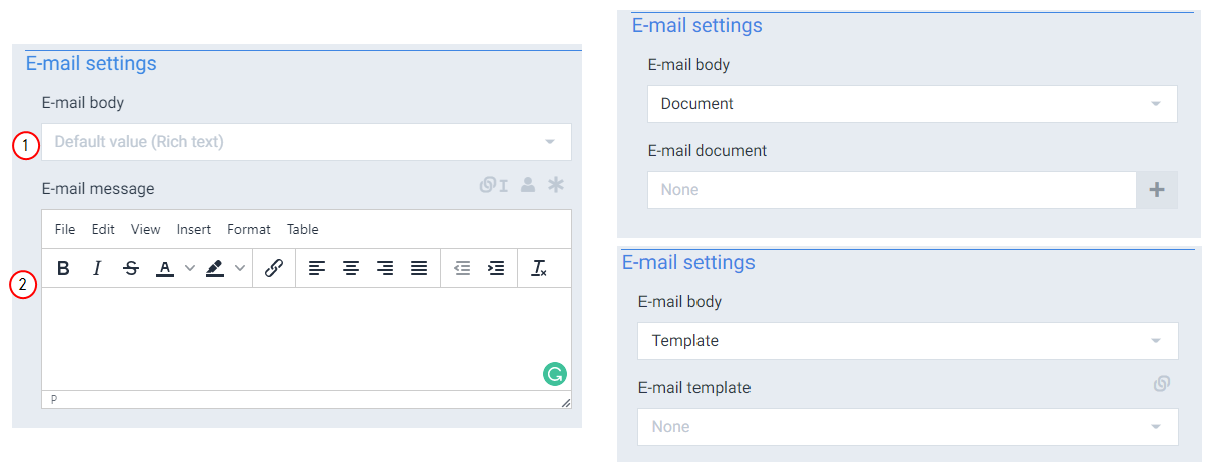
The Send to OneSpan E-mail settings determine how the system generates the e-mail message that accompanying the sign by e-mail ceremony from OneSpan Sign.
|
Index No. |
Field name |
Description |
|---|---|---|
|
1 |
E-mail body |
Specifies how to create the e-mail body with the following options: E-mail message: When 'Rich text' is selected for the E-mail body, the system uses the text entered into the E-mail message field. Default value E-mail document: When 'Document' is selected for the E-mail body, the system creates a linked field box to select the document for the e-mail body. E-mail template: When 'Template' is selected for the E-mail body, the system creates a linked field box to choose the Template for the body of the message. |
|
2 |
E-mail message |
Represents the rich text that fills the body of the e-mail. The system only displays this field if the default value or rich text is selected for the E-mail body field. |
Transaction settings
|
Index No. |
Field name |
Description |
|---|---|---|
|
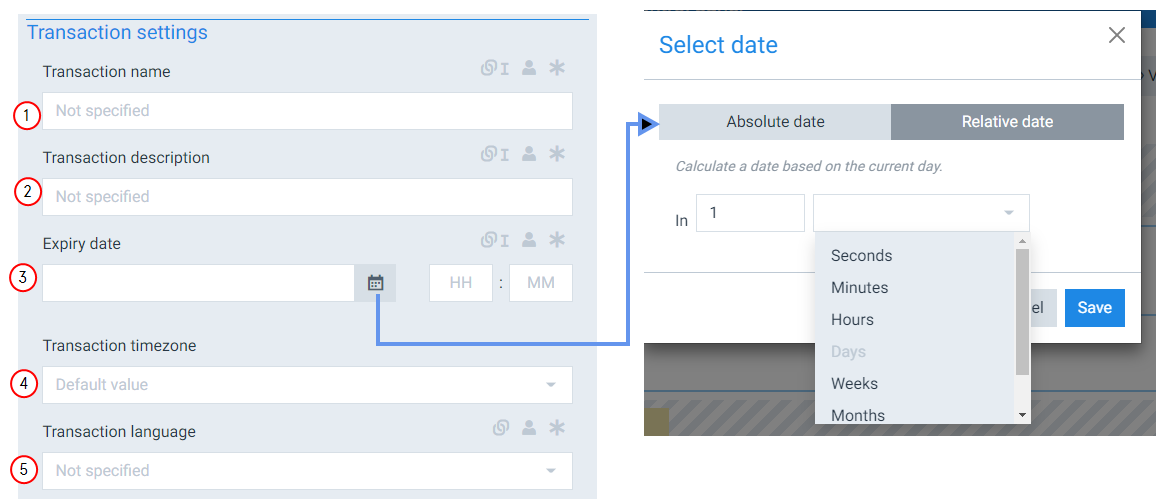
1 |
Transaction name |
Represents the name to use for the transaction, by default uses an auto generated name of DocumentName yyyy-mm-ddThh:mm:ss.ssssss(time the document was sent to sign). |
|
2 |
Transaction description |
Represents the description of the transaction. The transaction description displays in the Transaction details in Onespan. |
|
3 |
Expiry date |
Sets the date and time for the signature expiration deadline. After the deadline has passed, the signer no longer has access to the signing ceremony. The Expiry date can be set using an absolute value (YY/MM/DD) or a relative value ( # seconds-years) |
|
4 |
Transaction timezone |
Sets the timezone to use for processing the Expiry date and time. Automatically uses timezone for the Onespan account. |
|
5 |
Transaction language |
Specifies the Language variants to use for the process. The signer can change the language of the user interface during the signing ceremony. |
Reminder settings
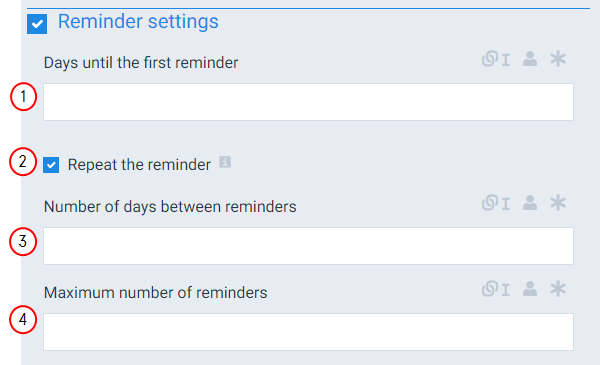
The Send to OneSpan flow block Reminder settings specify whether to send a reminder to signatories of the document and, if so, how often to send reminders.
The checkbox next to Reminder settings must be checked to configure reminders.
|
Index No. |
Field name |
Description |
|---|---|---|
|
1 |
Days until the first reminder |
Specifies the number of days before the system sends a reminder to the signer. The system only sends the reminder if the document has not been signed yet. |
|
2 |
Repeat the reminder |
Sets the reminder to repeat. |
|
3 |
Number of days between reminders |
Specifies the number of days to wait after sending the first reminder to send additional reminders. For example, setting the Number of days between reminders to 1 would send a reminder every other day after the first reminder is sent. The value must be greater than 0. |
|
4 |
Maximum number of reminders |
Sets the maximum number of reminders to send to your signers. |