
An administrator must update the configuration record after installing the Experlogix Smart Flows App Package in Sugar. The configuration record serves as a handshake between the two systems and allows them to share information freely.
The system saves the data for the handshake in a custom table in the app package added to Sugar. Administrators should complete this whenever you change your connector or add additional connectors.
If you start this process directly after installing the Experlogix Smart Flows App Package in Sugar, please skip to STEP 9 Set up a configuration record for Sugar on page 1.
-
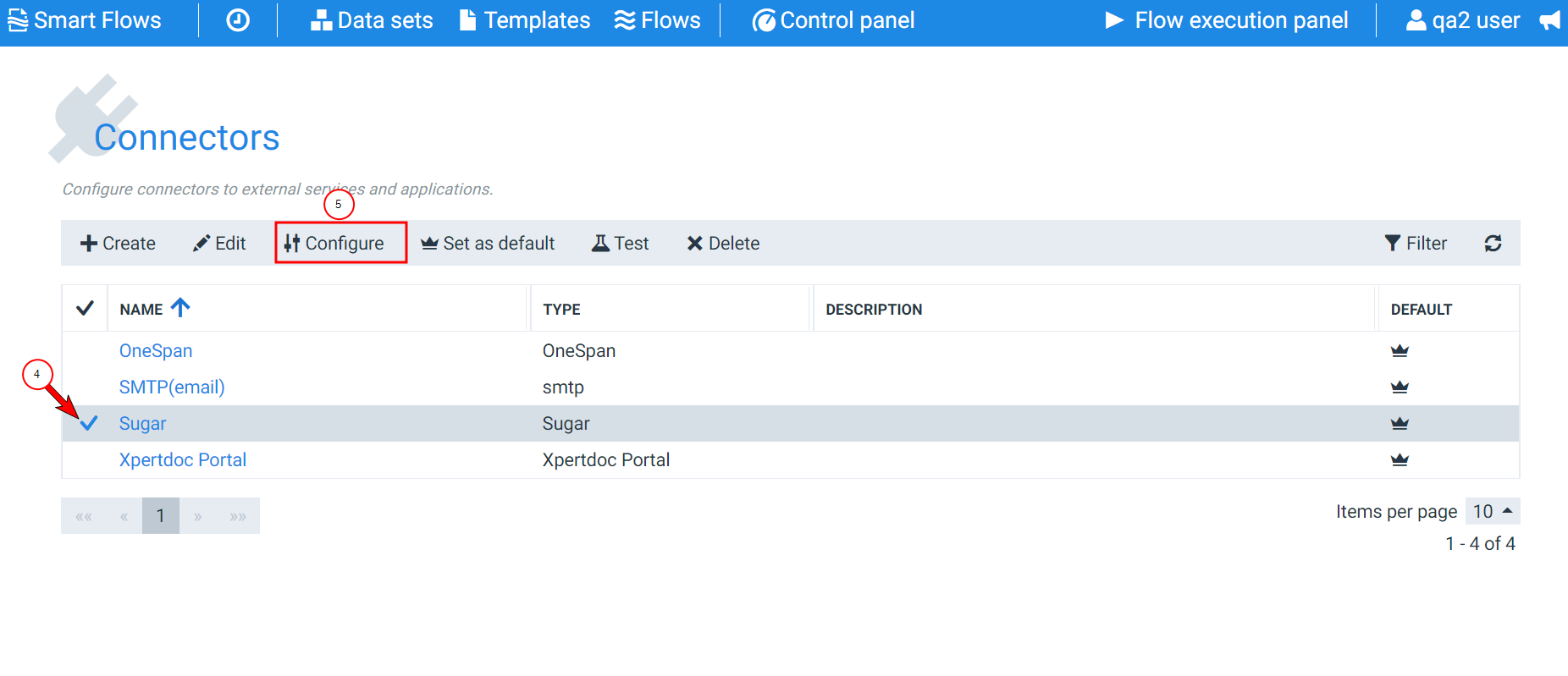
In the Project Console, navigate to Control panel > Connectors > select a row > Configure.
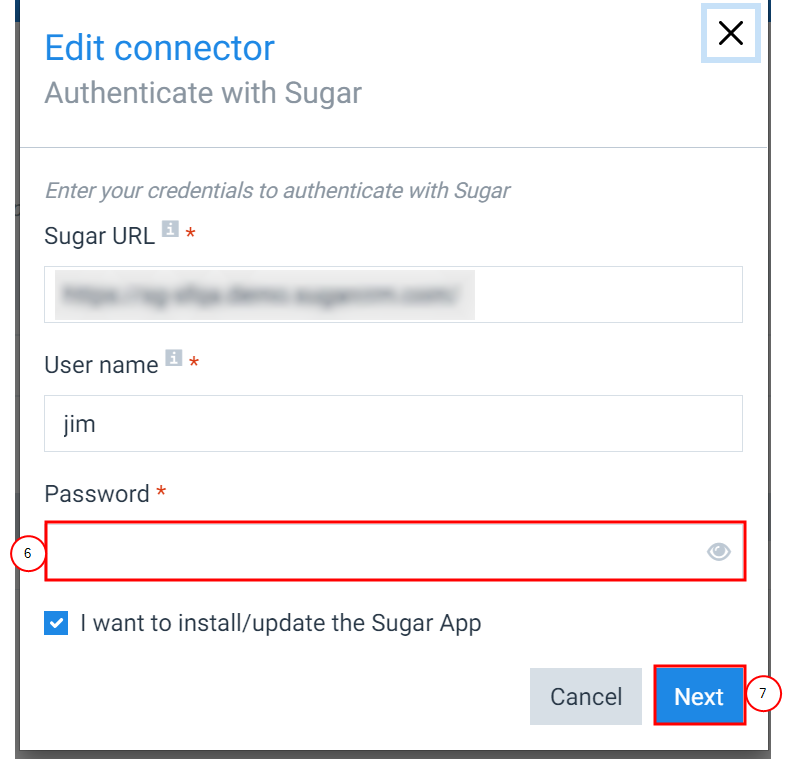
The Edit Connect Authenticate with Sugar window displays.
The Sugar URL, User name, and I want to install/update the Sugar App fields should all be pre-populated if you have already created the connector.
-
In the Password field, input the password for your Sugar instance.
-
Select Next.
-
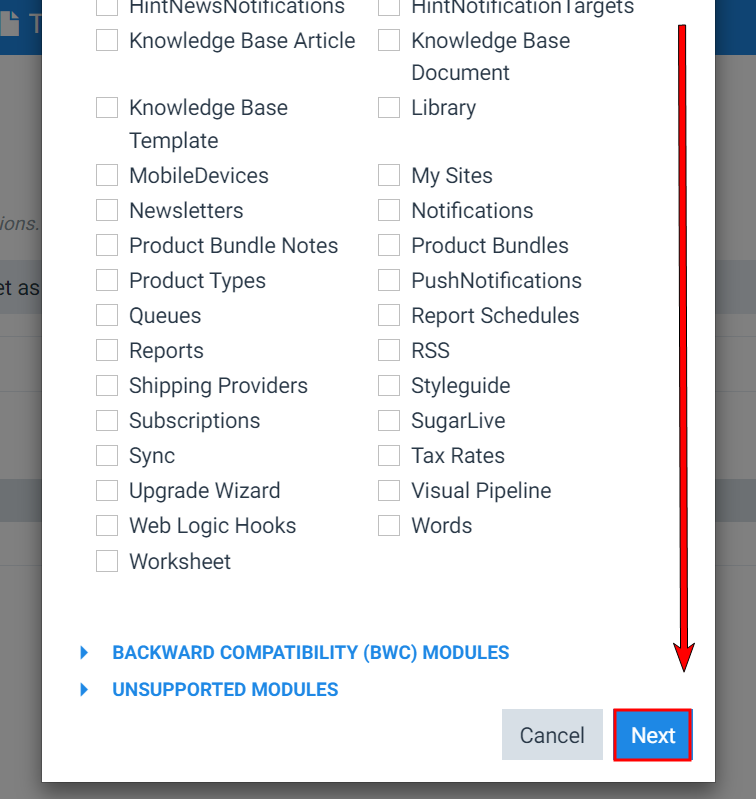
Scroll down and select Next.
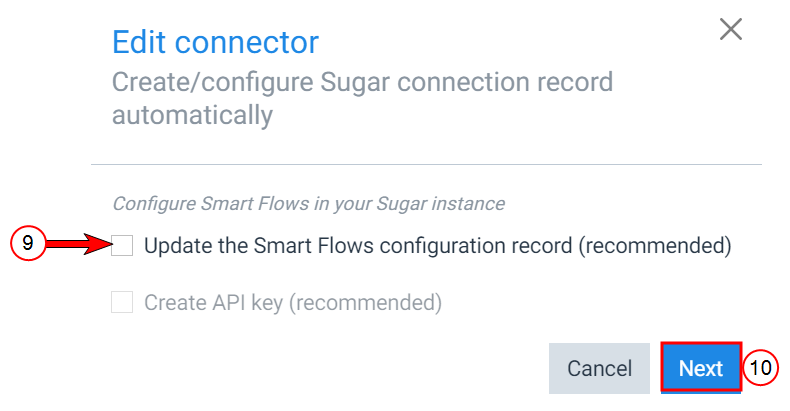
The Edit Connector-Create/Configure Sugar connection record automatically.
-
Select the checkbox next to Update the Smart Flows configuration record(recommended), select the checkbox, and select Next.
-
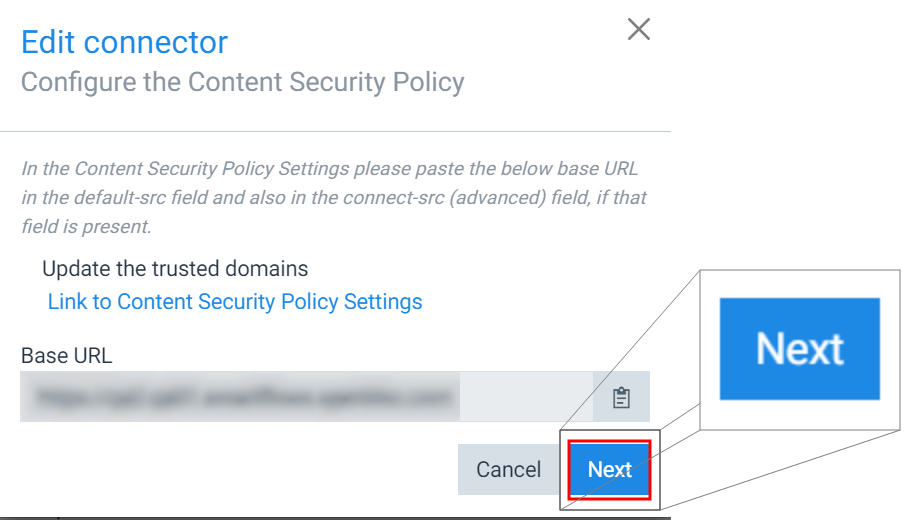
Select Next.
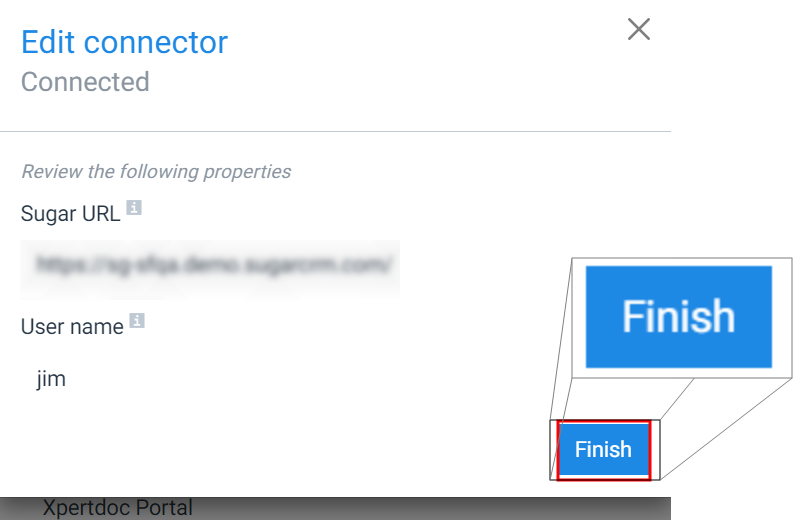
The Edit connector-Connected window displays.
-
Select Finish.
The Basic settings page displays for the Sugar connector.
You’ve completed the configuration of your Sugar connector. You can now begin the process of syncing your Sugar users. Refer to Managing Users for more information.