
Smarts Flows adds the Generate document block by default during the flow creation. The user can dynamically select a template and data block and link string mapping to the template field based on display name and ID. For Generate document flows blocks you add, ensure to insert the necessary flow blocks.
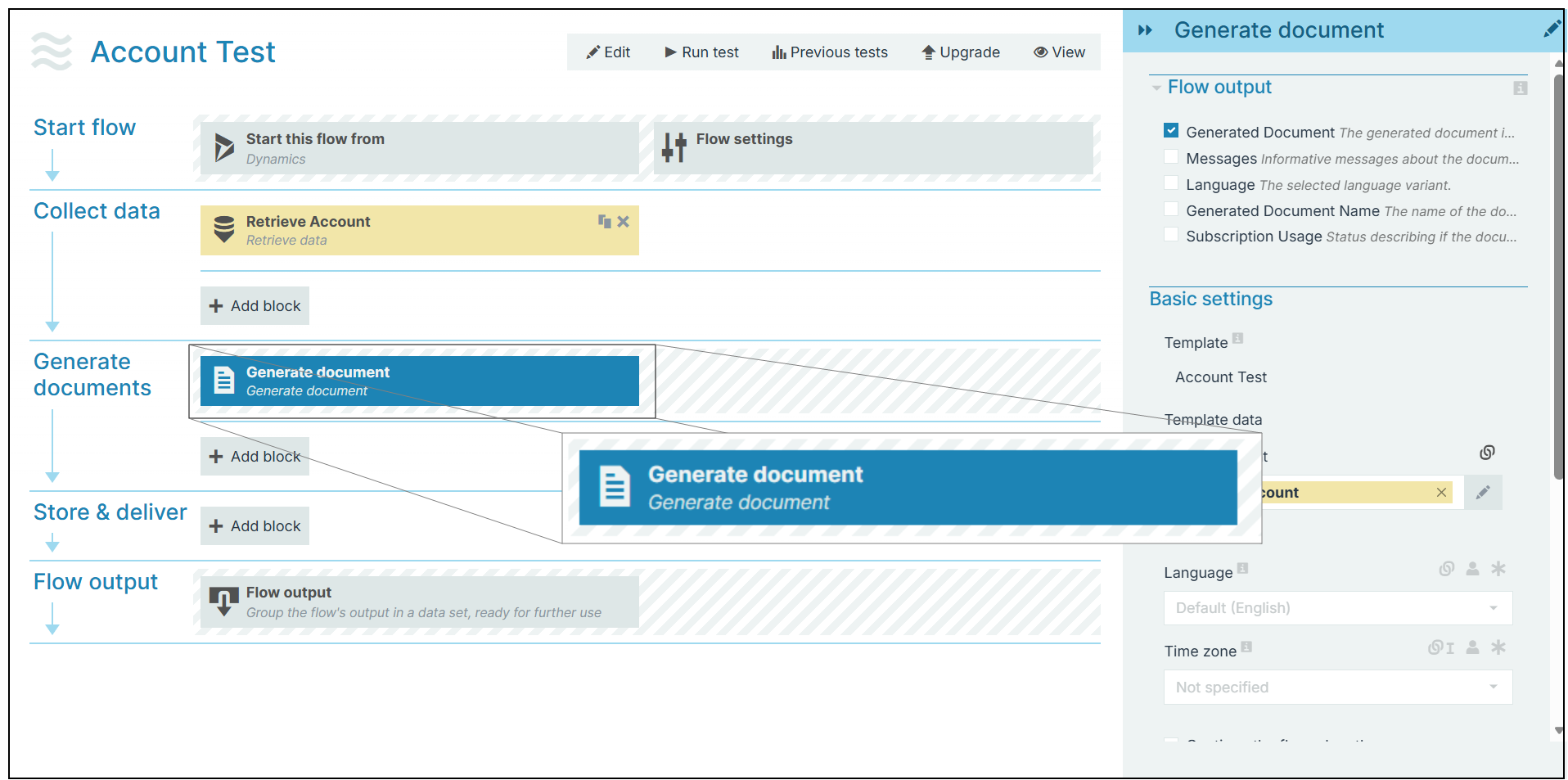
Flow Block Parameters
The dropdown menus below provide all of the flow block's configuration options with detailed information and recommendations to help you configure your flow block.
Flow block customization buttons
You can further customize your flow block's parameters in several ways
-

-

-

Flow Output
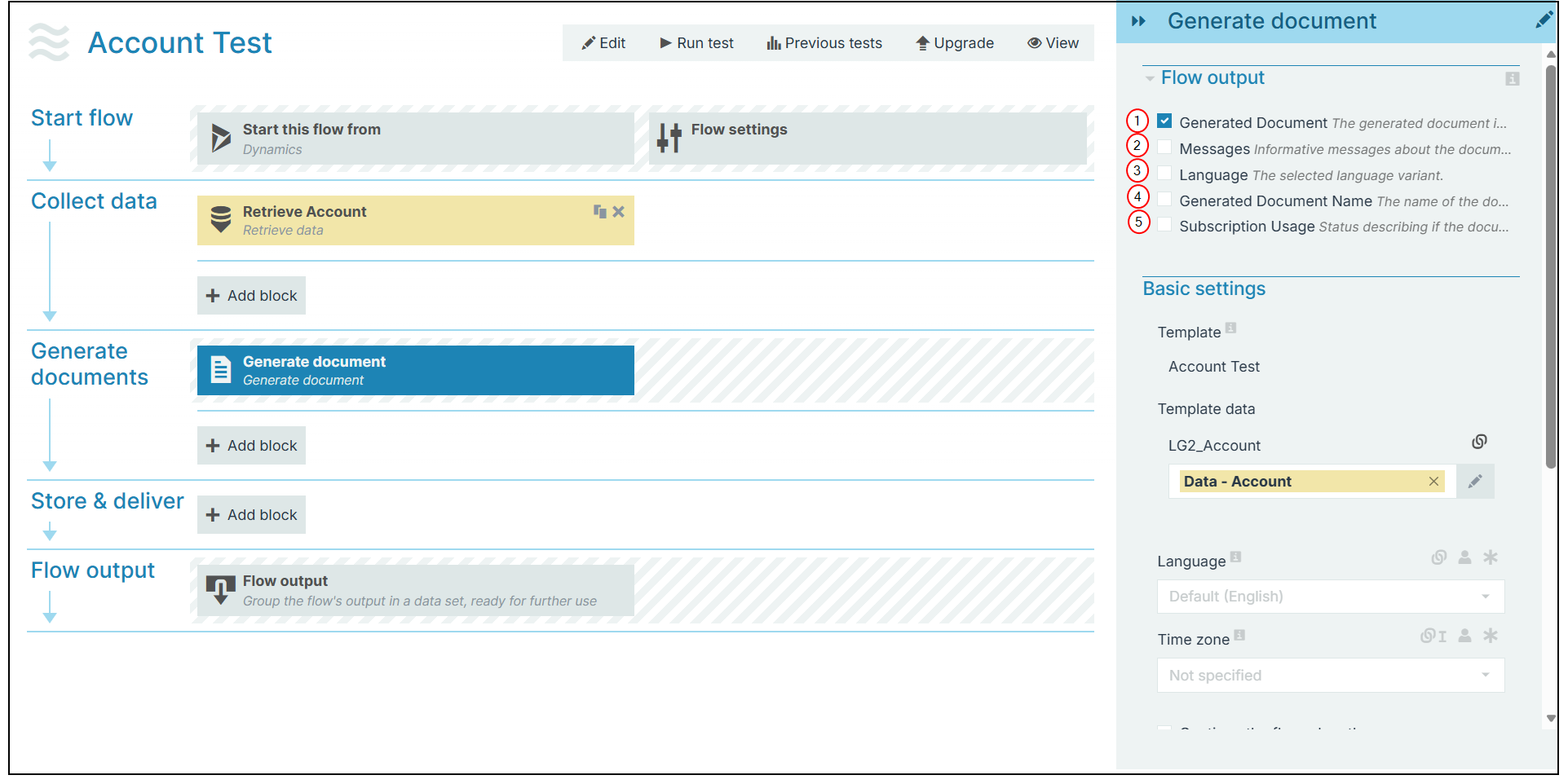
The Flow Output section shows all the output parameters that are available for the block. When checked, the value of the output parameter are presented to the user who is executing the flow. Each setting that composes this output information is described in detail below:
|
Index No. |
Field name |
Description |
|---|---|---|
|
1 |
Generated Document |
When checked, the generated document displays when the system completes the flow. |
|
2 |
Messages |
When checked, the system displays any messages associated with generating document during the flow output step. |
|
3 |
Languages |
When checked, the system displays the language selected during the flow block's output step. . |
|
4 |
Generated Document Name |
When checked, the system outputs the name of the generated document. |
|
5 |
Subscription Usage |
When checked, the system uses a seat for the applicable document subscription service. The system also provides in the flow execution report about the number of documents that will be added to the license. You can use this setting to monitor the number of documents your flows are attributing to your license. |
Basic settings
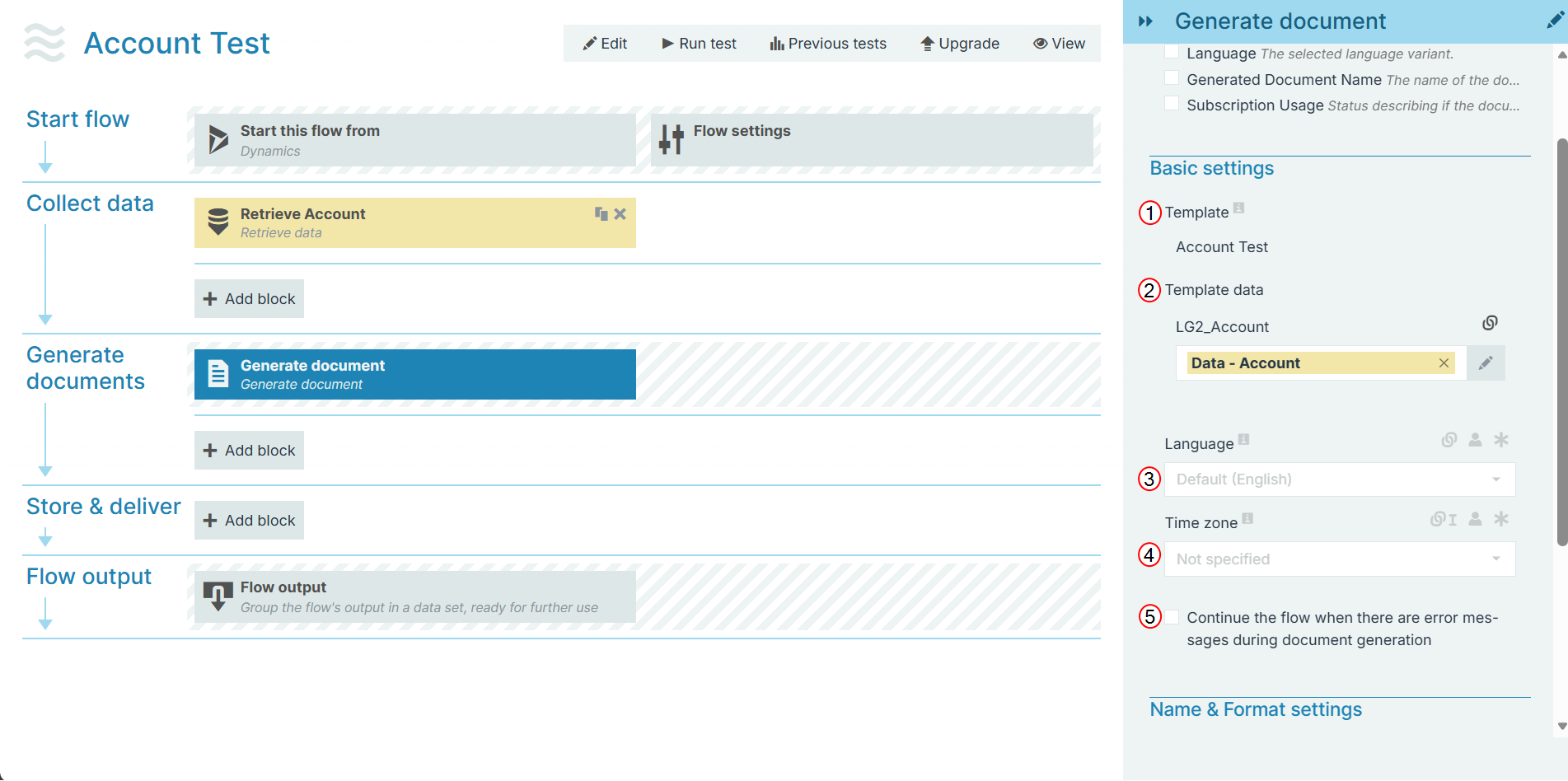
The Basic settings in the Generate Document flow block allow users to select a template and language to generate a document dynamically at runtime.
|
Index No. |
Field name |
Description |
|---|---|---|
|
1 |
Template |
Sets the template to use for generating the document. Smarts Flows adds the mandatory Generate document block sets during the flow creation. Also, you can dynamically select a template and data block and link string mapping to the template field based on display name and ID. For Generate document flows blocks you add, ensure to insert the necessary Retrieve data/Get user input blocks and link them accordingly. |
|
2 |
Template Data |
For every data set attached to the template, the system generates a document. These are linked to Retrieve data/Get user input flow blocks. |
|
3 |
Language |
Sets the Language variants of the template to use for the generated document. By default, the system uses the system language set in the Control Panel. |
|
4 |
Time Zone |
Defines the time zone to convert to when using Universal Time Format(UTC UTC current time is 13:05:10 UTC current date is 11th Tuesday January 2022.). The system uses the Time Zone for internal timing as well such as the date for document naming purposes and mapped fields in the template. If this field is not set, the system uses the info from the a Template Builder template. If selected, this time zone will override the selected time zone configured at the Project level. |
|
5 |
Continue the flow when there are error messages during document generation |
Check this option to complete the flow execution irrespective of errors. |
Name and format settings
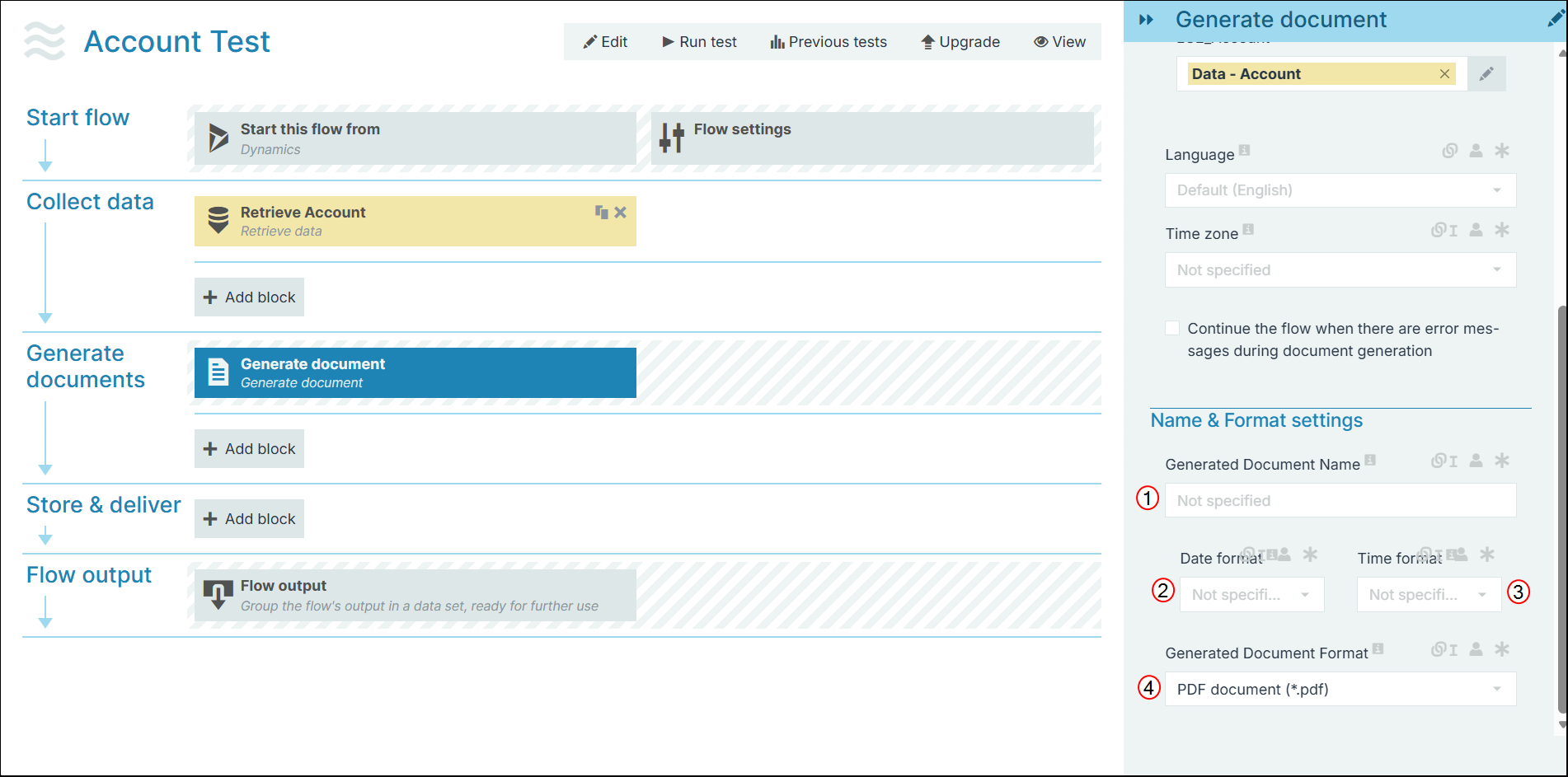
The Name and format settings in the Generate Document flow block allow users to overwrite generic data with more specific ones. The generated document will use the indicated name and format.
|
Index No. |
Field name |
Description |
|---|---|---|
|
1 |
Document Name |
Sets the name of the generated document. By default, the system uses the name of the template. |
|
2 |
Date Format |
Sets the date format. When you make a selection here, the system adds a timestamp to the name of the document. The timestamp is separated into date and time, but when you link a field here, both the date and time fields can accept all date and time symbols, refer to Date & time patterns for more information. |
|
3 |
Time Format |
Sets the time format for the field. |
|
4 |
Document Format |
Defines the type of generated document. By default, the system uses either PDF or docx, however, all of the following formats are supported
|
Generate Document Details
Smart Flows offers document generation capabilities, allowing users to create presentations and spreadsheets in PowerPoint and Excel formats without the need for additional plugins. This guide provides detailed information on how documents are rendered in these formats.
PowerPoint Format
-
Each page of the source document is generated to a single PowerPoint slide.
A five page document would be rendered as a five slide PowerPoint deck.
-
The following aspects of the document are rendered as it is:
-
Texts
-
Images
-
Charts
-
Tables
-
Excel Format
-
Each page or section of the source document is generated into a single tab in the Excel spreadsheet by default.
-
Number, currency, and date mappings in the document are rendered directly in the Excel file, rather than as string values.
-
Charts are rendered as charts supported in the Excel format.