
The Smart Flows application includes a Convert data to document flow block that transforms data into an XML file format. Below is a detailed explanation of the flow block.
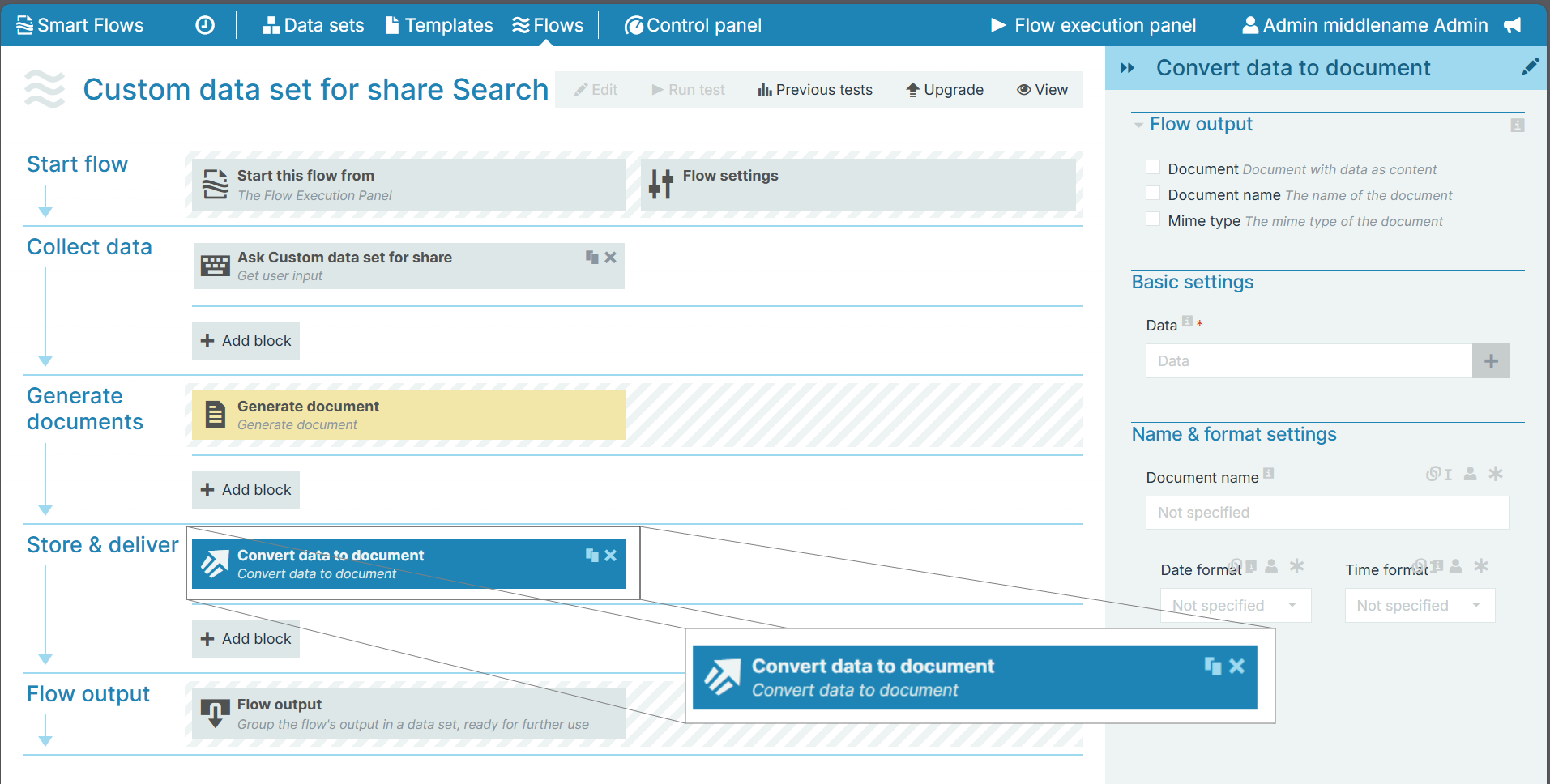
Flow Block Parameters
The dropdown menus below provide all of the flow block's configuration options with detailed information and recommendations to help you configure your flow block.
Flow block customization buttons
You can further customize your flow block's parameters in several ways
-

-

-

Flow output
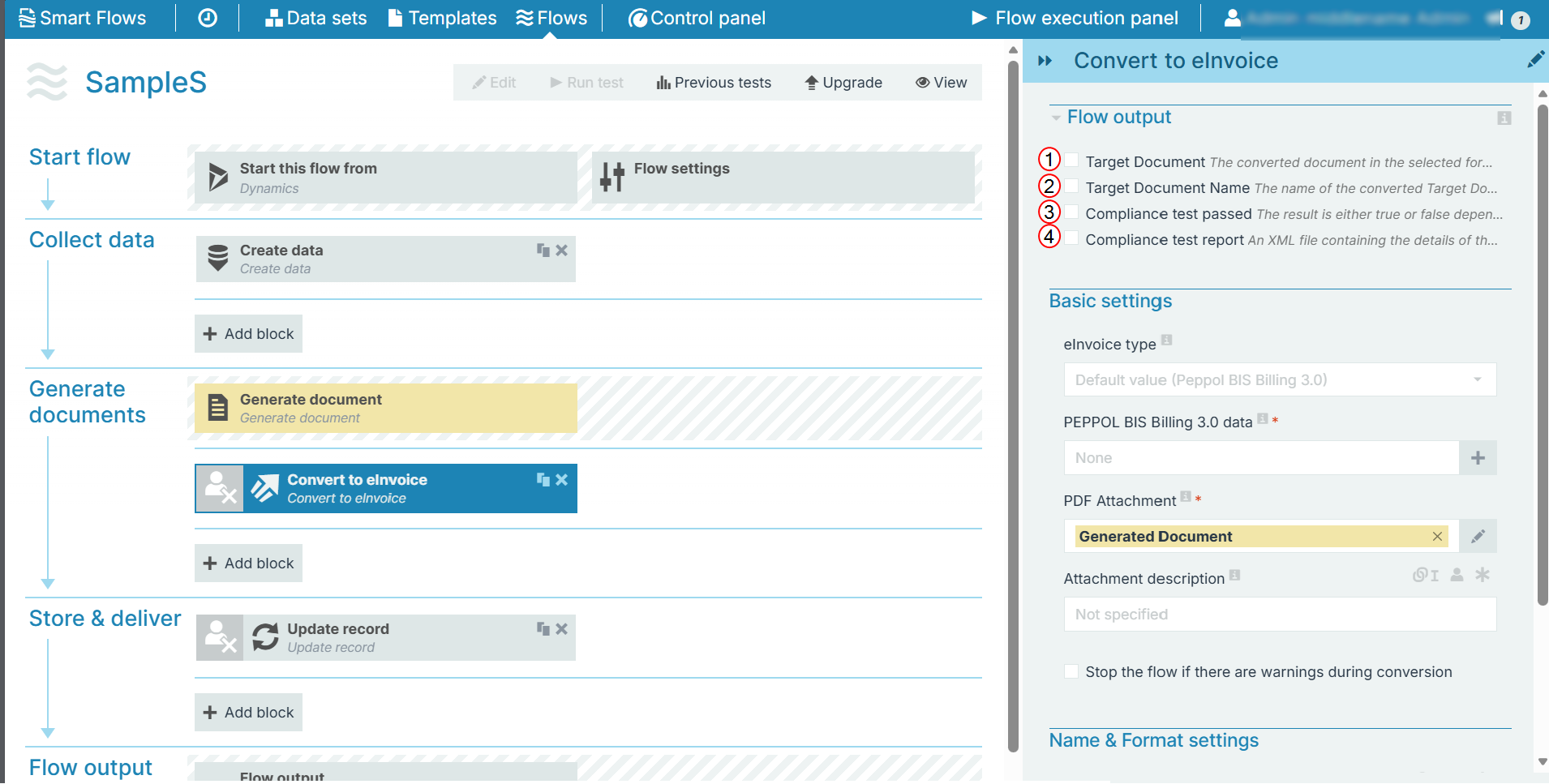
The Flow output section allows you to select the output of the XML file.
|
Index No. |
Component, Control, or Indicator |
Function |
|---|---|---|
|
1 |
Document |
When checked, the system displays the converted document with data as content. |
|
2 |
Document name |
When checked, the system displays the converted document name. |
|
3 |
Mime type |
When checked, the system displays the converted document in Mime (Multipurpose Internet Mail Extensions) type. |
Basic settings
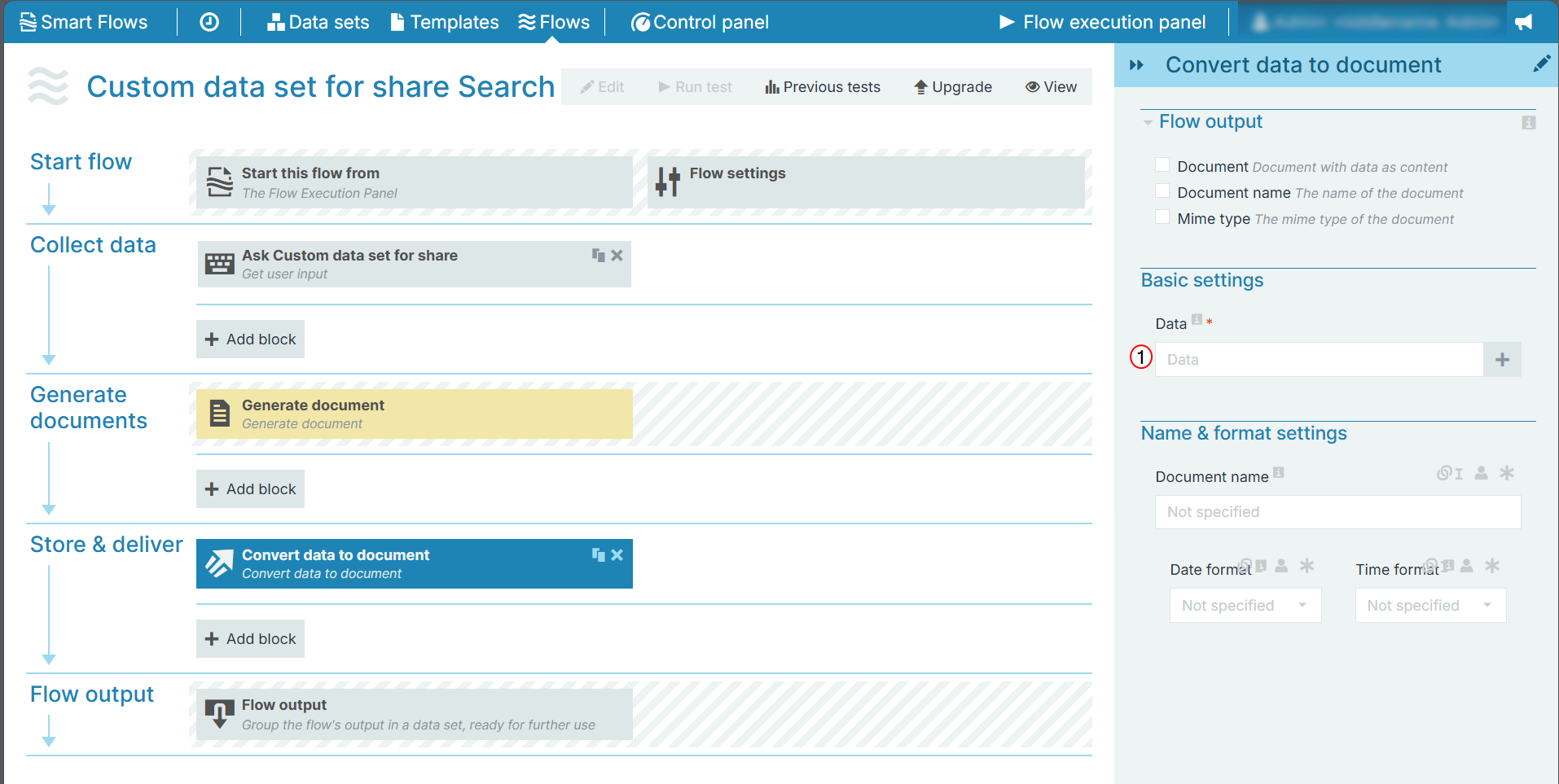
The Basic settings section allows you to select data for conversion.
|
Index No. |
Component, Control, or Indicator |
Function |
|---|---|---|
|
1 |
Data |
Select the data for conversion. 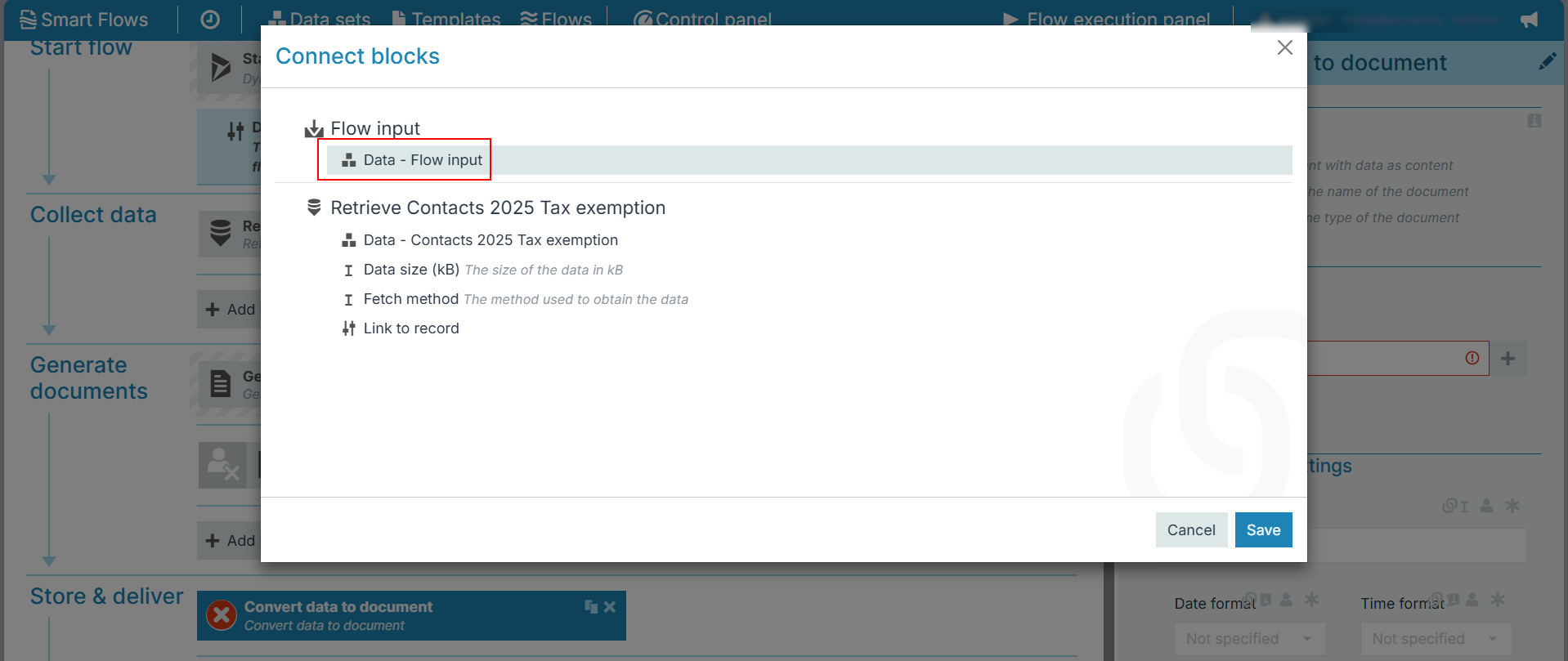
If you select any field other than data, an error message is displayed immediately or during the flow execution. An example for selecting link shared below: 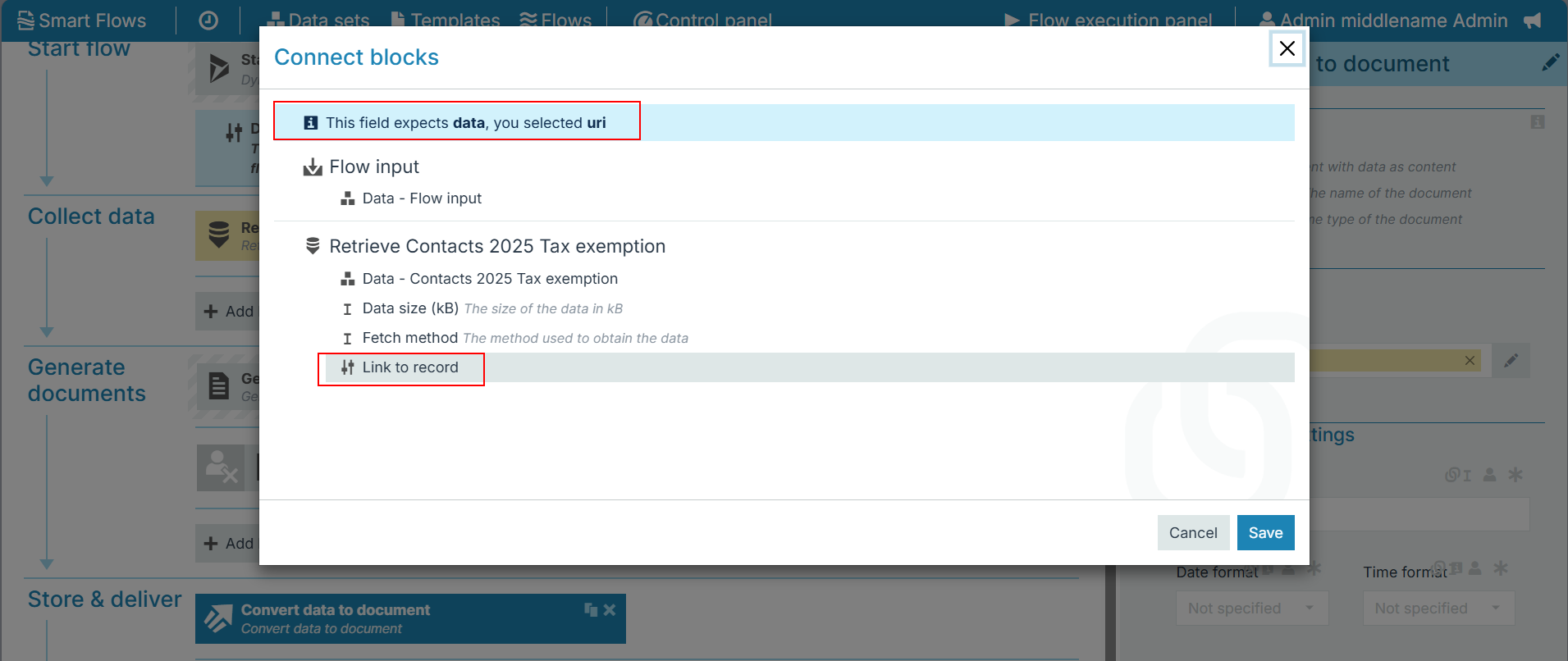
|
Name & format settings
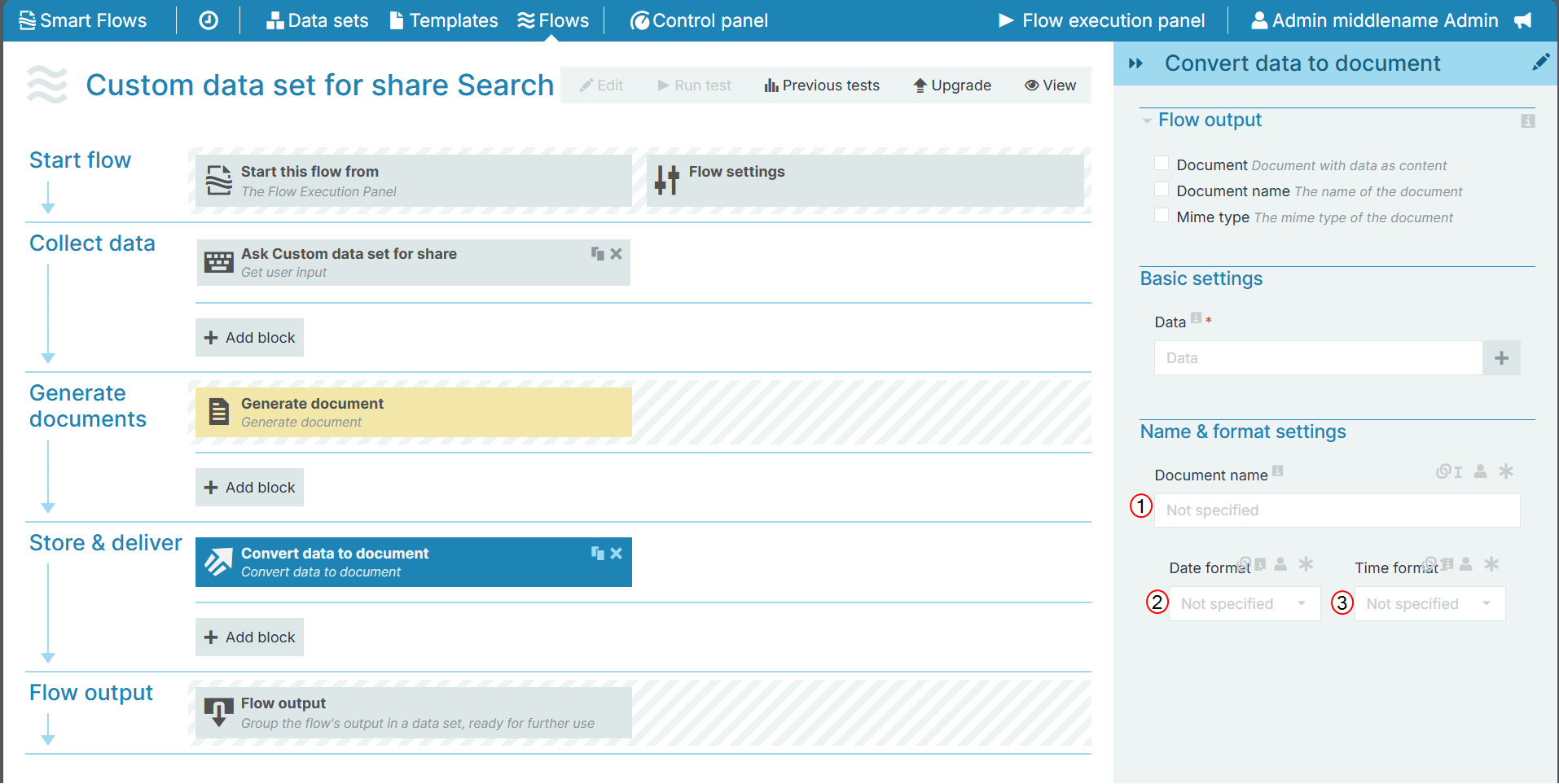
The Name & format settings allow you to set the name and date & time settings of the document
|
Index No. |
Field name |
Function |
|---|---|---|
|
1 |
Document name |
(missing or bad snippet) |
|
2 |
Date format |
Sets the date format. When you make a selection here, the system adds a timestamp to the name of the document. The timestamp is separated into date and time, but when you link a field here, both the date and time fields can accept all date and time symbols, refer to Date & time patterns for more information. |
|
3 |
Time format |
Sets the time format for the field. |