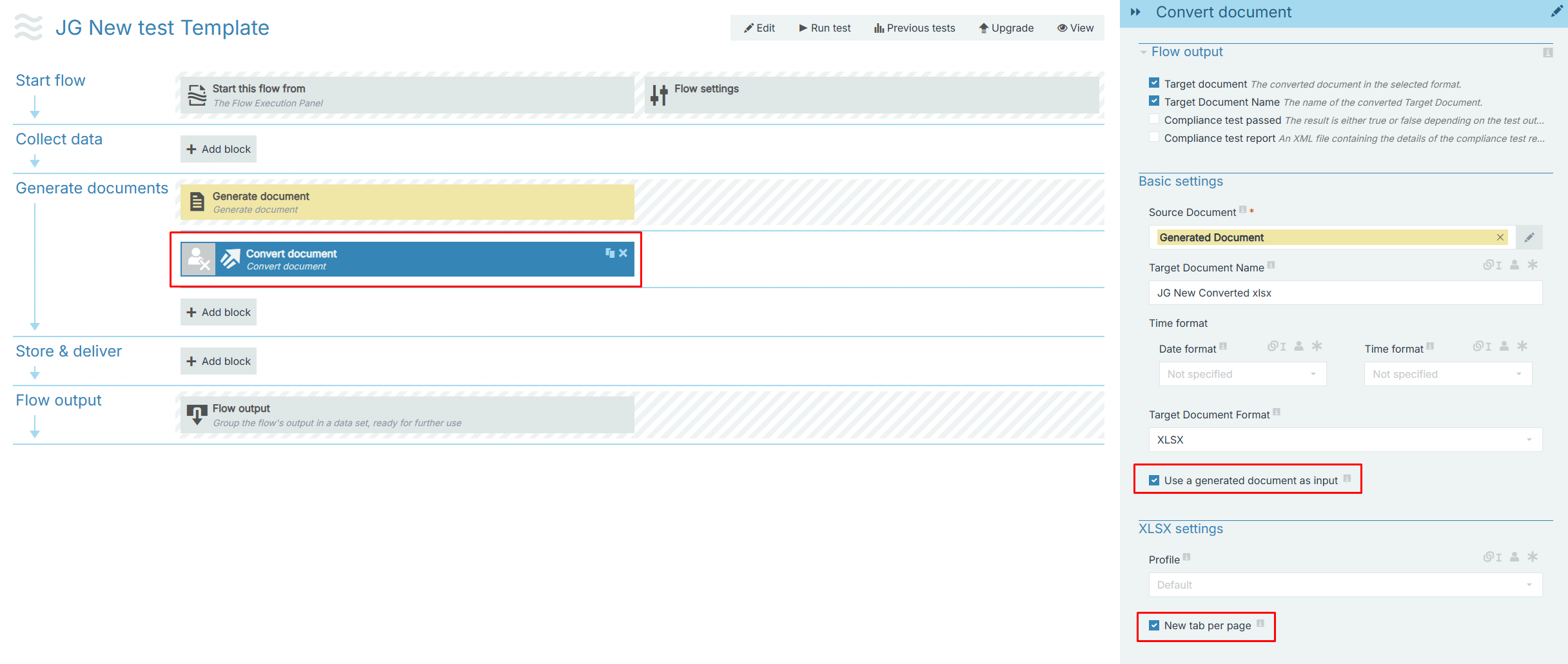
The Convert Document flow block converts documents into different formats based on parameters set by the user. Many users link Convert Document flow blocks to a Generate document block. However, users can also connect other blocks like the Send to Docusign block and then Convert the signed document.
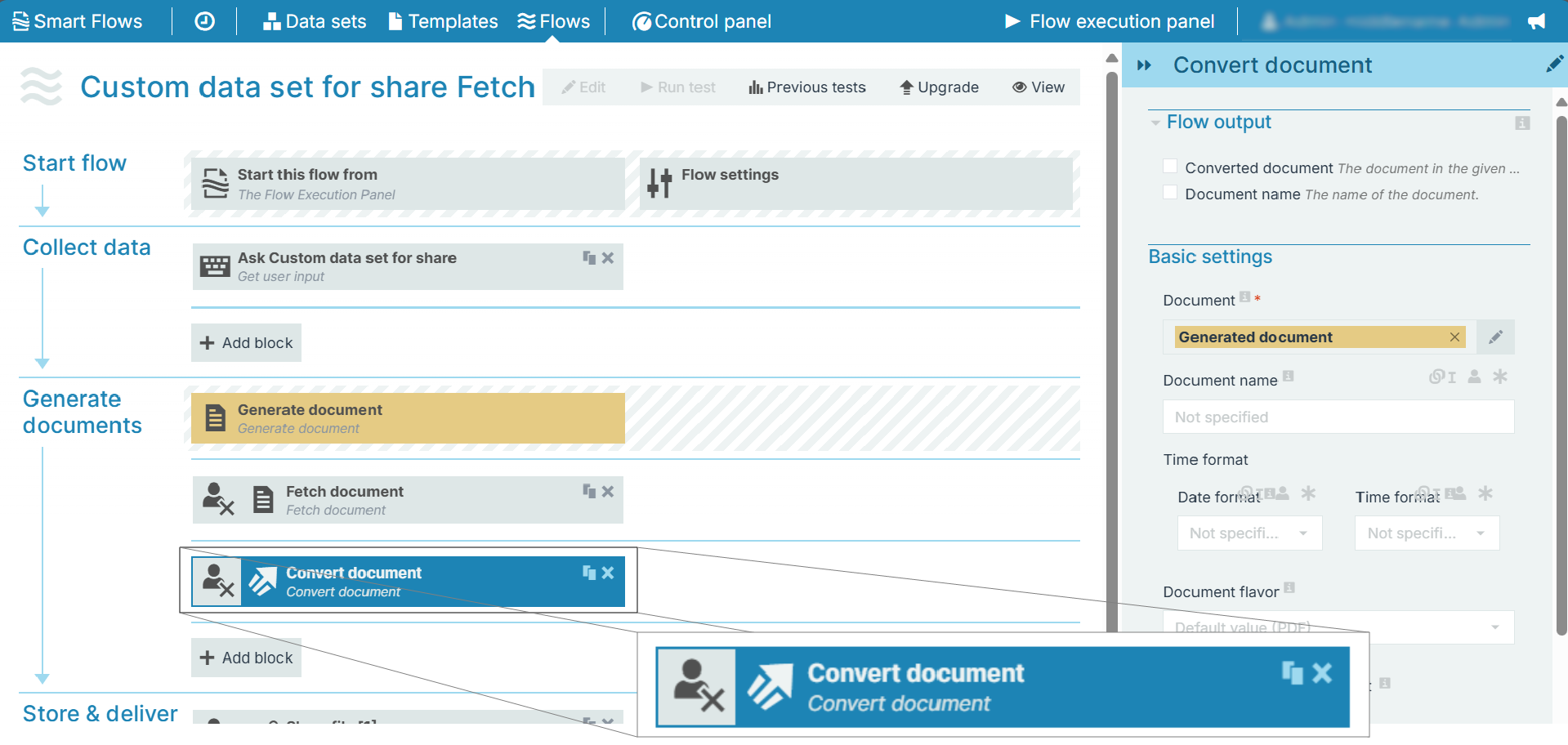
Flow Block Parameters
The dropdown menus below provide all of the flow block's configuration options with detailed information and recommendations to help you configure your flow block.
Flow block customization buttons
You can further customize your flow block's parameters in several ways
-

-

-

Flow Output
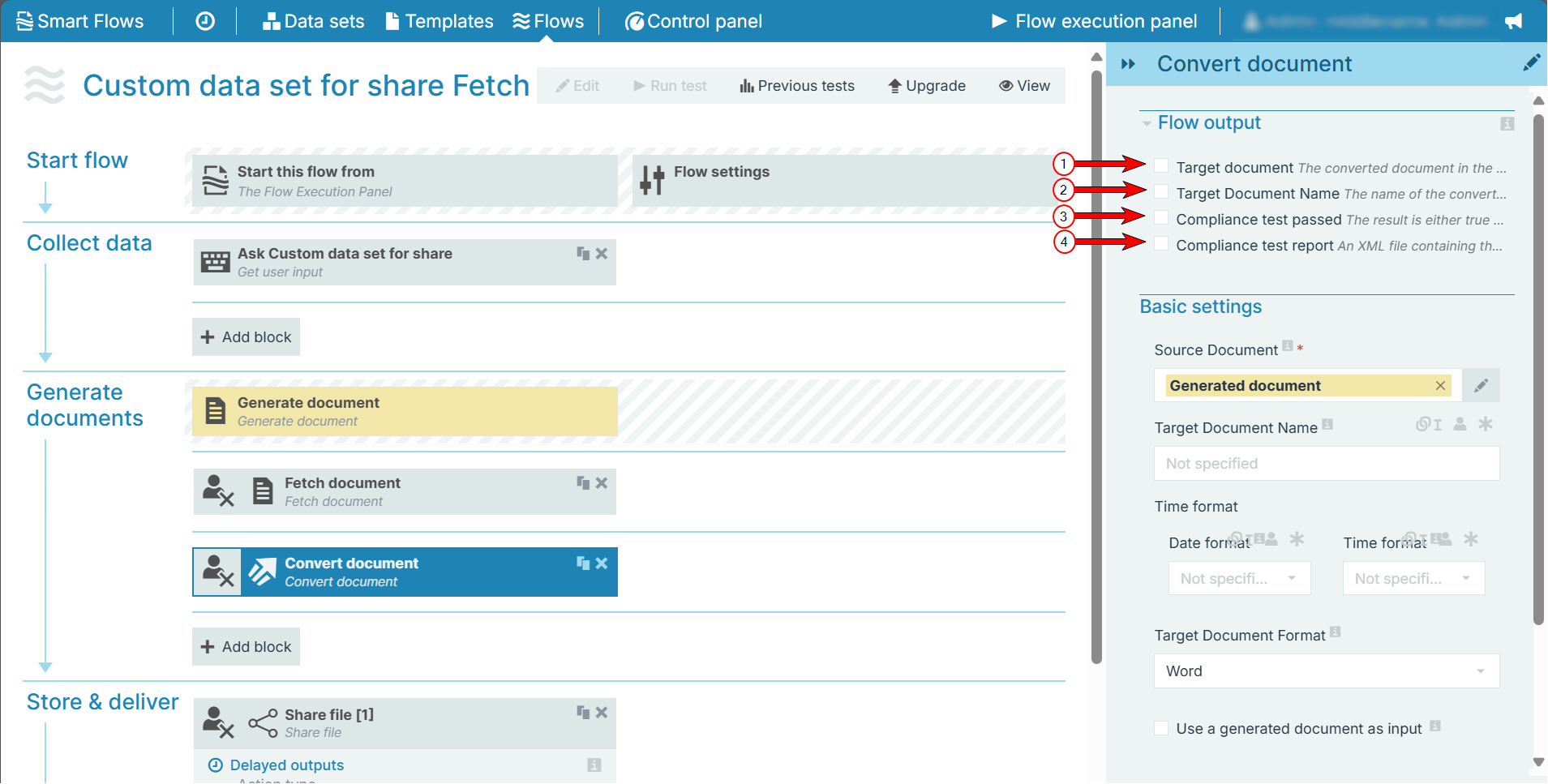
|
Index No. |
Component, Control, or Indicator |
Function |
|---|---|---|
|
1 |
Target document |
When checked, a link is provided to the converted document in the flow output. |
|
2 |
Target Document Name |
When checked, the document name of the converted document is displayed in the flow output. |
|
3 |
Compliance test passed |
When checked, the compliance test result is displayed in the flow output. (true/false). This output is relevant only for 'PDF/UA-1' type. |
|
4 |
Compliance test report |
When checked, an XML file containing the details of the compliance test result is provided in the flow output. This output is relevant only for 'PDF/UA-1' type. |
Basic Settings
The basic settings define the name of your document and what type of document to convert into during flow execution. The Document flavor field controls what additional settings you will see when designing your flow. For example, the side panel only displays PDF settings when you have set the Document flavor to PDF.
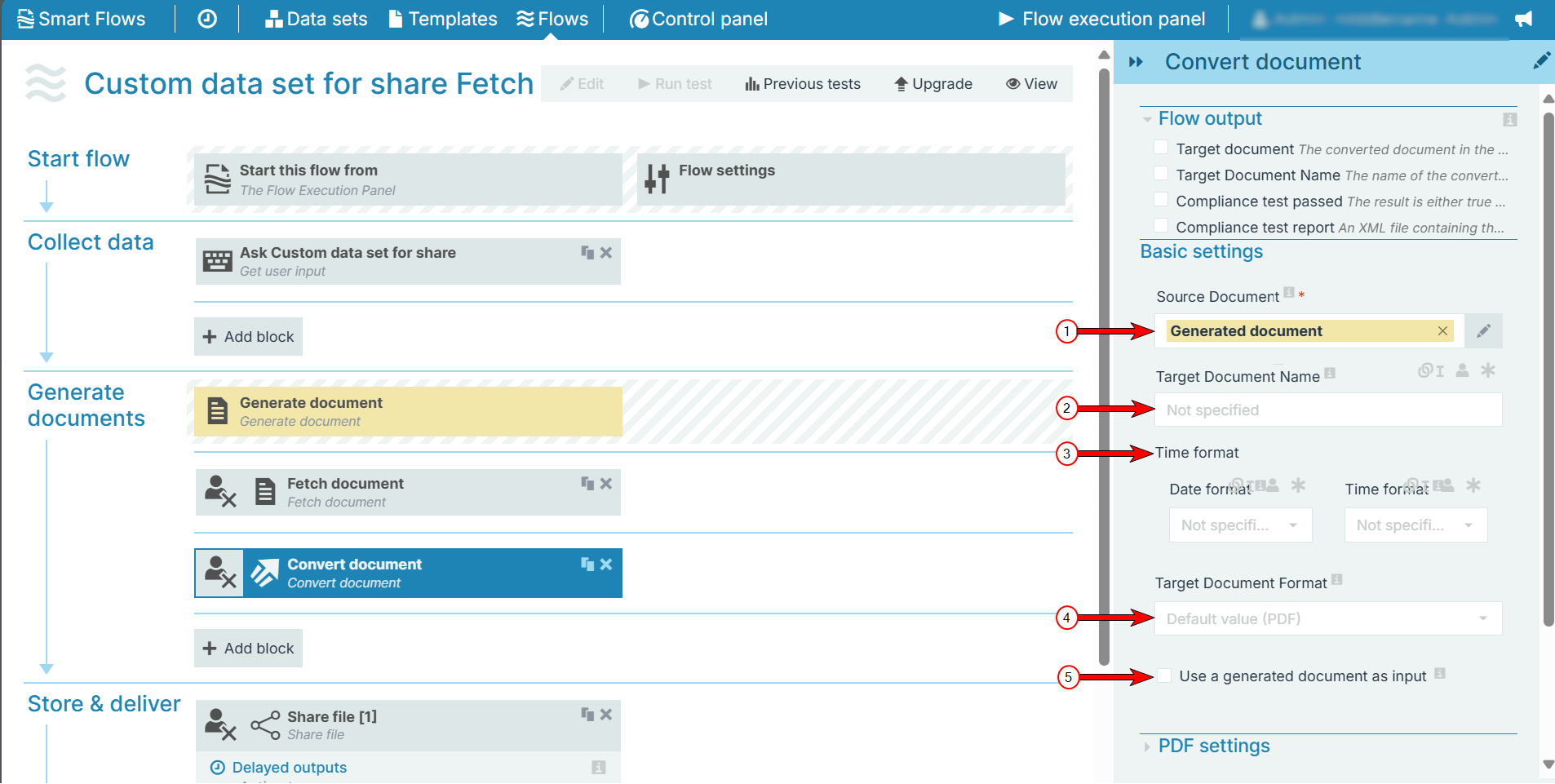
|
Index No. |
Field name |
Function |
|---|---|---|
|
1 |
Source Document |
Specifies the document to convert. The document acts as a variable to determine the next step in the flow. |
|
2 |
Target Document Name |
Sets the filename of the converted document. By default, the Document name field uses the name of the template. |
|
3 |
Time format |
Sets the timestamp behavior for the converted document. When checked, the system adds a timestamp to the document's name as {{date}} {{time}}. However, users can also link other fields to the Timestamp format field. When using the linked field method, both the date and time fields can accept all date and time symbols.; Refer to Date & time patterns for more information. |
|
4 |
Target Document Format |
The format of the document. Available formats include:
|
|
5 |
Use a generated document as input |
When checked, the system converts the linked document instead of the original .docx document generated by the flow. |
PDF Settings
The PDF settings define how your converted PDF functions for users, including encryption, permissions, and password protection. The PDF settings only display if PDF is selected for the document flavor.
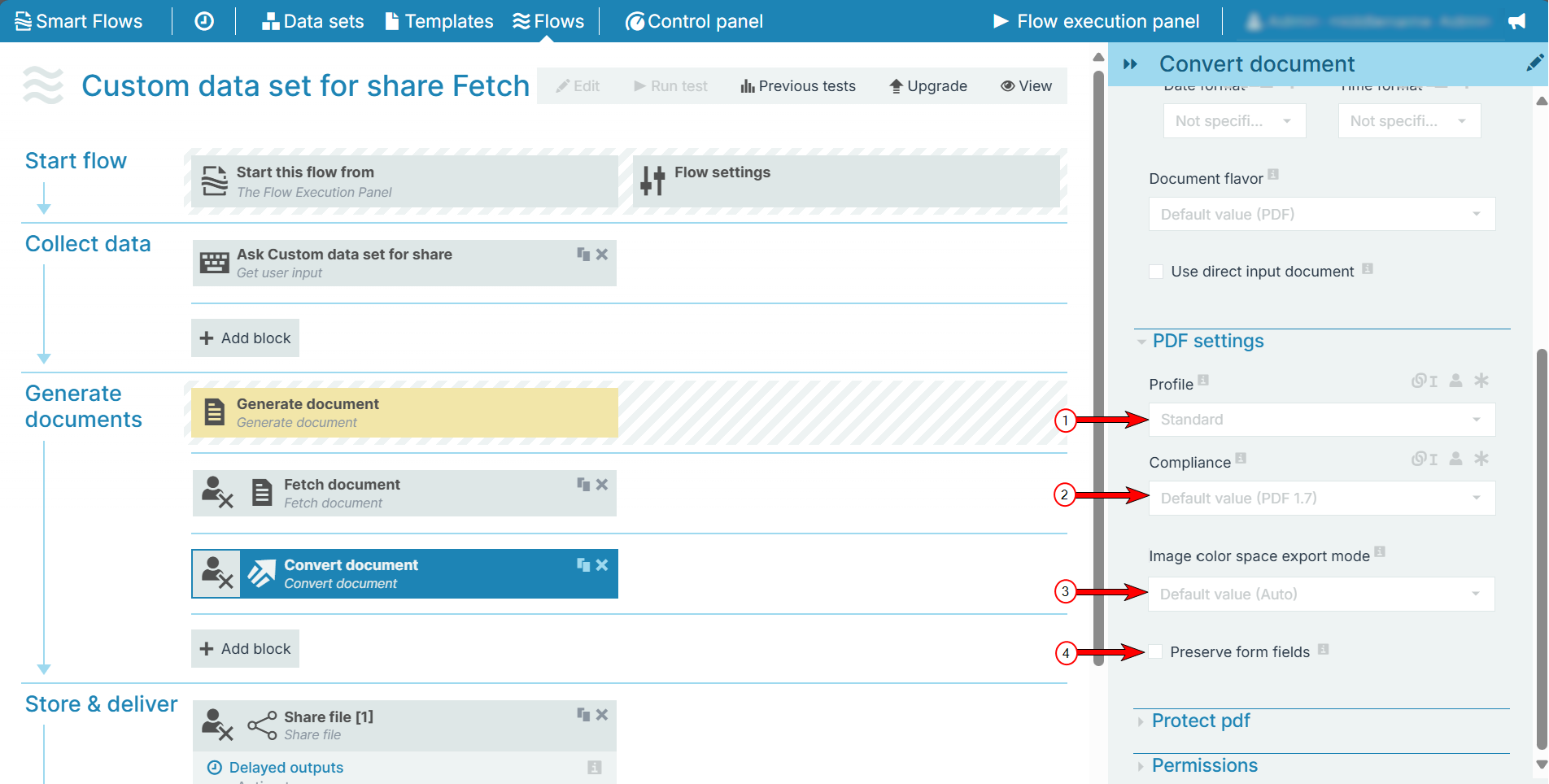
|
Index No. |
Field name |
Function |
|---|---|---|
|
1 |
Profile |
Sets the rate of compression for the converted document. Options include:
|
|
2 |
Compliance |
Sets the PDF version and accessibility compliance level for the converted document. By default the system uses PDF17 but can also support PDF15 for legacy purposes. A document can also be converted with compliance to accessibility standards such as PDF/UA-1, PDF/A-2a or PDF/A-2u and PDF/A-1a or PDF/A-1b (legacy). Upon selecting PDF/UA-1, the following setting is displayed:
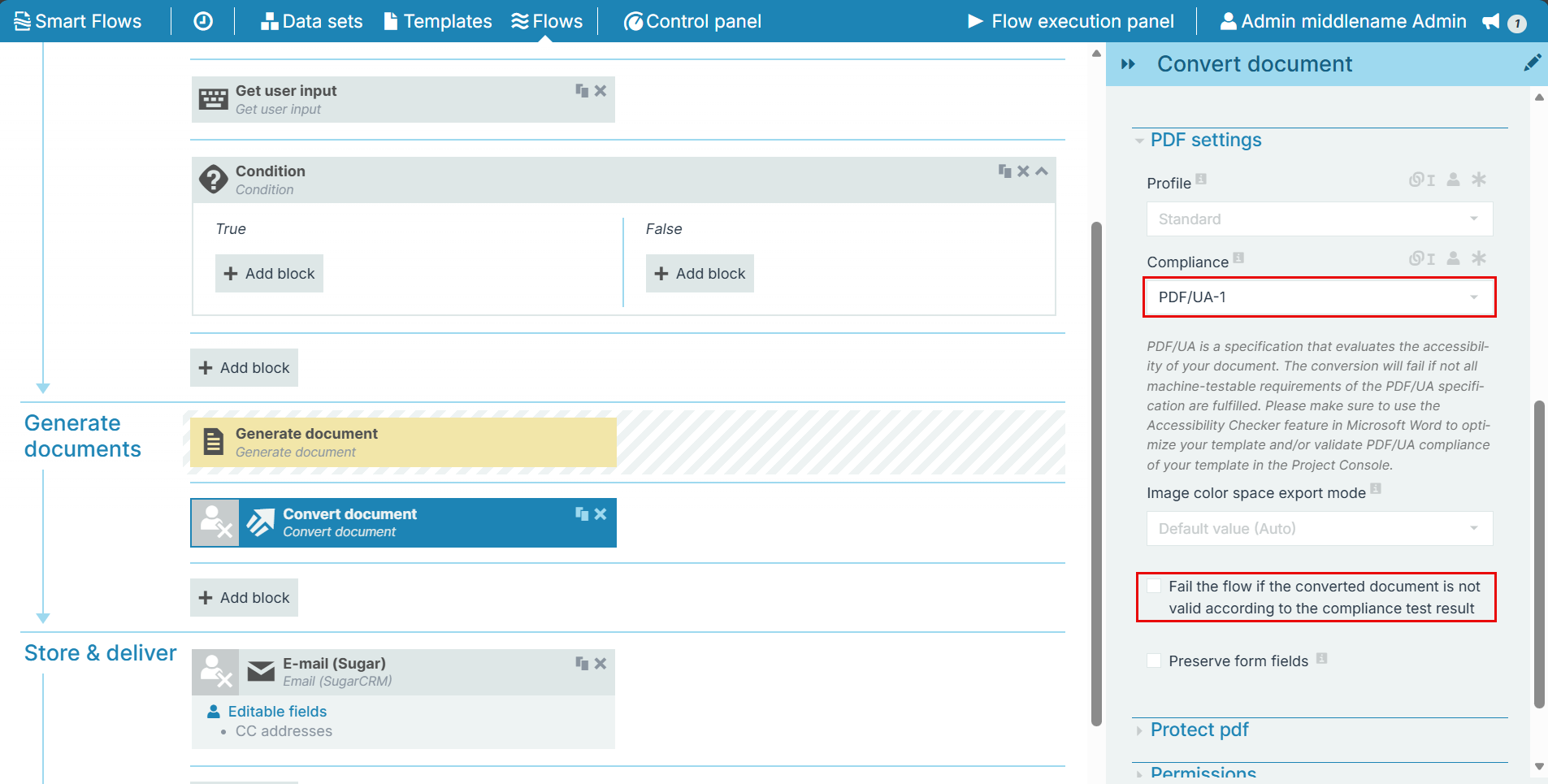
For more information on PDF/UA-1, see Features of PDF/UA. |
|
3 |
Image color space export mode |
Sets the color space mode for the images in the PDF. You can select the following options:
|
|
4 |
Preserve form fields |
Sets the fields editable post converting the document to PDF. |
Protect PDF
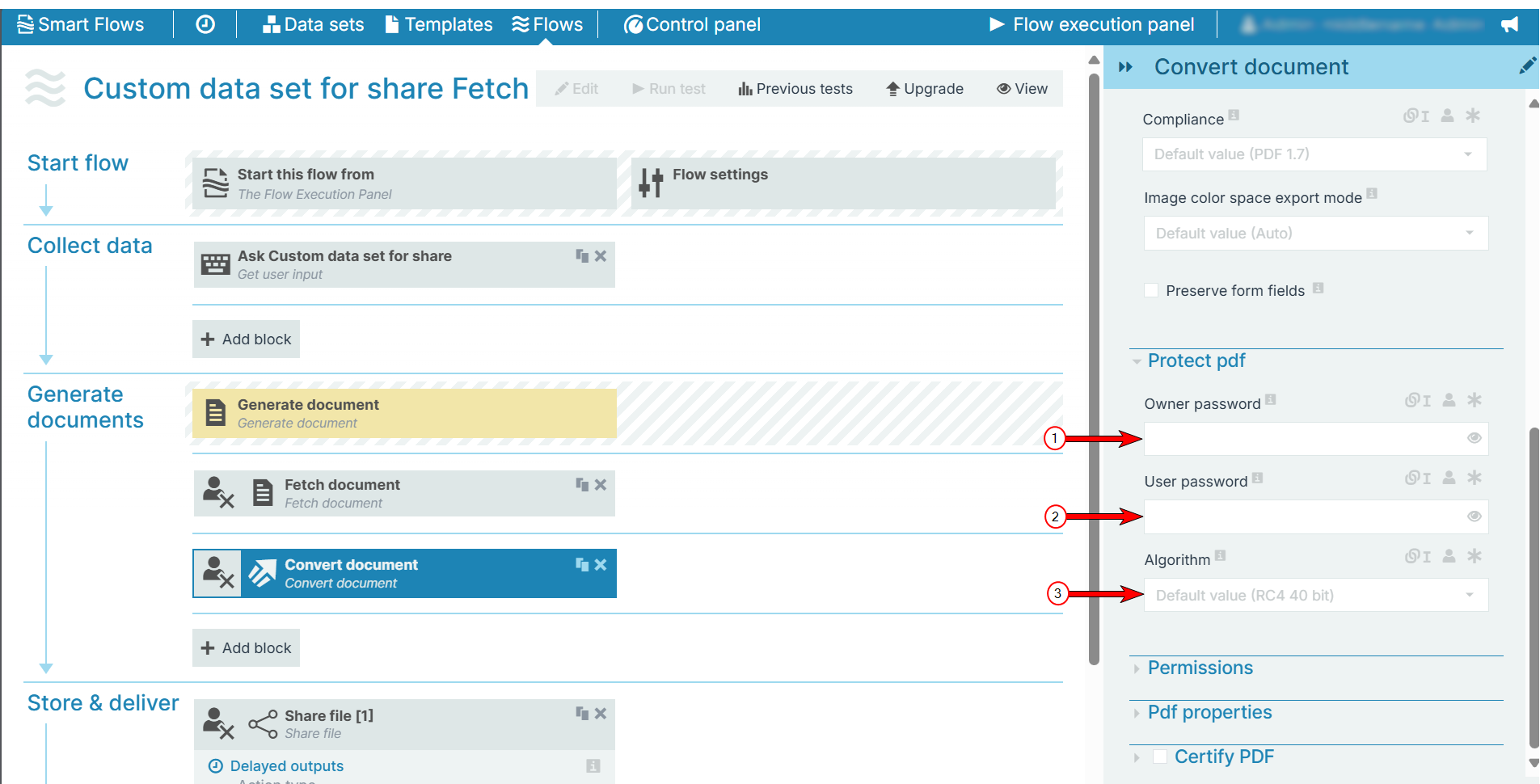
|
Index No. |
Field name |
Function |
|---|---|---|
|
1 |
Owner password |
Sets password that unlocks the PDF document and provides access to all the document's features. |
|
2 |
User password |
Sets the password for users of the document. When a user enters the user password, it provides access to the features defined under Permissions. |
|
3 |
Algorithm |
Determines the algorithm to use when encrypting the converted document with the following options: RC4 40 bit, RC4 128 bit, AES 128 bit, AES 256 bit. The system uses RC4 40 bit encryption by default |
Permissions
The Permissions settings define what users can do with the converted document, such as printing or content copying.
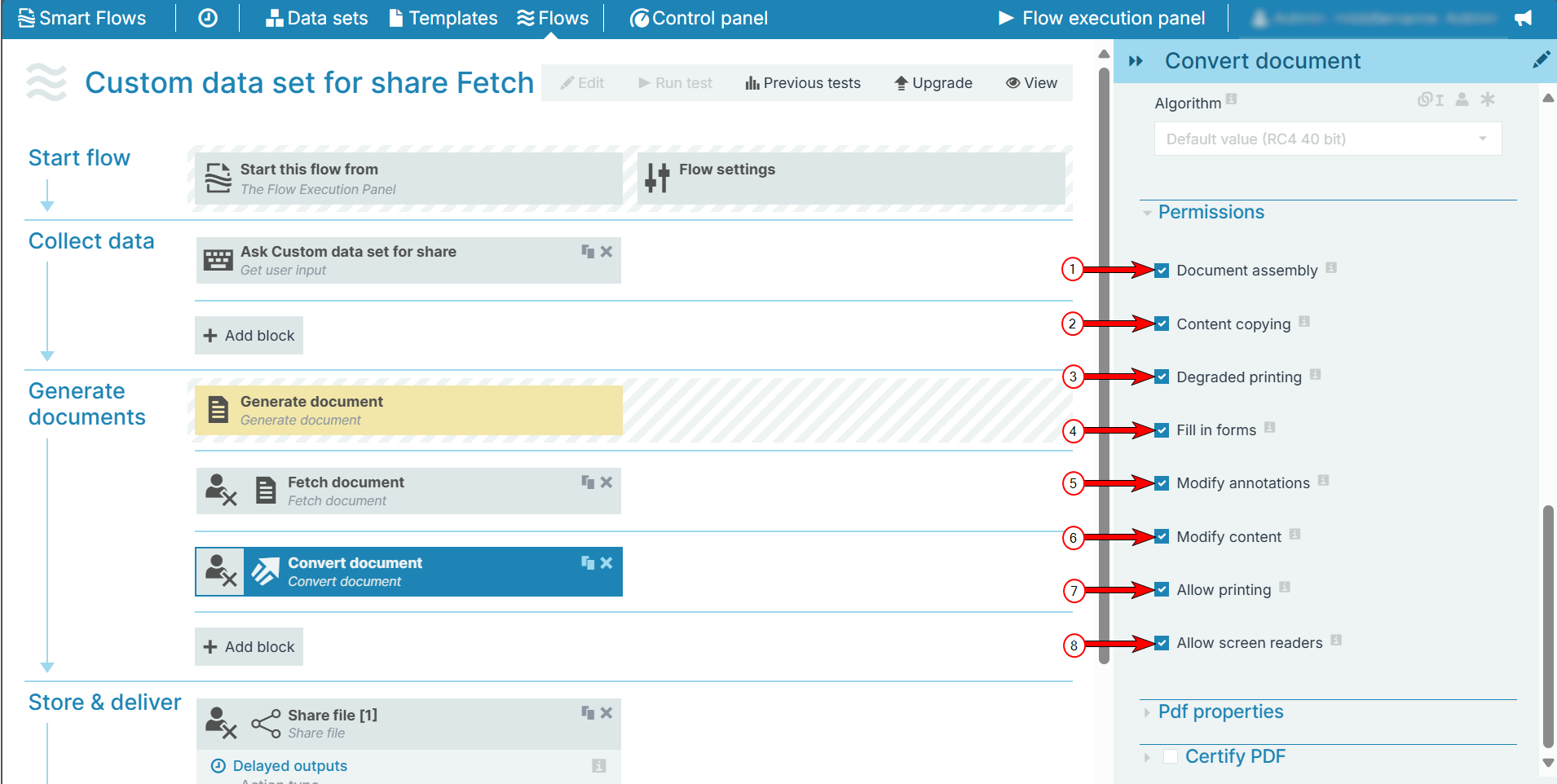
|
Index No. |
Field name |
Function |
|---|---|---|
|
1 |
Document assembly |
When checked, the document allows users to modify the order of pages. |
|
2 |
Content copying |
When checked, the converted document allows the user to copy content from the document. |
|
3 |
Degraded printing |
When checked, users can print the document in low-resolution mode. |
|
4 |
Fill in forms |
When checked, form fields within the document are editable. |
|
5 |
Modify annotations |
When checked, annotations within the document are editable. |
|
6 |
Modify content |
When checked, allows users to change the content of the document. |
|
7 |
Allow printing |
When checked, allows users to print the document. |
|
8 |
Allow screen readers |
When checked, allows users to use a screen reader with the converted document. |
PDF properties
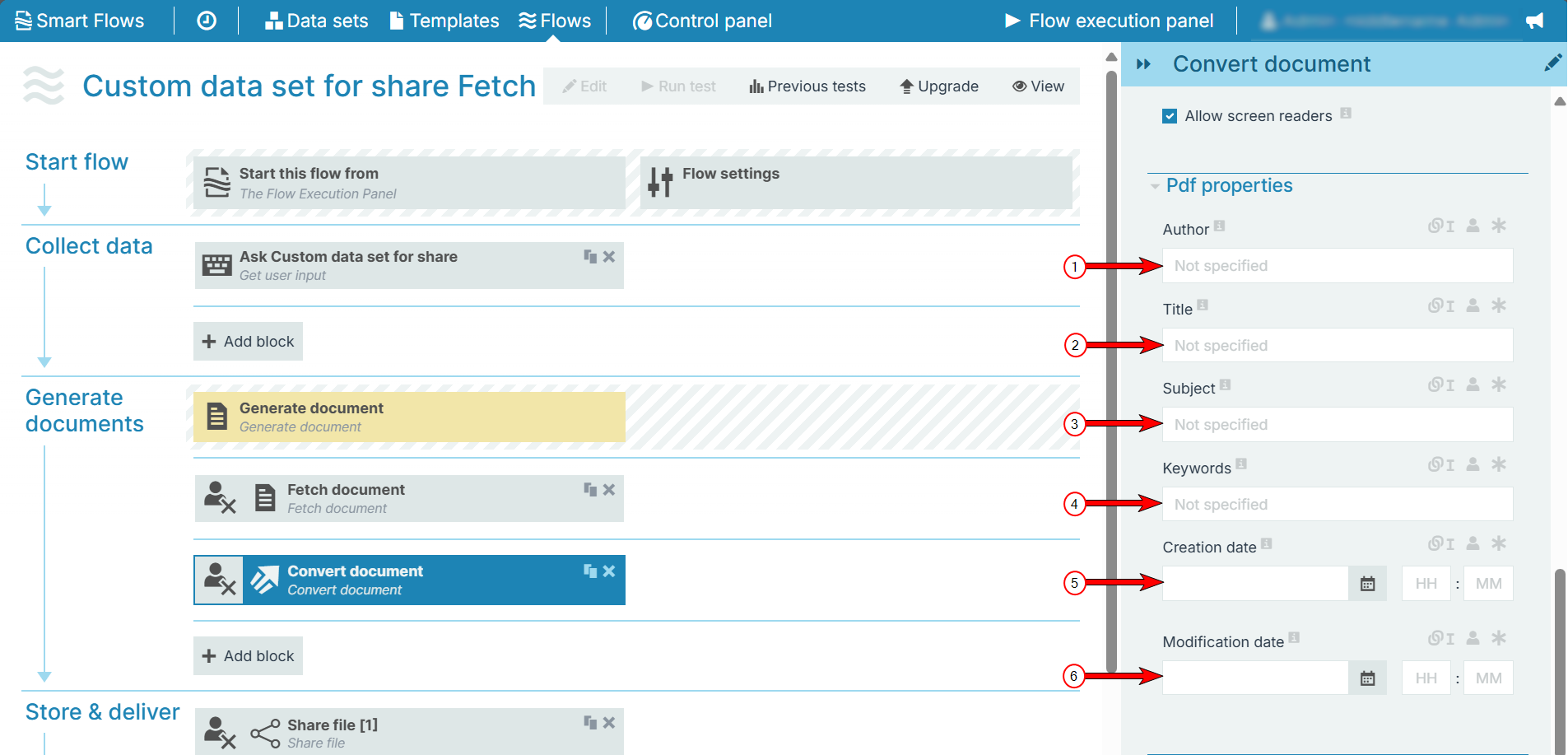
|
Index No. |
Field name |
Function |
|---|---|---|
|
1 |
Author |
Defines the author field for the document. You can type in a name for this field or use a linked field to fill the Author dynamically. |
|
2 |
Title |
Defines the title of the document. |
|
3 |
Subject |
Sets the subject of the document. |
|
4 |
Keywords |
Assigns keywords to the document. A comma must separate each keyword. |
|
5 |
Creation date |
Sets the creation date for the converted document. |
|
6 |
Modification date |
Sets the modification date for the converted document. |
Certify PDF
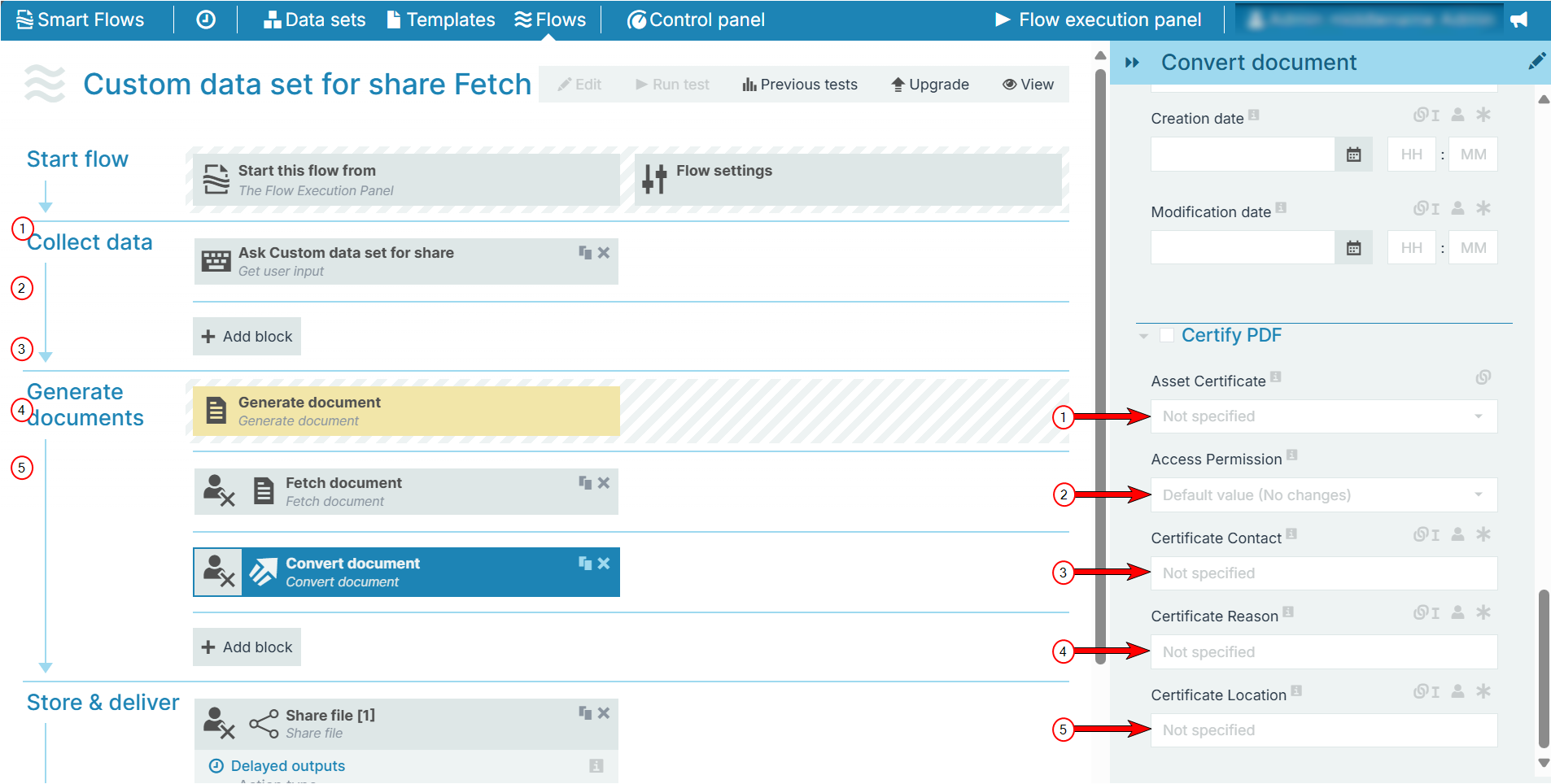
|
Index No. |
Field Name |
Function |
|---|---|---|
|
1 |
Asset Certificate |
Defines the certificate, chosen from the dropdown. |
|
2 |
Access Permission |
Defines 3 access permission levels.
|
|
3 |
Certificate Contact |
(Optional) Identifies the person signing the certificate. This field cannot be edited later on. |
|
4 |
Certificate Reason |
(Optional) Reason for certificate. Once a reason is given, it cannot be changed or altered. |
|
5 |
Certificate Location |
(Optional) Location of certificate. This field cannot be edited. |
HTML settings
The HTML-specific parameters define how the flow block functions when converting documents to HTML.
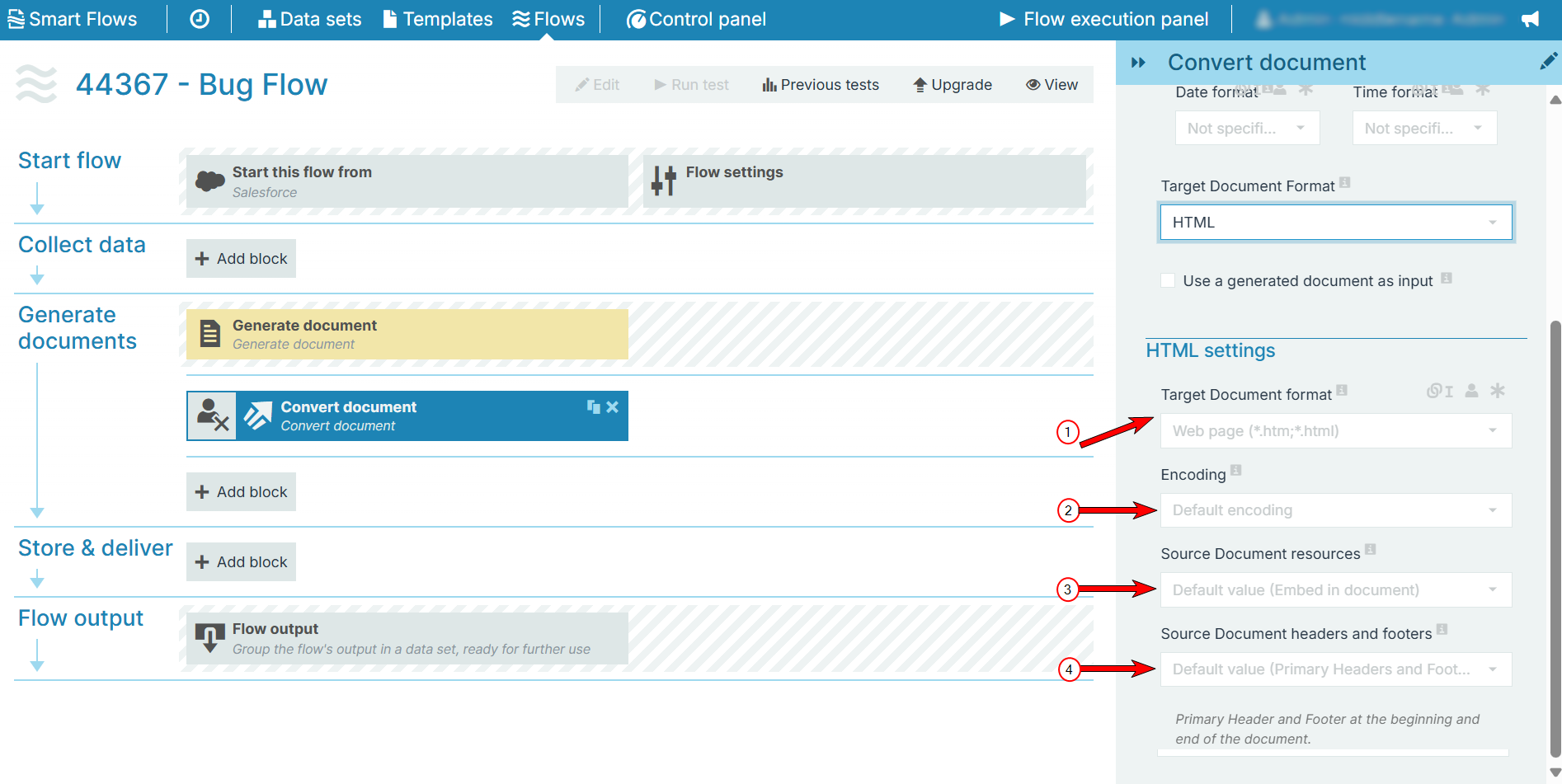
|
Index No. |
Field name |
Function |
|---|---|---|
|
1 |
Target Document format |
Sets the format when converting to HTML with the following options:
|
|
2 |
Encoding |
Sets the encoding to use for the HTML conversion. The system uses UTF-8 encoding by default. For more information on supported encoding, refer to Oracle's Java list for more information. |
|
3 |
Source Document resources |
Defines how the system stores the extra resources connected to the document with the following options:
|
|
4 |
Source Document headers and footers |
Defines how the conversion handles headers and footers when converting to HTML with the following options:
|
RTF settings
Rich Text Format (RTF) is a document file format that most word processors can read. The RTF-specific settings define how the Convert Document flow block handles RTF files.
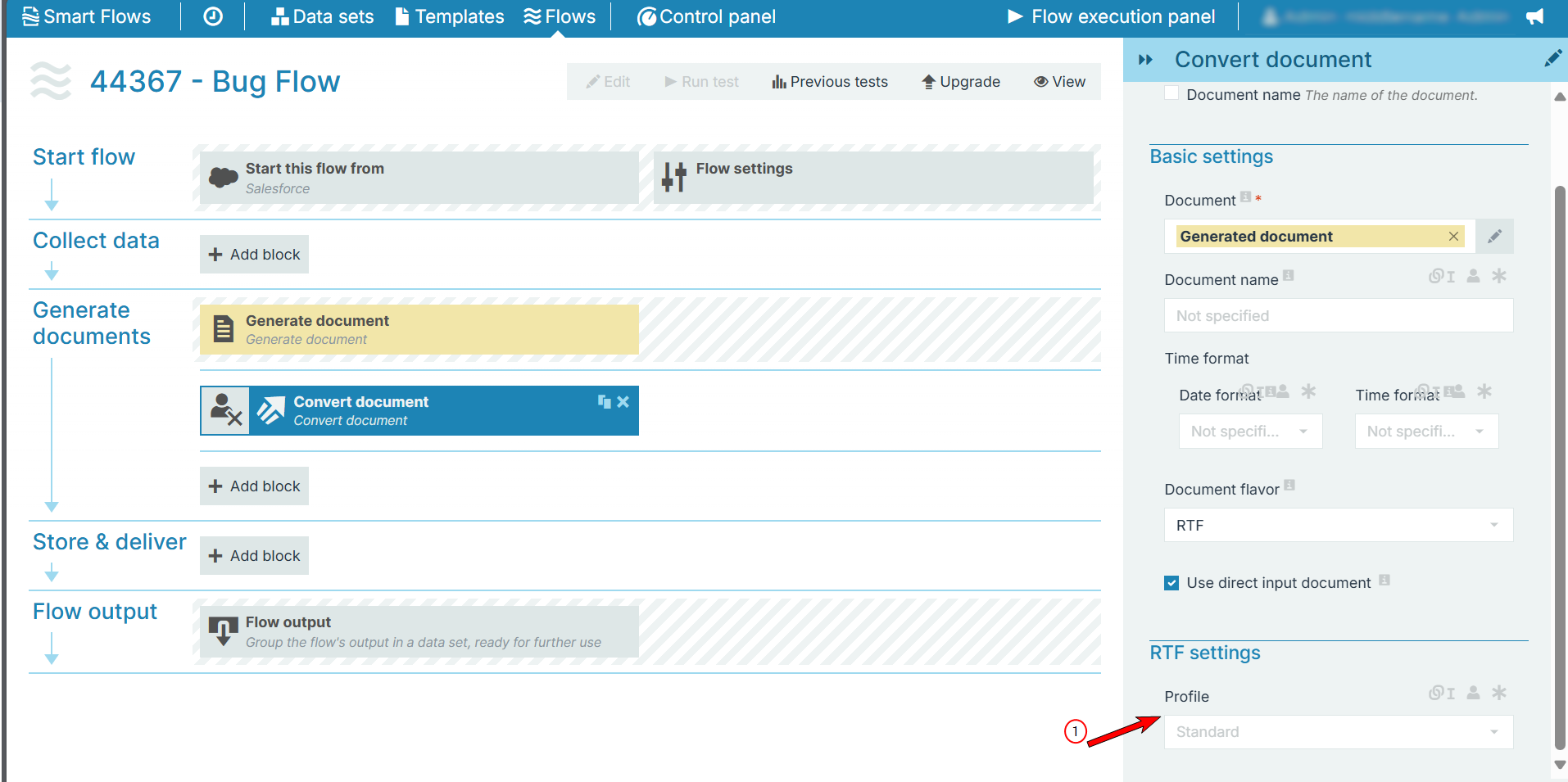
|
Index No. |
Field name |
Function |
|---|---|---|
|
1 |
Profile |
The Profile setting defines the rate of compression for RTF files with the following options:
|
Word settings
The Word settings define how the Convert Document flow block handles Microsoft Word file types.
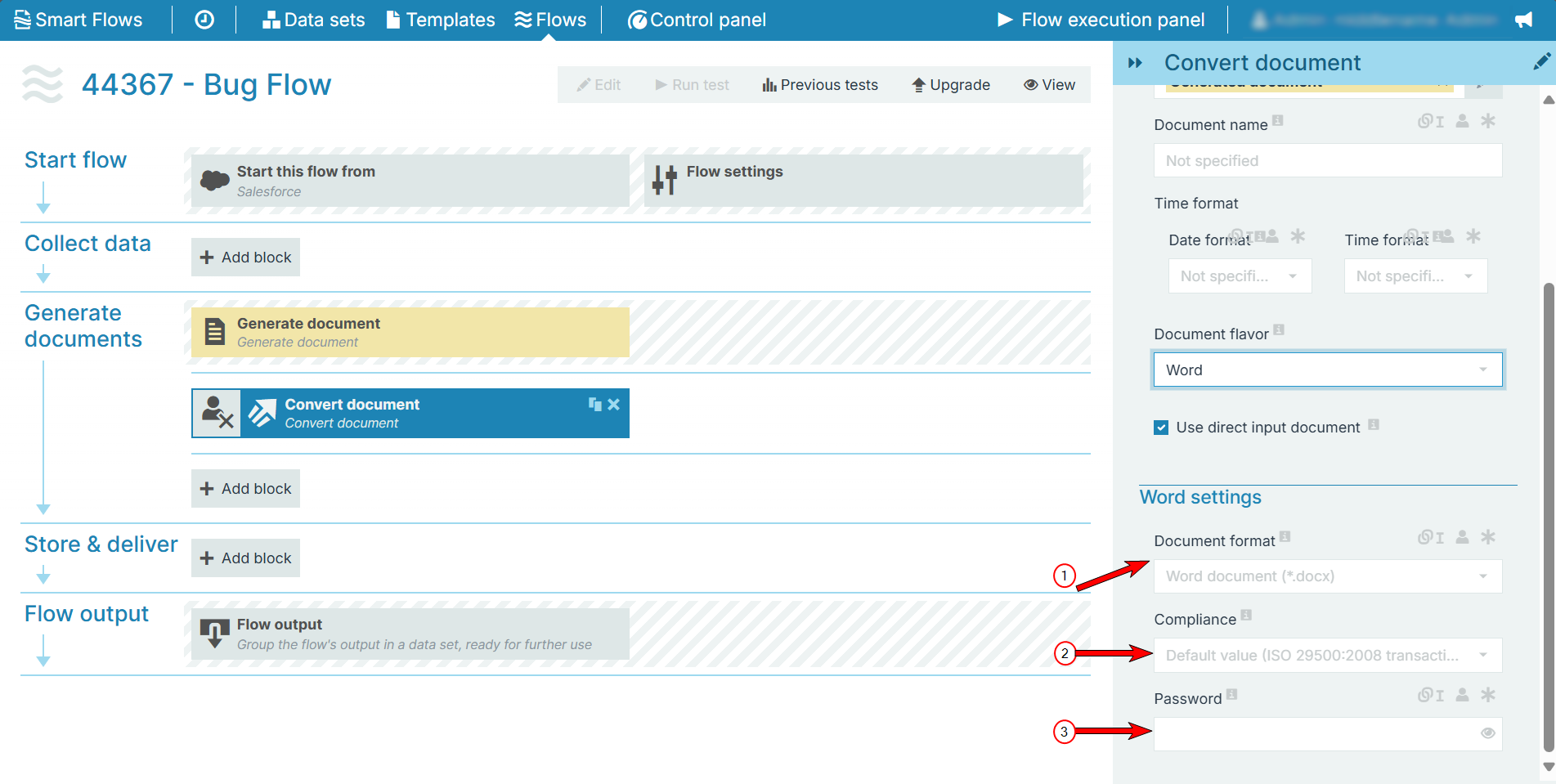
|
Index No. |
Field name |
Function |
|---|---|---|
|
1 |
Document format |
Defines the Word format of the document with the following options: .docx, .docm, .dotm, .dotx, .xml. The system chooses .docx by default. |
|
2 |
Compliance |
Defines the Office Open XML(OOXML) version the system uses to convert the document with the following options: ECMA-376 1st Edition 2006, ISO 29500 2008 transactional, ISO 29500 2008 strict. |
|
3 |
Password |
Sets the password required to open the document. |
ODF-specific settings
The OpenDocument Format (ODF) is an open XML-based document file format for documents containing text, spreadsheets, charts, and graphical elements. The ODF-specific settings define the Convert Document flow block behavior for ODF file types.
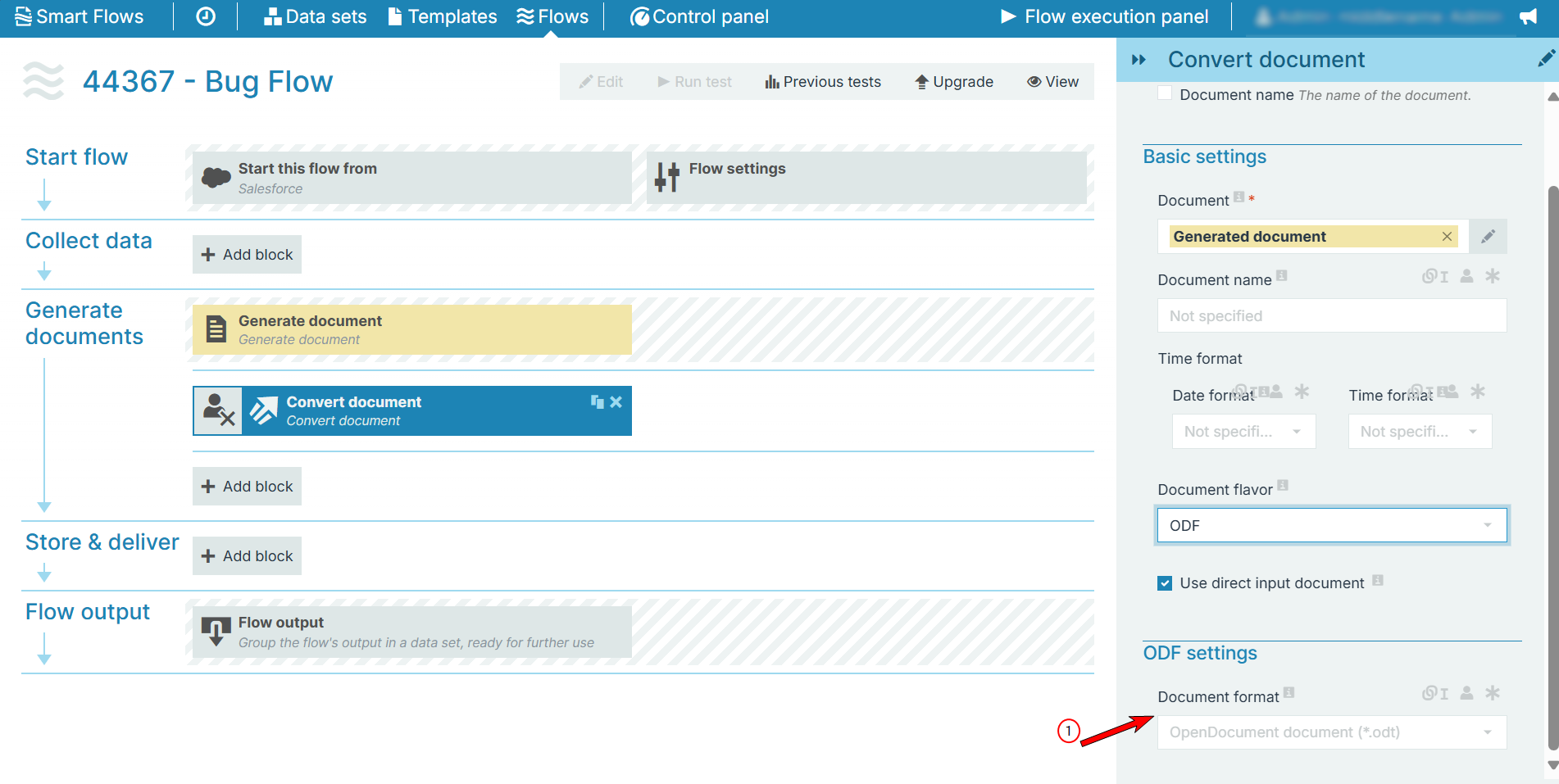
|
Index No. |
Field name |
Function |
|---|---|---|
|
1 |
Document format |
Sets the document format with the following options: Document (.odt) or template (.ott). |
Word 97-2003 settings
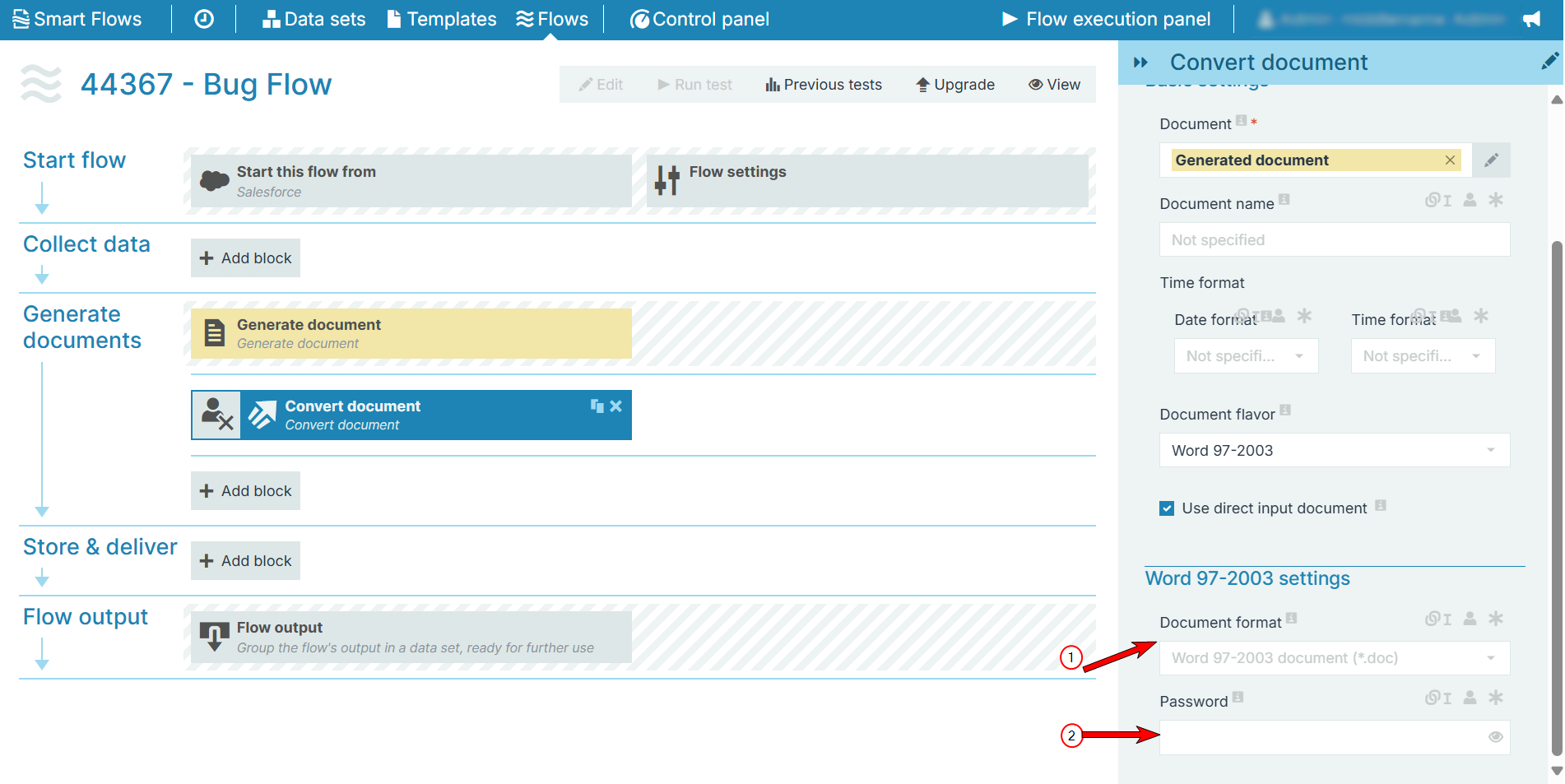
|
Index No. |
Field name |
Function |
|---|---|---|
|
1 |
Document format |
The format of the document with the following options: Document (.doc) or template (.dot). |
|
2 |
Password |
Sets the password required to open the document. |
Text settings
Plain text document conversion produces documents that display and function similar to Notepad documents.
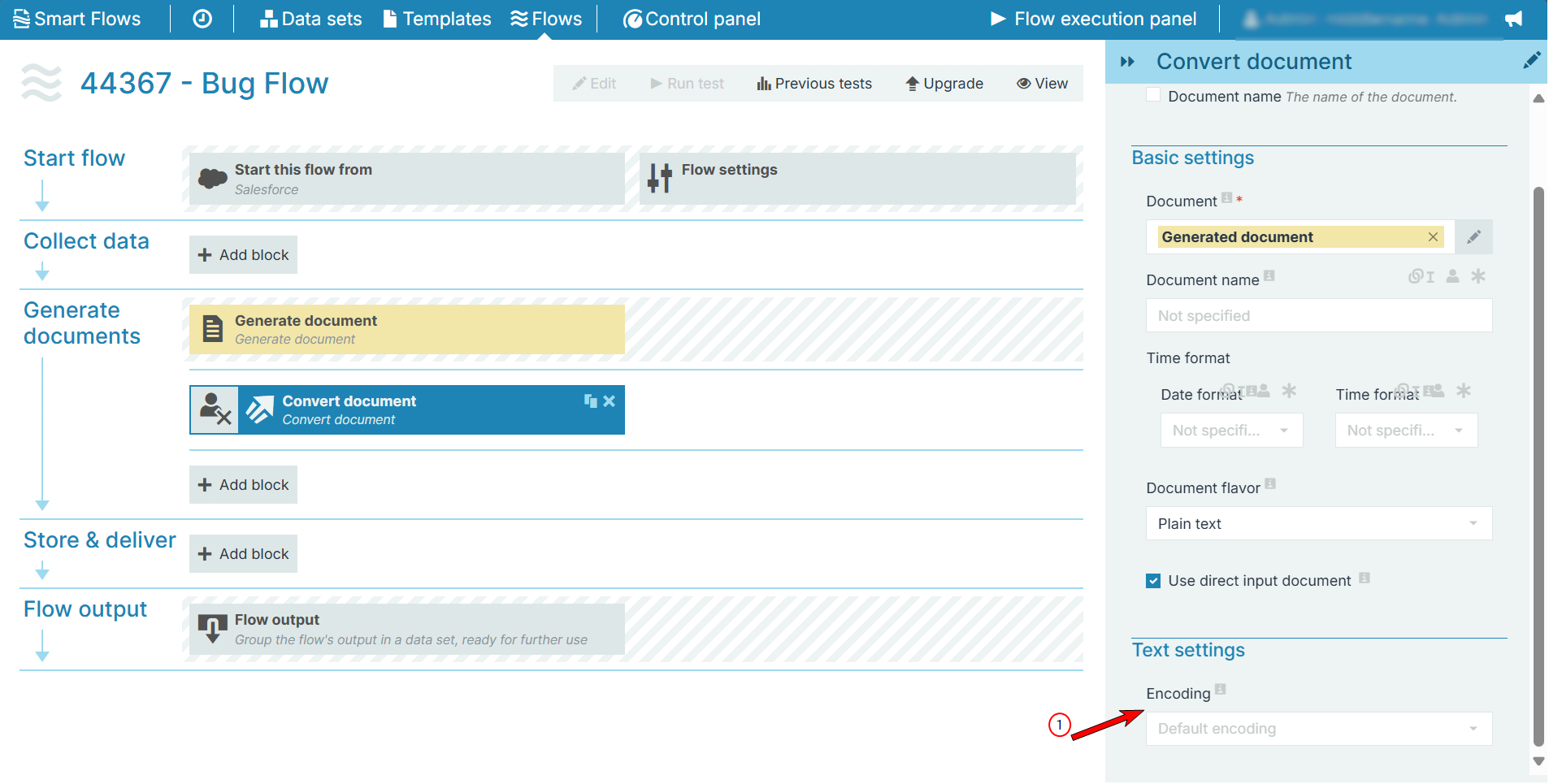
|
Index No. |
Field name |
Function |
|---|---|---|
|
1 |
Encoding |
Defines the encoding applied when converting the document text. |
XLSX Settings
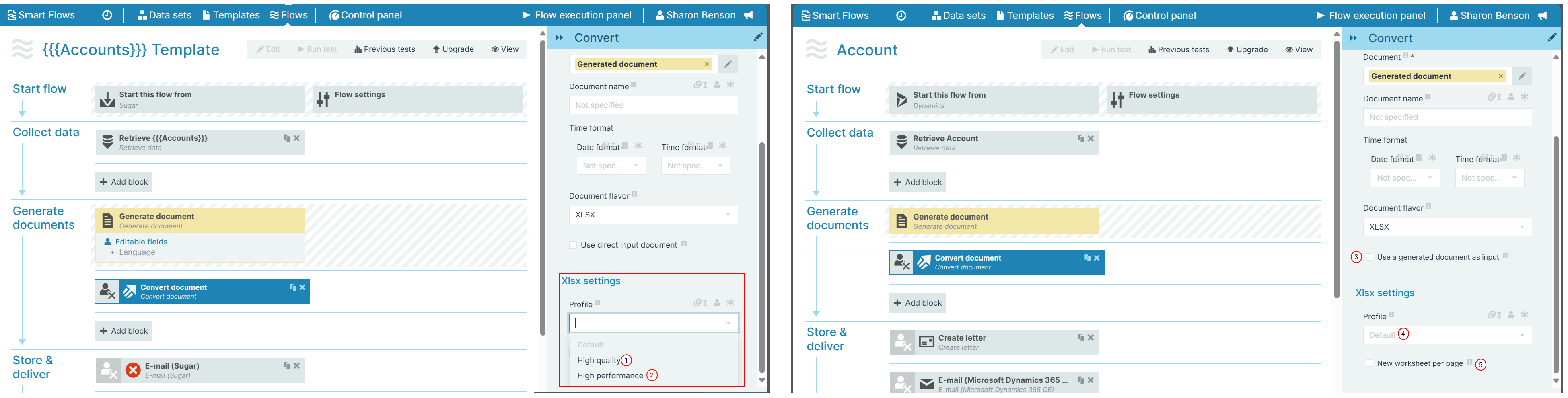
Post XLSX document format selection, the application displays the following settings:
|
Index No. |
Field Name |
Function |
|---|---|---|
|
1 |
Profile > High quality |
Slow file conversion with high quality images. |
|
2 |
Profile > High Performance |
Fast file conversion with average quality images. Also, the converted file size is considerably large when compared to the Default profile files. |
|
3 |
Profile > Default |
Average conversion speed and image quality. |
|
4 |
New worksheet per page |
Moves each page into different worksheets - if they are separated by a Section Break. |
The 'New worksheet per page' option works if the original .DOCX document is selected as input for the Convert block (so 'Use a generated document as input' is not checked) in combination with section breaks.