
Experlogix Smart Flows allows the user to convert a document into an electronic invoice meeting ZUGFeRD and PEPPOL-BIS 3.0 standards. ZUGFeRD is an e-invoice standard which includes a PDF file with an embedded XML file for each invoice, combining human and machine-readable data into a single PDF, whereas PEPPOL is an e-Invoice standard that is widely followed across Europe. This streamlines the e-Invoice delivery process by providing a standardized network through which companies can securely exchange structured e‑invoices. A sender uploads the UBL‑based invoice—defined by the Peppol BIS specification—to their Access Point, which then transfers it to the recipient’s Access Point for retrieval.
The Smart Flows application includes a Convert to e-Invoice flow block, enabling compliant invoicing between businesses and business to government.
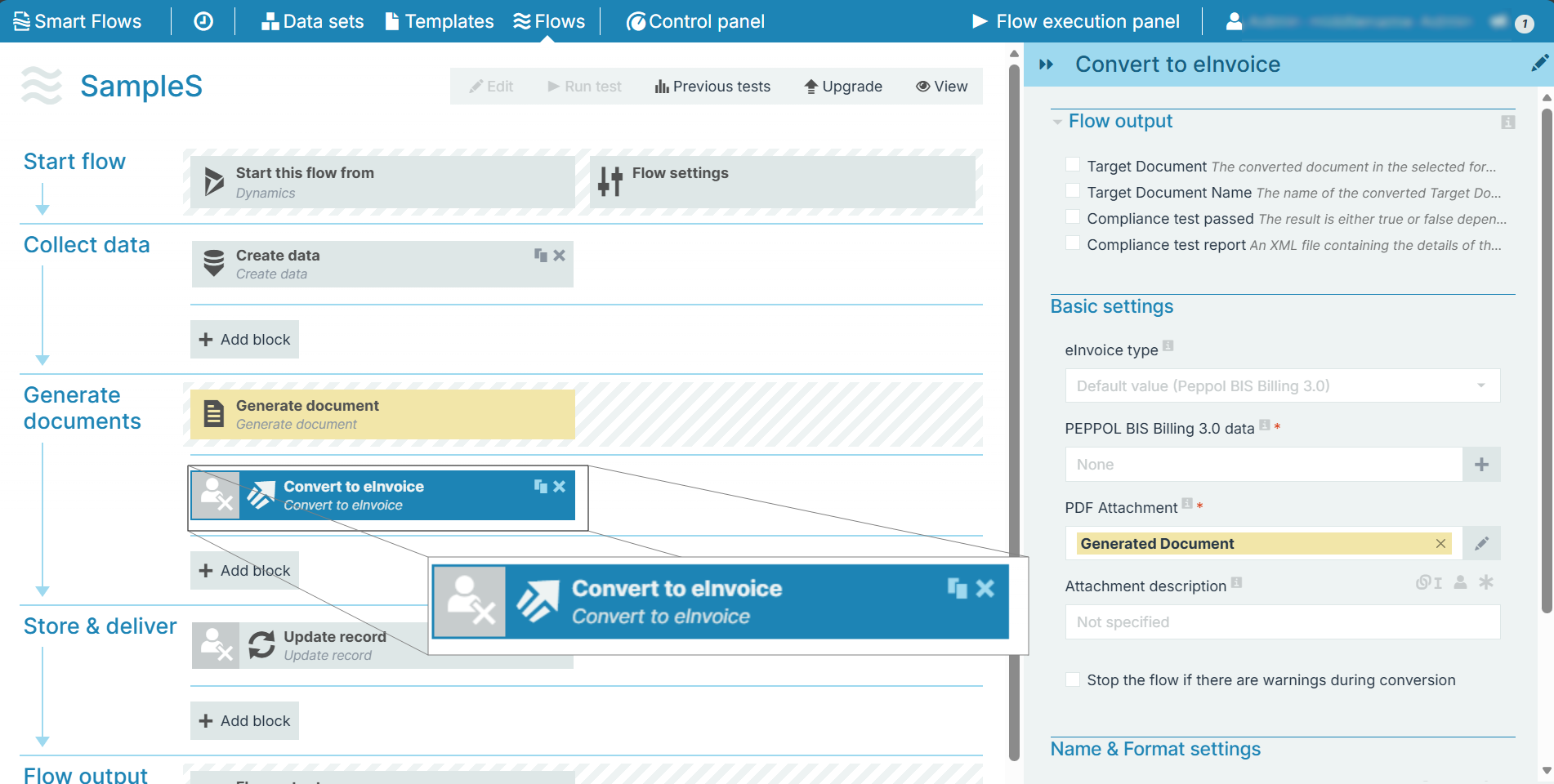
Flow Block Parameters
The dropdown menus below provide all of the flow block's configuration options with detailed information and recommendations to help you configure your flow block.
Flow block customization buttons
You can further customize your flow block's parameters in several ways
-

-

-

Flow output
The Flow output section allows you to select the output of the converted file.
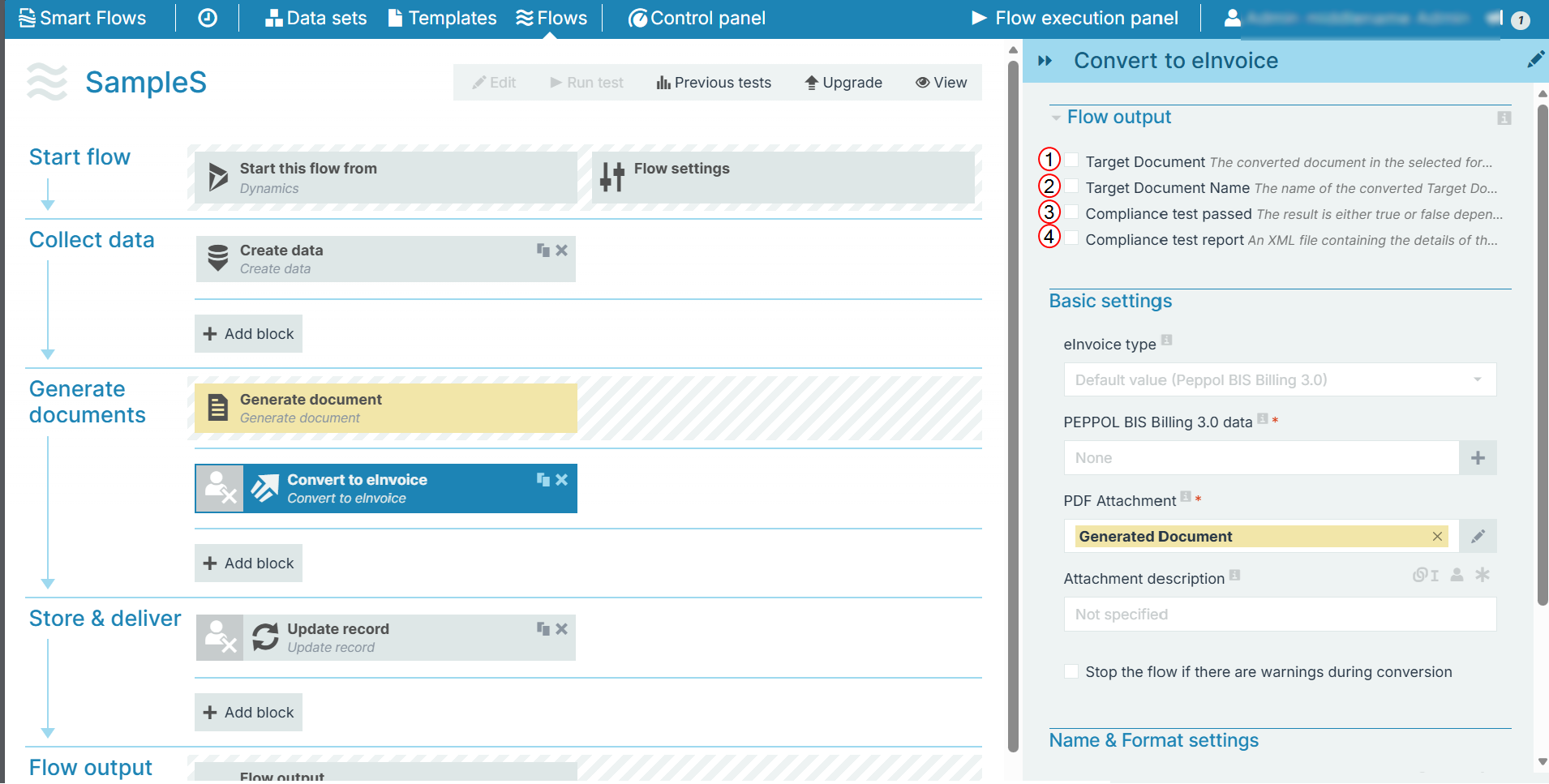
|
Index No. |
Component, Control, or Indicator |
Function |
|---|---|---|
|
1 |
Target document |
When checked, a link is provided to the converted document in the flow output. |
|
2 |
Target Document Name |
When checked, the document name of the converted document is displayed in the flow output. |
|
3 |
Compliance test passed |
When checked, the compliance test result is displayed in the flow output. (true/false). |
|
4 |
Compliance test report |
When checked, an XML file containing the details of the compliance test result is provided in the flow output. |
Basic settings
The Basic settings section allows you to select a document and then embed the data for conversion. You must select the eInvoice type to view the corresponding fields:
-
ZUFeRD format
-
Peppol BIS Billing 3.0 (default)
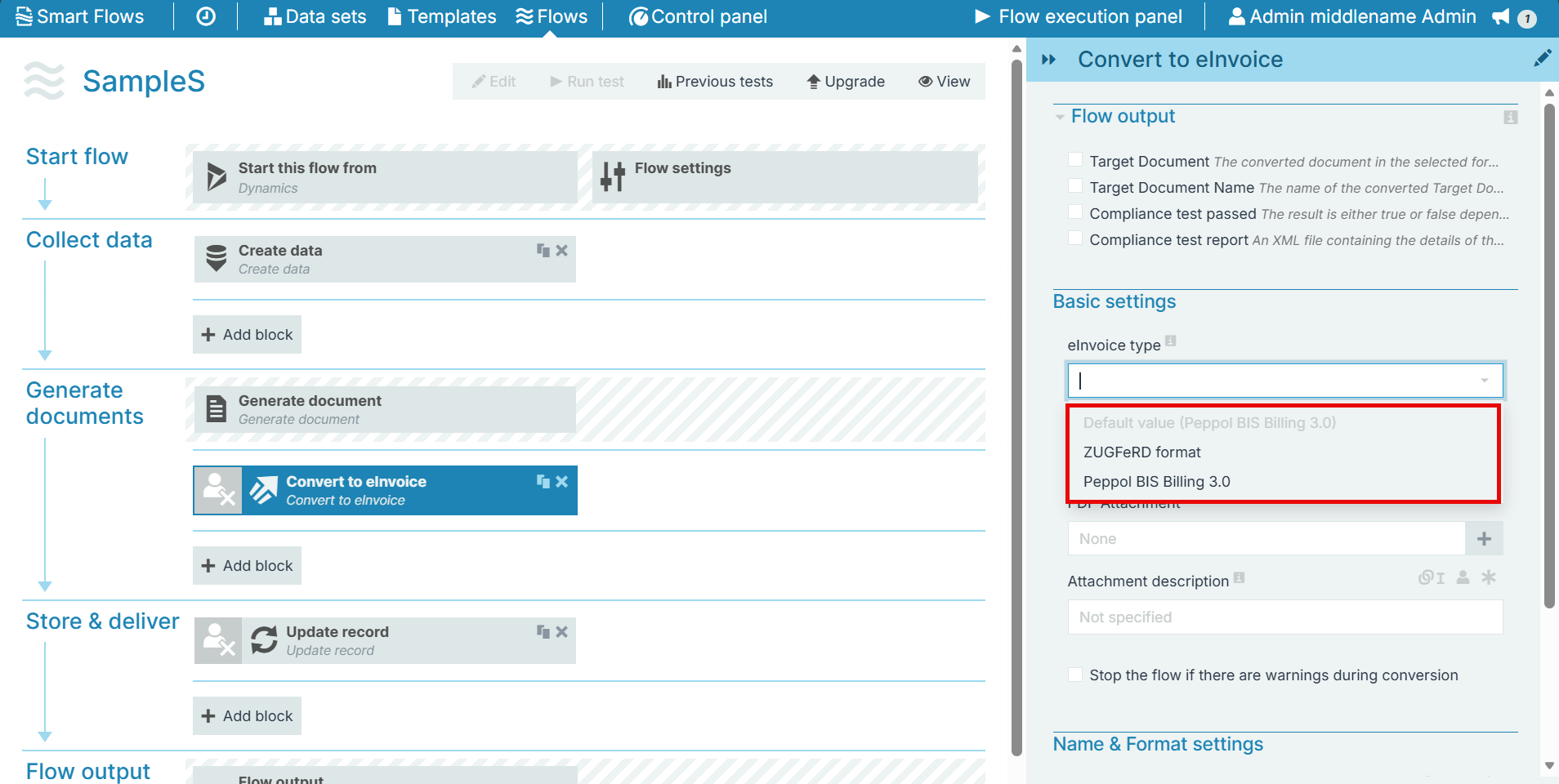
ZUFeRD format
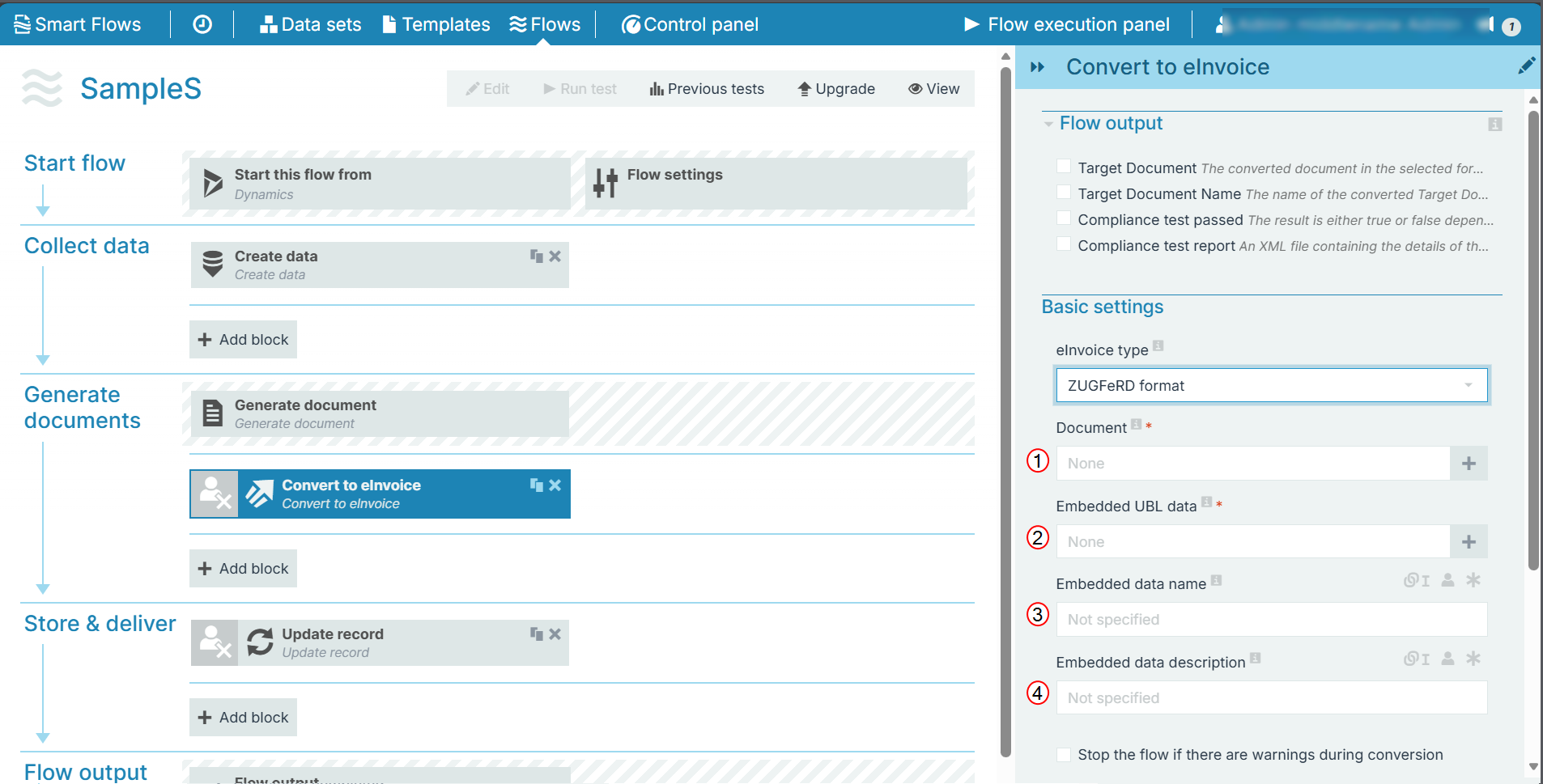
|
Index No. |
Component, Control, or Indicator |
Function |
|---|---|---|
|
1 |
Document |
Map the document for conversion. |
|
2 |
Embedded UBL data |
Map the data which must be embedded in the document. |
|
3 |
Embedded data name |
Enter/Map a name for the data embedded. |
|
4 |
Embedded data description |
Enter/Map a description for the embedded data. |
PEPPOL BIS Billing 3.0
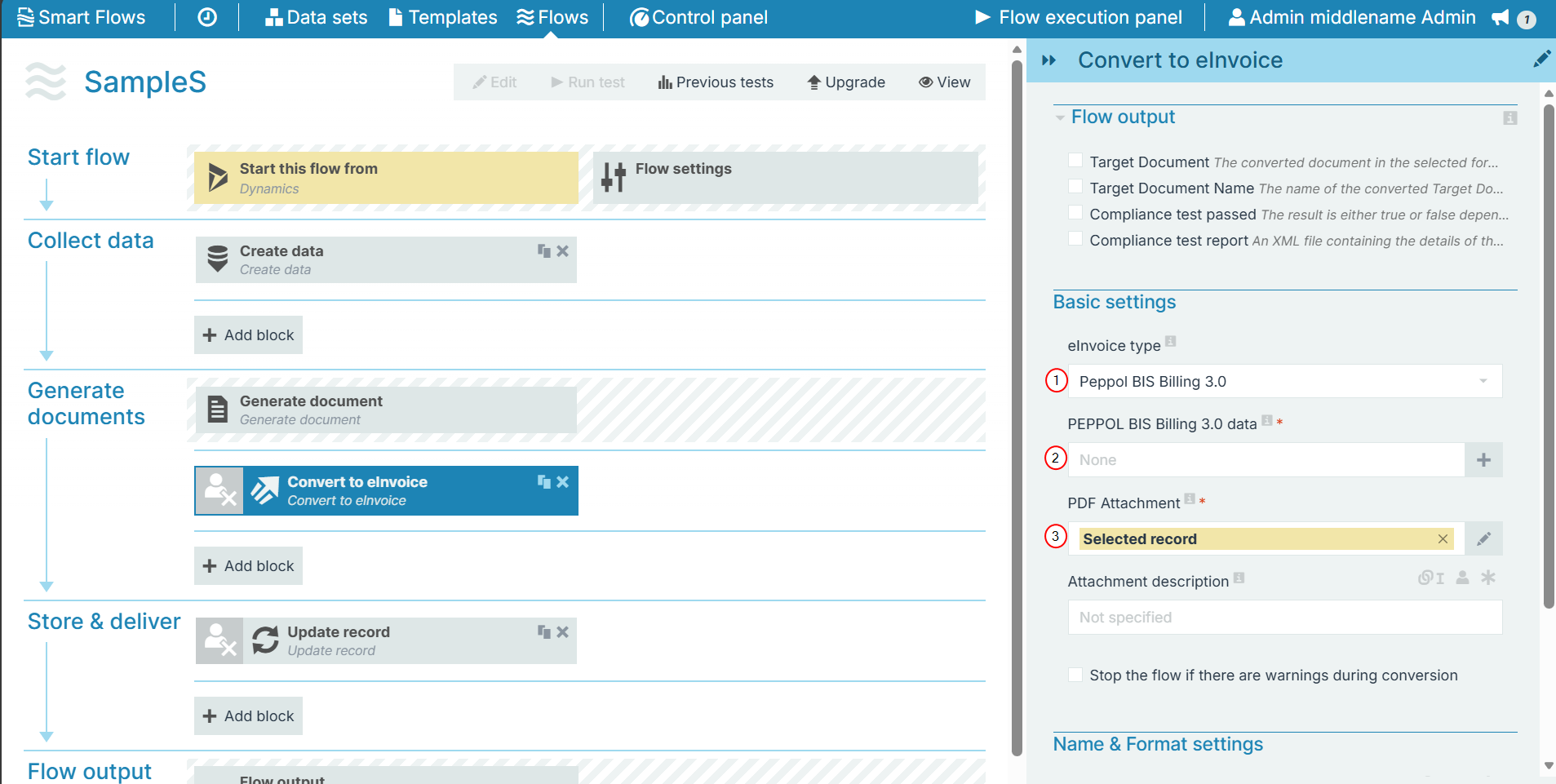
|
Index No. |
Component, Control, or Indicator |
Function |
|---|---|---|
|
1 |
PEPPOL BIS Billing 3.0 data |
Map the PEPPOL data required to create e-Invoice. |
|
2 |
PDF Attachment |
Map record to attach the e-Invoice. |
|
3 |
Attachment description |
Enter/Map a description for the e-Invoice. |
Check Stop the flow if there are warnings during conversion, incase you come across any warning message so that you can rectify the issue.
Name & format settings
The Name & format settings allows you to set the name, date, and time settings of the document.
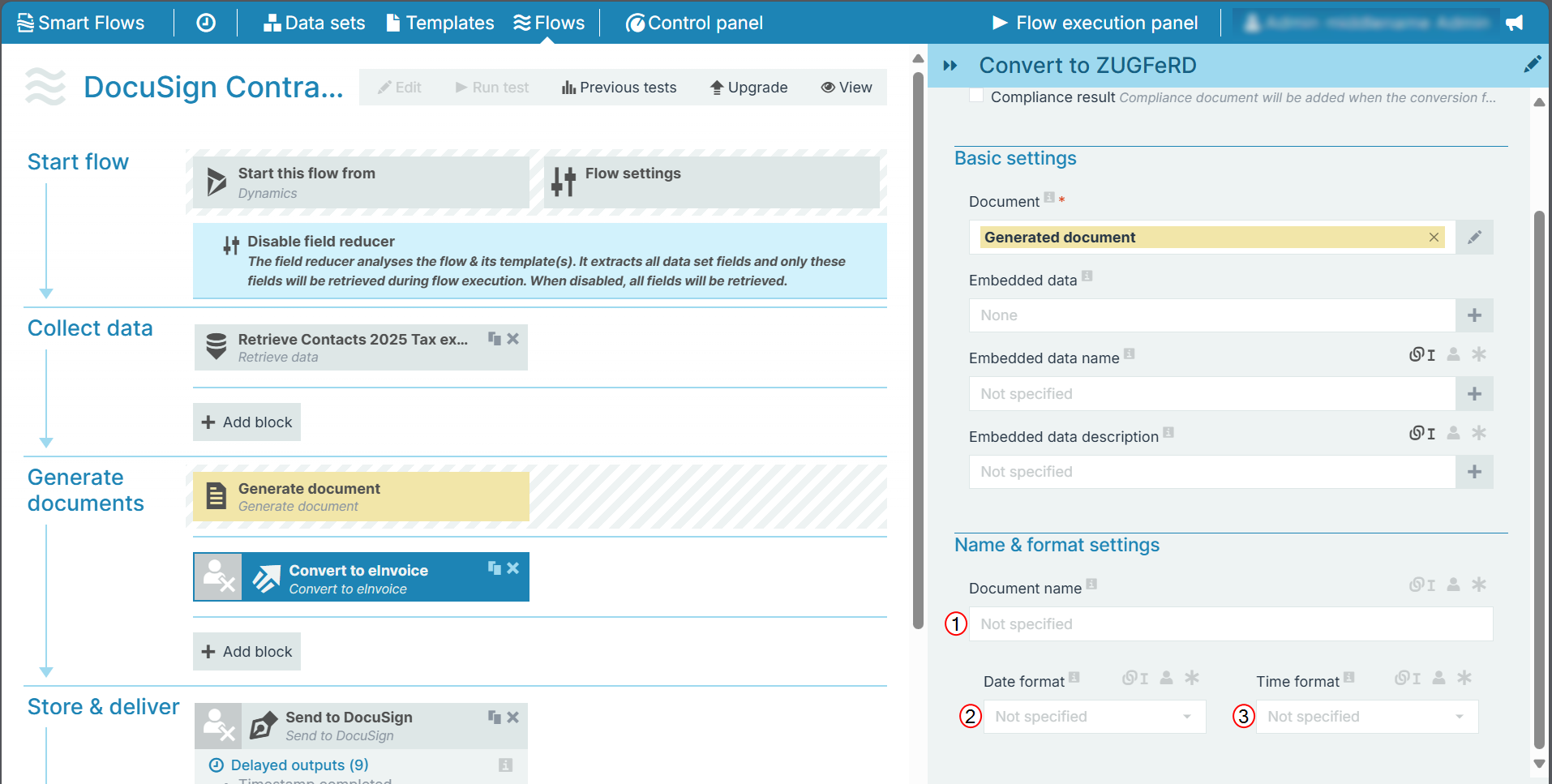
|
Index No. |
Field name |
Function |
|---|---|---|
|
1 |
Document name |
The name of the stored document. |
|
2 |
Date format |
Sets the date format. When you make a selection here, a timestamp is added to the name of the document. The timestamp is separated into date and time, but when you link a field here, both the date and time fields can accept all date and time symbols, refer to Date & time patterns for more information. |
|
3 |
Time format |
Sets the time format for the field. |