
The Get user input flow block allows designers to ask questions and get answers during their flow run. The system uses a custom data set to contain the questions and answers.
When you create a flow, for every custom data set attached to the selected template, the system creates a Get user input flow block. The system then connects these different Get user input flow blocks to the Generate document flow block. It allows you to use the answers from users in the generated document.
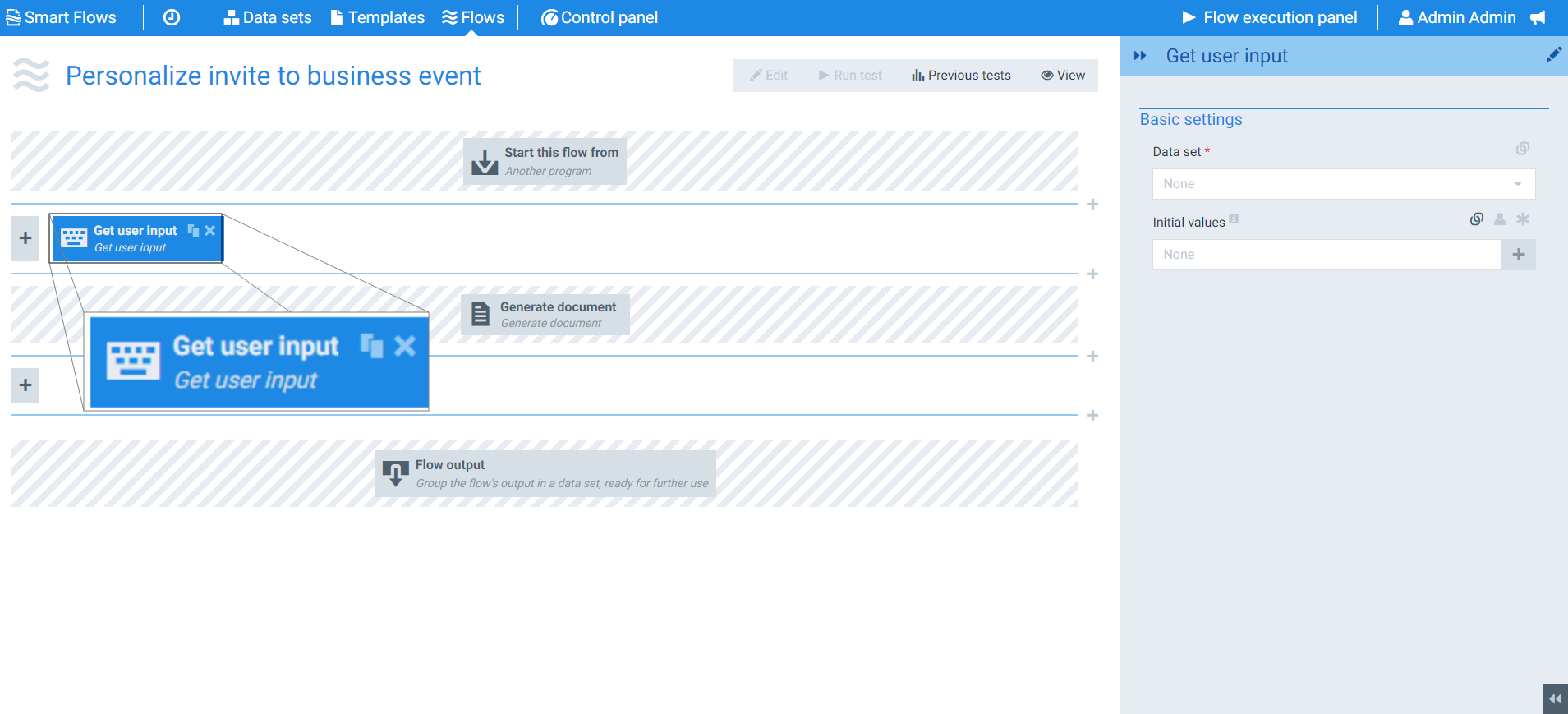
Flow Block Parameters
The dropdown menus below provide all of the flow block's configuration options with detailed information and recommendations to help you configure your flow block.
Flow block customization buttons
You can further customize your flow block's parameters in several ways
-

-

-

Basic settings
The fields displayed in Basic settings depend on the selected data set type.
|
Field name |
Description |
|---|---|
|
Data set |
Selects the data set to use when linking fields. he data set selected will generally be a custom data set that contains the questions you wish to get an answer to when running the flow. |
|
Initial Values |
Selects the values to pull from the data set specified in the Data set field. This field is generally set to Data. In most circumstances, you have a Create Data flow block preceding your Get user input flow to produce default values. Your users can change the values if the default values are not accurate. |
|
Form Theme |
Select the visual theme for rendering the form (Applies to Experlogix Documents Web Form data sets): select Data set default theme to use the theme configured on the data set, or choose a specific project theme. |
|
Redirect URL |
Specify the URL to redirect users to after they submit an anonymous form. |
Getting user input during a flow
Once you've configured your Get user input flow block, you can run your flow. The system gets the input from the user following a standard order of operations.
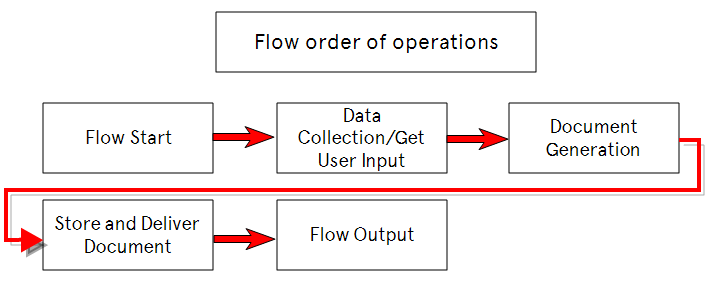
Start flow with getting user input: Ask questions first
The system asks the questions using the standard order of operations. However, in the Flow setting block, you have an option to let the flow ask for the user input first.
Asking questions first is helpful when running a flow on multiple records at a time, such as inviting multiple people to an event. The flow runs for each person who responds to the request for input. If you do not check the "Ask questions first" checkbox, the system asks the same questions for each record.
In summary, ask questions has the system ask the questions first in the order of operations and reuse the answers from your users throughout the flow instead of asking for each record.
If you expect to get the same answers on all records, we recommend turning ON Ask questions first. You can access this setting via the Flow settings block.

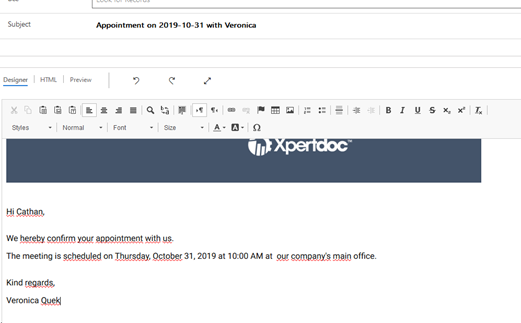
Example: Confirm Meeting Details and send confirmation e-mail
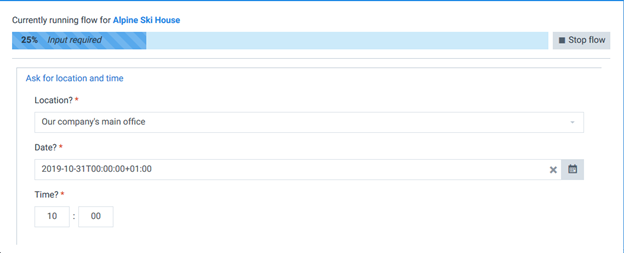
We’ll get this e-mail as configured in our flow:
Web Form authentication settings
The Web Form authentication settings section contains parameters for controlling access to Experlogix Documents Web forms:
|
Field name |
Description |
|---|---|
|
Allow users to fill this form anonymously |
Allows users to open and complete the form via a direct link without signing into Smart Flows first. |
|
Skip web form authentication |
Renders the Experlogix Documents web form without requiring a separate Experlogix Documents sign-in prompt. Make sure to enable public or anonymous forms on the external data set first. |
Note: Flows configured with anonymous forms prior to version 4.29 maintain their existing behavior. The Skip Web Form authentication setting is automatically applied during upgrade.