
The Fetch document flow block retrieves documents for use in your flow. The Fetch document flow block allows Designers to fetch documents from several connectors to use in concert with their generated document.
Example: In some scenarios, you want to include an external document in a flow in addition to the generated documents. For example, you may want to
-
Generate a quote for a customer and include a standard NDA from your company
-
Generate a lease for a tenant and fetch a lead paint notice to meet regulatory requirements
-
Generate a receipt and include a customer satisfaction survey
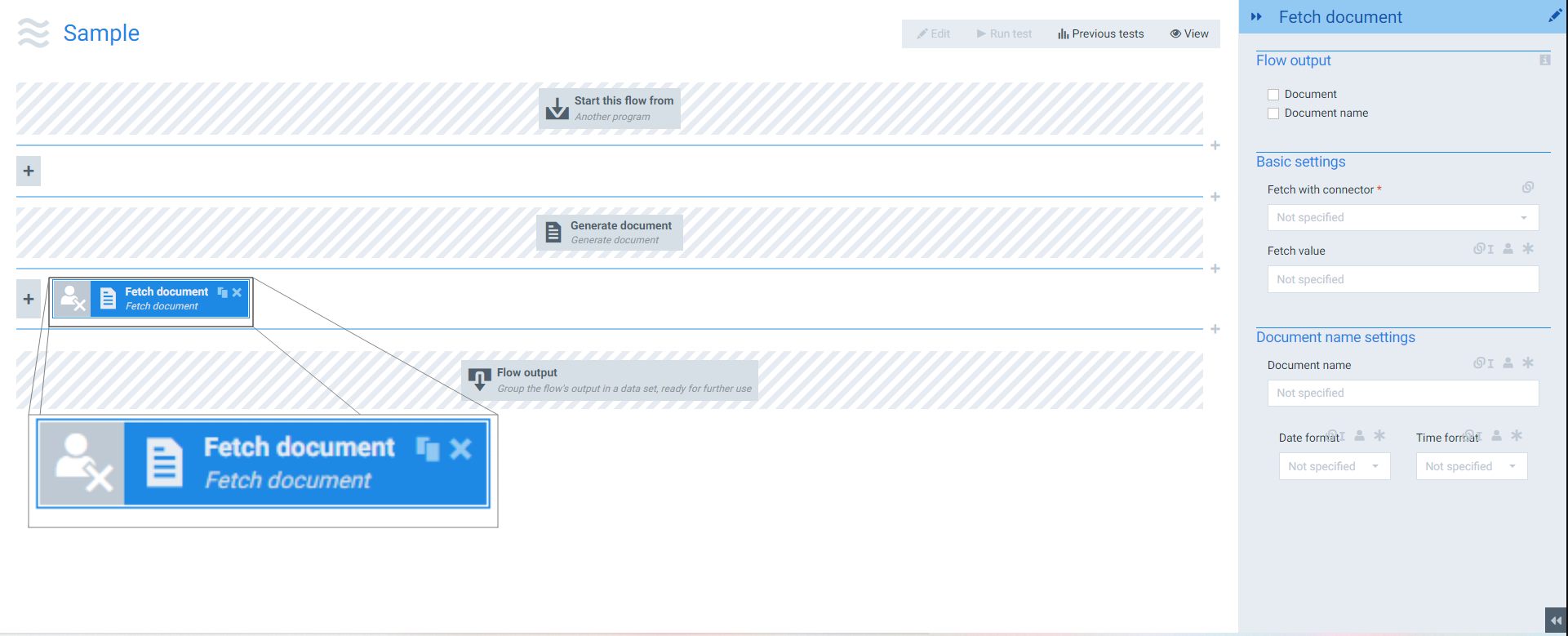
Flow Block Parameters
The dropdown menus below provide all of the flow block's configuration options with detailed information and recommendations to help you configure your flow block.
Flow block customization buttons
You can further customize your flow block's parameters in several ways
-

-

-

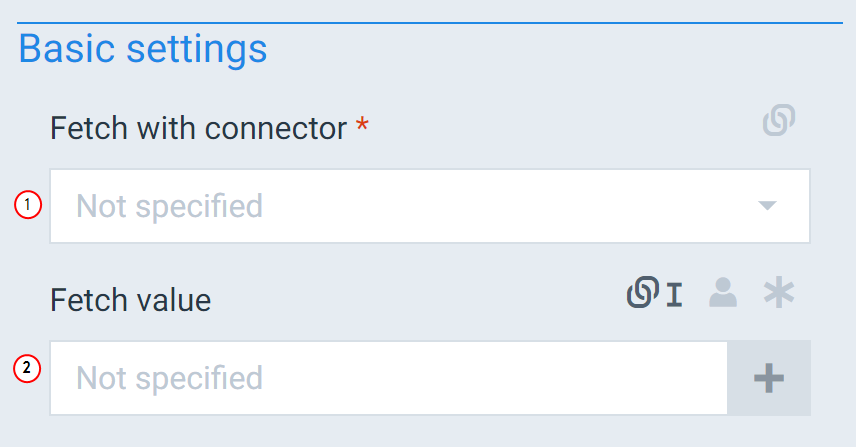
Basic settings
|
Index No. |
Field name |
Description |
|---|---|---|
|
1 |
Fetch with connector |
Defines the connector to use as the source for fetching the document. The system supports the following types of connectors: SugarCRM, Dynamics, SharePoint, Xpertdoc Portal, Http(s), File system, Docusign |
|
2 |
Fetch value |
Defines the data the system uses to generate the document. This field always links to a Retrieve data from Experlogix Smart Form, Retrieve data, or Get user input. The value Designers use for this field depends on the connector selected in the Fetch with connector field. Select here to see the configuration for different connectors: |
Process a Smart Forms Upload using Fetch Document
To convert the output of a FilePicker field to a document that can serve as an input of another Flow Block, you must insert a Fetch Document block in your flow. This step will covert the content of the FilePicker field (a base64 string) into a Smart Flows document. Subsequent flow blocks, such as those listed below, can then utilize this document:
-
Store in Microsoft SharePoint
-
Send to e-signature provider
-
Save in CRM/ERP system
-
Send e-mail (body or attachment)
-
Convert document
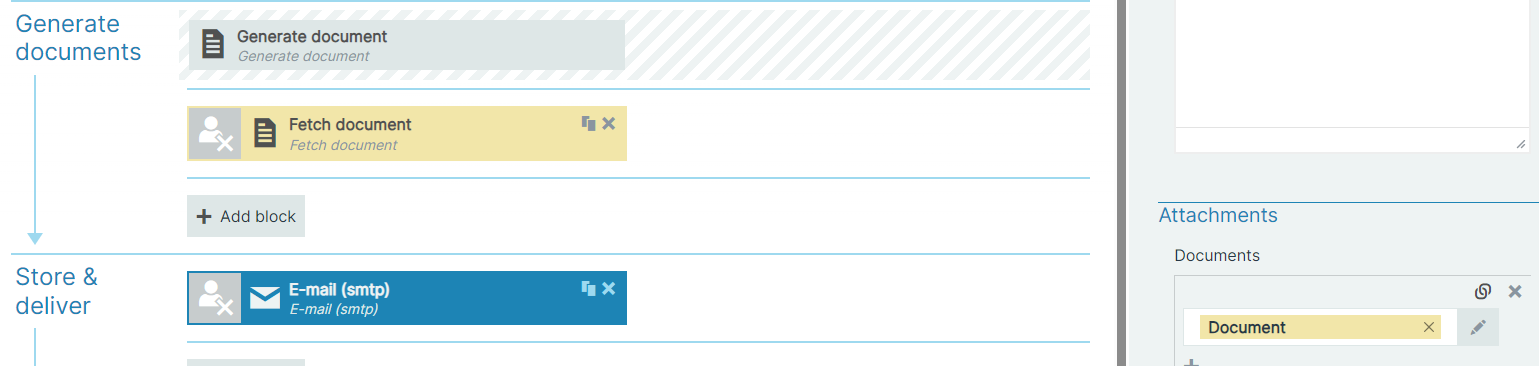
In the image below, you can see the E-mail (smtp) block is linked to the output of the Fetch document block.
Fetch Value Configuration
|
Connector type |
Fetch value |
Example |
|---|---|---|
|
SugarCRM |
Use the following syntax: |
xtsg://Notes/b42ac242-ca6b-11e9-8873-023123a8c872/filename |
|
Dynamics |
Use the following syntax: |
xtdc://annotations/b42ac242-ca6b-11e9-8873-023123a8c872/documentbody_binary |
|
SharePoint |
Enter a relative path for the document to retrieve |
|
|
Portal |
Use the following syntax: |
MyLibrary/MyFolder/MyFile.pdf |
|
Http(s) |
Add a relative path to the URL configured in your HTTP connector or an absolute URL |
|
|
Filesystem |
Enter a valid path towards your document. The system only supports this connector type for on-premise installation. |
|
|
Docusign |
Enter a relative path for the document to retreive |
|
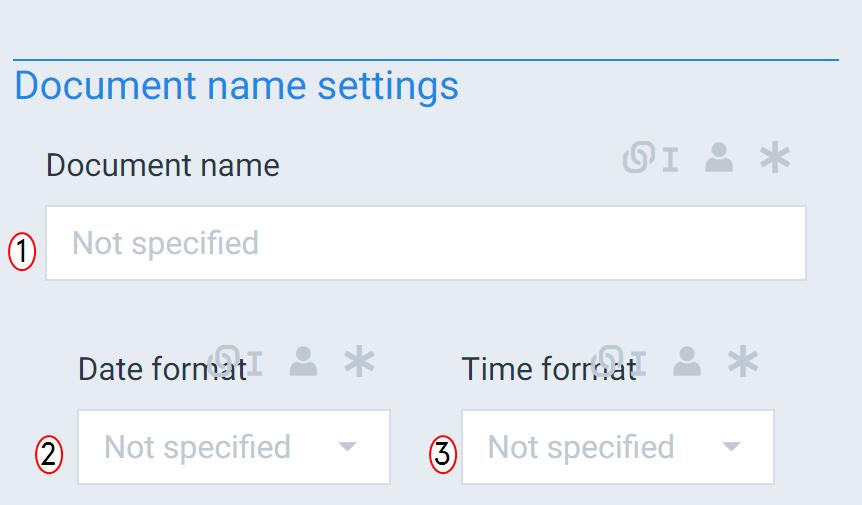
Document name settings
|
Index No. |
Field name |
Description |
|---|---|---|
|
1 |
Document name settings |
Overrides the name of the fetched document. If the field is empty, the fetched document keeps the existing filename. |
|
2 |
Date Format |
Sets the date formatting behavior. However, users can also link other fields to the Date format field. When using the linked field method, both the date and time fields can accept all date and time symbols; refer to Date & time patterns for more information. |
|
3 |
Time Format |
Sets the Time format behavior for the fetched document. When checked, the system adds a timestamp to the document's name as date_time. However, users can also link other fields to the Timestamp format field. When using the linked field method, both the date and time fields can accept all date and time symbols; refer to Date & time patterns for more information. |