
The Save to file flow block allows users to save a document to a file system. You can use this flow block to save completed documents within your existing file system. Many users utilize the Save to file flow to save signed copies of their documents based on their organization’s retention policies.
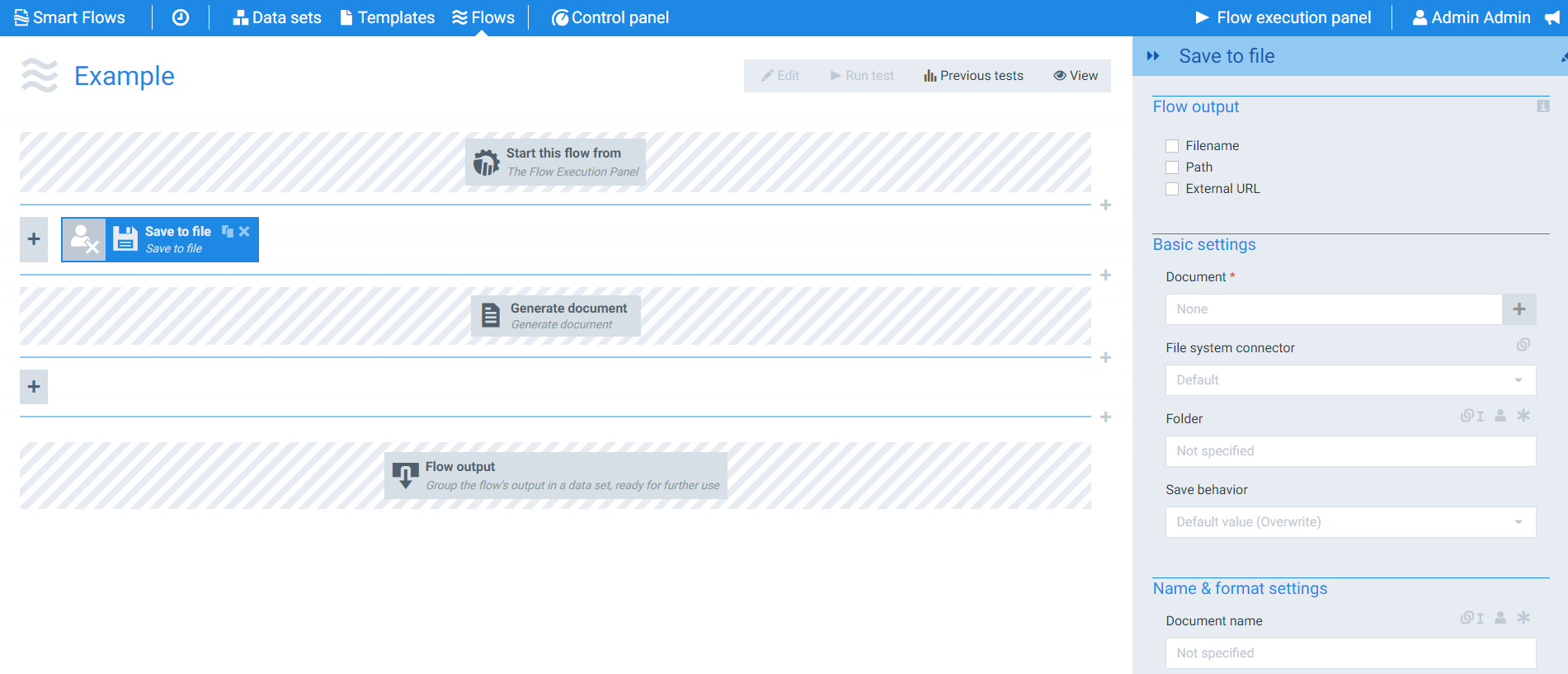
Flow Block Parameters
The dropdown menus below provide all of the flow block's configuration options with detailed information and recommendations to help you configure your flow block.
Flow block customization buttons
You can further customize your flow block's parameters in several ways
-

-

-

Flow output
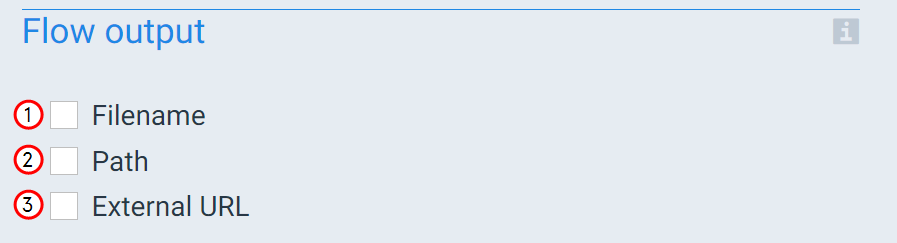
The Flow Output section shows all the output parameters that are available for the block. When checked, the value of the output parameter are presented to the user who is executing the flow. Each setting that composes this output information is described in detail below:
|
Index No. |
Field Name |
Function |
|---|---|---|
|
1 |
Filename` |
When checked, the system provides the filename of the saved file during the end of the flow block's run . When unchecked, the system takes no action. |
|
2 |
Path |
When checked, the system provides the path to the saved file's location during the end of the flow block's run. When unchecked, the system takes no action. |
|
3 |
External URL |
When checked, the system provides the external URL to download the document from outside of your network (using information from the File connector settings) |
Basic settings
|
Index No. |
Field Name |
Function |
|---|---|---|
|
1 |
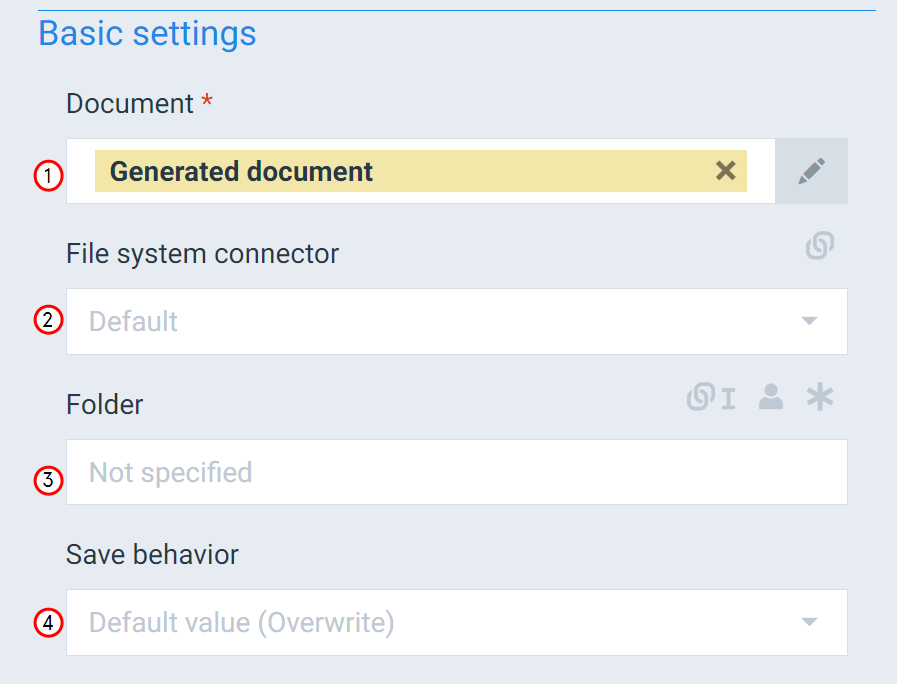
Document |
Defines the document to save to file. The system uses the Generated document by default. |
|
2 |
File system connector |
Sets the file system connector to use. Your list of file system connectors is determined based on the connector you have set up for your project. For more information setting up connector, refer to Connectors for more information. If you only have one connector, the system uses that connector by default. |
|
3 |
Folder |
Sets the folder within your file structure in which to save the document. You can only move down the folder tree when selecting a folder location. Select here to display the more detailed configuration example. For instance, if this if the folder specified in the filesystem connector:C:\tempThen you can go to a subfolder like this:blue blue\azureBut you cannot use this, to go to the C: folder:.../Note that some file systems use \ and others use /. Depending on your filesystem connector's type, you may need to adjust how you specify the folder. |
|
4 |
Save Behavior |
Defines how the document saves if there is already a file with the same name with the following options: Overwrite The system overwrites files with a matching name in the specified folder. or Sequence The system will add number to the end of the file name starting with 1 and incrementing up by one for each occurence. |