
The Retrieve UBL data flow block allows designers to fetch UBL‑compliant data and make it available to flows at runtime. The flow block is enabled under the Collect Data section for the simple flows and in all the other sections for advanced flows, simplifying access to standardized UBL data sets.
The Retrieve UBL data flow block retrieves Universal Business Language (UBL) electronic invoice data from a connected Microsoft Dynamics 365 Business Central or Finance & Operations environment.
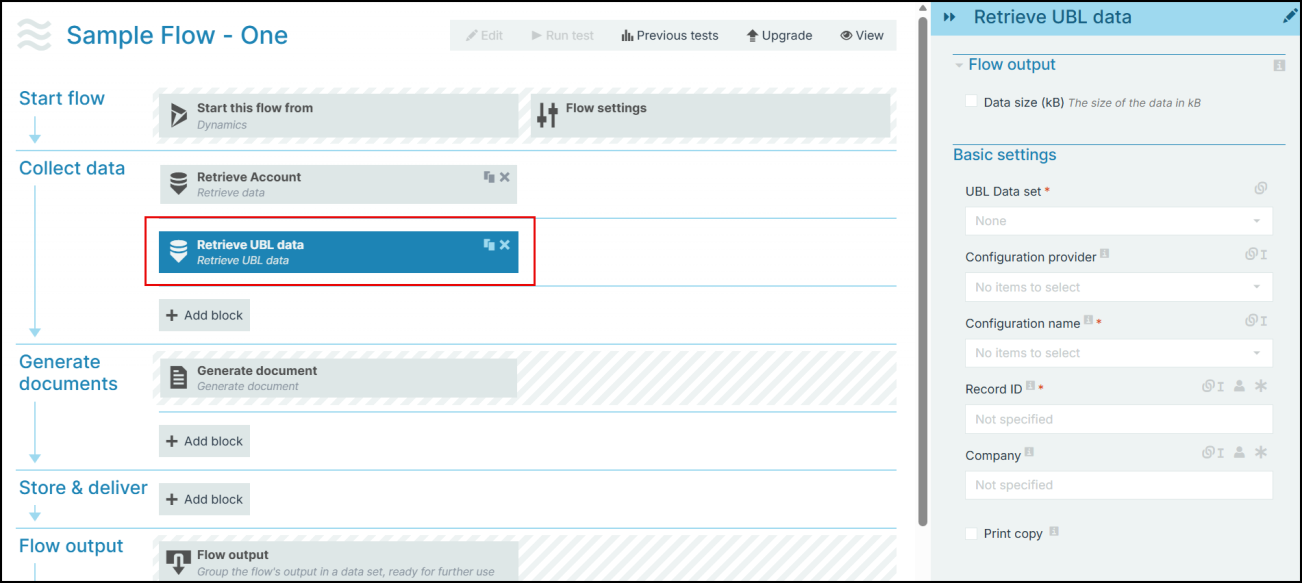
Flow Block Parameters
The dropdown menus below provide all of the flow block's configuration options with detailed information and recommendations to help you configure your flow block.
Flow block customization buttons
You can further customize your flow block's parameters in several ways
-

-

-

Flow output
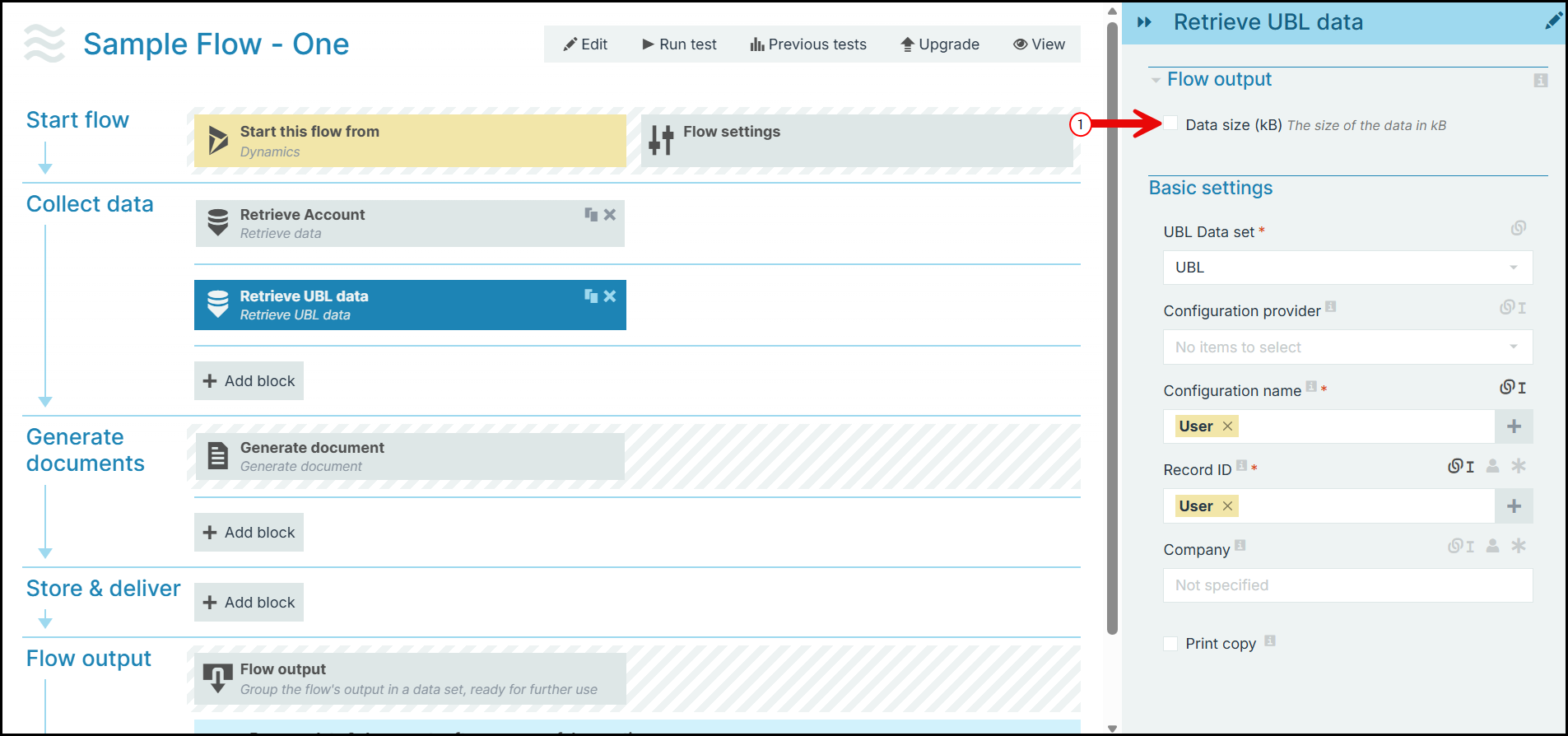
The Flow Output section shows all the output parameters that are available for the block. When checked, the value of the output parameter are presented to the user who is executing the flow. Each setting that composes this output information is described in detail below:
|
Field name |
Description |
|---|---|
|
Data Size (kB) |
Displays the size of the data in the output. |
Basic Settings
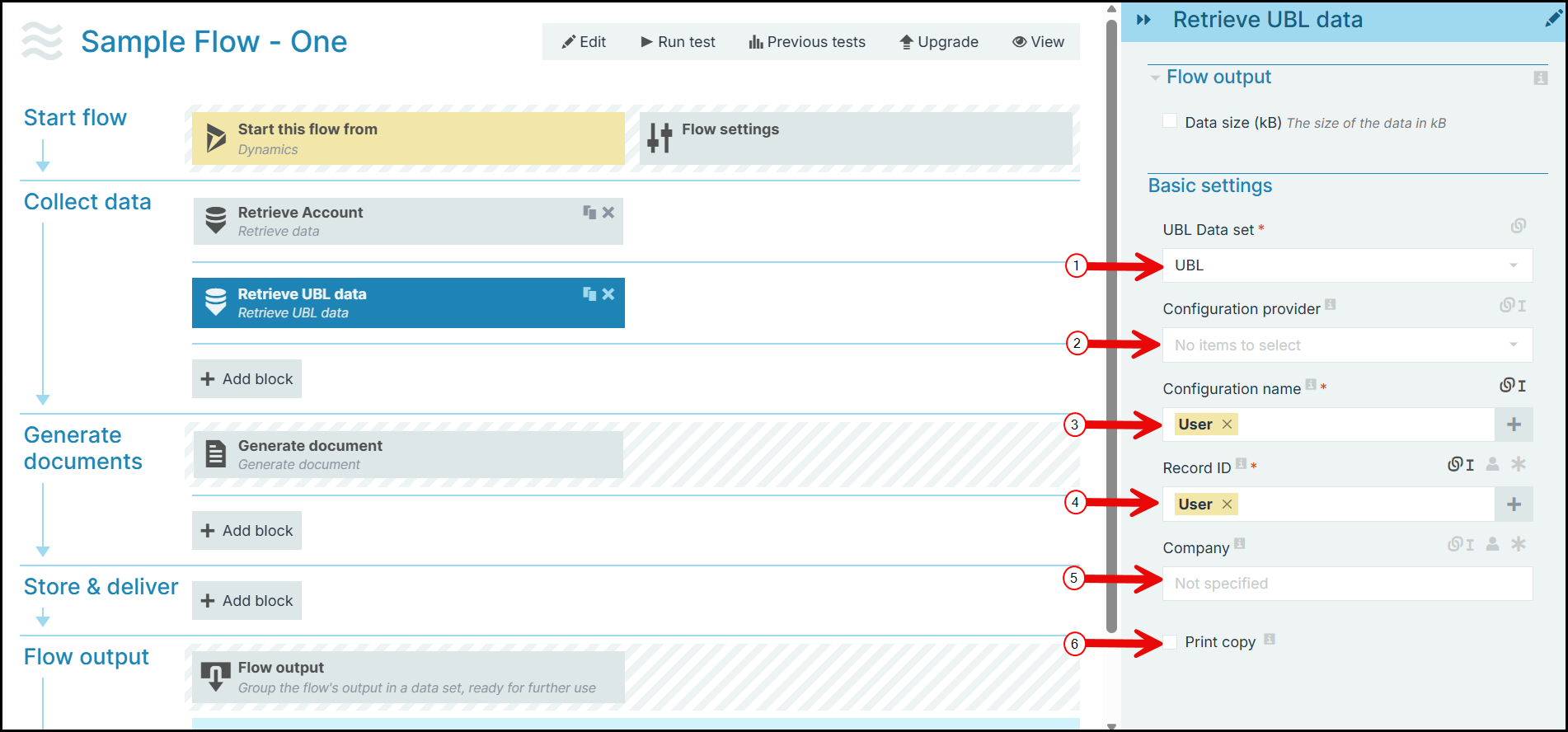
|
Index No. |
Field name |
Description |
|---|---|---|
|
1 |
UBL Data set |
Select a UBL data set for which data is retrieved during the flow execution. |
|
2 |
Configuration provider |
Select the eInvoice configuration provider that is specific to Finance & Operations. |
|
3 |
Configuration name |
Select the name of the eInvoice configuration in Microsoft Dynamics 365 Business Central or Finance & Operations. |
|
4 |
Record ID |
Select an entity reference that roots to the eInvoice. |
|
5 |
Company |
Provide the company name of the Record ID (specific to Finance & Operations). |
|
6 |
Print copy |
Check this option to print a new or re-use an existing eInvoice (specific to Finance & Operations). |