
The Retrieve data from Experlogix Smart Form flow presents a Smart Form to an external non-Smart Flows user. After the non-Smart Flows user completes the form, the system can use the data throughout the rest of your flow.
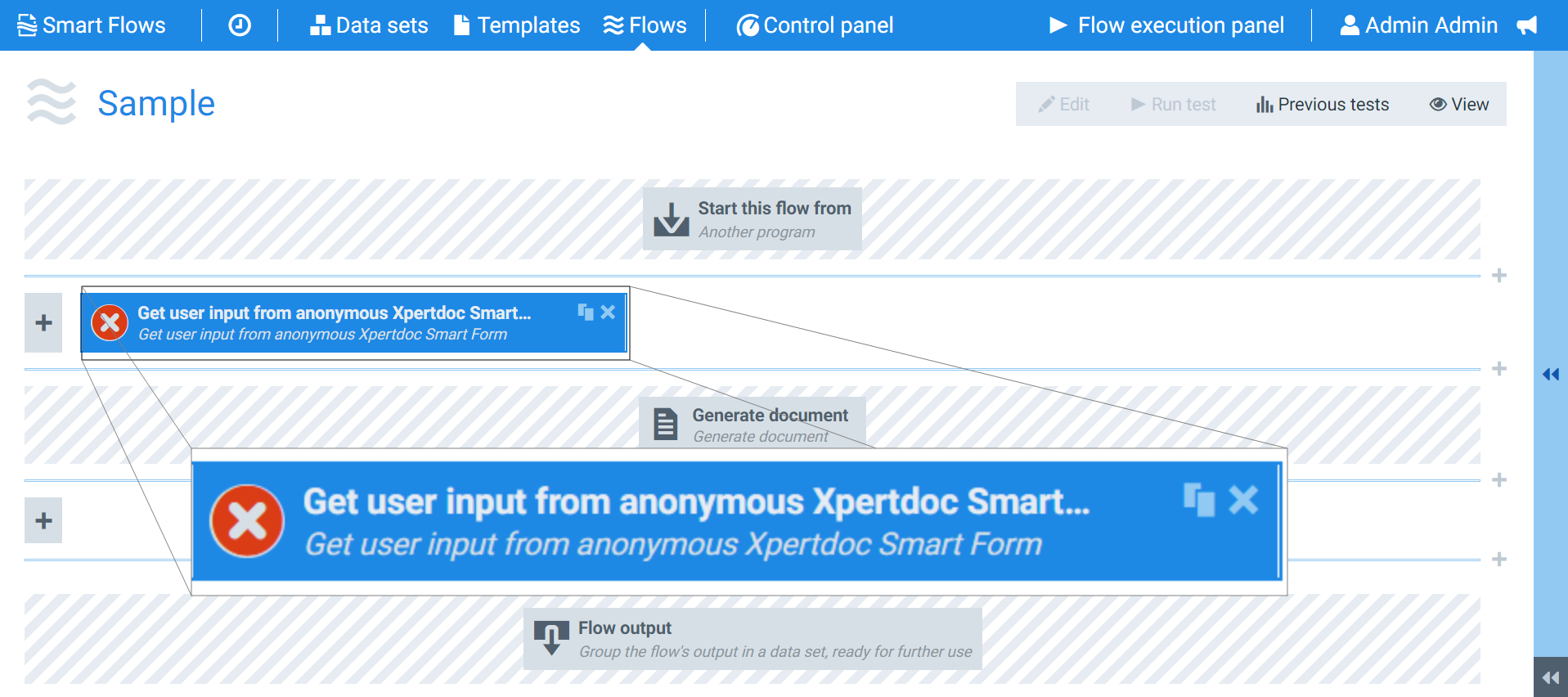
Flow Block Parameters
The dropdown menus below provide all of the flow block's configuration options with detailed information and recommendations to help you configure your flow block.
Flow block customization buttons
You can further customize your flow block's parameters in several ways
-

-

-

Flow Output
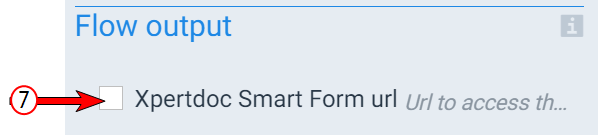
The Flow Output section shows all the output parameters that are available for the block. When checked, the value of the output parameter are presented to the user who is executing the flow. Each setting that composes this output information is described in detail below:
|
Index No. |
Field name |
Description |
|---|---|---|
|
1 |
Experlogix Smart Form url |
When checked, the system provides the URL to the Smart Form at the end of the flow block's run and when the system completes the entire flow execution. |
Basic settings
|
Index No. |
Field name |
Description |
|---|---|---|
|
1 |
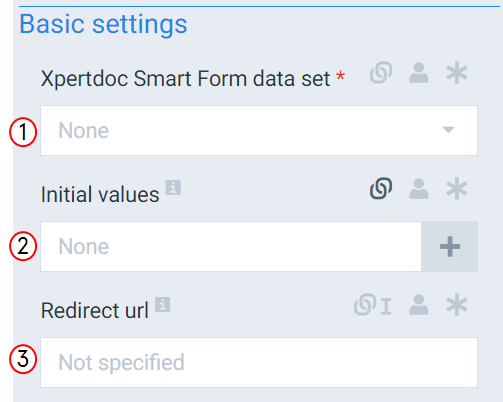
Experlogix Smart Form data set |
Designates the data set to use when creating the smart form for the user. |
|
2 |
Initial Values |
Defines the initial values to use for the fields within the form. |
|
3 |
Redirect url |
If the Redirect URL is set, the user gets automatically redirected to that URL after pressing Submit. If the Redirect URL is not set, the Smart Form will show a Thank you message. |