
Template Builder is a Microsoft Word add-in used to design, edit, and maintain templates for Smart Flows. This topic provides step-by-step guidance on how to:
-
Install Template Builder using online, machine, or offline methods
-
Troubleshoot issues with missing add-ins or older versions
-
Uninstall the add-in when it is no longer needed
-
Change the add-in user interface language from English to French
Choose the installation option that fits your environment, then follow the related procedures to ensure a smooth setup and ongoing use.
Template Builder Online Install Management
Prerequisite
To install Template Builder, you must meet the system requirement.
Install
The easiest way to install Template Builder is to use the online installer located in the Download Installers section of the Smart Flows knowledge base. If you use the online installer, Template Builder automatically updates whenever a patch is released. For more information on releases, please refer to Smart Flows Release Timing and Product Roadmap.
Each team member that wants to use Template Builder must download it individually using the steps below. It is not possible to do a machine install using the online installer.
Always ensure you download the most recent release unless you've been directed to do otherwise by a member of your IT team or the Experlogix team. When you download and run the setup.exe, it will download and install the required files. After installation, every time you open Microsoft Office Word, Template Builder checks for updates and installs them if an update is available.
-
Uninstall any earlier minor releases installed on your local machine.
-
Navigate to the Download Installers section of the Knowledge base.
If your browser warns about the download's safety, you will need to select Allow to proceed with the installation.
-
Open the downloads page of the version you want to install and find the Template Builder installer.
Windows may warn you about the file because it is an .exe (executable) file type. To proceed, you must allow the file to make changes.
-
Open the downloaded file.
-
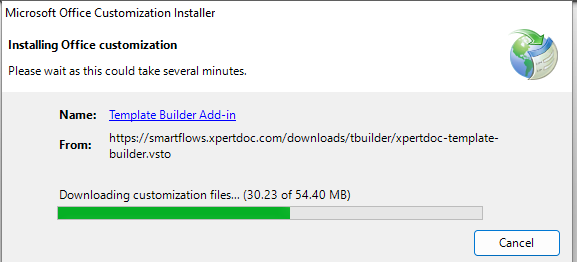
Follow the steps outlined in the Microsoft Office Customization Installer wizard. The installer checks whether all requirements are installed and if not, prompts you to install them.
-
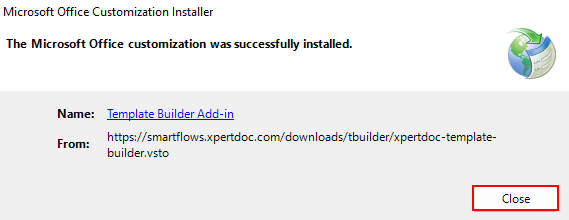
When the Microsoft Office Customization Installer displays a successful installation, select Close.
-
Open Microsoft Word.
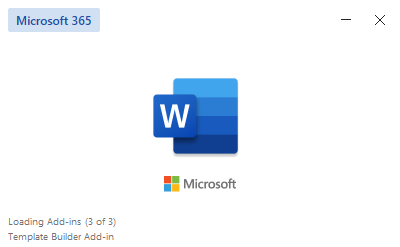
As the program loads, Template Builder Add-In displays on the splash screen indicating that you have successfully installed Template Builder.
Template Builder Machine Install Management
You can manually install it for all users on a machine using the steps below. This involves downloading the offline installer, unpacking it to a local folder, and updating the Windows registry accordingly.
-
Download the offline installer.
-
Unpack to a local folder (e.g. "C:\Program Files\Xpertdoc Template Builder").
-
Instead of double clicking the file xpertdoc-template-builder.vsto (which will install Template Builder for the current user), you need to make changes to the registry:
-
Go to HKEY_LOCAL_MACHINE\Software\Microsoft\Office\Word\Addins.
-
Add key xpertdoc-template-builder.
-
Add string value "Description"=xpertdoc-template-builder.
-
Add string value "FriendlyName"="Xpertdoc Template Builder Add-in".
-
Add DWORD value "LoadBehavior"=dword:00000003.
-
Add string value "Manifest"="file:///C:/Program Files/Xpertdoc Template Builder/xpertdoc-template-builder.vsto"
Attention: beware to specify the correct path here
You can also paste the text below in a .reg file and double-click it to add it to the registry. Again, make sure the path to the vsto file is correct.
[HKEY_LOCAL_MACHINE\Software\Microsoft\Office\Word\Addins\xpertdoc-template-builder]
"Description"="xpertdoc-template-builder""FriendlyName"="Xpertdoc Template Builder Add-in""LoadBehavior"=dword:00000003
"Manifest"="file:///C:/Program Files/Xpertdoc Template Builder/xpertdoc-template-builder.vsto"
You can also paste the text below in a .reg file and double select it to add it to the registry. Again, make sure the path to the vsto file is correct.
[HKEY_LOCAL_MACHINE\Software\Microsoft\Office\Word\Addins\xpertdoc-template-builder]
                        "Description"="xpertdoc-template-builder""FriendlyName"="Xpertdoc Template Builder Add-in""LoadBehavior"=dword:00000003
                    "Manifest"="file:///C:/Program Files/Xpertdoc Template Builder/xpertdoc-template-builder.vsto"
Template Builder Offline Install Management
An offline installer is also available on the Download Installers page. The offline installers are distributed as zip files. To install Template Builder Offline, complete the following steps.
This installer only installs Template Builder Offline for the current active user, you cannot do a machine install with this installer.
-
Download the zip file for the latest release.
Ensure you unzip your file to it’s permanent location. Template Builder will reference that installation folder going forward. If you move the files after installation, Template Builder may not work or it will function in unexpected ways.
-
Unpack the zip file to a local folder.
-
Double-click on the file xpertdoc-template-builder.vsto to install the Template Builder Microsoft Word add-in.
Uninstall Experlogix Template Builder
To uninstall the add-in, follow these steps:
-
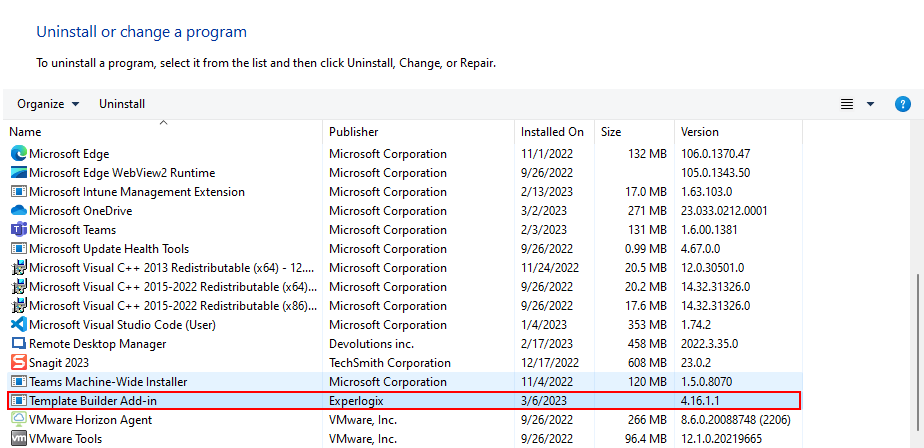
On your computer, navigate to Programs and Features.
-
Right-click the Template Builder Add-in and select Uninstall. Select OK.
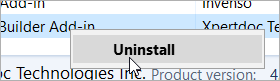
Once the process completes, the add-in is removed from your system.
Changing Template Builder User Interface Language
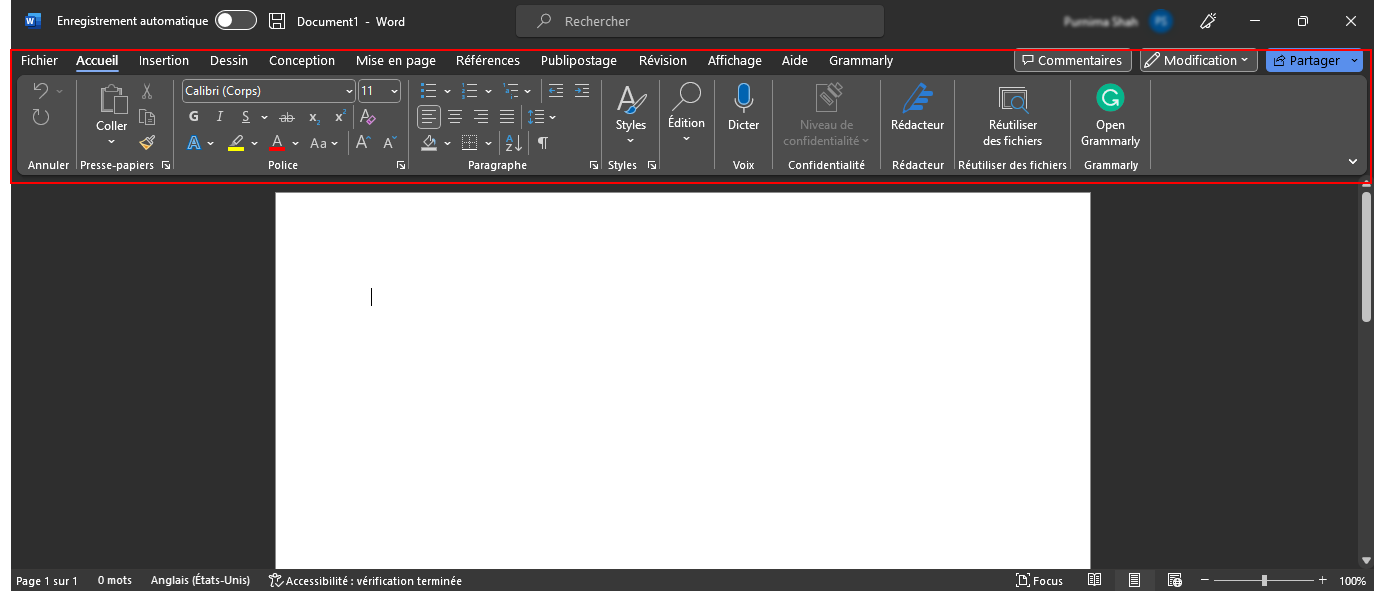
By default, the preferred language for the Template Builder user interface is English. However, you can switch the user interface to French by following these steps:
-
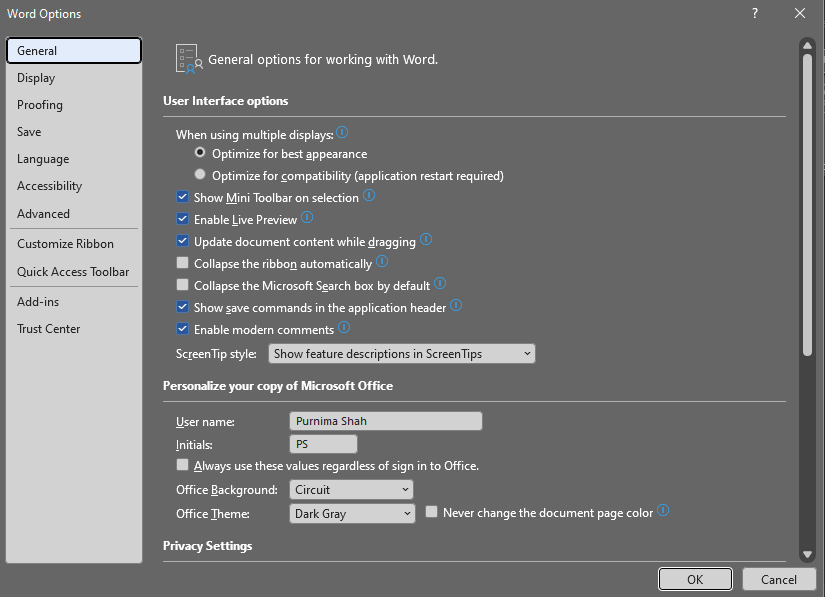
In Microsoft Word, select Options.
-
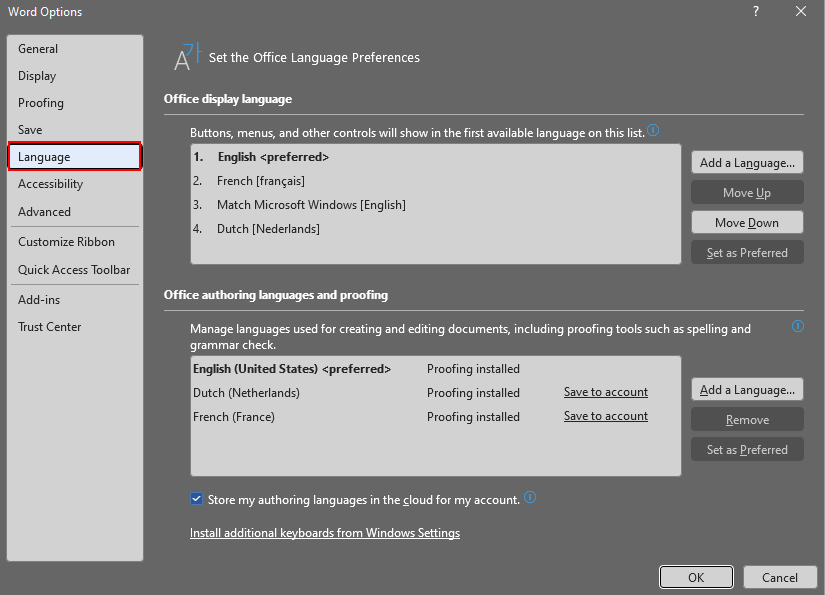
In the left-hand navigation, select Language.
Set the Office Language Preferences page displays.
-
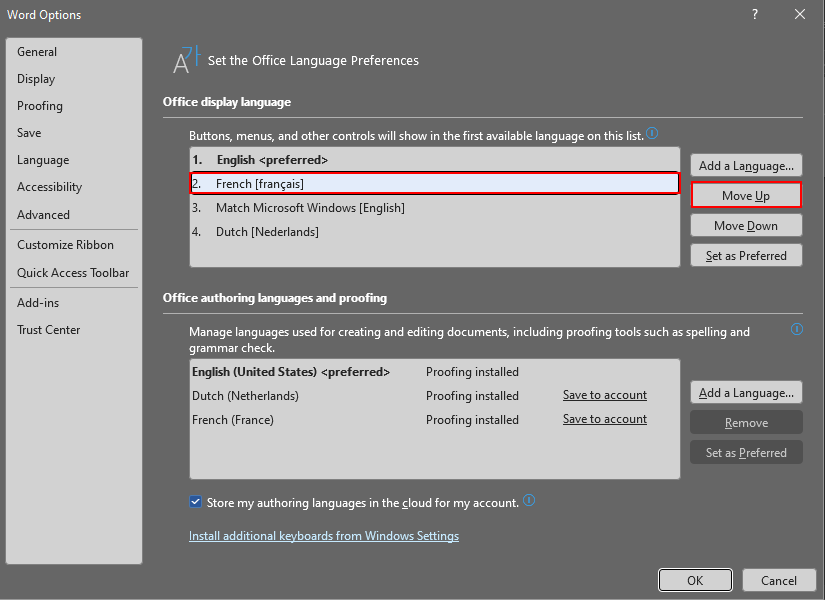
Select French and select Move up > OK. The preferred Language is set to French.
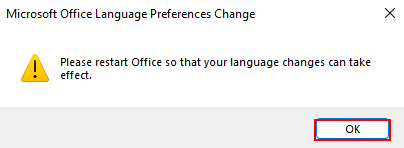
Microsoft Office Language Preferences Change notification displays.
-
Select OK.
-
Restart Microsoft Word.
Troubleshooting
If you face any issues with Template Builder during the intial installation such as the Template Builder user interface not displaying on the ribbon in Microsoft Word, please review the following procedures for quick resolutions.
Verify that all Requirements are Met
Verify that your computer meets the requirements and possesses the prerequisites described on the Requirements for on-premise deployment of Smart Flows. Then complete the following steps.
-
Close Microsoft Word.
-
Remove the Template Builder add-in.
-
Install the required software, see Requirements for on-premise deployment of Smart Flows.
-
Complete a new install of Template Builder. See Template Builder Online Install Management.
Verify that the Add-in is Active
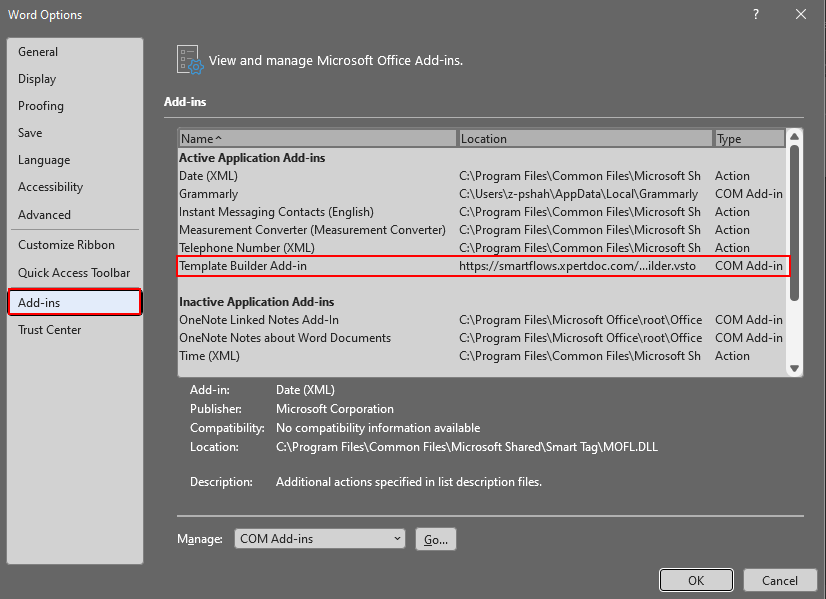
Depending on your personal or enterprise Microsoft settings, your Microsoft Word program may disable add-ins by default when you launch it. If this happens, Template Builder won’t be visible until you manually enable the add-in. You can manually enable the Template Builder add-in by following this guidance from Microsoft.
Verify You Don't Have Any Older Versions of Template Builder Installed
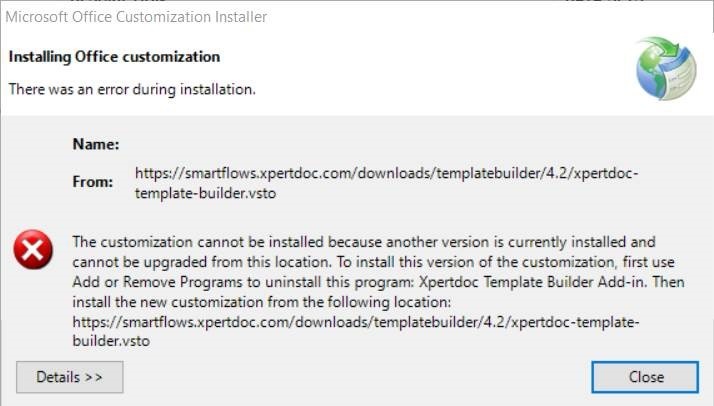
If Template Builder refuses to update automatically, check whether you have an older version and uninstall it before you install the new version.
Further Help
If you are unable to get the add-in working on your system, please contact us for support. See Support