The most basic thing to do in template design: mapping fields that act as placeholders.
In the context of the Template Builder Word add-in, a field is a placeholder that you put in your template (called mapping a field). This placeholder comes from a data set that's attached to the template. The name Field is also used in data sets, so we can say that you map a field from your data set.
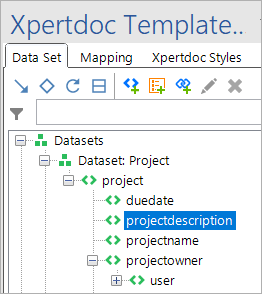
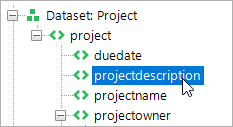
For instance, the field projectdescription is in the data set and can be mapped in your template:
Mapping Fields
To map a field, follow these steps:
-
In the template, select where you want to insert the field.
-
In the Smart Flows pane's data set tab, double-click the field you want to insert.
The field is now mapped in the template, and it appears in the pane's mapping tab.
Types of Fields
There are various types of fields:
|
Icon |
Field Type |
Function |
|---|---|---|

|
Basic fields |
Fields that are defined by the data set that is used to build the template on. |

|
Pseudo-fields |
User-defined fields that are not part of the data set. They can be used to perform calculations or apply formulas on basic fields. |

|
Metadata fields |
Fields that are not part of the data set, but are always included for every template. They contain information about the template, user, time, project, etc. Further, the Flow Execution Properties are enabled under Metadata fields. The list below provides detailed information about each field:
|

|
Pseudo-relations |
Fields that define a relation between two fields. You define these yourself. |

|
Resultsets |
Groups of fields that have a filter applied to them.
|
Managing Fields
Moving and removing fields
How to move and remove fields is explained on this page.
Overview
The pane's mapping tab gives you an overview of all the mappings, conditions, loops, groups, graphs, etc. in your template:
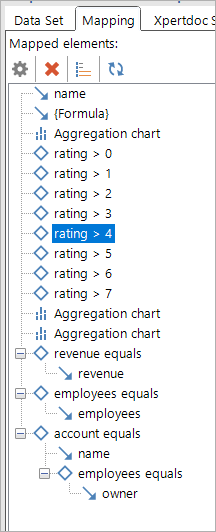
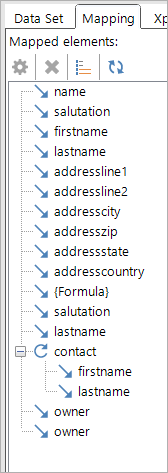
You'll see parent and child elements whenever elements are inside of each other, such as a mapping inside a condition.
Changing Field Names
A field in Smart Flows can have multiple names that identify it. For instance, Dynamics CRM fields have a display, logical and schema name. Behind the scenes, Smart Flows uses the schema name, but you may see those other names pop up.
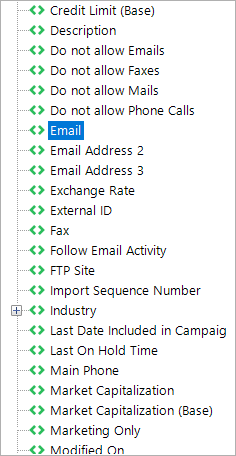
Here's an example of the E-mail field in the data set:

Here it is mapped, shown in the Field inspector and in the mapping tab:
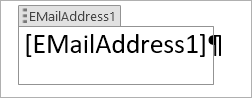

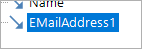
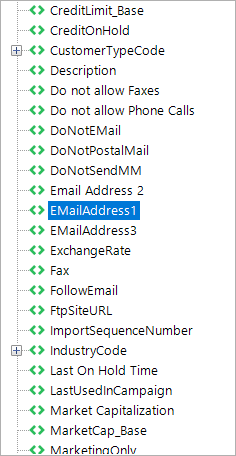
The field is called E-MailAddress1 instead of E-Mail. Smart Flows uses the more readable name by default.
You can change the names used in the data set by going into Options > General > Use alternate names for fields:

Here's the data set with the setting enabled and with it disabled: