
An expression is a combination of functions, fields and values that produces another output. They are very useful for calculations, textual changes and logical operations.
Concept
Typically, you use expressions for one of the following purposes:
-
Defining values that aren't present in your data set.
-
Manipulating existing values so that the output is different.
-
Creating more complex conditions than the wizard allows.
Defining values
The simplest way to use an expression is to define a value that is not present in your data set. For instance, here we define the string Mr:
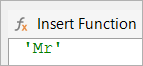
This will simply output the string Mr.
On its own, defining a value isn't that useful. In combination with functions, however, it becomes more powerful. For instance, here we check whether the type field's value is equal to the string black marker:

This will return a value that can then be checked in a condition.
Manipulating existing values
Changing an existing value so that it outputs something different is done by using functions. For instance, here's a table that shows the effect of a few functions on some fields' values:
-
Value of field A: 3
-
Value of field B: 6
-
Value of field C: 'Experlogix'
-
Value of field D: ' John'
|
Function |
Description |
Input fields |
Outcome |
|---|---|---|---|
|
sum |
Returns the sum of the fields. |
field A & B |
9 |
|
max |
Returns the largest number. |
field A & B |
6 |
|
toUpper |
Makes all characters uppercase. |
field C |
EXPERLOGIX DOCUMENT AUTOMATION |
|
concat |
Puts two strings together. |
field C & D |
XperiDo John |
This page shows all of the available functions.
Complex conditions
Instead of using the wizard to define your conditions, you may also use expressions. We always encourage you to use the wizard as much as possible, but there are a few things the wizard won't let you do. For instance, you can't insert multiple conditions in a condition through the wizard.
There are a few functions that return 1 (true) or 0 (false); these are called logical functions. The eq function (to check whether a value is equal to another value) is a good example:
This expression will return 1 if the type field's value is equal to black marker. This expression can also be defined through the wizard:
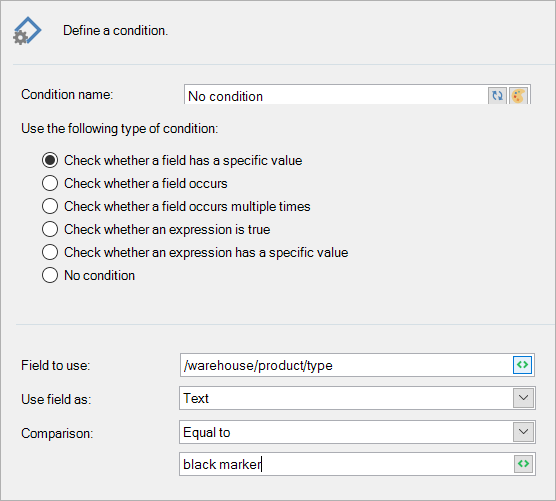
But more complex conditions require expressions. Here is an example of a condition that checks whether the type field's value is equal to either black marker or red marker:

Here, we use the or function that checks whether one of the arguments is true (which means that it returns 1). So, if either of the eq functions is true, the entire expression is true and the condition is thus true.
Elements of an expression
An expression can contain the following elements:
-
Functions
-
Fields
-
Numbers
-
Strings
Let's go over each of them.
Functions
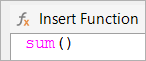
Functions are shown in pink (although they may appear in black the second time you open the expression):
Adding a function to an expression can be done in 2 ways: either you type it in or you use the function wizard.
To use the function wizard, follow these steps:
-
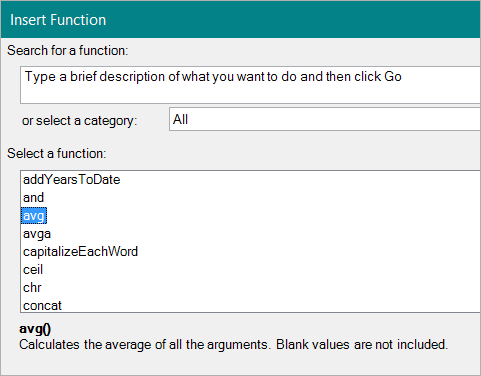
Select the Insert Function button:
-
A window will pop up, asking you which function you want to include.
-
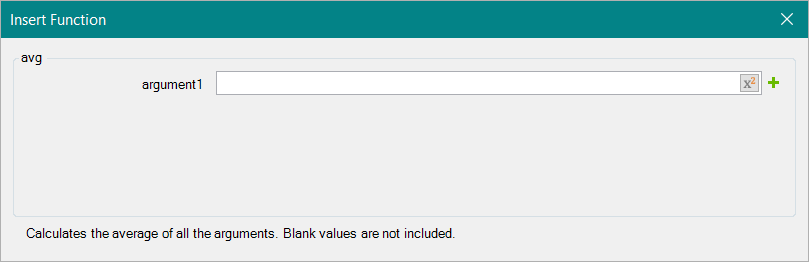
Choose your function (you can search for it or browse by category) and select OK. This opens a new window where you can choose the function's arguments:
-
You can type in your argument, use the expression button to bring up another expression editor (which you can then use for inserting fields if you like), or you can select the green plus to add another argument (if the functions allows a variable number of arguments). Select the red cross to remove an argument.

-
Select OK and your function, with all the arguments you provided, will be inserted into the expression:

Tip The faster way is just to type avg(,3) and insert your field before the comma. But the wizard is helpful when you're not used to working with expressions.
Fields
Fields are shown with ${} around them:

To insert a field, follow these steps:
-
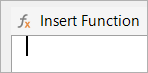
Set the mouse cursor where you want to insert the field.
-
Select the Insert Field button, select your field and select OK.
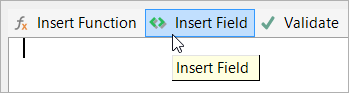
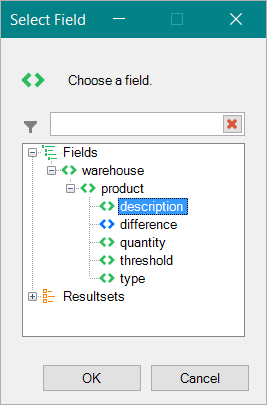
The field is now inserted into the expression.

This expression will now output the value of the field.
Numbers
Numbers are shown in brown (when used in a function):
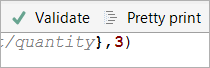
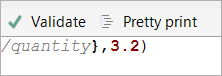
To insert a number, simply type it. To use a decimal separator, use a dot, like this:
Strings
Strings are shown in green:
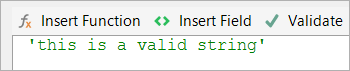
Strings will only be recognized as such when they are put in between apostrophes. Otherwise, the text won't be green and thus it won't be a valid string.
Pretty print
The expression window features a Pretty print button.
Clicking it will tidy up your expression according to various formatting rules, such as added indentation, parameters on a separate line etc. Here's an example:
The sum of two fields and 50000:

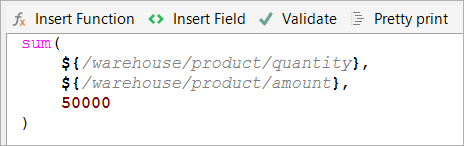
It is easier to discern the three arguments of the sum() function in the prettyprinted version.
Another example:
Checking whether the following expression is true: is the type a pencil or a marker with the description red?

Pretty cluttered without pretty print.
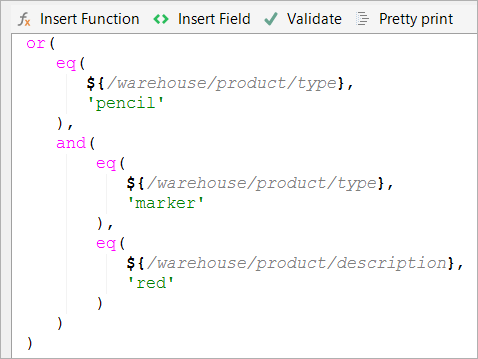
As you see, for multi-function expressions, pretty print is a great feature as you get a better view of the whole expression. It is especially useful for chaining conditions.
Chaining conditions
A more advanced use of expressions is to chain conditions together to create a condition chain. This makes it possible to evaluate many conditions one after another, until one is true. You can use this to check for multiple things at the same time.
For instance: you want to change a number field to text, as follows: 1 is Monday, 2 is Tuesday, 3 is Wednesday etc. So when your field contains the number 4, you want Thursday to appear. You could do this with the Text replace feature, but using an expression for this has the advantage that you can easily copy and adjust it if necessary.
Here's how we've set up the condition, using the warehouse field:
-
Check whether the warehouse field equals 1. If so, output Monday.
-
If not 1, check whether the warehouse field equals 2. If so, output Tuesday.
-
If not 1 or 2, check whether the warehouse field equals 3. If so, output Wednesday.
-
etc
We'll use the if(cond,a,b) function for this, which returns a if cond is true and b if cond is false. Also eq(a,b) to check whether a is equal to b. So basically, it'll look something like this: if (eq(warehouse,1), monday, if (eq(warehouse,2), tuesday, if (eq(warehouse,3), wednesday...
Here's the result, after pretty printing:
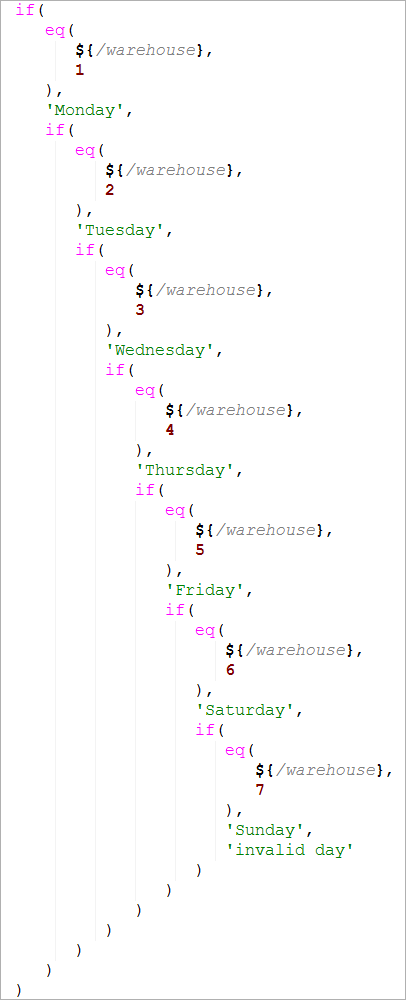
We added 'invalid day' at the end for when the input is not 1, 2, 3, 4, 5, 6 or 7.
Good to know
A few things that are good to know when using expressions:
-
A function that takes multiple arguments as its input will work with only one argument when that argument is recurring. For instance, the sum function can be used to return the sum of all the quantity fields, like below
-
This is often used in quotes and invoices, where each line item has its own subtotal. You can then just use the sum function on the subtotal field to find the grand total.

-
You can use the Validate button to check whether you made syntax errors. It's always a good idea to select Validate before clicking OK.
Your expression may be valid syntactically, but make no sense whatsoever in the context of your template. Use your best judgment.
-
When using pseudo-fields, be sure to select the right type. Some functions won't work on text and some won't work on numbers.

-
0 will always be considered false, but everything else is true. So if your condition returns 2, or 5.4, it will be considered true.
List of Experlogix Template Builder functions
The Experlogix Template Builder offers a large number of functions that you can use in your expressions. Use the expression tables below to power your Templates with additional functionality via expressions.
Regular expressions
Some of the functions you can use allow you to use regular expressions. To learn more about regular expressions, refer to Java Tutorials.
Extended characters
Some of the functions you can use allow you to use extended characters. To learn more about extended characters, refer to Control character.
Basic Functions
|
Characters |
Description |
|---|---|
|
\n |
Newline |
|
\r |
Carriage return |
|
\t |
Tab |
|
\\ |
Backslash |
|
\x## |
Hexadecimal value (between 00 and FF) |
|
\u#### |
Extended hexadecimal value meant for Unicode characters (between 0000 and FFFF) |
|
\d### |
Decimal value (between 000 and 255) |
Mathematical functions
Elementary arithmetic
|
Function name |
Description |
Syntax |
Example |
|---|---|---|---|
|
Returns the sum of c and b (c + b). |
add(c, b) |
add('1.2', '2.3') = 3.5 add('1.2', 2.3) = 3.5 add(1.2, 2.3) = 3.5 |
|
Returns the sum of c and 1 (c + 1). |
uadd(c) |
uadd(10) = 11 |
|
Returns the result of subtracting b from c (c - b). |
sub(c, b) |
sub(9,3) = 6 sub(3,9) = -6 |
|
Returns the result of dividing c by b (c / b). |
div(c, b) |
div(9,2) = 4.5 div(-9,2) = -4.5 div(2,4) = 0.5 |
|
Returns the remainder of the division of c and b. |
mod(c, b) |
mod(9,2) = 1 mod(9,3) = 0 mod(8,3) = 2 mod(-9,-2) = -1 |
|
Returns the multiplication of c with b (c × b). |
mult(c, b) |
mult(2,6.5) = 13 mult(-2,8) = -16 |
|
Returns the sum of all arguments (a + b + c + d...). |
sum(a, b, c, d...) |
sum(1,6.5,2) = 9.5 sum(1,0,0,0,6) = 7 |
|
Returns the product of all arguments (a x b x c x d...). |
prod(a, b, c, d...) |
prod(2,3,4) = 24 prod(-2,1,-3.5,2) = 14 |
Basic
|
Function Name |
Description |
Synta |
Example |
|---|---|---|---|
|
Returns a new random number between 0.0 and 1.0. Seed is the number used to initialize a pseudo-random number generator. The seed is not required. |
rnd(seed) |
rnd(25) = 0.645 |
|
Returns the absolute value of c (|c|). |
abs(c) |
abs(123) = 123 abs(-123) = 123 |
|
Returns the largest number of c and b. |
max(c, b) |
max(5,2) = 5 max(-3,7) = 7 max(-3,-5) = -3 |
|
Returns the smallest number of c and b. |
min(c,b) |
min(5,2) = 2 min(-3,7) = -3 min(-3,-5) = -5 |
|
Returns c multiplied with -1. |
negate(c) |
negate(63) = -63 negate(-63) = 63 |
|
Returns -1 if c is negative, 1 if c is positive, and 0 if c is 0. |
sign(c) |
sign(0) = 0 sign(-4) = -1 sign(7) = 1 |
|
Converts c to a floating point value. |
val(c) |
val(1.2) = 1.2 |
Power
|
Function Name |
Description |
Syntax |
Example |
|---|---|---|---|
|
Returns the square root of c. |
sqrt(c) |
sqrt(121) = 11 sqrt(499849) = 707 |
|
Returns the square of c (c²). |
sqr(c) |
sqr(11) = 121 sqr(707) = 499849 |
|
Returns e raised to the power c. |
exp(c) |
exp(2) = 7.389 |
|
Returns c raised to the power b (c ^ b). |
pow(c, b) |
pow(10,3) = 1000 pow(2,8) = 256 pow(3,3) = 27 |
Logarithms
|
Function Name |
Description |
Syntax |
Example |
|---|---|---|---|
|
Returns the natural logarithm of c (base e). |
ln(c) |
ln(10) = 2.303 |
|
Returns the logarithm of c in base 10. |
log(c) |
log(1000) = 3 log(100) = 2 |
|
Returns the logarithm of c in base 2. |
log(c) |
log2(1024) = 10 log2(256) = 8 |
|
Returns the logarithm of c in base n. |
logn(c, n) |
logn(343,7) = 3 logn(64,4) = 3 logn(100,10) = 2 |
Rounding
|
Function Name |
Description |
Syntax |
Example |
|---|---|---|---|
|
Returns the smallest integer higher than or equal to c (rounding up). |
ceil(c) |
ceil(1.0) = 1 ceil(1.1) = 2 ceil(1.8) = 2 ceil(-1.0) = -1 ceil(-1.1) = -1 |
|
Returns the largest integer lower than or equal to c (rounding down). |
floor(c) |
floor(1.0) = 1 floor(1.1) = 1 floor(2.5) = 2 floor(-1.0) = -1 floor(-1.3) = -2 |
|
Returns c without the decimal part. |
trunc(c) |
trunc(1.0) = 1 trunc(1.6) = 1 trunc(2.5) = 2 trunc(-3.6) = -3 |
|
Returns c rounded to the nearest integer. |
round(c) |
round(1.0) = 1 round(1.2) = 1 round(1.5) = 1 round(1.7) = 2 |
|
Returns c rounded to a number of decimal places (b). |
roundDecimal(c,b) |
round(2.12355,3) = 2.124 round(2.12555,3) = 2.126 round(2.12555,2) = 2.13 round(2.12555,1) = 2.1 |
Trigonometrical
|
Function Name |
Description |
Syntax |
Example |
|---|---|---|---|
|
Returns the sine of c (c in degrees). |
sin(c) |
sin(0) = 0 sin(30) = 0.5 sin(45) = 0.707 sin(90) = 1 |
|
Returns the cosine of c (c in degrees). |
cos(c) |
cos(0) = 1 cos(45) = 0.707 cos(60) = 0.5 cos(90) = 0 |
|
Returns the tangent of c. (c in degrees). |
tan(c) |
tan(0) = 0 tan(45) = 1 tan(60) = 1.732 |
Counting
|
Function Name |
Description |
Syntax |
Example |
|---|---|---|---|
|
Returns the average of all the arguments. Blank values are not included. |
avg(a,b,c...) |
|
|
Returns the average of all the arguments. Blank values are included and considered to be zero. |
avga(a,b,c...) |
|
|
Returns the median of all the arguments. Blank values are not included. |
median(a,b,c...) |
median(1,5,7) = 5 median(3,6,18) = 6 median(3,6,8,11) = 7 |
|
Returns the median of all the arguments except x. Blank values get the value x. |
mediana(x,a,b,c...) |
|
|
Returns the number that most often appears in the arguments. Blank values are not included. |
mode(a,b,c...) |
mode(1,2,2,3) = 2 mode(1,2,2,3,3) = no mode mode(1,2,2,3,3,3) = 3 |
|
Returns the number that most often appears in the arguments except x. Blank values get the value x. |
modea(x,a,b,c...) |
|
|
Counts the number of values. Blank values are not included. |
count(a,b,c...) |
|
|
Counts the number of values. Blank values are included. |
counta(a,b,c...) |
|
|
Counts the number of blank values. |
countb(a,b,c...) |
|
|
Counts the number of distinct values. Blank values are not included. |
countDistinctValues(a,b,c...) |
countDistinctValues(a,a,a,b,b) = 2 countDistinctValues(a,b,c,c,c,c) = 3 |
|
Counts the number of distinct values. Blank values are included. |
countDistinctValues(a,b,c...) |
|
Text functions
Basic
|
Function Name |
Description |
Syntax |
Example |
|---|---|---|---|
|
str |
Converts c to a string. |
str(c) |
str(1.2) = 1.2 |
|
strlen |
Returns the length of c. |
strlen(c) |
strlen('Hello world!') = 12 strlen('Xpertdoc') = 8 |
|
concat |
Returns the string that results from concatenating c and b. You can use more than two arguments. |
concat(c, b) |
concat('Hello ', 'world') = 'Hello world' concat('Hi ','there ','everyone') = 'Hi there everyone' |
|
substr |
Returns the sub-string of s starting from c with length b. |
substr(s, c, b) |
substr('Hello World!', 1, 4) = 'ello' substr('Hello World!', 3, 2) = 'lo' substr('Hello World!', 3, -2) = 'el' substr('Hello World!', 100, -4) = 'rld!' |
|
chr |
Returns the nth character of c. |
chr(c, n) |
chr('Xpertdoc', 2) = 'p' chr('Xpertdoc', 150) = '' |
Trim
|
Function Name |
Description |
Syntax |
Example |
|---|---|---|---|
|
trim |
Removes all leading and trailing whitespaces from c. |
trim(c) |
trim(' some text ') = 'some text' |
|
rtrim |
Removes all trailing whitespaces from c. |
rtrim(c) |
rtrim(' some text ') = ' some text' |
|
ltrim |
Removes all leading whitespaces from c. |
ltrim(c) |
ltrim(' some text ') = 'some text ' |
Case
|
Function Name |
Description |
Syntax |
Example |
|---|---|---|---|
|
toLower / lowercase |
Returns c with all characters in lowercase. |
|
toLower('Xpertdoc') = 'xpertdoc' lowercase('Xpertdoc') = 'xpertdoc' |
|
toUpper / uppercase |
Returns c with all characters in uppercase. |
|
toUpper('Xpertdoc') = 'XPERTDOC' uppercase('Xpertdoc') = 'XPERTDOC' |
|
capitalizeEachWord |
Returns c where each word has a capital first letter. |
capitalizeEachWord(c) |
capitalizeEachWord('this is very good.') = 'This Is Very Good.' |
|
sentenceCase |
Returns c where each sentence is capitalized. |
sentenceCase(c) |
sentenceCase('hi there. we are going to start.') = 'Hi there. We are going to start.' |
|
toggleCase |
Returns c where each letter's case is inverted. |
toggleCase(c) |
toggleCase('This is a strange function according to Dr. Strangefunction.') = 'tHIS IS A STRANGE FUNCTION ACCORDING TO dR. sTRANGEFUNCTION.' |
Replace
|
Function Name |
Description |
Syntax |
Example |
|---|---|---|---|
|
replaceText |
Returns a string where each occurrence of d in c has been replaced with e. Case is ignored. |
replaceText(c, d, e) |
replaceText('The quick brown fox jumps over the lazy dog', 'brown', 'orange') = 'The quick orange fox jumps over the lazy dog' replaceText('The quick brown fox jumps over the lazy dog', 'BROWN', 'ORANGE') = 'The quick ORANGE fox jumps over the lazy dog' replaceText('The quick BROWN fox jumps over the lazy dog', 'brown', 'orange') = 'The quick orange fox jumps over the lazy dog' replaceText('The quick brown fox jumps over the lazy dog', 'brown', '') = 'The quick fox jumps over the lazy dog' |
|
replaceTextC |
Returns a string where each occurrence of d in c has been replaced with e. Case-sensitive. |
replaceTextC(c, d, e) |
replaceTextC('The quick brown fox jumps over the lazy dog', 'brown', 'orange') = 'The quick orange fox jumps over the lazy dog' replaceTextC('The quick brown fox jumps over the lazy dog', 'BROWN', 'ORANGE') = 'The quick brown fox jumps over the lazy dog' replaceTextC('The quick BROWN fox jumps over the lazy dog', 'brown', 'orange') = 'The quick BROWN fox jumps over the lazy dog' replaceTextC('The quick brown fox jumps over the lazy dog', 'brown', '') = 'The quick fox jumps over the lazy dog' |
|
replaceExtended |
Returns a string where each occurrence of d in c has been replaced with e. d and e are considered to be texts with extended characters. Case is ignored. |
replaceExtended(c, d, e) |
replaceExtended('"??"', '\u0100', 'Latin capital letter A with macron') = '"Latin capital letter A with macron"' |
|
replaceExtendedC |
Returns a string where each occurrence of d in c has been replaced with e. d and e are considered to be texts with extended characters. Case-sensitive. |
replaceExtendedC(c, d, e) |
replaceExtendedC('"??"', '\u0100', 'Latin capital letter A with macron') = '"Latin capital letter A with macron"' |
|
replaceRegEx |
Returns a string where each occurrence of d in c has been replaced with e. d and e are considered to be regular expressions. |
replaceRegEx(c, d, e) |
replaceRegEx('The quick brown fox jumps over the lazy dog', '(dog|fox)', '\[animal\]$1\[animal\]') = 'The quick brown [animal]fox[animal] jumps over the lazy [animal]dog[animal]' |
Split
If you use any of the split functions, you need to configure it using the following steps:
-
Create a pseudo-field where you use the split function on a field.
-
Loop over the pseudo-field in your template.
-
In the loop, map the pseudo-field again. If your field is called Address1, this is what you'll end up with:
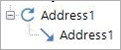
If you do not loop, you'll only get the first item instead of all the items.
|
Function Name |
Description |
Example |
||||||||||||
|---|---|---|---|---|---|---|---|---|---|---|---|---|---|---|
|
split |
Splits a field into separate parts, which can be stored as an array in a pseudo-field. These can then be accessed by mapping the pseudo-field split(text, separator, isRegex, removeEmpty, trimParts).
|
|
||||||||||||
|
splitLines |
Splits a field into separate parts, splitting on newlines splitLines(text). This function is equivalent to split(text, '\\r?\\n', 1, 0, 0) and will split text into pieces separated by a newline. |
|
||||||||||||
|
splitWords |
Splits a field into separate parts, splitting on whitespaces splitWords(text). This function is equivalent to split(text, '\\\\s+', 1, 1, 1) and will split text into pieces separated by whitespaces. |
|
Format
|
Function Name |
Description |
Syntax |
Example |
|---|---|---|---|
|
formatNumber |
Output a number in a given pattern. For more information, refer to Number patterns. |
formatNumber(number,pattern) |
formatNumber(500,'0.00') = 500.00 formatNumber(200,'##.##') = 200 |
|
formatNumberR |
Output a number in a given pattern, using a certain locale. For more information, see Number patterns and List of supported locales. |
formatNumber(number,pattern,locale) |
formatNumberR(500,'¤0.00','en_us') = $500.00 formatNumberR(500,'¤0.00','nl_be') = €500,00 |
Date & time functions
For details on Date & time functions, please refer to the following pages
Logical functions
Logic
|
Function Name |
Description |
Syntax |
Example |
|---|---|---|---|
|
if |
Returns d if c equates to true, e if c equates to false. |
if(c, d, e) |
if(1, yes, no) = yes if(0, yes, no) = no if(2, yes, no) = yes if(-1, yes, no) = yes |
|
and |
Returns the logical AND of c and d. |
and(c, d) |
and(1, 1) = 1 and(1, 0) = 0 and(0, 1) = 0 and(0, 0) = 0 |
|
or |
Returns the logical OR of c and d. |
or(c, d) |
or(1, 1) = 1 or(1, 0) = 1 or(0, 1) = 1 or(0, 0) = 0 |
|
not |
Returns 1 if c is 0, 0 otherwise. |
not(c) |
not(0) = 1 not(1) = 0 not(2) = 0 not(-1) = 0 |
Comparison
|
Function Name |
Description |
Syntax |
Example |
||||||||||||||
|---|---|---|---|---|---|---|---|---|---|---|---|---|---|---|---|---|---|
|
eq |
Returns 1 if c is equal to d, 0 otherwise. When used with text, the values are trimmed (trailing and leading whitespaces are removed), and case is ignored. |
eq(c, d) |
eq(2, 2) = 1 eq(2, 5) = 0 eq(2.0, 2) = 0 eq(' AbC ','abc') = 1 |
||||||||||||||
|
neq |
Returns 1 if c is not equal to d, 0 otherwise. When used with text, the values are trimmed (trailing and leading whitespaces are removed), and case is ignored. |
neq(c, d) |
eq(2, 2) = 0 eq(2, 5) = 1 eq(2.0, 2) = 1 eq(' AbC ','abc') = 0 |
||||||||||||||
|
neq |
Extensions of eq and neq. The eq and neq functions can be extended for use with text:
|
|
|
||||||||||||||
|
gt |
Returns 1 if c is bigger than d, 0 otherwise. |
gt(c, d) |
gt(2, 1) = 1 gt(2, 5) = 0 gt(2, 2) = 0 |
||||||||||||||
|
geq |
Returns 1 if c is bigger than or equal to d, 0 otherwise. |
geq(c, d) |
geq(2, 1) = 1 geq(2, 5) = 0 geq(2, 2) = 1 |
||||||||||||||
|
lt |
Returns 1 if c is lower than d, 0 otherwise. |
lt(c, d) |
lt(2, 1) = 0 lt(2, 5) = 1 lt(2, 2) = 0 |
||||||||||||||
|
leq |
Returns 1 if c is lower than or equal to d, 0 otherwise. |
leq(c, d) |
leq(2, 1) = 0 leq(2, 5) = 1 leq(2, 2) = 1 |
||||||||||||||
|
hasBlanks |
Returns 1 when at least one of the arguments is blank. |
hasBlanks(a,b,c...) |
|
||||||||||||||
|
isNull |
Returns 1 when c is unspecified (null). |
isNull(c) |
|
||||||||||||||
|
isNullOrBlank |
Returns 1 when c is unspecified (null) or blank (empty or only whitespaces). |
isNullOrBlank(c) |
|
Check text
|
Function Name |
Description |
Syntax |
Example |
|---|---|---|---|
|
contains |
Returns 1 if c contains s, 0 if it doesn't. Case is ignored. |
contains(c, s) |
contains('Xpertdoc', 'Xp') = 1 contains('Xpertdoc', 'xP') = 1 contains('Xpertdoc', 'Xu') = 0 contains('Xpertdoc', 'u') = 0 |
|
containsc |
Returns 1 if c contains s, 0 if it doesn't. Case-sensitive. |
containsc(c, s) |
containsc('Xpertdoc', 'Xp') = 1 containsc('Xpertdoc', 'xP') = 0 containsc('Xpertdoc', 'Xu') = 0 containsc('Xpertdoc', 'u') = 0 |
|
startsWith |
Returns 1 if c starts with s, 0 if it doesn't. Case is ignored. |
startsWith(c, s) |
startsWith('Xpertdoc', 'xp') = 1 startsWith('Xpertdoc', 'X') = 1 startsWith('Xpertdoc', 'oc') = 0 startsWith('Xpertdoc', 'Oc') = 0 |
|
startsWithC |
Returns 1 if c starts with s, 0 if it doesn't. Case-sensitive. |
startsWithC(c, s) |
startsWithC('Xpertdoc', 'xp') = 0 startsWithC('Xpertdoc', 'X') = 1 startsWithC('Xpertdoc', 'oc') = 0 startsWithC('Xpertdoc', 'Oc') = 0 |
|
endsWith |
Returns 1 if c ends with s, 0 if it doesn't. Case is ignored. |
endsWith(c, s) |
endsWith('Xpertdoc', 'xp') = 0 endsWith('Xpertdoc', 'X') = 0 endsWith('Xpertdoc', 'oc') = 1 endsWith('Xpertdoc', 'Oc') = 1 |
|
endsWithC |
Returns 1 if c ends with s, 0 if it doesn't. Case-sensitive. |
endsWithC(c, s) |
endsWithC('Xpertdoc', 'xp') = 0 endsWithC('Xpertdoc', 'X') = 0 endsWithC('Xpertdoc', 'oc') = 1 endsWithC('Xpertdoc', 'Oc') = 0 |
Other
|
Function Name |
Description |
Syntax |
Example |
||||||||
|---|---|---|---|---|---|---|---|---|---|---|---|
|
getLoopIndex |
Returns the number of the current iteration, with the first iteration being 0. This can be useful in loops. Example: making your own numbered lists. |
getLoopIndex() |
If you have nested loops, you can get a higher level loop's current iteration by specifying how many levels up you want to look. For instance, if you have loops A, B and C where C is inside B and B is inside A:
|
||||||||
|
safeValue |
Returns c unless an error occurs, in which case d is returned. If d is not specified, null is used. This function can be useful when you cannot guarantee that the value will be what you need. For instance, further calculations expect a number, but the field may also hold a string. Using this function guarantees that the document generation continues - it may not be with the expected result, but at least you can catch this instead of running into an error. |
safeValue(c,d) |
|
||||||||
|
valueOrDefault |
Returns c unless it is null, in which case d is returned. This function can be useful when you must avoid null values. Null values are, for instance, empty fields (for numbers or dates). |
valueOrDefault(c,d) |
|
Date & Time Functions
Smart Flows comes with a large number of date & time functions, which can be used to do calculations with dates and times.
Concept
All of the date & time calculations are done using functions. Smart Flows has a long list of functions that you can use in expressions. Expressions are accessed via pseudo-fields or formulas.
It's good to read up on expressions so that you have a basic understanding of how to use them properly. This will allow you to dive right in to the date & time functions.
Base date
Some functions require that you specify a base date. A base date is necessary for some functions that deal with months/years, as not every month/year has the same length. Changing the base date can then also change the output of those functions.
For instance, the function formatPeriod can be used to convert a time period into a number of months and days. Here's how the base date can change the output; in the following functions, the final parameter is the base date, and that's the only parameter that's changed:
formatPeriod(8264000000,'M \'months and \'d \'days\'','2016-01-01') = 3 months and 4 daysformatPeriod(8264000000,'M \'months and \'d \'days\'','2016-02-01') = 3 months and 5 daysformatPeriod(8264000000,'M \'months and \'d \'days\'','2016-03-01') = 3 months and 3 days
The difference here is due to the month of February being shorter. If you don't specify a base date, the current date is used.
Examples
While this page contains all the info you'll need on these functions, you may be wondering how to use them in your specific use case. Therefore, we've described a few examples.
Functions
Current
Use these functions to get the current date, time or datetime.
|
Name |
Input |
Output |
|---|---|---|
|
currentDate |
none |
The current date. |
|
currentTime |
none |
The current time. |
|
currentDateTime |
none |
The current date & time. |
The output of these functions is in the dateTime format as described on Date & time formats.
Add or subtract
Add days, months or years
Use the following functions to add a number of days/months/years to a date or datetime.
|
Name & Arguments |
Input |
Output |
|---|---|---|
|
addDays(datetime, amount) |
|
The provided dateTime with a number of days added. |
|
addDaysToDate(date, amount) |
|
The provided date with a number of days added. |
|
addMonths(datetime, amount) |
|
The provided dateTime with a number of months added. |
|
addMonthsToDate(date, amount) |
|
The provided date with a number of months added. |
|
addYears(datetime, amount) |
|
The provided dateTime with a number of years added. |
|
addYearsToDate(date, amount) |
|
The provided date with a number of years added. |
The output of these functions is either in the dateTime or the date format. Both are described on Date & time formats.
Subtract days, months or years
Use the following functions to subtract a number of days/months/years from a date or datetime.
|
Name & Arguments |
Input |
Output |
|---|---|---|
|
subDays(datetime, amount) |
|
The provided dateTime with a number of days subtracted. |
|
subDaysFromDate(date, amount) |
|
The provided date with a number of days subtracted. |
|
subMonths(datetime, amount) |
|
The provided dateTime with a number of months subtracted. |
|
subMonthsFromDate(date, amount) |
|
The provided date with a number of months subtracted. |
|
subYears(datetime, amount) |
|
The provided dateTime with a number of years subtracted. |
|
subYearsFromDate(date, amount) |
|
The provided date with a number of years subtracted. |
The output of these functions is either in the dateTime or the date format. Both are described on Date & time formats.
Add seconds, minutes or hours
Use the following functions to add a number of seconds/minutes/hours to a time or datetime.
|
Name & Arguments |
Input |
Output |
|---|---|---|
|
addSeconds(datetime, amount) |
|
The provided dateTime with a number of seconds added. |
|
addSecondsToTime(time, amount) |
|
The provided time with a number of seconds added. |
|
addMinutes(datetime, amount) |
|
The provided dateTime with a number of minutes added. |
|
addMinutesToTime(time, amount) |
|
The provided time with a number of minutes added. |
|
addHours(datetime, amount) |
|
The provided dateTime with a number of hours added. |
|
addHoursToTime(time, amount) |
|
The provided time with a number of hours added. |
The output of these functions is either in the dateTime or the time format. Both are described on Date & time formats.
Subtract seconds, minutes or hours
Use the following functions to subtract a number of seconds/minutes/hours from a time or datetime.
|
Name & Arguments |
Input |
Output |
|---|---|---|
|
subSeconds(datetime, amount) |
|
The provided dateTime with a number of seconds subtracted. |
|
subSecondsFromTime(time, amount) |
|
The provided time with a number of seconds subtracted. |
|
subMinutes(datetime, amount) |
|
The provided dateTime with a number of minutes subtracted. |
|
subMinutesFromTime(time, amount) |
|
The provided time with a number of minutes subtracted. |
|
subHours(datetime, amount) |
|
The provided dateTime with a number of hours subtracted. |
|
subHoursFromTime(time, amount) |
|
The provided time with a number of hours subtracted. |
The output of these functions is either in the dateTime or the time format. Both are described on Date & time formats.
Format according to a pattern
Use these functions to turn a date, time, datetime or period into a text string according to a given pattern.
This has the same effect as using the custom date option in the mapping window as described on this page:
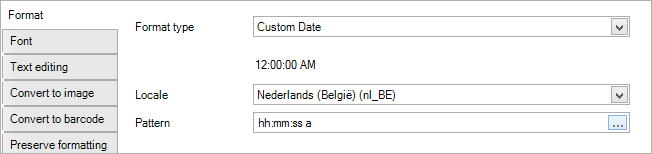
|
Name & Arguments |
Input |
Output |
|---|---|---|
|
formatDate(date, pattern) |
|
The provided date, in the provided pattern. |
|
formatDateR(date, pattern, locale) |
|
The provided date, in the provided pattern, according to the provided locale. |
|
formatDateTime(date, pattern) |
|
The provided dateTime, in the provided pattern. |
|
formatDateTimeR(date, pattern, locale) |
|
The provided dateTime, in the provided pattern, according to the provided locale. |
|
formatTime(time, pattern) |
|
The provided time, in the provided pattern. |
|
formatTimeR(time, pattern, locale) |
|
The provided time, in the provided pattern, according to the provided locale. |
|
formatPeriod(period, pattern, base date) |
|
The provided period, in the provided pattern, starting from the base date. |
|
formatPeriodIso(period, base date) |
|
The provided period, in the ISO8601 pattern (explained on Date & time formats), starting from the base date. |
Convert a value into
Use these functions to convert a text string into a date, time or datetime. This is pretty much the opposite of the "format" functions, where a date, time or datetime was converted into a string.
The primary use of these functions is to turn something that looks like a date or time into a real date or time. For instance: if you have a field with 2015-07-03 as value, you may be tempted to think that this is a date, but it is a text string. If you want to use that text string as a real date (for calculations or for further formatting), you'll need to convert it into a real date first.
|
Name & Arguments |
Input |
Output |
|---|---|---|
|
toDate(text string) |
|
The provided text string converted into a date, according to the rules on Date & time formats. |
|
toDateF(text string, pattern) |
|
The provided text string converted into a date, according to the provided pattern. |
|
toDateFR(text string, pattern, locale) |
|
The provided text string converted into a date, according to the provided pattern, using the provided locale. |
|
toDateTime(text string) |
|
The provided text string converted into a datetime, according to the rules on Date & time formats. |
|
toDateTimeF(text string, pattern) |
|
The provided text string converted into a datetime, according to the provided pattern. |
|
toDateTimeFR(text string, pattern, locale) |
|
The provided text string converted into a datetime, according to the provided pattern, using the provided locale. |
|
toTime(text string) |
|
The provided text string converted into a time, according to the rules on Date & time formats. |
|
toTimeF(text string, pattern) |
|
The provided text string converted into a time, according to the provided pattern. |
|
toTimeFR(text string, pattern, locale) |
|
The provided text string converted into a time, according to the provided pattern, using the provided locale. |
Number of ... in period
Use these functions to convert a period into a number representing the number of seconds, minutes, hours or days in the period.
Months and years are not supported due to their variable length.
|
Name & Arguments |
Input |
Output |
|---|---|---|
|
toSeconds(period) |
|
The number of seconds in the provided period. |
|
toMinutes(period) |
|
The number of minutes in the provided period. |
|
toHours(period) |
|
The number of hours in the provided period. |
|
toDays(period) |
|
The number of days in the provided period. |
These functions return a decimal number, which may not always be practical. You can make use of the ceil and floor functions to respectively round up or down, like this:
toDays(5000000000) = 57.87037037floor(toDays(5000000000)) = 57ceil(toDays(5000000000)) = 58
First or last of month
Use these functions to find out the first or last day of the month.
|
Name & Arguments |
Input |
Output |
|---|---|---|
|
firstDateOfMonth(date) |
|
A dateTime on the first day of the month of the provided date. The time is left unchanged. |
|
lastDateOfMonth(date) |
|
A dateTime on the last day of the month of the provided date. The time is left unchanged. |
|
lastDayOfMonth(date) |
|
The number of the last day of the month. |
Create a period
Use these functions to create a period. This period can then be used in other functions that require a period as input.
|
Name & Arguments |
Input |
Output |
|---|---|---|
|
createPeriod(years, months, weeks, days, hours, minutes, seconds, milliseconds, base date) |
|
A period spanning the sum of all the provided time elements. |
|
createPeriodDHM(days, hours, minutes, base date) |
|
A period spanning the sum of all the provided time elements. |
|
createPeriodYMD(years, months, days, base date) |
|
A period spanning the sum of all the provided time elements. |
|
createPeriodIso(value, base date) |
|
A period spanning the sum of all the time elements in the provided ISO8601 period. |
|
periodBetween(date 1, date 2) |
|
A period spanning the time between the two provided dates/datetimes/times. |
Break a period down into parts
Use these functions to break a period down into its parts.
The output of these functions is the number of years, months, days, hours, minutes or seconds in a period, without going over the limit. This means that you can't ever have 15 months (11 max), 72 minutes (59 max) etc. So if you have a period of about 2 years, using the getPeriodMinutes function on its own makes no sense, as it will always return 59.
Therefore, using these functions only makes sense if you use them together. Here are a few typical use cases:
-
You have been a member of this community for x years, x months and x days.
-
There are x days and x hours left until your subscription will be cancelled automatically. (if the subscription can be longer than 1 month, you should add x months as well)
For cases such as these, these functions are very useful as you do not have to calculate the overflow (e.g. 14 months = 1 year + 2 months) yourself.
|
Name & Arguments |
Input |
Output |
|---|---|---|
|
getPeriodYears(period, base date) |
|
The number of years in the provided period, calculated from the base date. |
|
getPeriodMonths(period, base date) |
|
The number of months (maximum 11) in the provided period, calculated from the base date. |
|
getPeriodDays(period, base date) |
|
The number of days (maximum 30/29/28/27, depending on the base date) in the provided period, calculated from the base date. |
|
getPeriodHours(period, base date) |
|
The number of hours (maximum 23) in the provided period, calculated from the base date. |
|
getPeriodMinutes(period, base date) |
|
The number of minutes (maximum 59) in the provided period, calculated from the base date. |
|
getPeriodSeconds(period, base date) |
|
The number of seconds (maximum 59) in the provided period, calculated from the base date. |
Locales
A locale is a set of parameters that defines the user's language, country and any special variant preferences. Smart Flows uses these parameters to interpret or output data in a certain way.
You can find a list of supported locales on this page.
Here are a few examples of locales:
-
en - English
-
en_US - English (United States)
-
nl - Dutch
-
de_AT - German (Austria)
When using locales as arguments in functions, make sure to put them in between apostrophes, like 'en_US'.
Date & Time Patterns
This page explains how to define a pattern to output a certain date, time or dateTime in a certain way. You specify the pattern according to the rules and elements specified below.
You can specify custom date & time patterns in the date & time functions, or in the custom date option as described on this page:
Elements of a pattern
A pattern consists of time elements and, optionally, static elements. Time elements represent a time unit, such as a year, a month, a day, but also an AM/PM notation, a timezone etc.
For instance:
-
yyyy-MM-dd = 2015-07-15 for July 15th in 2015. Both - are static elements, all the rest are time elements.
-
dd/MM/yyyy = 15/07/2015 for July 15th in 2015. Both / are static elements, all the rest are time elements.
-
dd 'days' = 30 days for a period of 30 days. The word days is static, dd is the time element representing days.
Using both time and static elements allows you to make your own custom date & time patterns.
Time elements
You can use the following time elements in the pattern by just putting their symbol directly into the pattern.
We'll use the following datetime as the example: 2015, July 15th, 03:45:30. Locale: English (en). Time zone: Pacific Standard Time
|
symbol |
meaning |
example |
extra info |
|---|---|---|---|
|
G |
era |
AD |
|
|
u |
year (4 digits) |
2015 |
This is a year as most people and businesses use it. |
|
y |
year (2 digits) |
15 (2015) |
|
|
Y |
week year (4 digits) |
2015 |
A week year is a year where all the weeks are whole weeks. |
|
w |
week year (2 digits) |
15 (2015) |
|
|
M |
month (1 digit if possible) |
7 |
|
|
MM |
month (2 digits) |
07 |
|
|
MMM |
month (short notation) |
Jul |
Depends on the locale. |
|
MMMM |
month (long notation) |
July |
|
|
w |
week in year (1 digit if possible) |
29 |
29 = the 29th week in the year |
|
ww |
week in year (2 digits) |
29 |
|
|
W |
week in month (1 digit if possible) |
3 |
3 = the 3rd week in July 2015 |
|
WW |
week in month (2 digits) |
03 |
|
|
D |
day in year (1 digit if possible) |
196 |
|
|
DD |
day in year (2 digits if possible) |
196 |
|
|
DDD |
day in year (3 digits) |
196 |
|
|
d |
day in month (1 digit if possible) |
15 |
|
|
dd |
day in month (2 digits) |
15 |
|
|
F |
day of week in month (number) |
3 |
3 = the 3rd wednesday in July 2015 |
|
u |
day of week in week (number) |
3 |
3 = the 3rd day of the week |
|
E |
day of week (short notation) |
Wed |
Depends on the locale. |
|
EEEE |
day of week (long notation) |
Wednesday |
|
|
a |
AM/PM marker |
AM |
|
|
H |
hour in day (0-23) (1 digit if possible) |
3 |
|
|
HH |
hour in day (0-23) (2 digits) |
03 |
|
|
k |
hour in day (1-24) (1 digit if possible) |
3 |
|
|
kk |
hour in day (1-24) (2 digits) |
03 |
|
|
K |
hour in AM/PM (0-11) (1 digit if possible) |
3 |
|
|
KK |
hour in AM/PM (0-11) (2 digits) |
03 |
|
|
h |
hour in AM/PM (1-12) (1 digit if possible) |
3 |
|
|
hh |
hour in AM/PM (1-12) (2 digits) |
03 |
|
|
m |
minute in hour (1 digit if possible) |
45 |
|
|
mm |
minute in hour (2 digits) |
45 |
|
|
s |
second in minute (1 digit if possible) |
30 |
|
|
ss |
second in minute (2 digits) |
30 |
|
|
S |
millisecond (1 digit if possible) |
0 |
|
|
SS |
millisecond (2 digits if possible) |
00 |
|
|
SSS |
millisecond (3 digits) |
000 |
|
|
z |
time zone (general) (short notation) |
PST |
|
|
zzzz |
time zone (general) (long notation) |
Pacific Standard Time |
|
|
Z |
time zone (RFC 822) |
-0800 |
|
|
X |
time zone (ISO 8601) (short) |
-08 |
|
|
XX |
time zone (ISO 8601) (normal) |
-0800 |
|
|
XXX |
time zone (ISO 8601) (long) |
-08:00 |
|
Static elements
You can use both symbols and letters as static elements. You can use the following symbols by putting them directly in the pattern:
/ * - + & ! ( ) { } [ ] , . ; : < > _ - # @
If you want to use a ' (apostrophe), you need to put 2 of them, like so:
''
If you want to use letters, you need to put them in between apostrophes, like so:
'a' 'days' 'a whole sentence'
Putting that all together, if you want your pattern to say 7 o'clock (where 7 is the hour), here's the pattern you need to specify:
h 'o''clock'
Defining a pattern
In the mapping window
When you have a date in a field, or as the output of an expression, you can use the custom date option in the Format tab of the mapping window to specify a pattern:
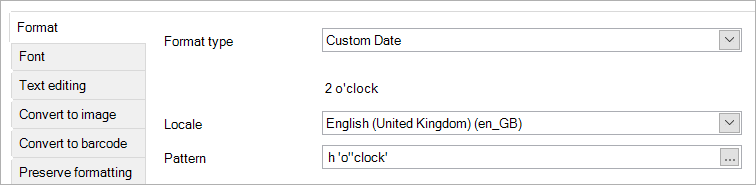
Just start typing into the box next to Pattern or select the ... to select a pre-made pattern, that you can then adjust.
In an expression
Defining a pattern in an expression is necessary for quite a few functions, such as formatDate, formatTime, toDateF, toTimeF etc. For instance:
formatDate(currentDate(),'yyyy-MM-dd')formatTime(currentTime(),'hh:mm')
As always with expressions, you need to put strings (such as a date & time pattern) in between ' ' (apostrophes).
Note: This, however, makes it a bit harder to use letters in your patterns, as you can't simply use apostrophes, since those are used to delineate the beginning and ending of the pattern in an expression.
To remedy this, you can escape your apostrophes by putting a \ (backslash) in front of them. So, instead of...
dd 'days'h 'o''clock'
...you type this:
dd \'days\'h \'o\'\'clock\'
It may look a bit strange, but it will definitely get the job done. Here are examples of the above patterns. Notice the apostrophe before and after the entire pattern:
formatPeriod(10000000,'dd \'days\'')
formatDate(currentDate(),'h \'o\'\'clock\'')
Examples
Let's end with a few examples. For all of the following, the given date and time are 2001-07-04 12:08:56 local time in the U.S. Pacific Time time zone.
In the mapping window
These patterns don't require apostrophes like expressions would.
|
pattern |
output |
|---|---|
|
yyyy.MM.dd G 'at' HH:mm:ss z |
2001.07.04 AD at 12:08:56 PDT |
|
EEE, MMM d, ''yy |
Wed, Jul 4, '01 |
|
h:mm a |
12:08 PM |
|
hh 'o''clock' a, zzzz |
12 o'clock PM, Pacific Daylight Time |
|
K:mm a, z |
0:08 PM, PDT |
|
yyyyy.MMMMM.dd GGG hh:mm aaa |
02001.July.04 AD 12:08 PM |
|
EEE, d MMM yyyy HH:mm:ss Z |
Wed, 4 Jul 2001 12:08:56 -0700 |
|
yyMMddHHmmssZ |
010704120856-0700 |
|
yyyy-MM-dd'T'HH:mm:ss.SSSZ |
2001-07-04T12:08:56.235-0700 |
|
yyyy-MM-dd'T'HH:mm:ss.SSSXXX |
2001-07-04T12:08:56.235-07:00 |
|
YYYY-'W'ww-u |
2001-W27-3 |
In an expression
The following patterns include the apostrophes used in an expression to delineate the beginning and ending of a string.
|
pattern |
output |
|---|---|
|
'yyyy.MM.dd G \'at\' HH:mm:ss z' |
2001.07.04 AD at 12:08:56 PDT |
|
'EEE, MMM d, \'\'yy' |
Wed, Jul 4, '01 |
|
'h:mm a' |
12:08 PM |
|
'hh \'o\'\'clock\' a, zzzz' |
12 o'clock PM, Pacific Daylight Time |
|
'K:mm a, z' |
0:08 PM, PDT |
|
'yyyyy.MMMMM.dd GGG hh:mm aaa' |
02001.July.04 AD 12:08 PM |
|
'EEE, d MMM yyyy HH:mm:ss Z' |
Wed, 4 Jul 2001 12:08:56 -0700 |
|
'yyMMddHHmmssZ' |
010704120856-0700 |
|
'yyyy-MM-dd'T'HH:mm:ss.SSSZ' |
2001-07-04T12:08:56.235-0700 |
|
'yyyy-MM-dd'T'HH:mm:ss.SSSXXX' |
2001-07-04T12:08:56.235-07:00 |
|
'YYYY-\'W\'ww-u' |
2001-W27-3 |