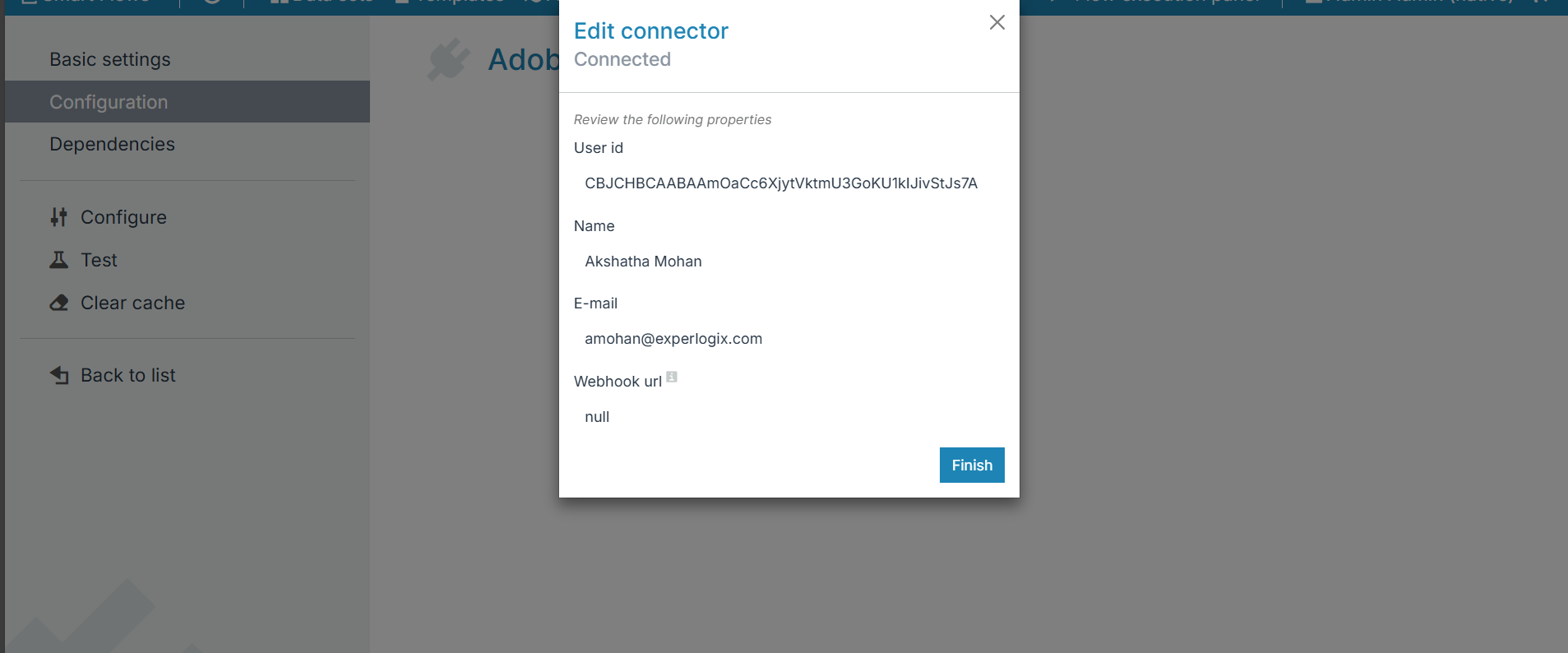
The Create connector wizard guides you through the configuration when creating an Adobe Acrobat Sign connector. You can create multiple Adobe Acrobat Sign type connectors, with each connecting to a different account. However, you can only have one default Adobe Acrobat Sign connector.
-
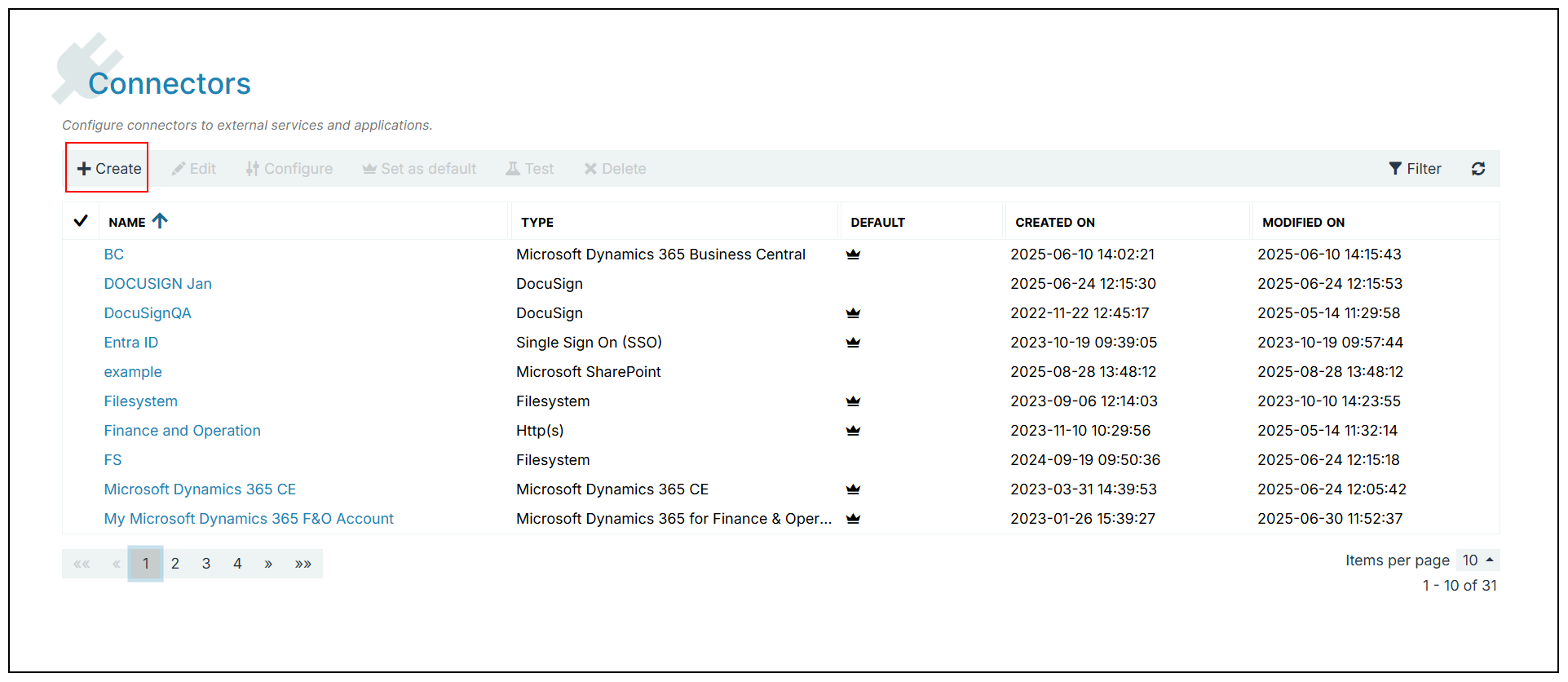
In the Project Console, navigate to Control panel > Connectors > +Create.
-
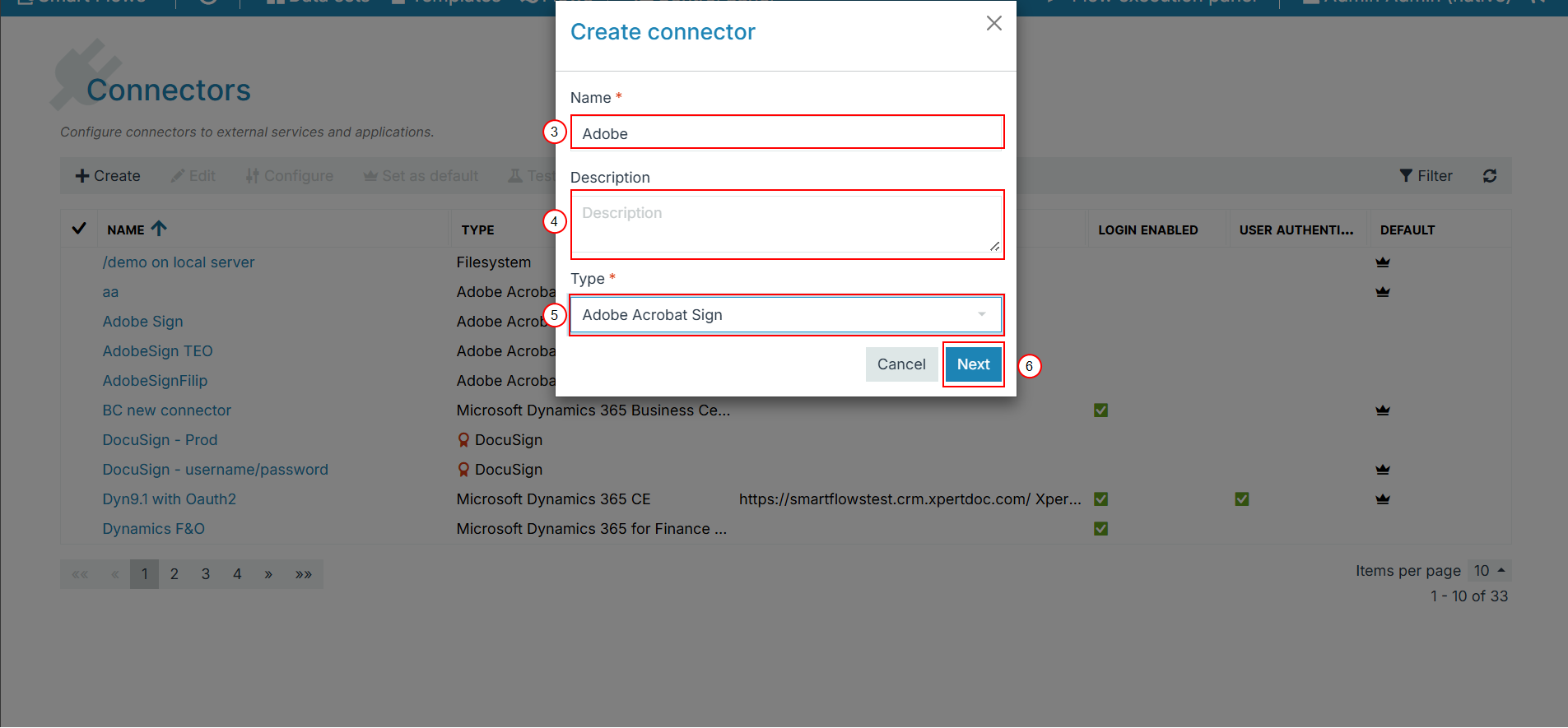
Provide the name and Description for the connector, and select Type as Adobe Sign.
-
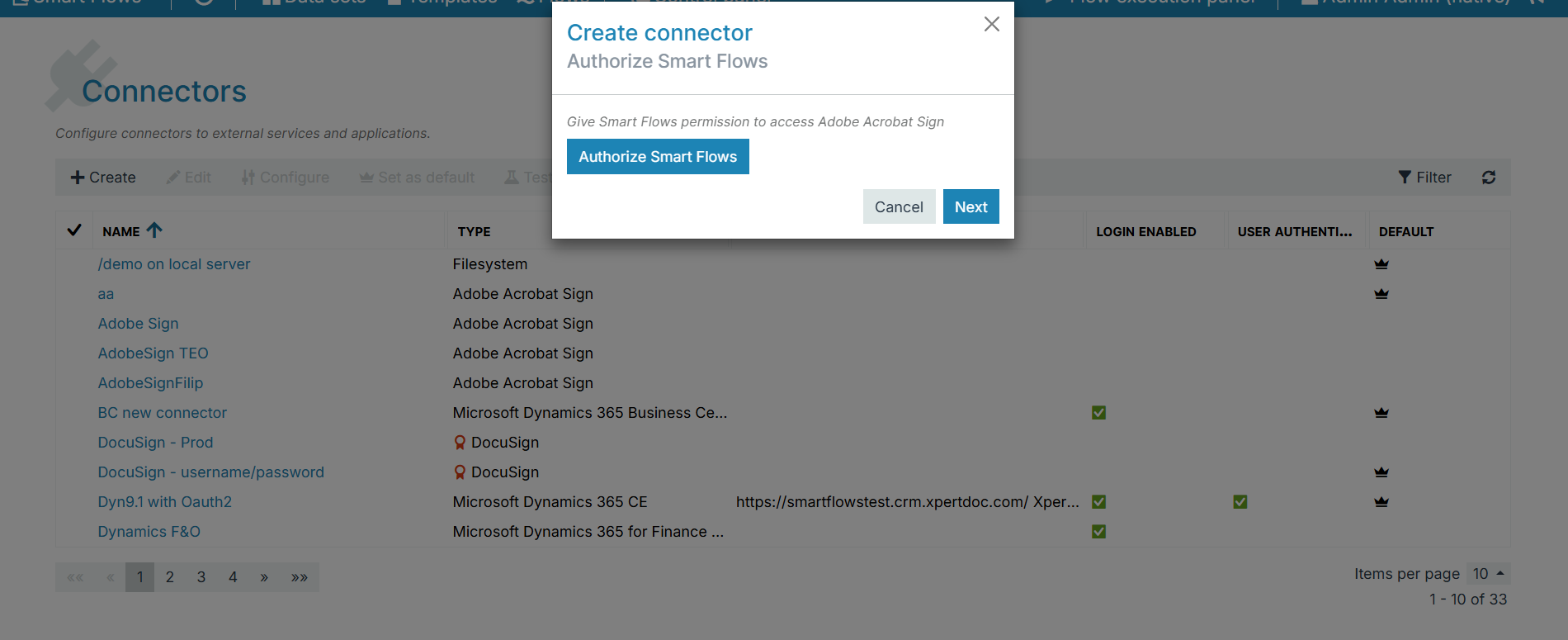
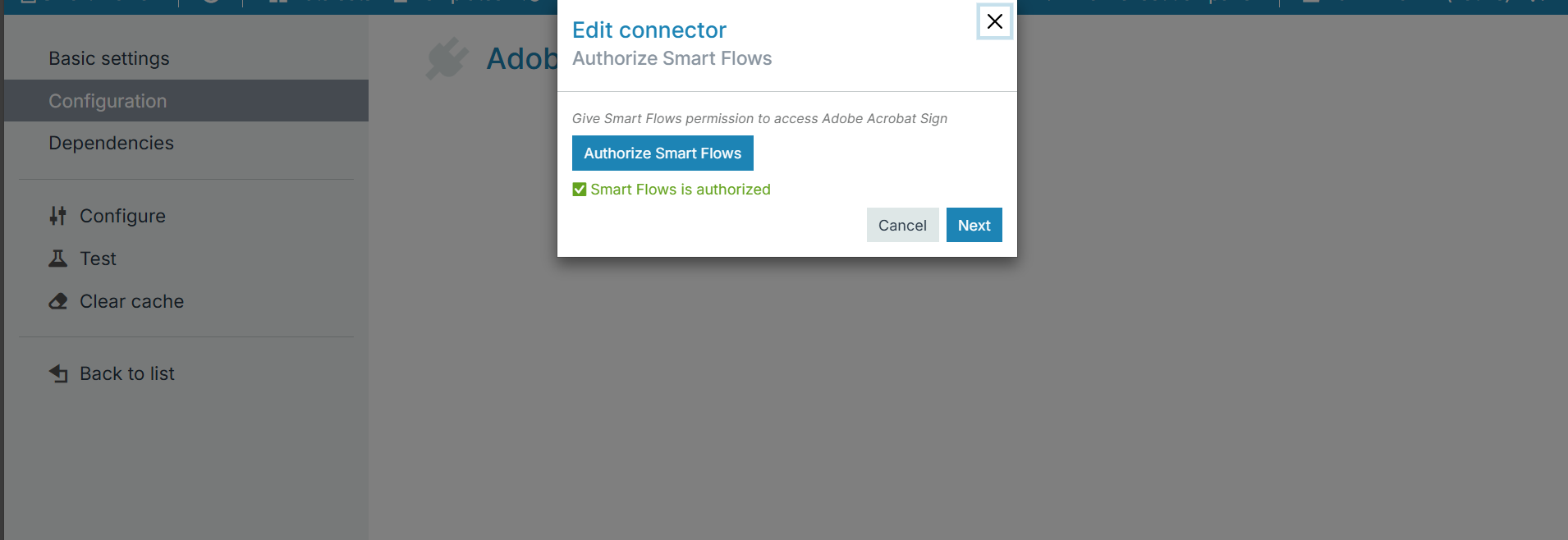
Select Authorize Smart Flows.
-
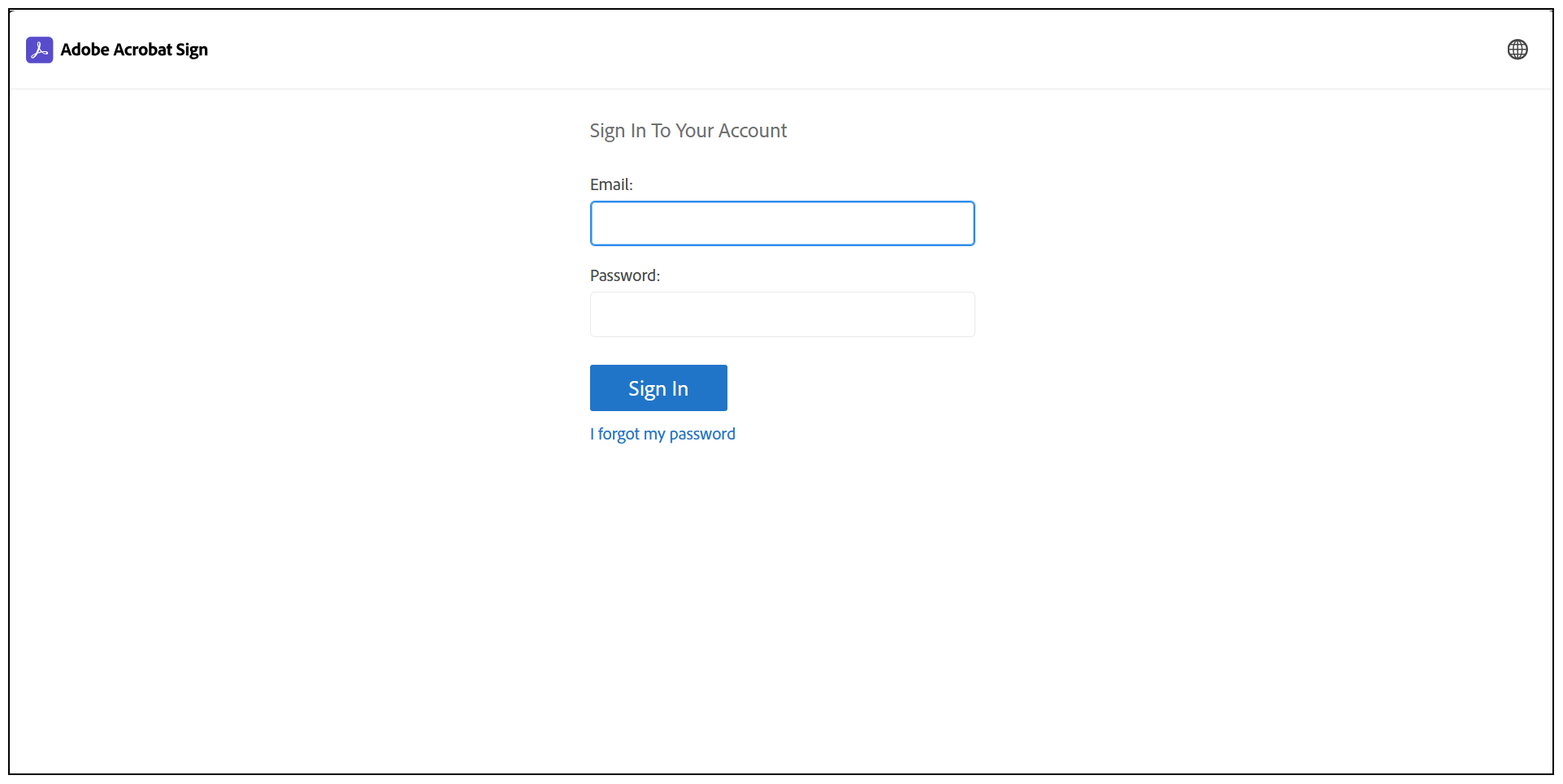
If you have not authenticated with Docusign before, enter your Adobe Acrobat Sign account credentials. If your credentials are valid, the system redirects back to Smart Flows.
-
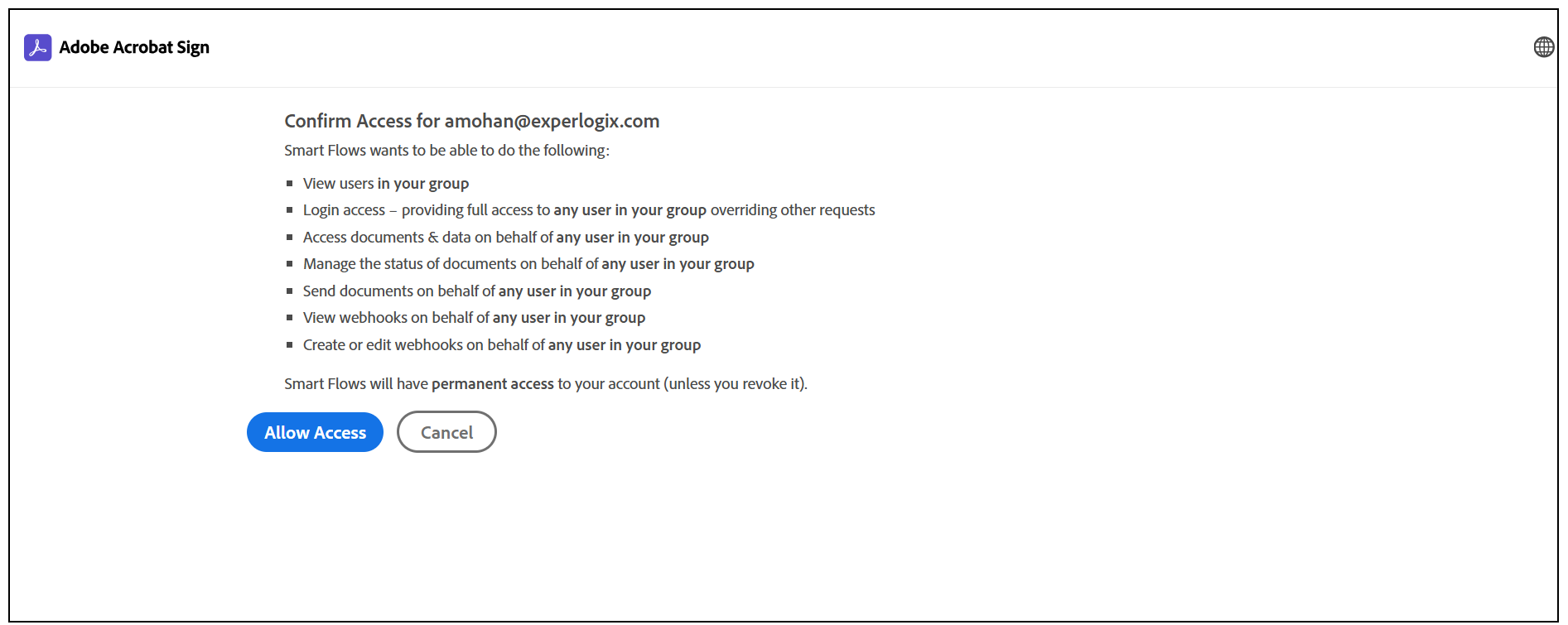
Select Allow Access.
-
Select Next.
-
Select Finish.