
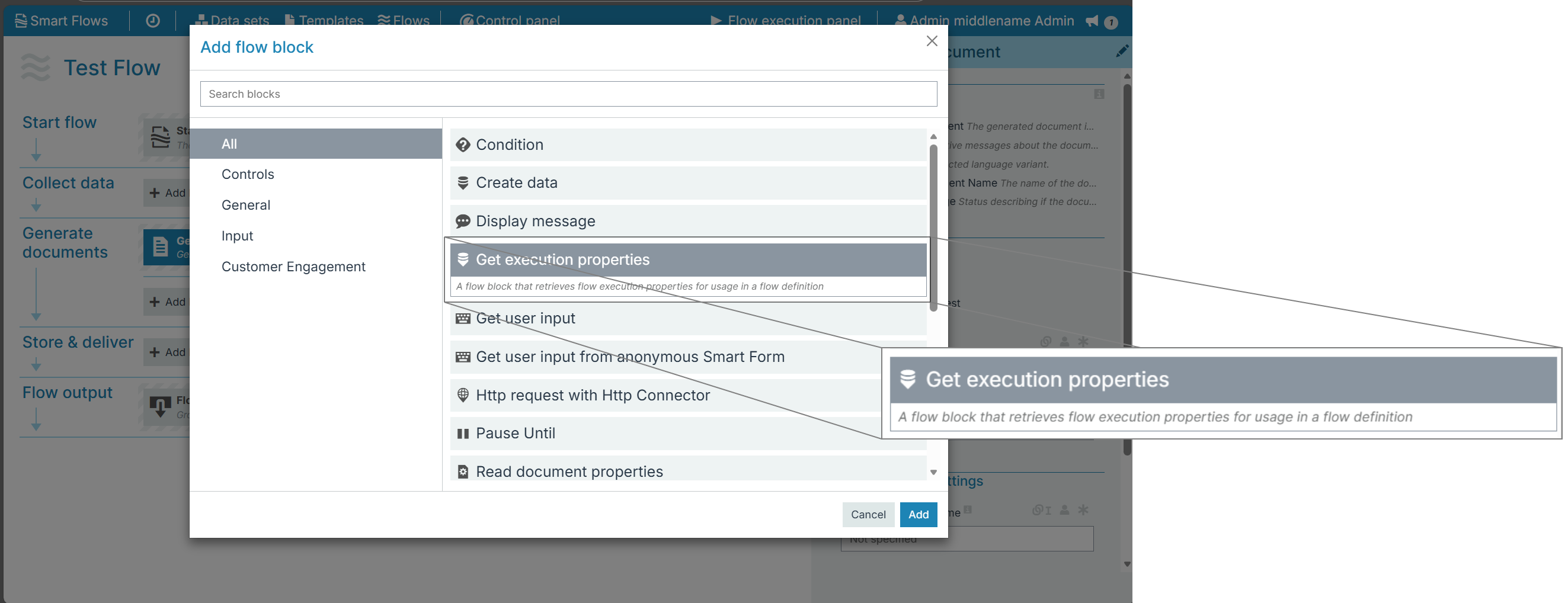
The Get execution properties flow block allows the users to select 'Flow execution properties' in the flow builder. The properties appear under the Flow Output section.Once selected, users can view details such as the flow’s start time, the project’s current time zone, and user information (name, email), and so on. Below are few use cases an user can perform using the properties:
Trace the Generated Documents - Insert the 'Flow Execution ID' as a placeholder in generated documents (e.g., footers or metadata) to identify which flow execution produced the document. This is useful for audits, troubleshooting, and document lifecycle tracking.
Identify Flow User in External Systems - Use 'User Email' to identify the flow initiator in connected systems (e.g., CRM, ERP, HR platforms), enabling personalization, reporting, or user-specific operations.
Integrate with External Workflow Tools (e.g., Power Automate) - Pass properties like Flow Execution ID, Flow Name, or Project Name to external workflow tools (e.g., Power Automate) during API calls for consistent tracking and updates.
Audit and Compliance Reporting - Capture 'Request Start Time', 'Current Time', 'User ID', and 'User Role' to populate audit logs or compliance reports detailing user information and flow execution details, ensuring regulatory traceability.
Conditional Flow Behavior Based on User Role - Implement flow logic that updates based on the User Role of the flow initiator—e.g., skipping approval steps for administrators or requiring extra steps for certain roles.
Enrich API Calls with Execution Context Metadata - Send metadata like Flow Name, Execution ID, Project Name, and Request Start Time in external API calls to provide context and facilitate advanced integration such as automatic tagging, logging, or workflow chaining in external systems.
Flow output
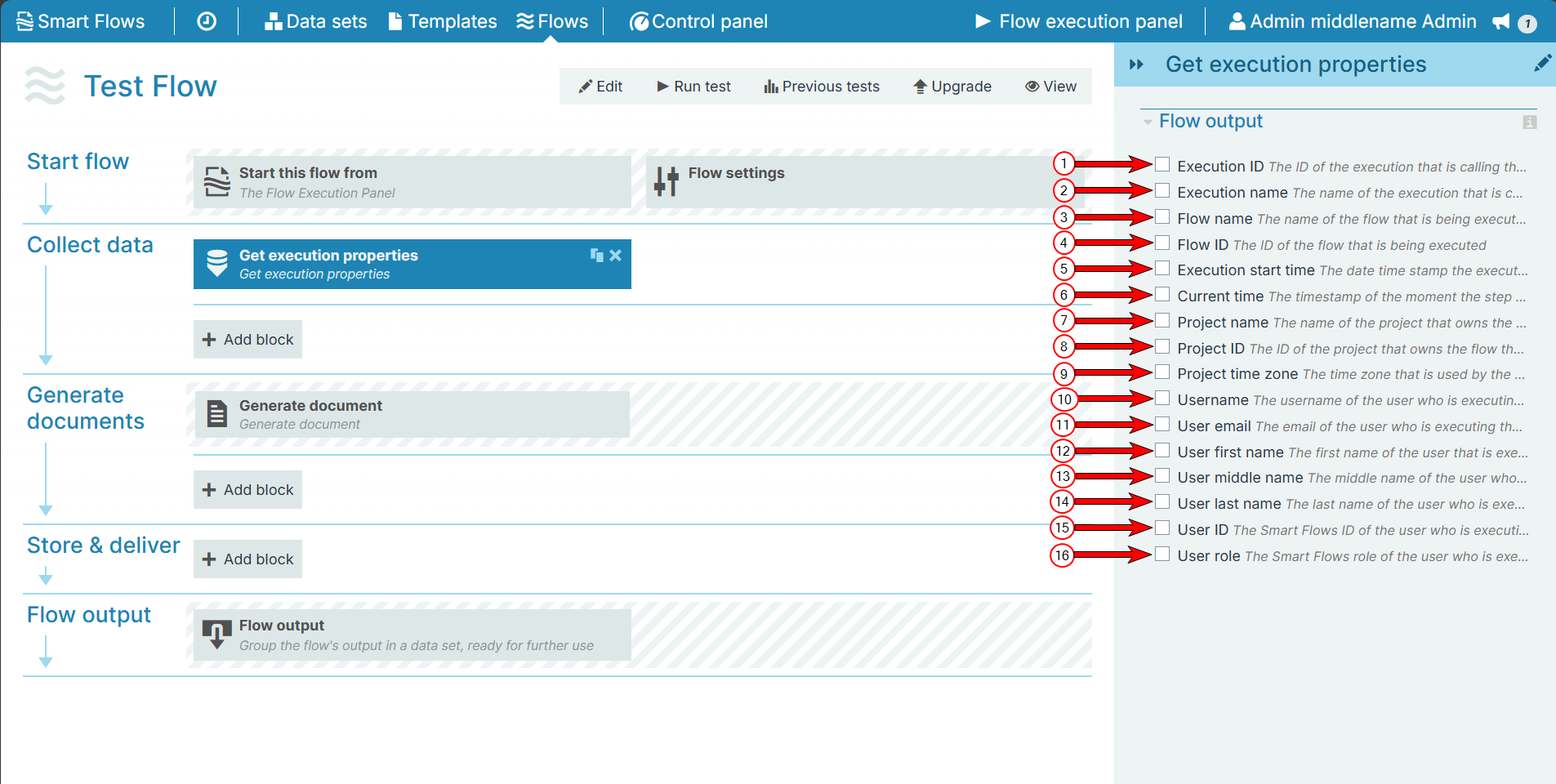
The Flow Output section shows all the output parameters that are available for the block. When checked, the value of the output parameter is presented to the user who is executing the flow. Each setting that composes this output information is described in detail below:
|
Index No. |
Field name |
Description |
|---|---|---|
|
1 |
Execution ID |
Check the option to view the execution ID called in the step. |
|
2 |
Execution name |
Check the option to view the execution name called in the step. |
|
3 |
Flow name |
Check the option to view the flow name that is being executed. |
|
4 |
Flow ID |
Check the option to view the flow ID that is being executed. |
|
5 |
Execution start time |
Check the option to view the start time of the flow execution. |
|
6 |
Current time |
Check the option to view the time when step was called. |
|
7 |
Project name |
Check the option to view the project name of the flow that is being executed. |
|
8 |
Project ID |
Check the option to view the project ID of the flow that is being executed. |
|
9 |
Project time zone |
Check the option to view the timezone used by the project. |
|
10 |
Username |
Check the option to view the user name of the user who is executing the flow. |
|
11 |
User email |
Check the option to view the email of the user who is executing the flow. |
|
12 |
User first name |
Check the option to view the first name of the user who is executing the flow. |
|
13 |
User middle name |
Check the option to view the middle name of the user who is executing the flow. |
|
14 |
User last name |
Check the option to view the last name of the user who is executing the flow. |
|
15 |
User ID |
Check the option to view the id of the user who is executing the flow. |
|
16 |
User role |
Check the option to view the Smart Flow role of the user who is executing the flow. |