
The Display message flow block shows a message to the user during or after a flow's execution. This is helpful when you want to provide extra information to a custom data set's questions for end users or if you want to inform flow users on what their next step should be after completing the flow run.
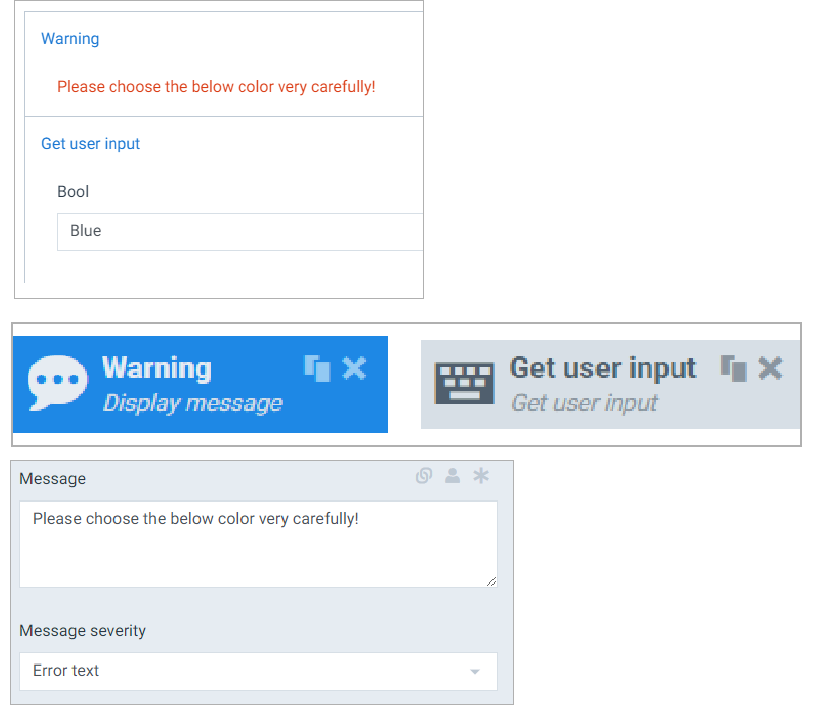
Example: End users must select a color to input during their flow. This can be achieved by putting the Display message block in the same zone as the Get user input block:
Flow Block Parameters
The dropdown menus below provide all of the flow block's configuration options with detailed information and recommendations to help you configure your flow block.
Flow block customization buttons
You can further customize your flow block's parameters in several ways
-

-

-

Select to display parameter options
|
Index No. |
Field Name |
Function |
|---|---|---|
|
1 |
The message to display |
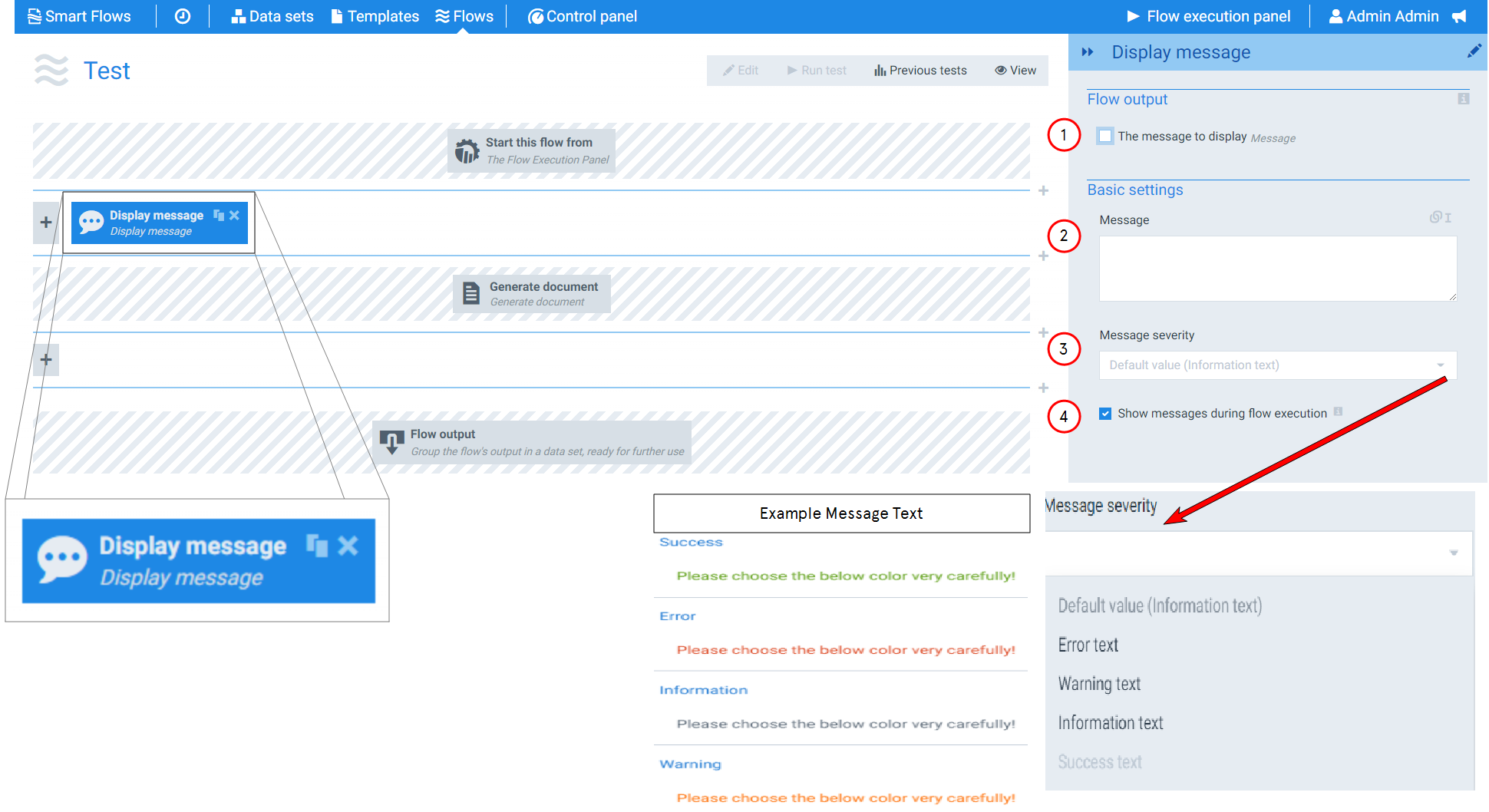
When checked causes the message to display at the Flow Output step. |
|
2 |
Message |
Formats the message that displays for the user. |
|
3 |
Message severity |
Sets the color and title of the message text. Success text displays green, Error text displays red, Information text displays blue and warning text displays orange. |
|
4 |
Show messages during flow execution |
When the check marked, enables the message to display during the flow run. The execution of the flow pauses until the user who executed the flow clicks Next on the displayed message window. When not check marked, the message does not display and the flow is not paused. However, the Display message flow block can be added Flow output block to display the message at the flow's conclusion. |