
The Submit Docusign Envelope flow block allows the end users to send the envelope to the signers after updating it. For more information, see Add to Docusign envelope. The envelope status updates from 'draft' to 'sent' indicating that the users are not allowed to edit the envelope. This flow block is enabled only for advanced flows.
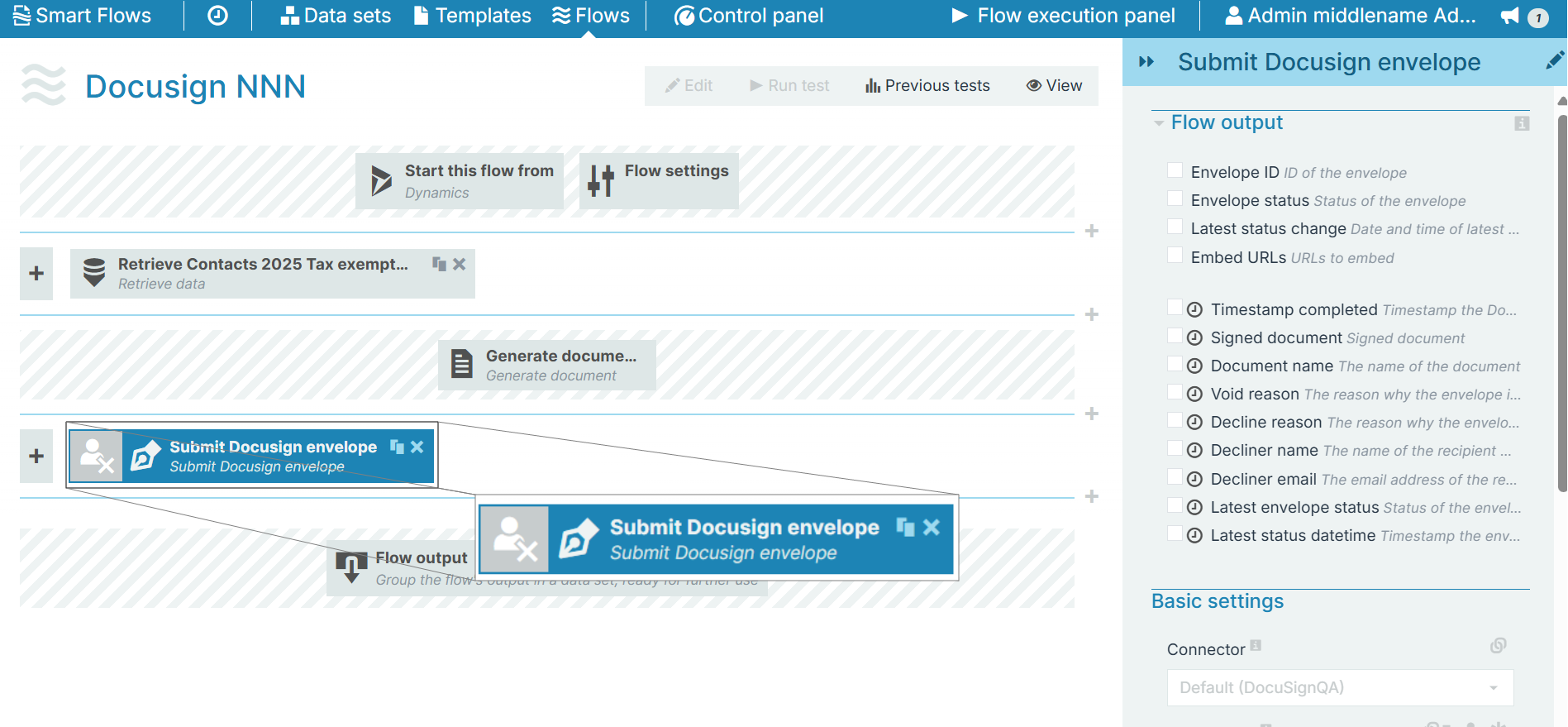
Flow Block Parameters
The dropdown menus below provide all of the flow block's configuration options with detailed information and recommendations to help you configure your flow block.
Flow block customization buttons
You can further customize your flow block's parameters in several ways
-

-

-

Flow output
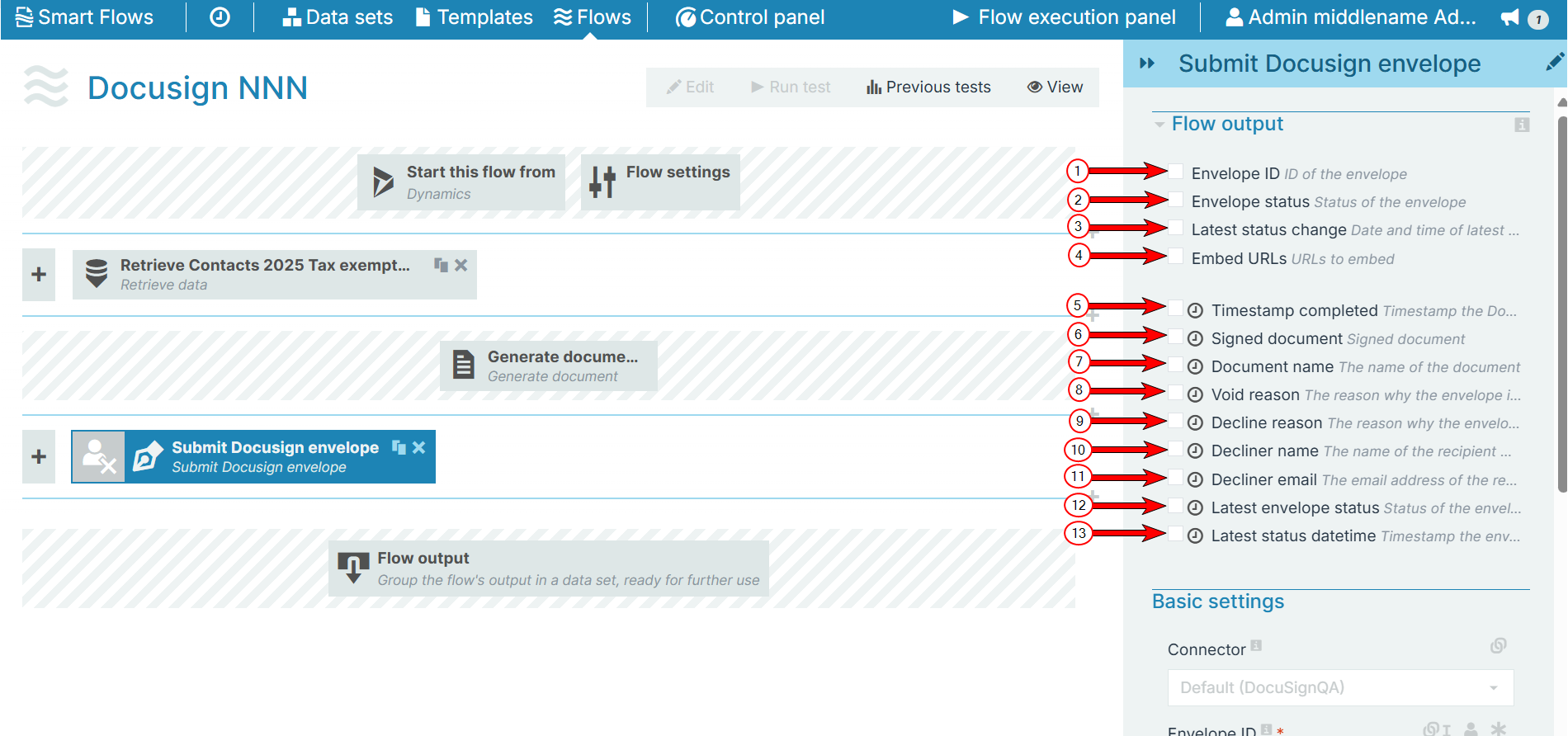
The Flow Output section shows all the output parameters that are available for the block. When checked, the value of the output parameter are presented to the user who is executing the flow. Each setting that composes this output information is described in detail below:
|
Index No. |
Field name |
Description |
|---|---|---|
|
1 |
Envelope ID |
When checked, theEnvelope ID value displays for the user during the flow execution. |
|
2 |
Envelope status |
When checked, the status of the document displays for the user during the flow execution. For more information, refer to Docusign statuses. |
|
3 |
Latest status change |
When checked, the date and time of the latest status change displays for the user during the flow execution. |
|
4 |
Embed URLs |
When checked, the system creates links to the document for embedded signing and displays them during the waiting stage of the flow execution. Embed URLs and Retrieve URLs that can be used for embedding must be checked in order for the link creation feature to work. |
|
5 |
Timestamp completed |
When checked, the system displays the timestamp indicating when the Docusign was submitted. |
|
6 |
Signed document |
When checked, a link to the signed document isavailable in the flow output. |
|
7 |
Document name |
When checked, the name of the document is available in the flow output. |
|
8 |
Void reason |
When checked, displays the reason why the envelope is voided. |
|
9 |
Decline reason |
When checked, displays the reason why the signer has declined the envelope. |
|
10 |
Decliner name |
When checked, displays the name of the signer who declined the envelope. |
|
11 |
Decliner e-mail |
When checked, displays the email address of the signer who declined the envelope. |
|
12 |
Latest envelope status |
When checked, displays the latest status of the envelope. |
|
13 |
Latest status datetime |
When checked, displays the timestamp of the updated envelope status. |
Basic settings
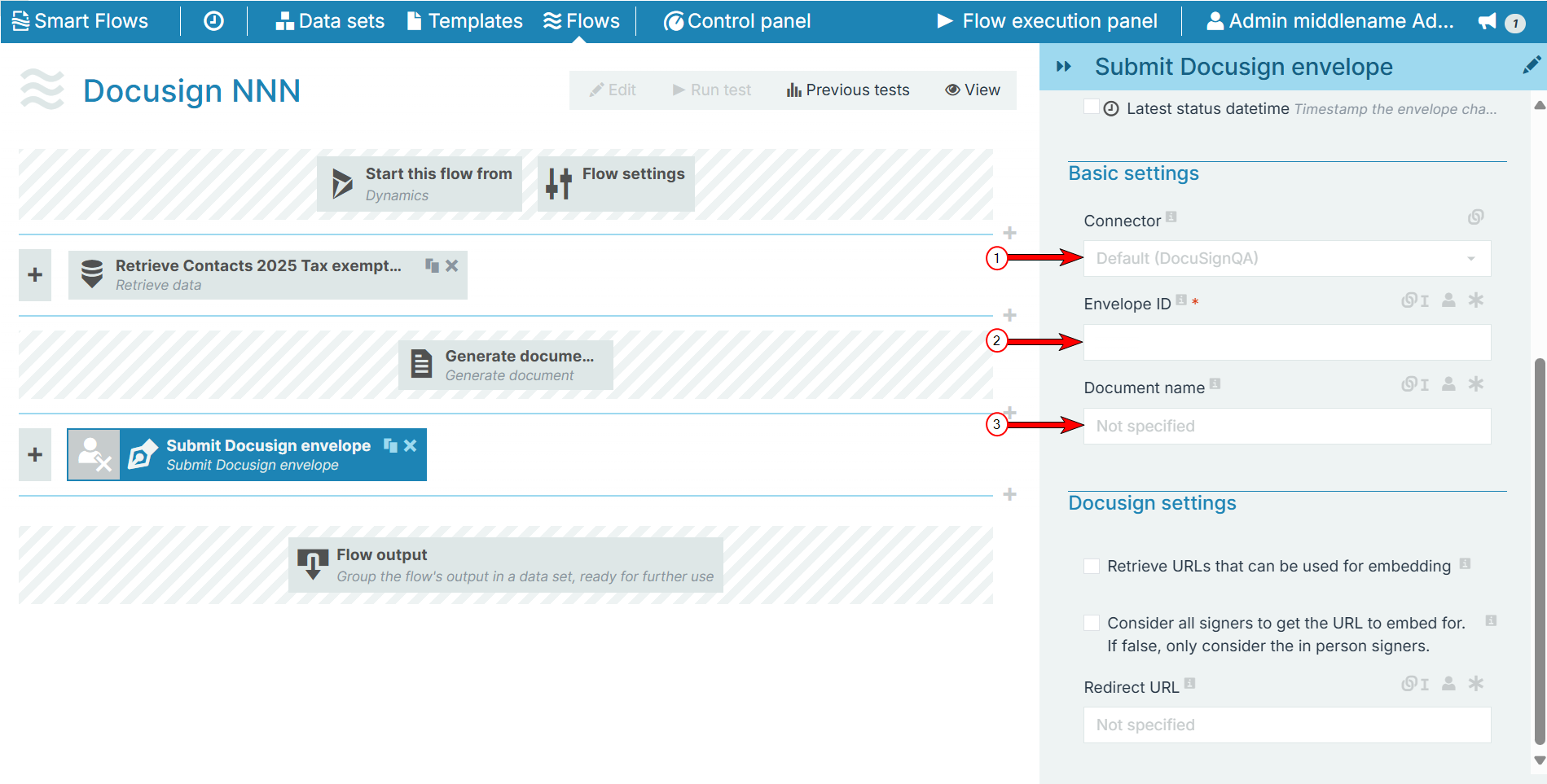
The Basic settings section allows you to select the Docusign connector of the envelope and the id of the envelope that needs to be updated.
|
Index No. |
Field name |
Description |
|---|---|---|
|
1 |
Connector |
The envelope needs to exist in the Docusign account configured in the selected connector. When no connector is selected, the default Docusign connector will be used. |
|
2 |
Envelop ID |
Provide the Envelope ID so that the user can add the document and update the envelope settings accordingly. |
|
3 |
Document name |
The document that is retrieved from Docusign after completion, will get this name. |
Docusign settings
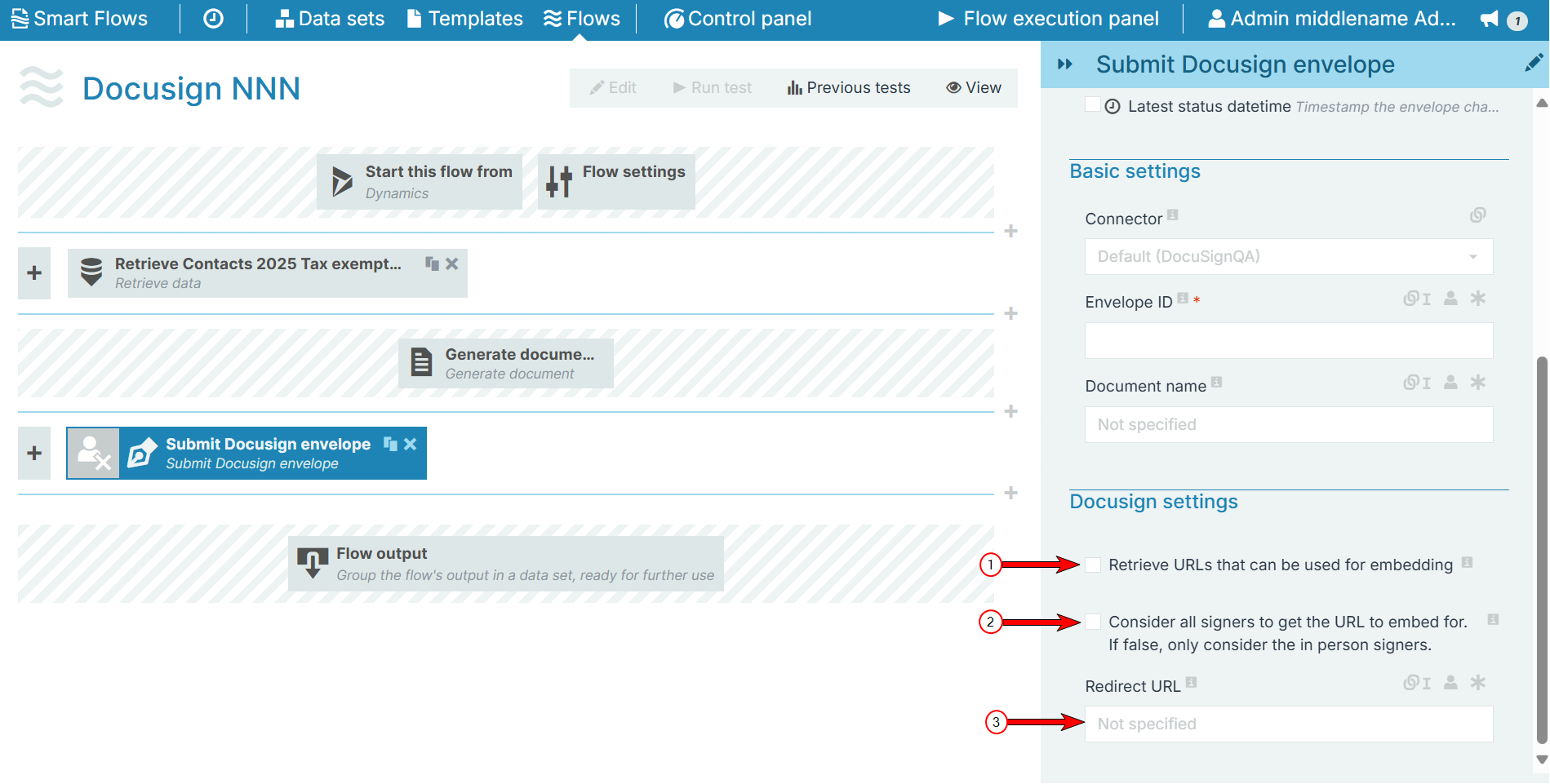
The Docusign settings section allows you to configure document URL settings
|
Index No. |
Field name |
Description |
|---|---|---|
|
1 |
Retrieve URLs that can be used for embedding |
When checked, for each signer, a specific URL is created. When clicked, it will give direct access to the document(s) to sign. These URLs can be embedded, for instance, in an email that is sent to a specific user. |
|
2 |
Consider all signers to get the URL to embed for. If false, only consider the in person signers. |
When checked, the above URLs will be created for all signers. If unchecked, a URL is only created for in-person signers. |
|
3 |
Redirect URL |
This is the URL that will be used to redirect the signing user after the signing completes. When none specified, the default Docusign redirect URL will be used. |