
The Create empty DocuSign Envelope flow block allows the end users to create draft envelopes for Docusign. This flow block is only enabled for advanced flows.
Only email subject is set by default.
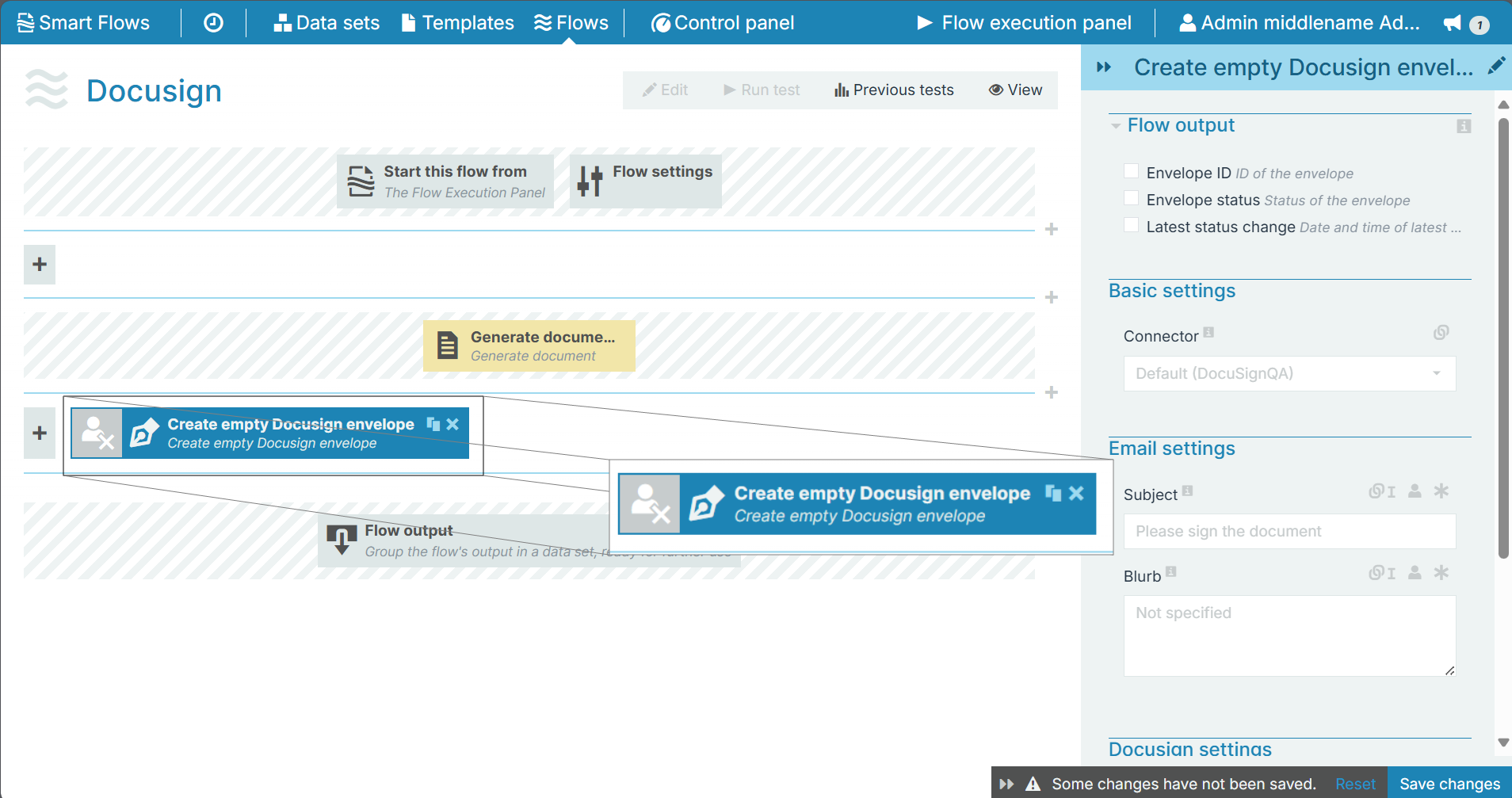
Flow Block Parameters
The dropdown menus below provide all of the flow block's configuration options with detailed information and recommendations to help you configure your flow block.
Flow block customization buttons
You can further customize your flow block's parameters in several ways
-

-

-

Flow output
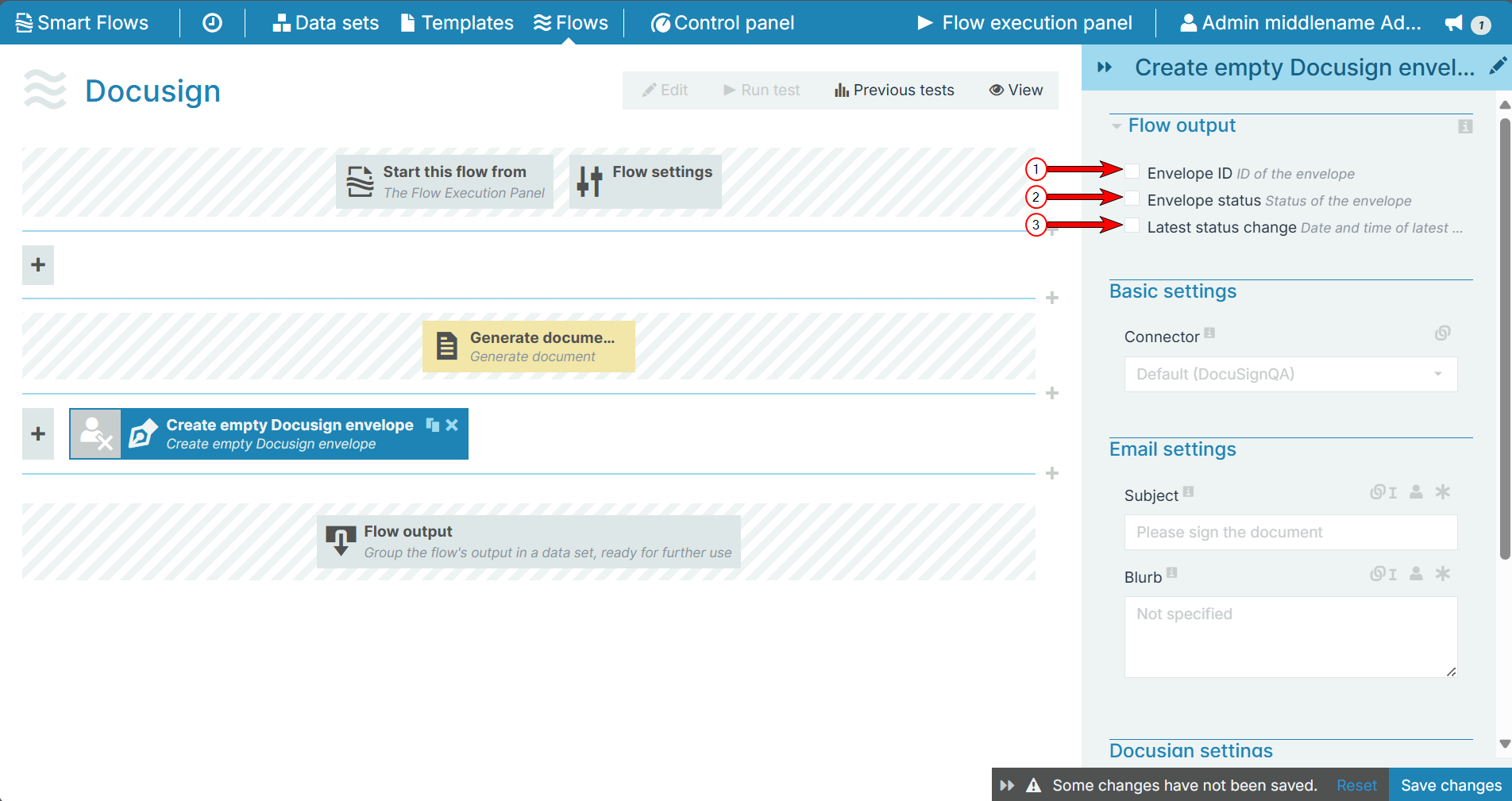
The Flow Output section shows all the output parameters that are available for the block. When checked, the value of the output parameter are presented to the user who is executing the flow. Each setting that composes this output information is described in detail below:
|
Index No. |
Field name |
Description |
|---|---|---|
|
1 |
Envelope ID |
When checked, the Envelope ID value displays during the flow execution. |
|
2 |
Envelope status |
When checked, the initial status of the envelope displays during the flow execution. For more information, refer to DocuSign statuses. |
|
3 |
Latest status change |
When checked, the date and time of the latest status change displays for the user during the flow execution. |
Basic settings
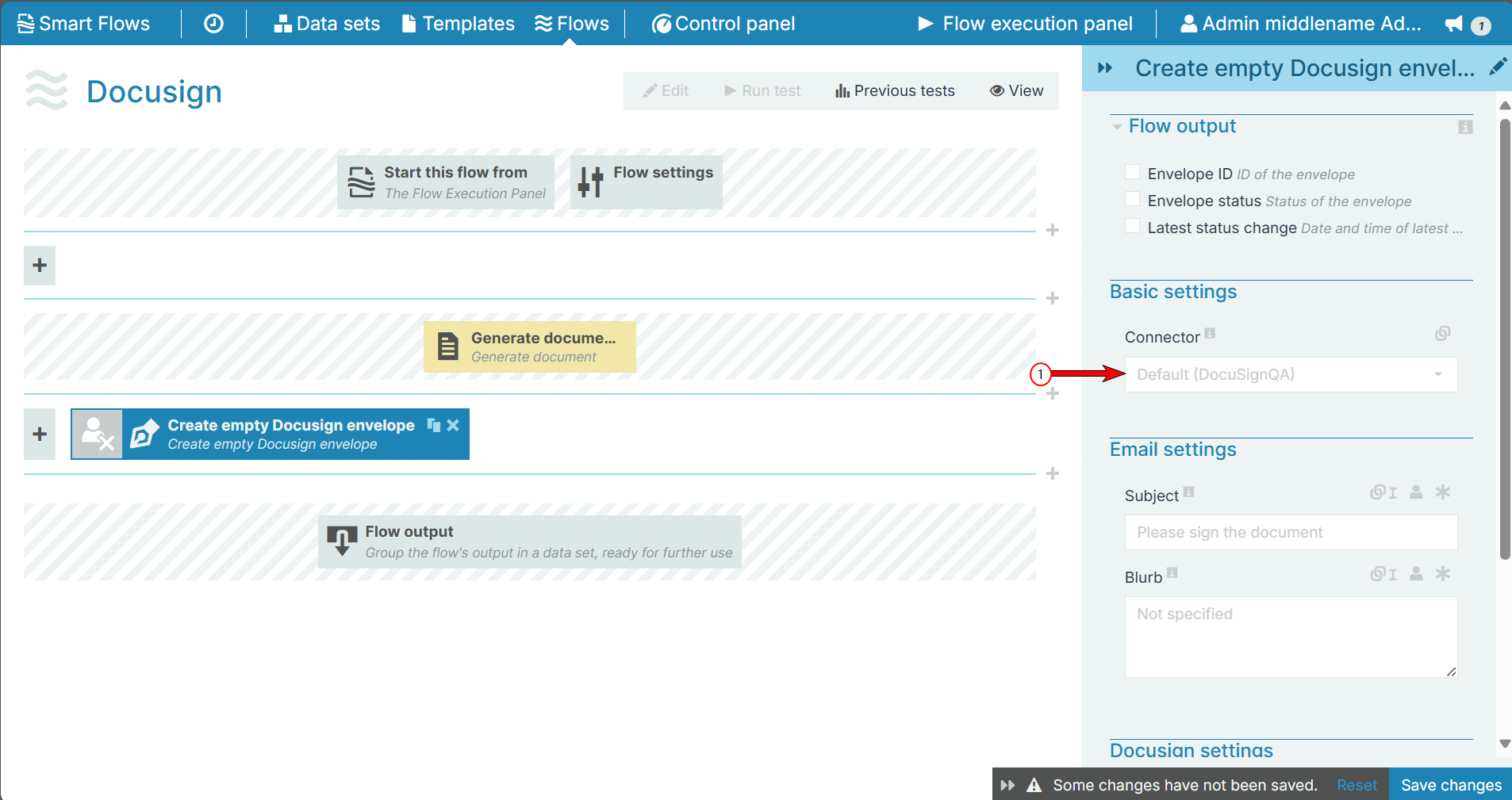
The Basic settings section allows you to select a connector for which you are creating the DocuSign envelope.
|
Field name |
Description |
|---|---|
|
Connector |
The envelope will be created in the DocuSign account configured in the selected connector. When no connector is selected, the default DocuSign connector will be used. |
E-mail settings
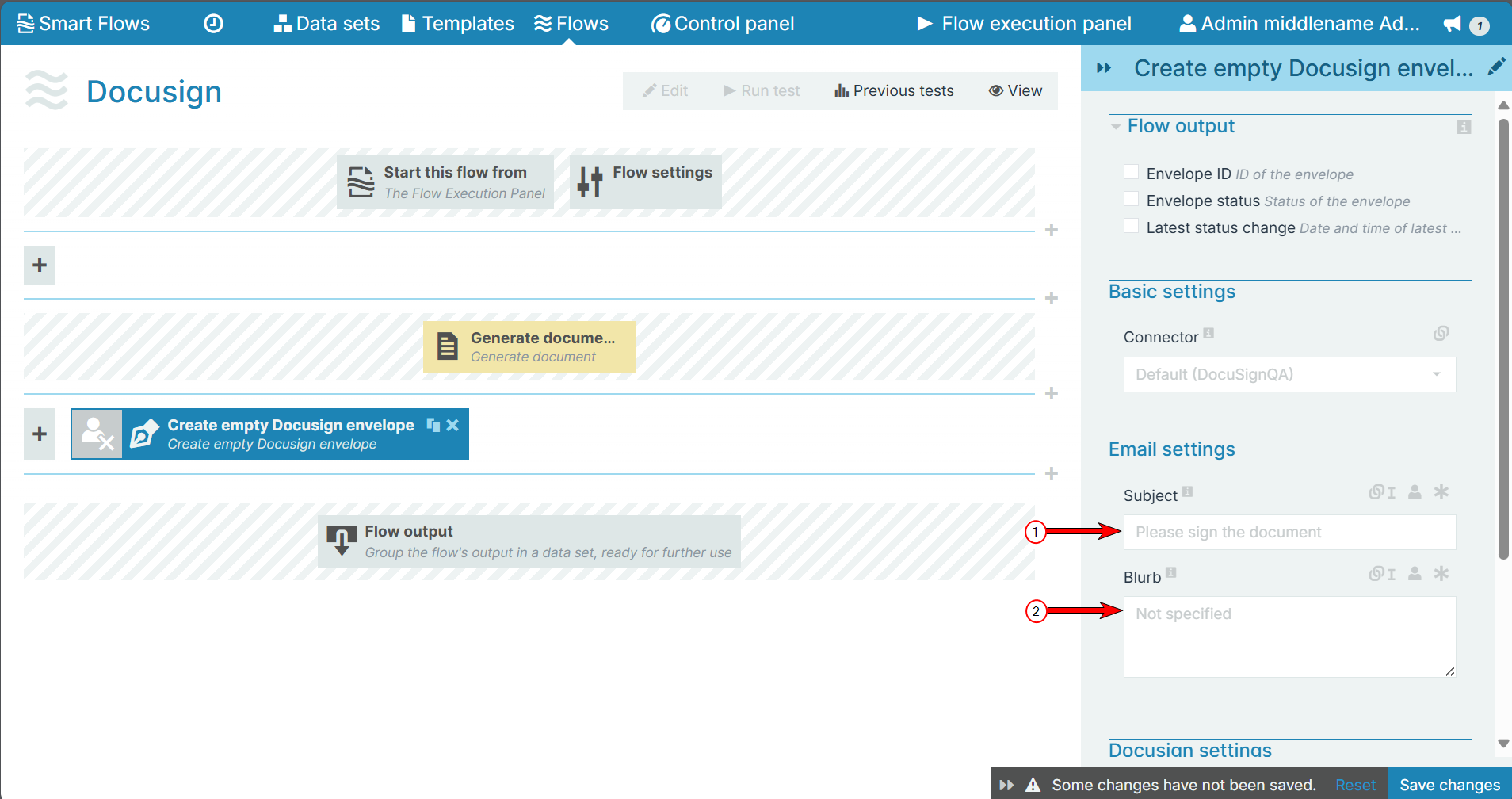
The E-mail settings section allows you to send a common subject and message to all the signers.
|
Index No. |
Field name |
Description |
|---|---|---|
|
1 |
Subject |
The Subject field allows users to replace the default Docusign email subject. |
|
2 |
Blurb |
Fills in the body of the email. |
DocuSign settings
The DocuSign settings allows you provide or select a Brand ID while creating the envelope.
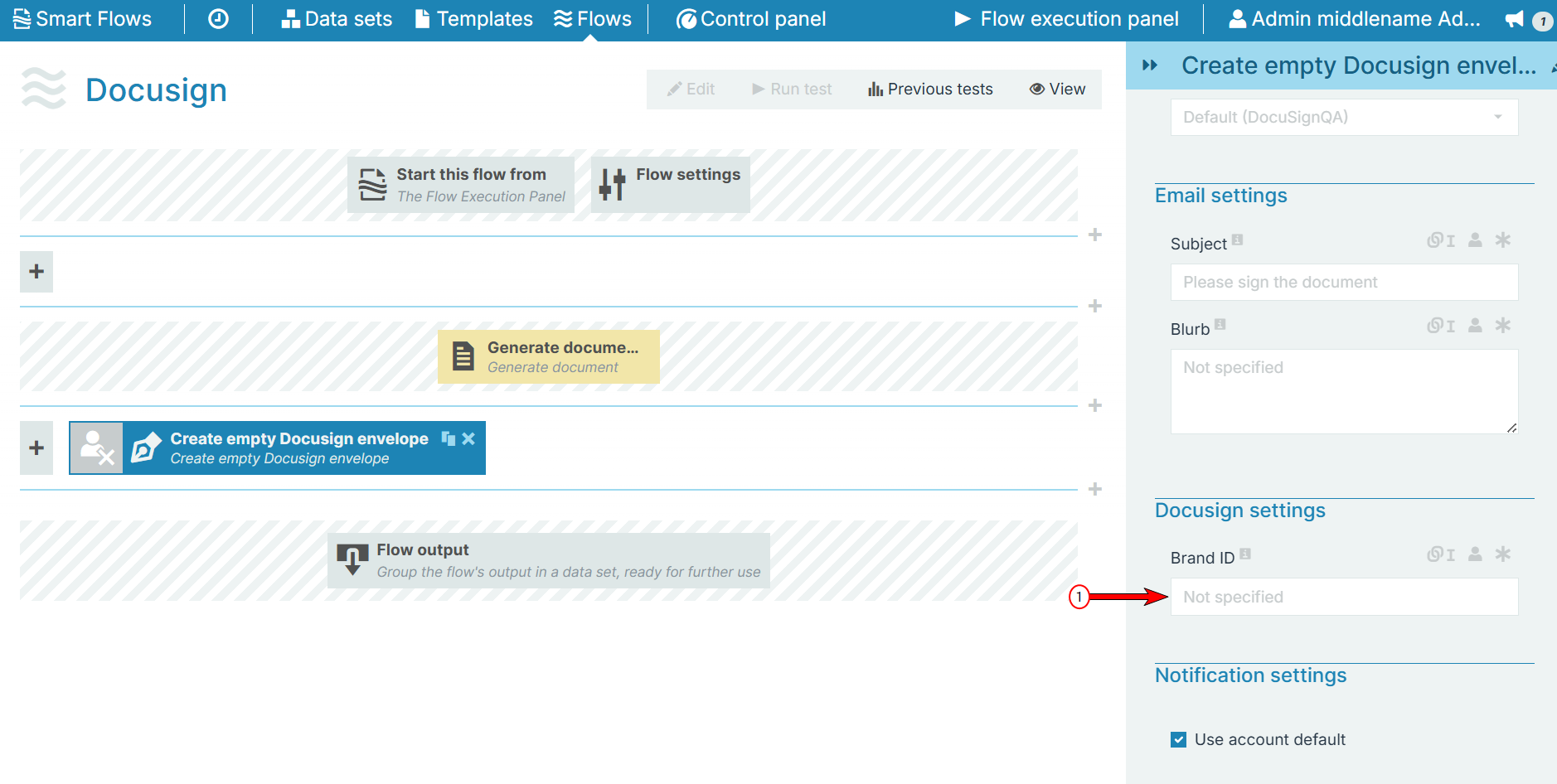
|
Field name |
Description |
|---|---|
|
Brand ID |
Select or provide the Brand ID to the envelope. |
Notification settings
The Notification settings section allows you to set reminders for specific envelope events that are sent to signers. You can also set an expiration time for each envelope.
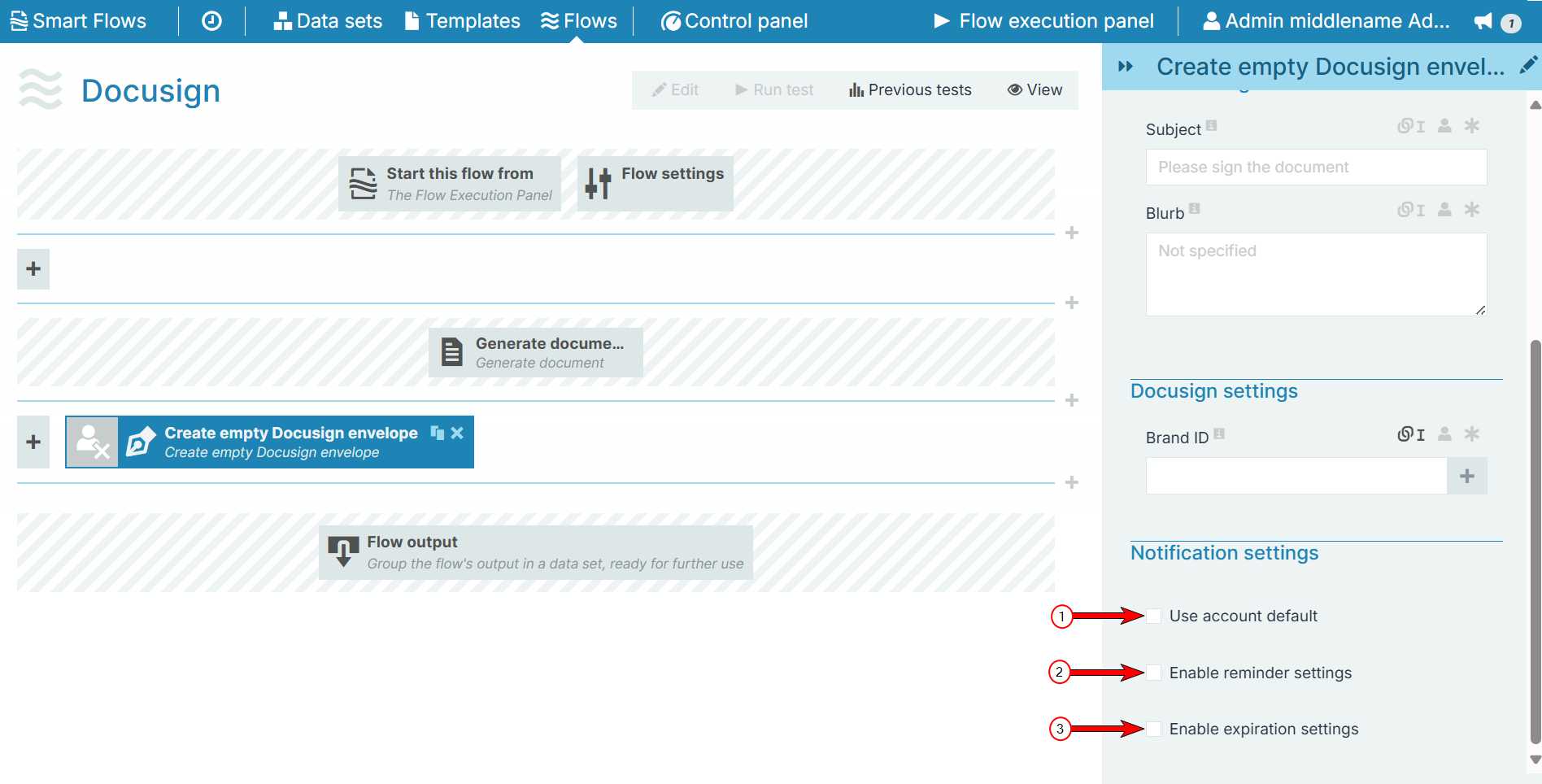
|
Index No. |
Field name |
Description |
|---|---|---|
|
1 |
Use account default |
Check this option to use the default notification settings from the DocuSign account. If you check this option, the other two options are no longer applicable and are disabled. |
|
2 |
Enable reminder settings |
Check this option to send reminders to the signers along with the following two options: 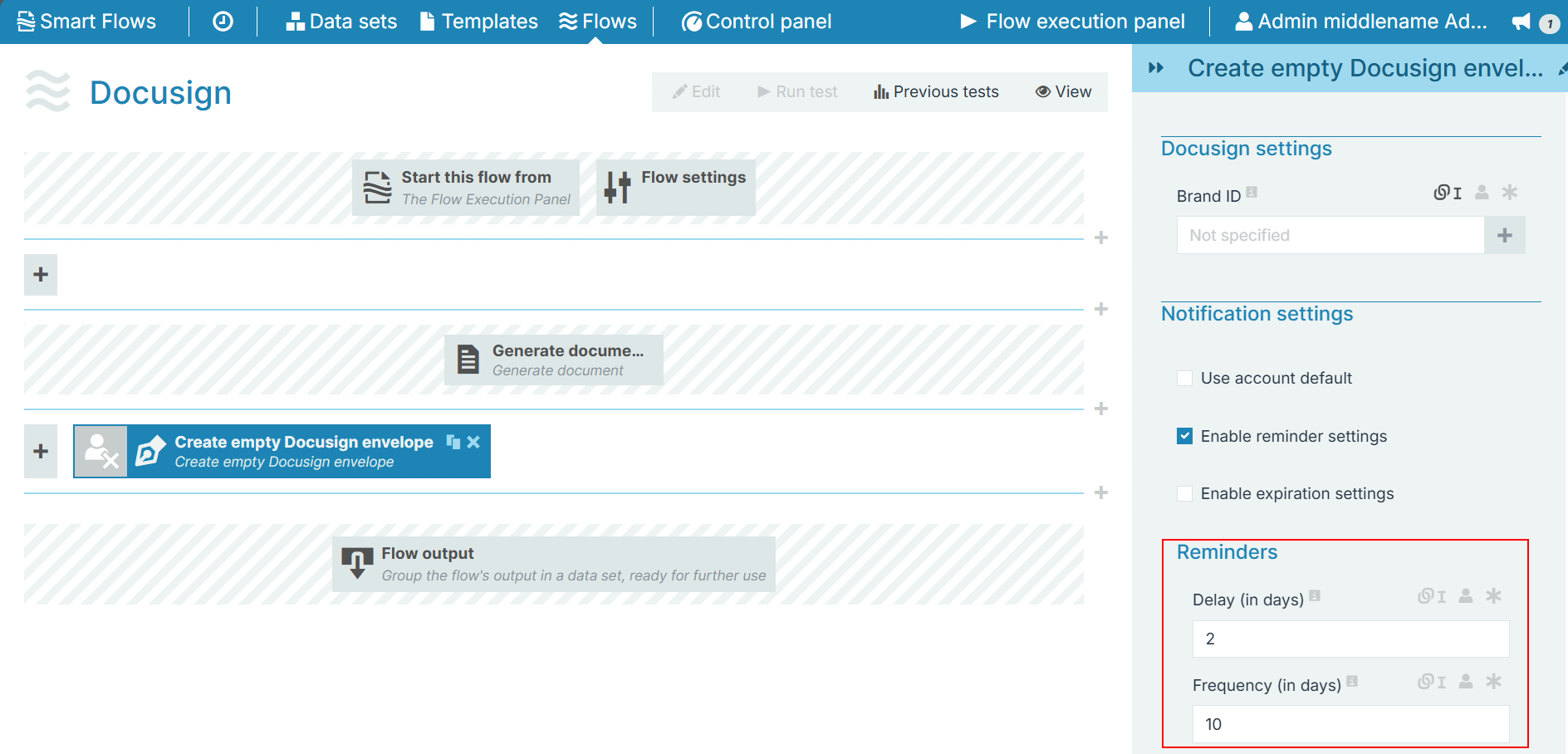
In case if these fields are left blank, then the flow considers the values mentioned in the respective DocuSign connector server. |
|
3 |
Enable expiration settings |
Check this option to set up envelope expiration time along with the following options: 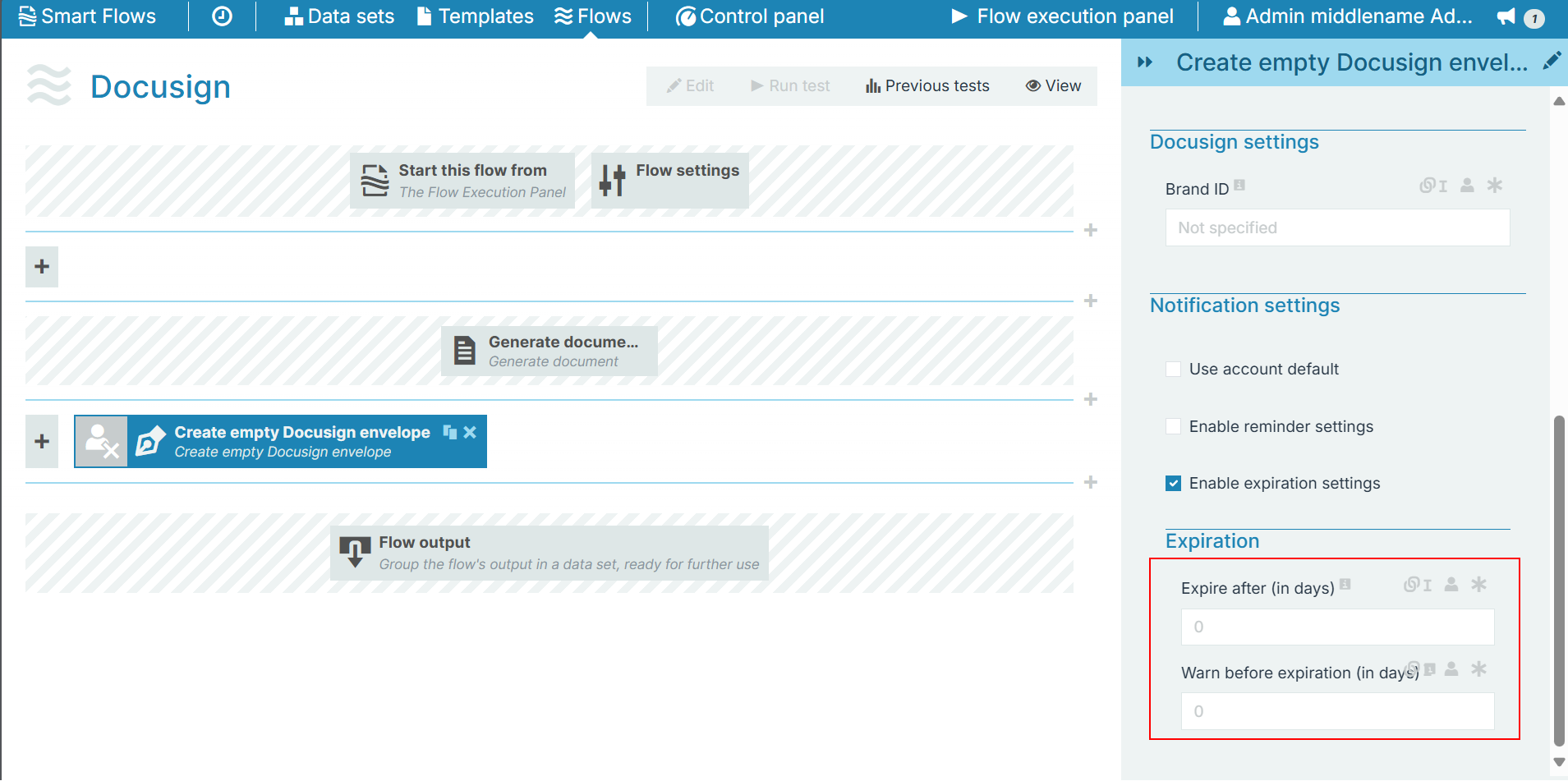
|