
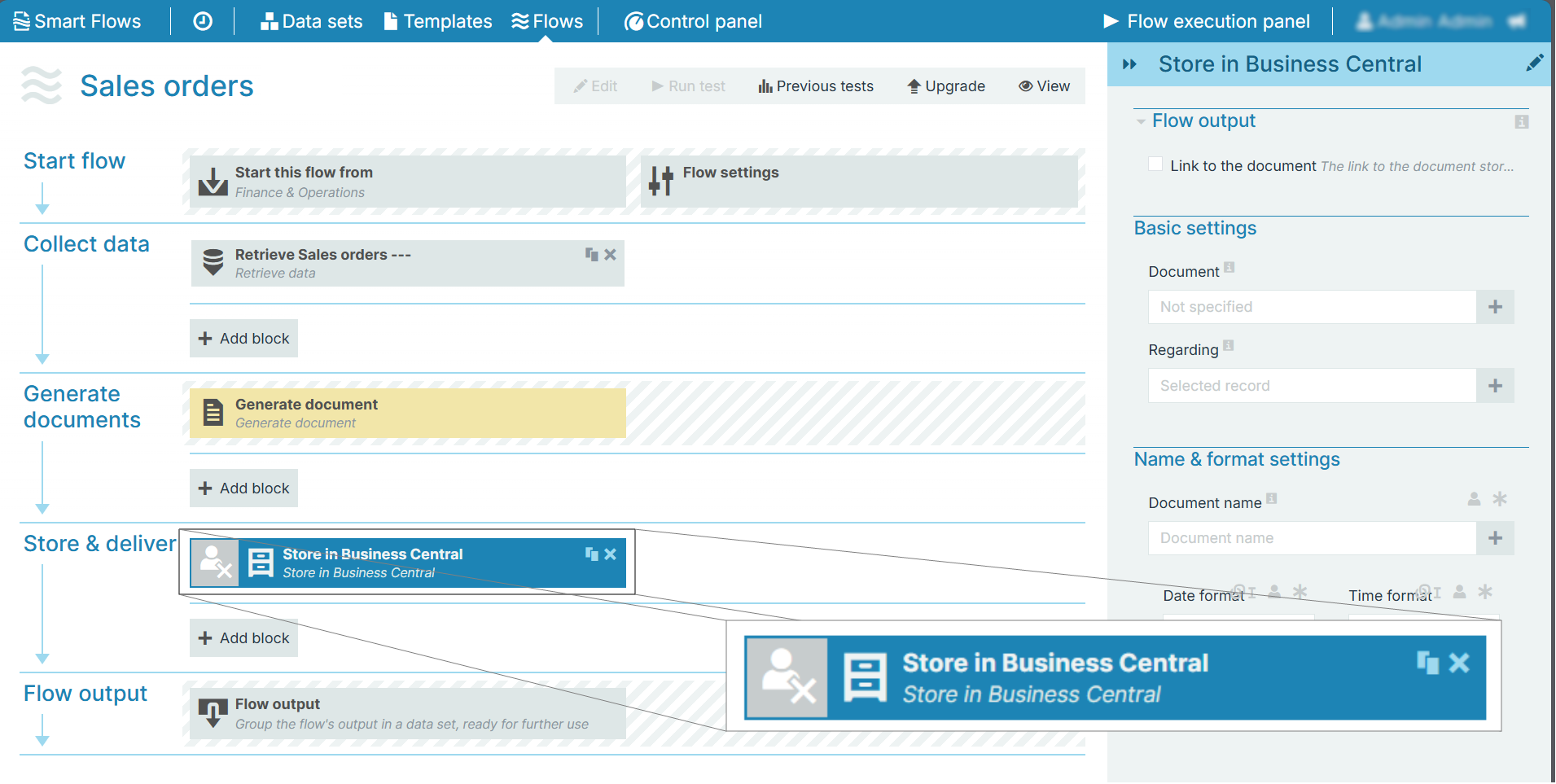
The Store in Business Central flow block allows you to store a document attached to a record in Microsoft Dynamics 365 BC. You can set the output, select the document, select the associated record, and set the document name in the flow block, as shown in the image below:
Parameters update
The dropdown menus below provide all of the flow block's configuration options with detailed information and recommendations to help you configure your flow block.
Flow block customization buttons
You can further customize your flow block's parameters in several ways
-

-

-

Flow output
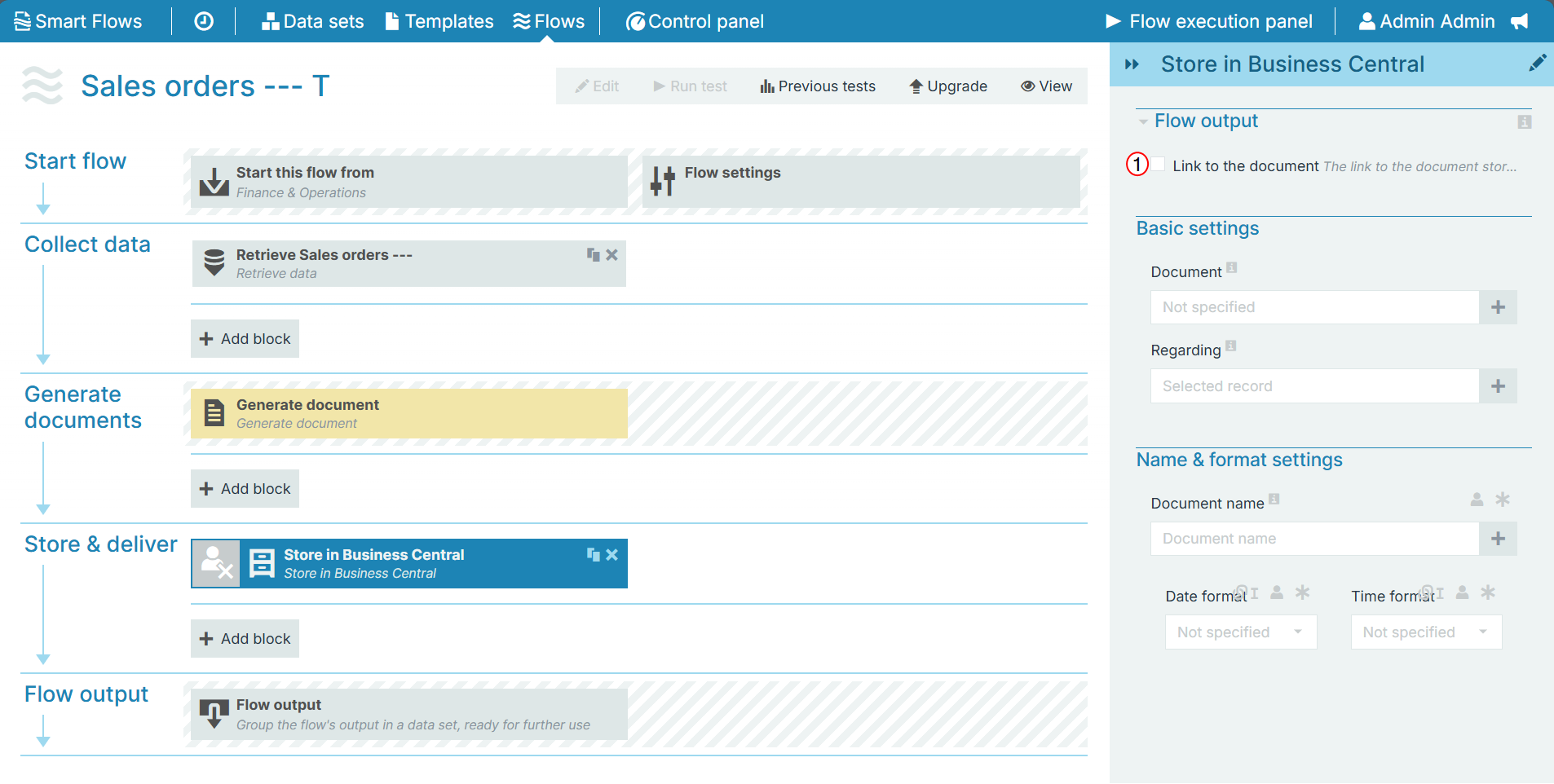
The Flow Output section shows all the output parameters that are available for the block. When checked, the value of the output parameter are presented to the user who is executing the flow. Each setting that composes this output information is described in detail below:
|
Index No. |
Field name |
Function |
|---|---|---|
|
1 |
Link to a document |
Check this option to provide a link to the document attached to the record. |
Basic settings
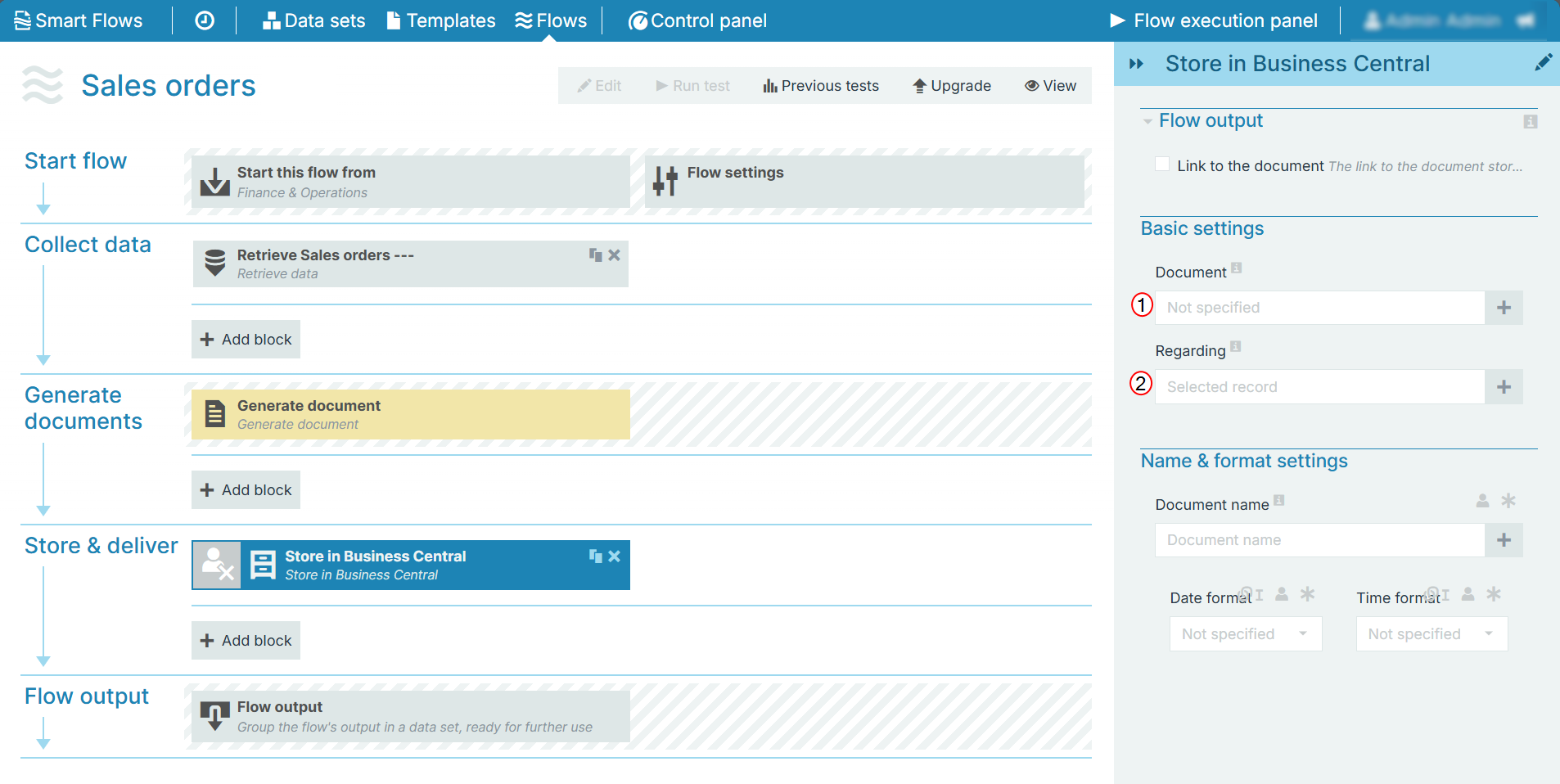
The Basic settings of the Missed Store in Business Central flow block refers to the name to save the document as. By default the Missed Store in Business Central the system uses the Generate document flow block's Document name field. However, you can use a different name when saving to storage.
|
Index No. |
Field name |
Function |
|---|---|---|
|
1 |
Document |
Select the document to attach to the record in Microsoft Dynamics 365 BC. |
|
2 |
Reference |
Select the record in Microsoft Dynamics 365 BC to attach the document. |
Name & format settings
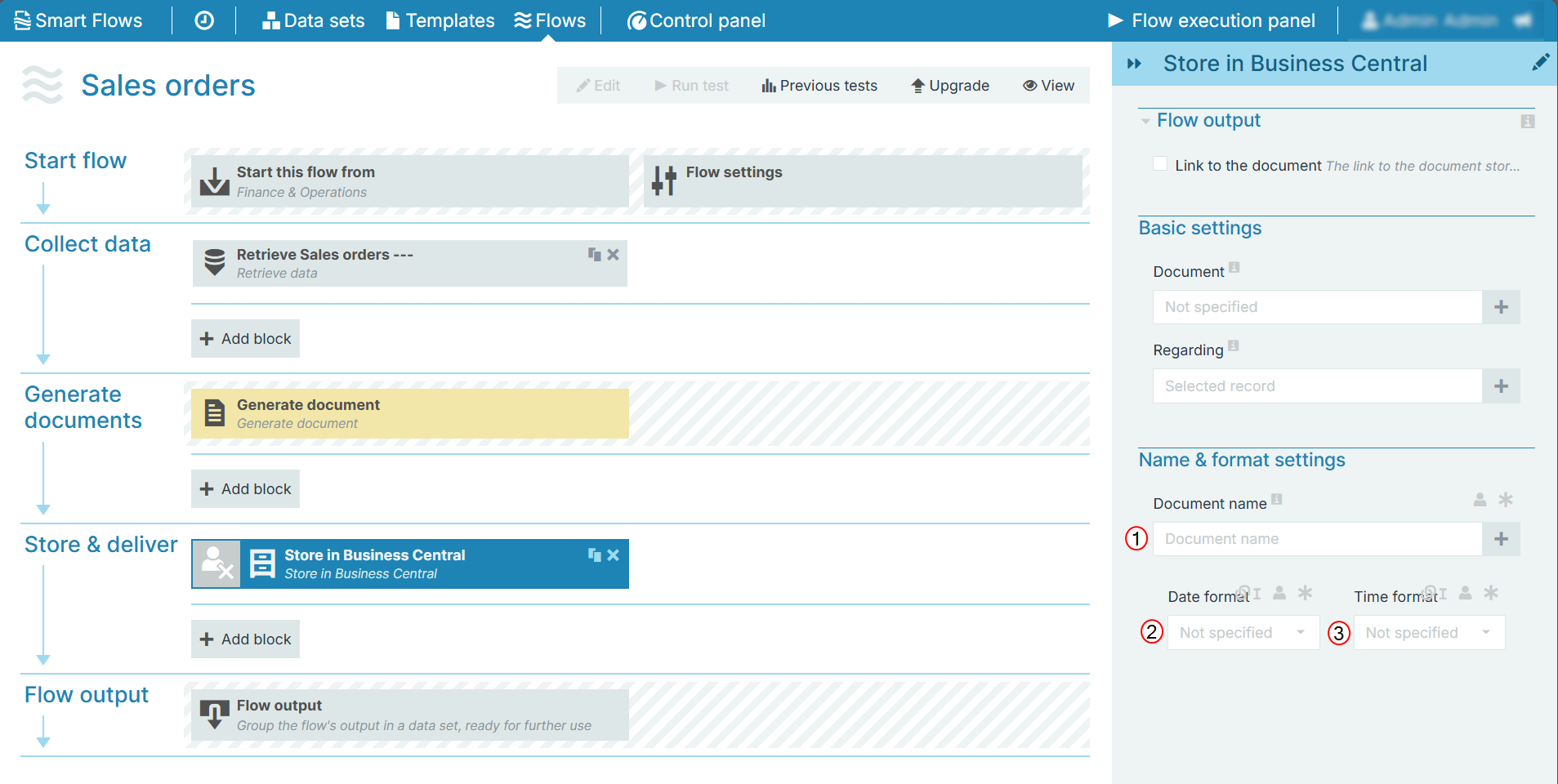
The Name & format settings allow you to provide a document name and set the date-time format.
|
Index No. |
Field name |
Function |
|---|---|---|
|
1 |
Document name |
The name of the stored document. |
|
2 |
Date format |
Sets the date format. When you make a selection here, the system adds a timestamp to the name of the document. The timestamp is separated into date and time, but when you link a field here, both the date and time fields can accept all date and time symbols, refer to Date & time patterns for more information. |
|
3 |
Time format |
Sets the time format used in the document name. |