
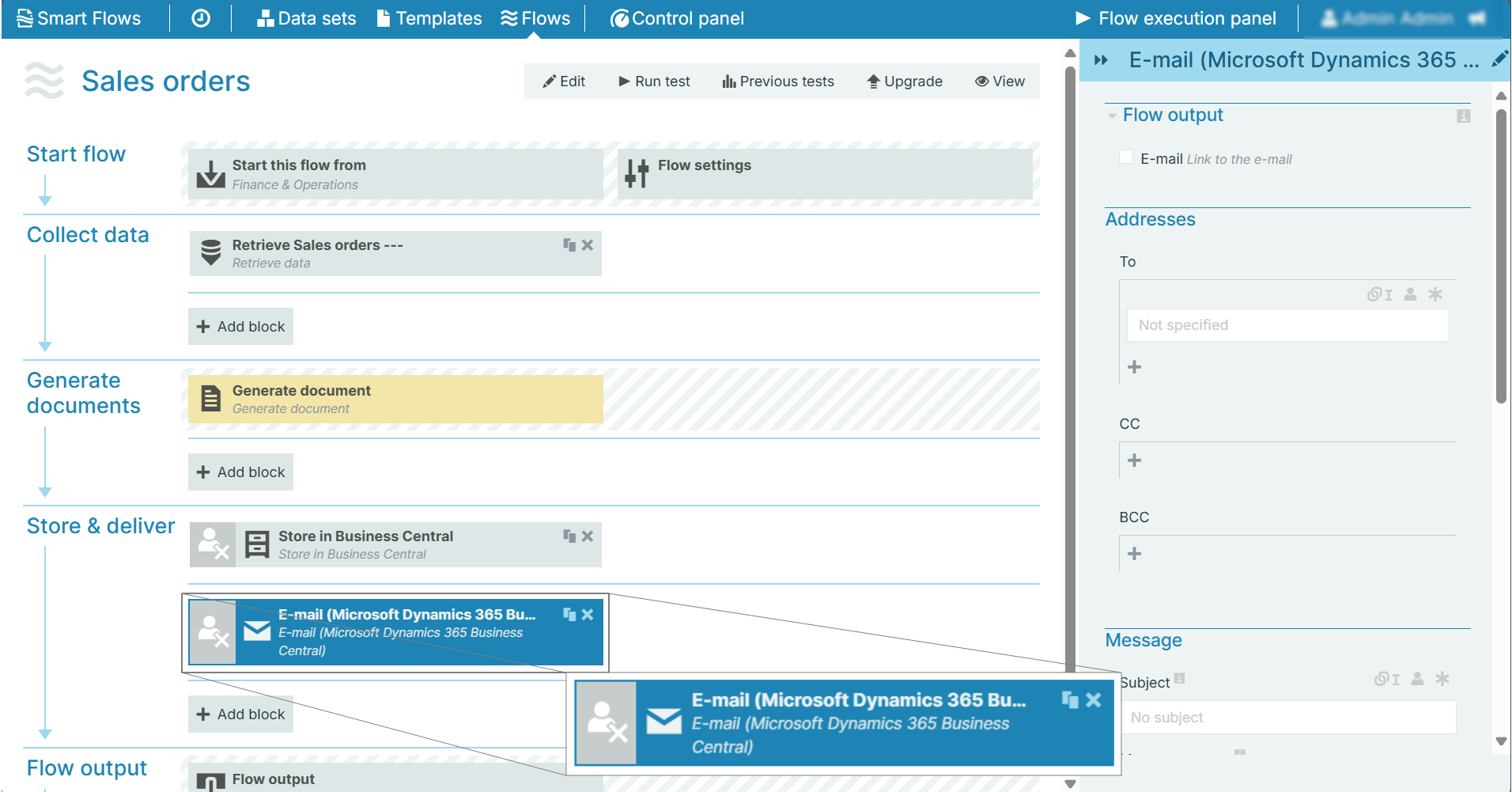
E-mail (Microsoft Dynamics 365 Business Central) is a digital communication established specifically for Microsoft Dynamics 365 BC users. Upon flow execution, the emails are sent using the Microsoft Dynamics 365 BC email pattern and traced within the connector system. You can add the E-mail (Microsoft Dynamics 365 Business Central) block in the flow as shown in the image below:
Flow Block Parameters
The dropdown menus below provide all of the flow block's configuration options with detailed information and recommendations to help you configure your flow block.
Flow block customization buttons
You can further customize your flow block's parameters in several ways
-

-

-

Flow output
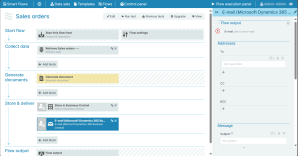
The Flow Output section shows all the output parameters that are available for the block. When checked, the value of the output parameter is presented to the user who is executing the flow. Each setting that composes this output information is described in detail below:
|
Index No. |
Field name |
Description |
|---|---|---|
|
1 |
|
Check this option to provide a link to the created email page in Microsoft Dynamics 365 BC. |
Addressees
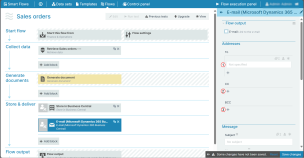
The Addresses settings specify the recipient of the email. Further, the users can CC and BCC other recipients if required.
|
Index No. |
Field name |
Description |
|---|---|---|
|
1 |
To |
Enter the main recipient's address under the To addresses field. You can add more than one address by clicking the + icon. |
|
2 |
CC |
Enter the recipients address to CC them in the email. You can add more than one address by clicking the + icon. |
|
3 |
BCC |
Enter the recipients address to BCC them in the email. You can add more than one address by clicking the + icon. |
Messages
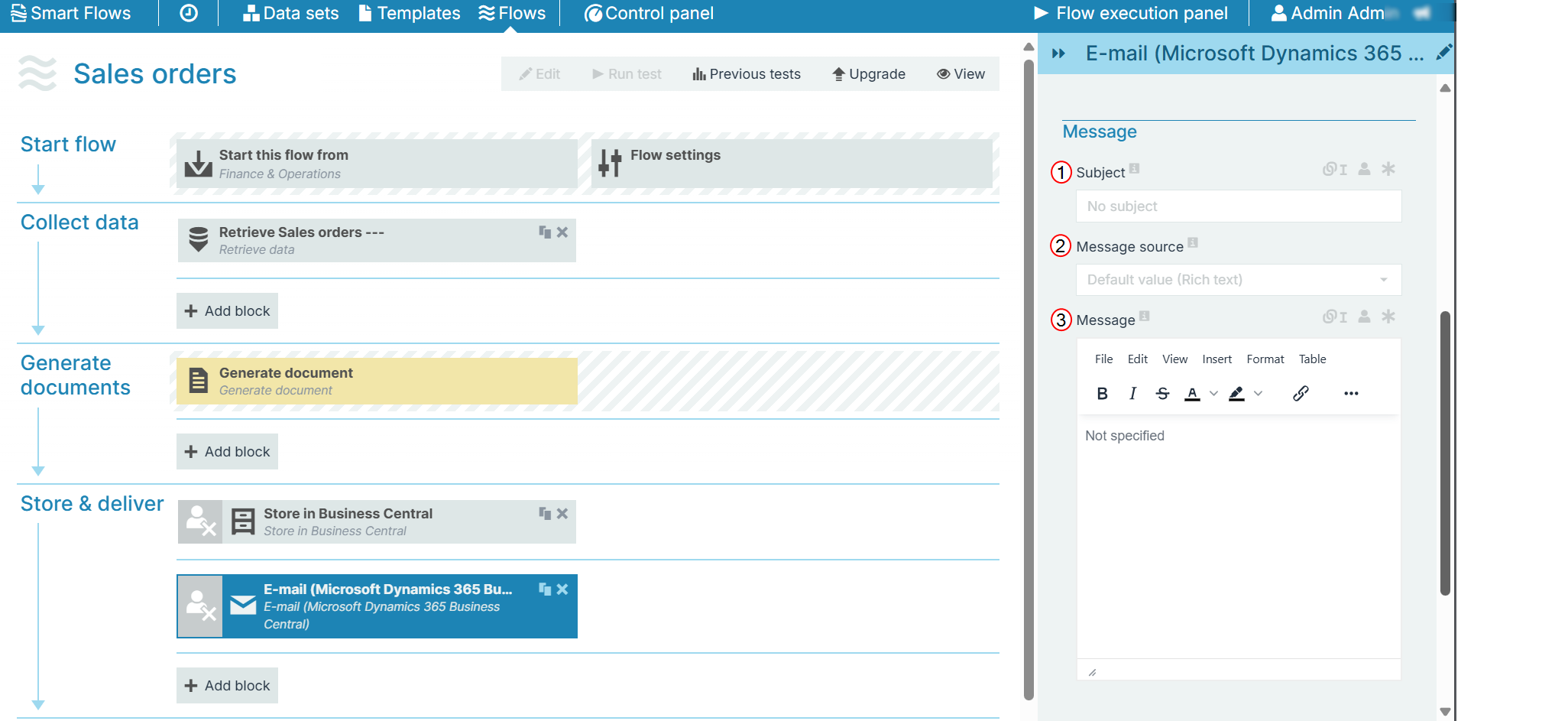
The Message settings control the subject and body of the email message. The message can be composed as plain text or created via a document, such as the generated document.
|
Index No. |
Field name |
Description |
|---|---|---|
|
1 |
Subject |
Sets the subject of the email. |
|
2 |
Message source |
Select from where to get the content of the message: Rich text The system uses the text you enter into the message source field. , Document Uses a generated document from within the current flow. , and Template Generate a document based on a template, it will (try to) use data retrieved within the flow. |
|
3 |
Message |
Enter the email body in this section. You can further insert documents, format the content, add tables, and insert links. |
Attachments
The Attachments settings determine what should be attached to the email, such as the generated document or assets from within Smart Flows.
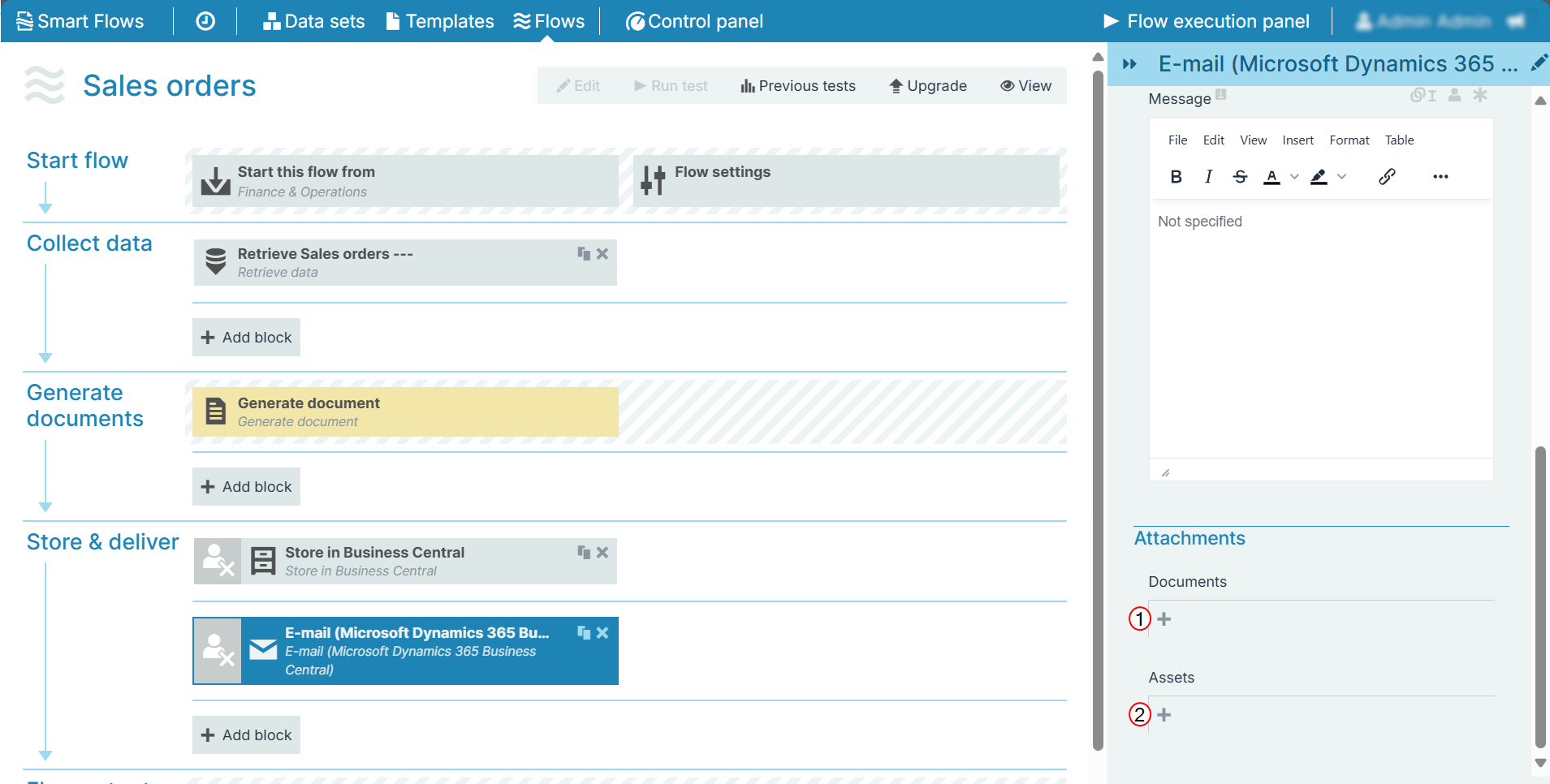
|
Index No. |
Field name |
Description |
|---|---|---|
|
1 |
Documents |
Map a document as an attachment to the email by selecting the same from the dropdown. |
|
2 |
Assets |
Map project specific assets to the email by selecting the same from the dropdown. |