
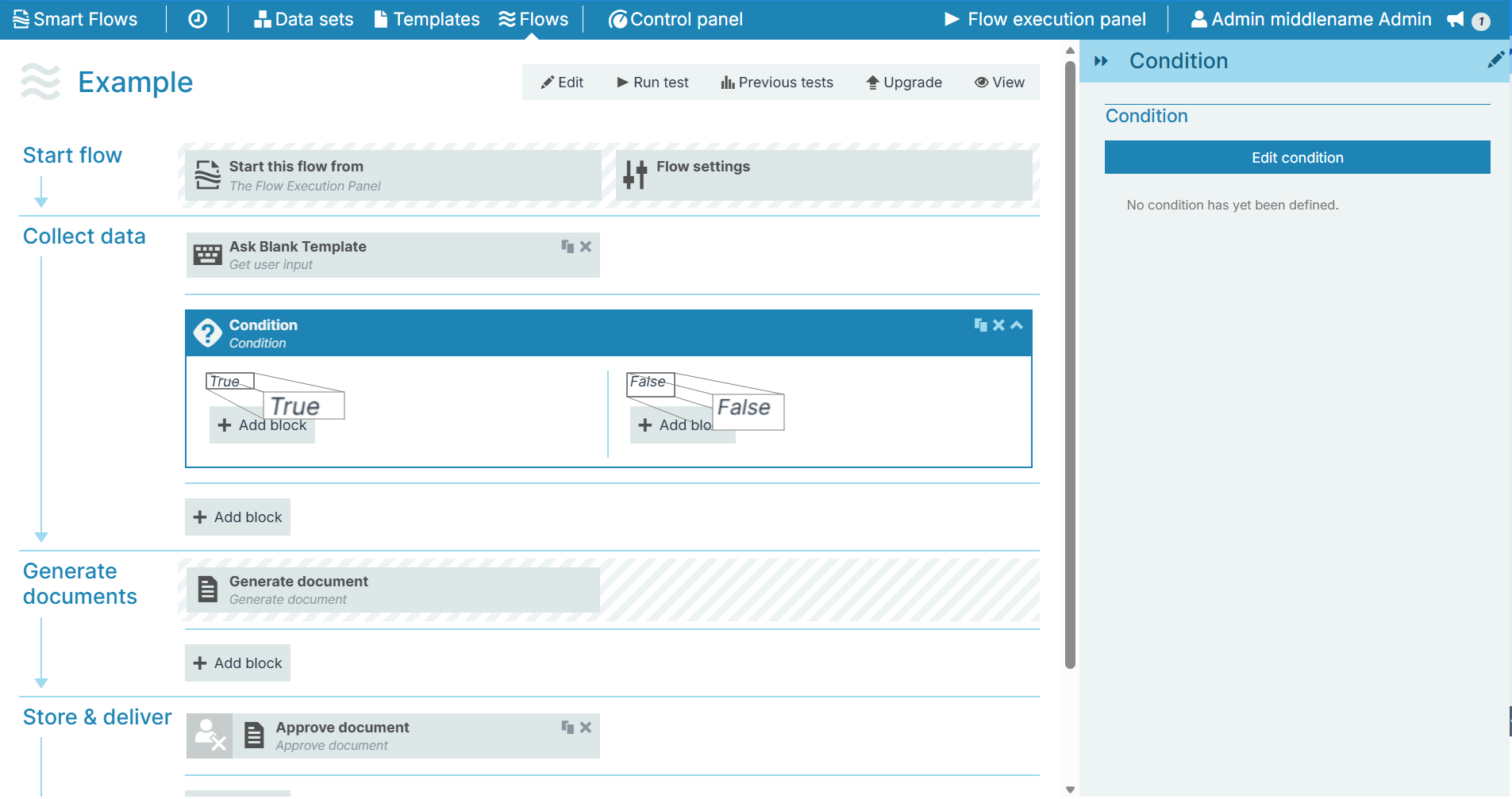
The Condition flow block creates branches within a flow. Designers can set true or false conditions to determine which branch the flow takes.
Example:
If the contact is a salesperson(true), the flow generates a report.
If the contact is not a salesperson(false), the flow: creates a note, shows a message to the end-user, and sends an e-mail.
Flow Block Parameters
The dropdown menus below provide all of the flow block's configuration options with detailed information and recommendations to help you configure your flow block.
Flow block customization buttons
You can further customize your flow block's parameters in several ways
-

-

-

Basic settings
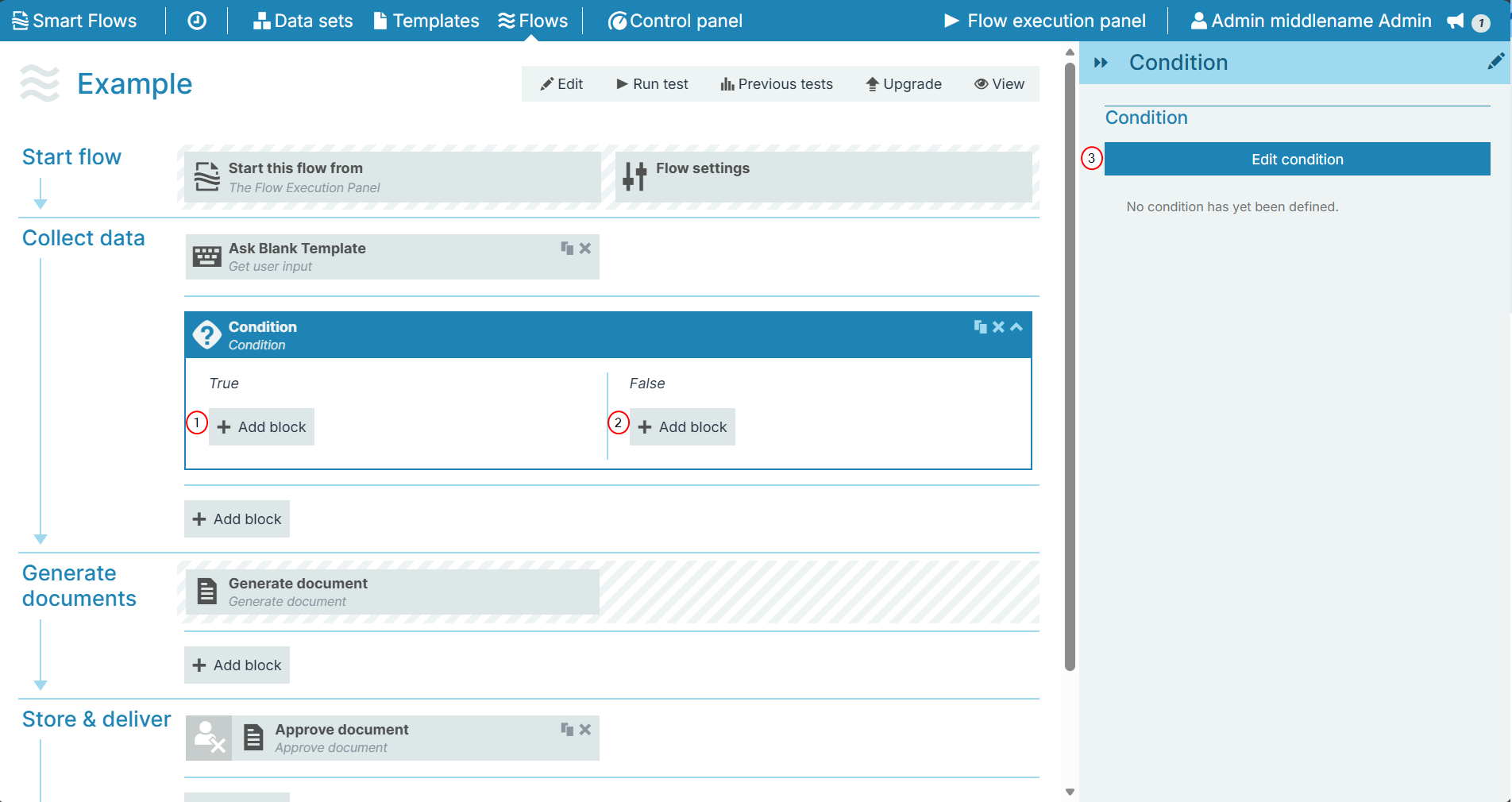
|
Index No. |
Field name |
Function |
|---|---|---|
|
1 |
Add Block |
Opens the Add flow block window to allow Designers to add flow blocks for the condition. |
|
2 |
Edit Condition |
Opens the Edit condition window. |
Edit condition Occurs
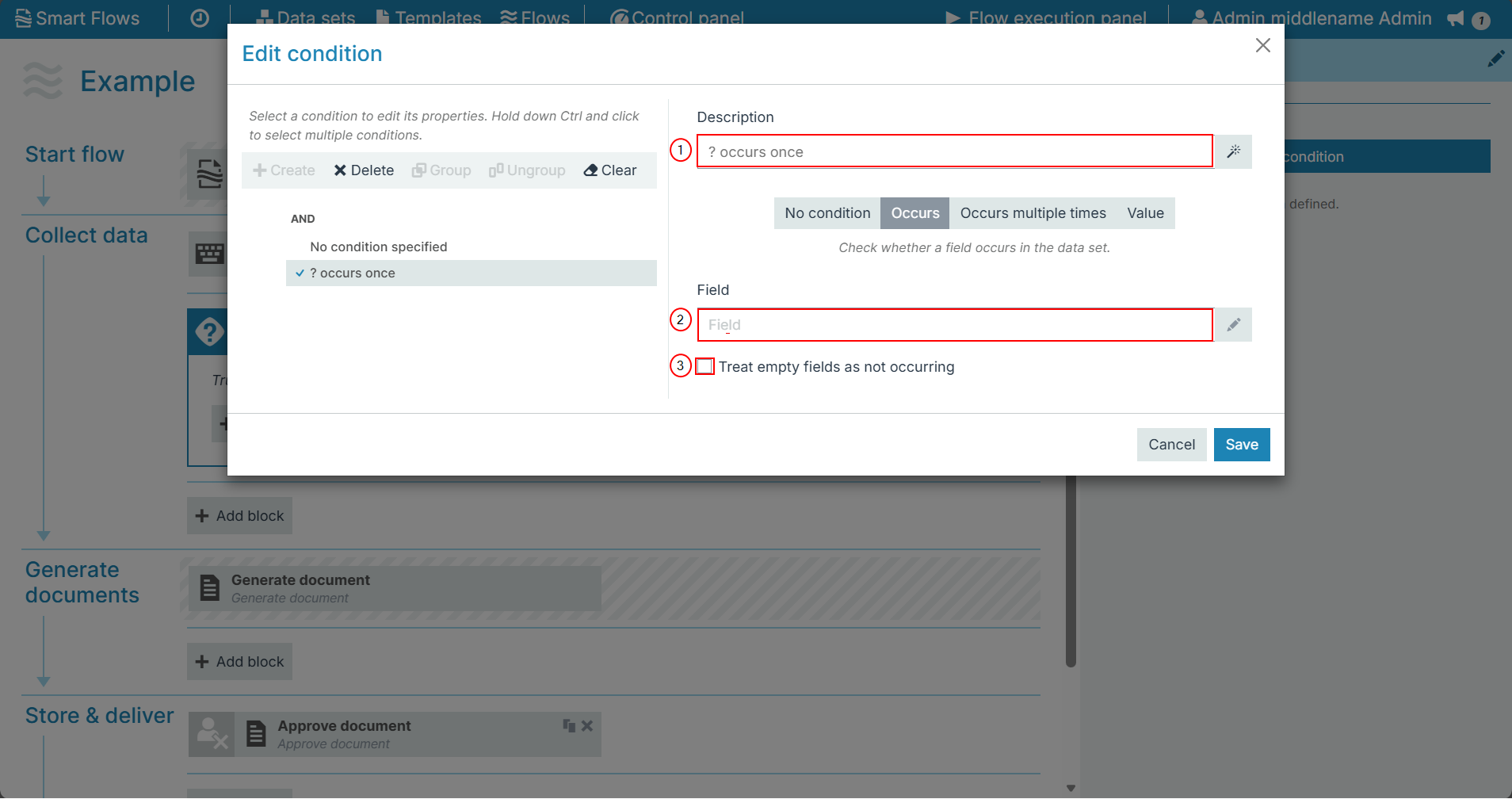
When the Edit condition is set to Occurs, the system completes the condition block the first time the condition occurs.
|
Index No. |
Field name |
Function |
|---|---|---|
|
1 |
Description |
Sets the display name for the condition. |
|
2 |
Initial Values |
Selects the field to evaluate the condition. |
|
3 |
Treat empty fields as not occurring |
When checked, the system treats empty fields as not occurring. The system treats fields without data not occurring at all instead treating them as blanks. This reduces the number of fields to search for the condition. |
Edit condition Occurs multiple times
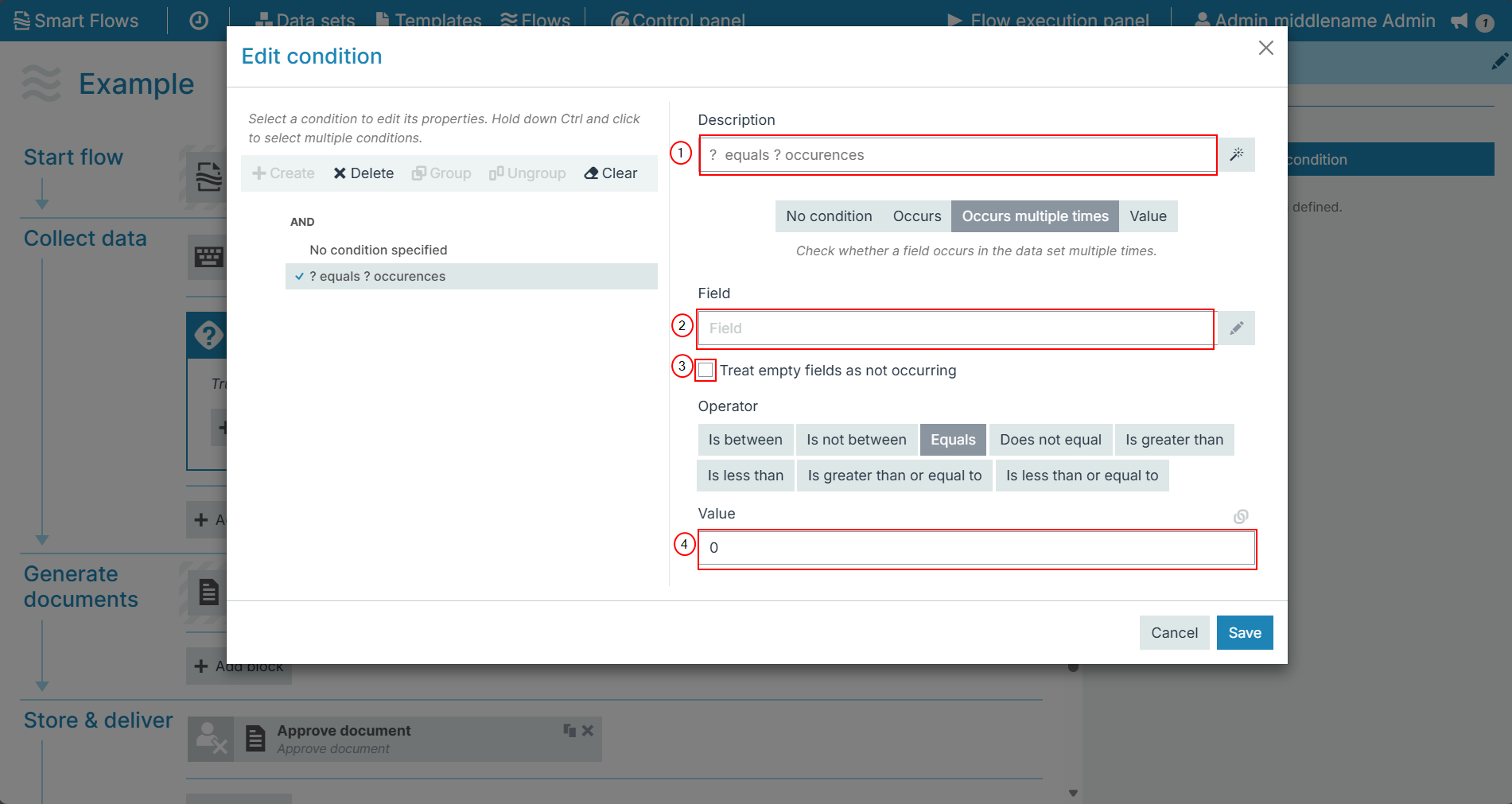
When the Edit condition is set to Occurs multiple times, the system will run the condition branch every time the condition occurs. The primary difference in comparison to the Occurs condition is that the system runs the action multiple times vs only on the first occurrence.
|
Index No. |
Field name |
Function |
|---|---|---|
|
1 |
Description |
Sets the display name for the condition. |
|
2 |
Field |
Selects the field to evaluate the condition. |
|
3 |
Treat empty fields as not occurring |
When checked, the system treats empty fields as not occurring. |
|
4 |
Operator |
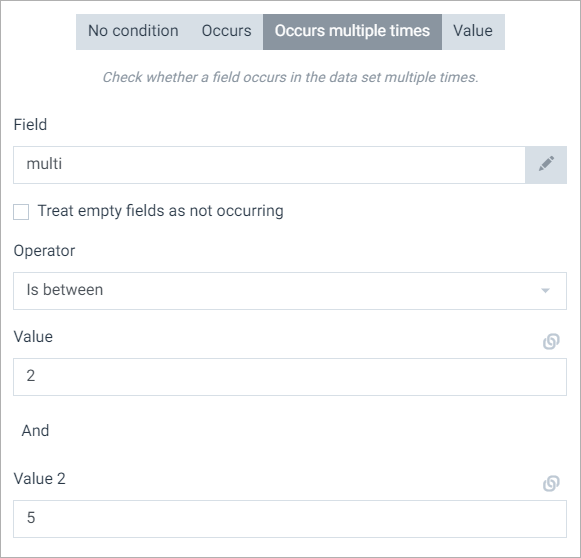
Sets the operator for the field with the following options: Does not equal, equals, is between, is greater than, is greater than or equal to, is less than, is less than or equal to, is not between |
Example: Condition occurs if the value of multiple fields is between 2 and 5. Here's an example that will return TRUE if the value of the multi-field is between 2 and 5.
Notice the link icon next to the fields:
-
Select this to change the field to a linked field.

-
You can then select the pencil to select a data set field.

The select a field to use window displays.
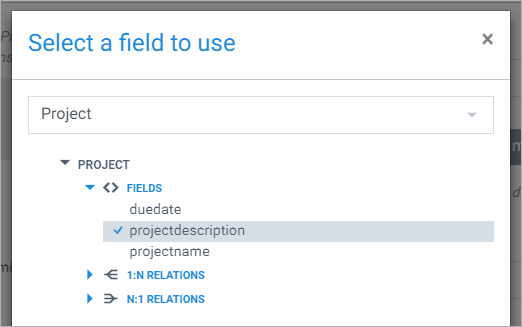
Whenever you select dataset fields, map values, or build conditions in the Project Console Smart Flows displays an interactive field picker tree with built-in search and sorting:
-
Search: Filters fields, entities, lookups, and relationships across all tree levels by display name or system name (displayed as a contextual hint under the field label). Single-branch search paths auto-expand automatically.
-
Sort: Select the sort button next to the search input to toggle alphabetical ordering (A-Z or Z-A).
This allows you to check the values of fields against the values of other fields.

Edit condition Value
When the Edit condition is set to Value, the system completes the condition block the first time the condition value occurs. This functions as the field's value being checked against another field's value. Most users utilize this function to validate and match values between fields.
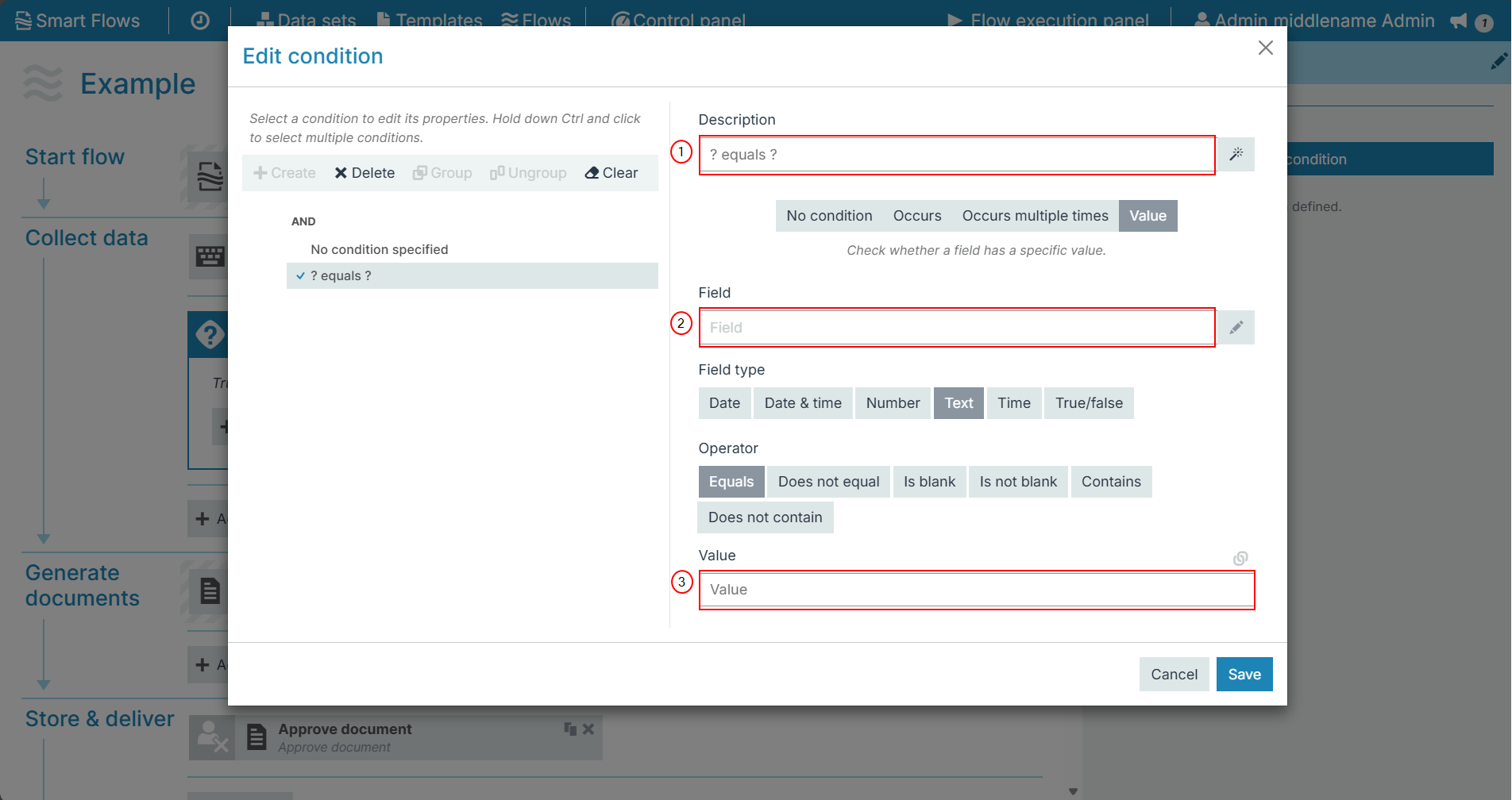
|
Index No. |
Field name |
Function |
|---|---|---|
|
1 |
Description |
Sets the display name the condition. |
|
2 |
Field |
Selects the field to evaluate for the condition. |
|
3 |
Field type |
Sets the operator for the field with the following options: DateDate & Time, NumberText, Time, True/False |