
The E-mail (Microsoft Dynamics 365 for F&O) flow block creates and sends e-mails from your Microsoft Dynamics 365 F&O account.
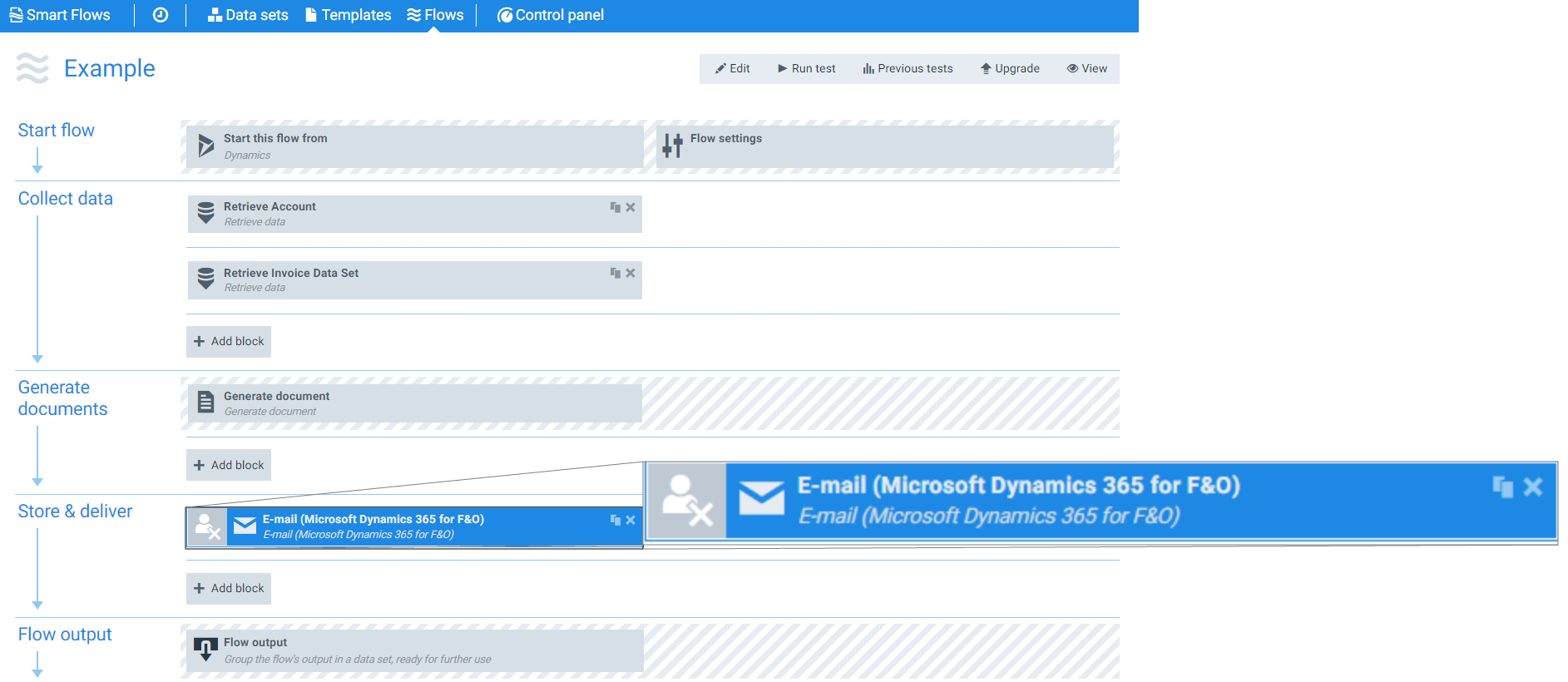
Flow Block Parameters
The dropdown menus below provide all of the flow block's configuration options with detailed information and recommendations to help you configure your flow block.
Flow block customization buttons
You can further customize your flow block's parameters in several ways
-

-

-

Flow Output
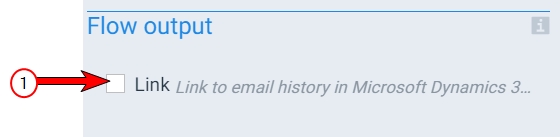
The Flow Output section shows all the output parameters that are available for the block. When checked, the value of the output parameter are presented to the user who is executing the flow. Each setting that composes this output information is described in detail below:
|
Index No. |
Field Name |
Description |
|---|---|---|
|
1 |
|
When checked, a link is provided to the e-mail history. |
Configure addresses
|
Index No. |
Field Name |
Description |
|---|---|---|
|
1 |
From |
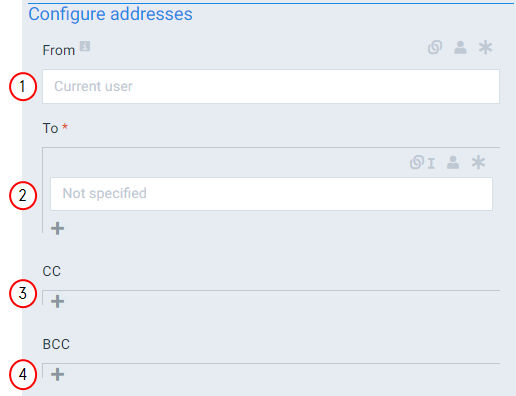
Fills in the From field for your e-mail. If you don't specify an address, the system uses the current user's e-mail address (the user running the flow). We recommend users map to a regular field for this setting as it only support simple strings. |
|
2 |
To |
Fills in the To field for your e-mail. We recommend users map to a regular field for this setting as it only support simple strings. |
|
3 |
CC |
Fills in the CC field for your e-mail. We recommend users map to a regular field for this setting as it only support simple strings. |
|
4 |
BCC |
Fills in the BCC field for your e-mail. We recommend users map to a regular field for this setting as it only support simple strings. |
E-mail message
|
Index No. |
Field Name |
Description |
|---|---|---|
|
1 |
Subject |
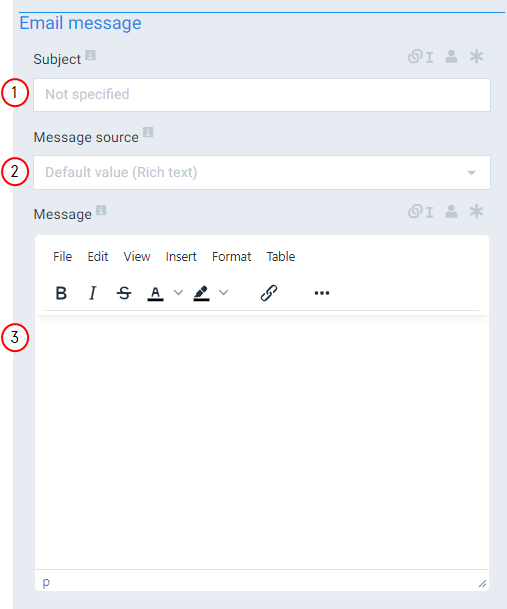
Fills in the Subject field of your e-mail. |
|
2 |
Message source |
Defines where get the content of your message with the following options: Rich text The system uses the text you enter into the message source field. , Document Uses a generated document from within the current flow. , Template Uses the message source set by the template. . |
|
3 |
Message |
Fills in the body of your e-mail. |
Attachments
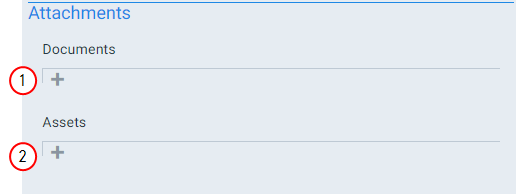
|
Index No. |
Field Name |
Description |
|---|---|---|
|
1 |
Documents |
Defines which documents created during the flow to attach to the e-mail. |
|
2 |
Assets |
Sets the preexisting assets not created during the flow to attach to the e-mail. |