
In many workflows, users need to attach visual or supporting documents to ensure accurate record-keeping and reporting. For example, a repair technician might take a photo of an installation and upload it to the Smart Form they are completing. Similarly, an administrative clerk may want to include existing documents when generating a new report or template. If these uploaded images or documents are not mapped, it creates inefficiencies and requires manual intervention to reattach or reference the files later.
To map the Image/Document:
-
In the Experlogix Documents, create a Smart Form. For more information, see Create an Experlogix Documents Connector.
-
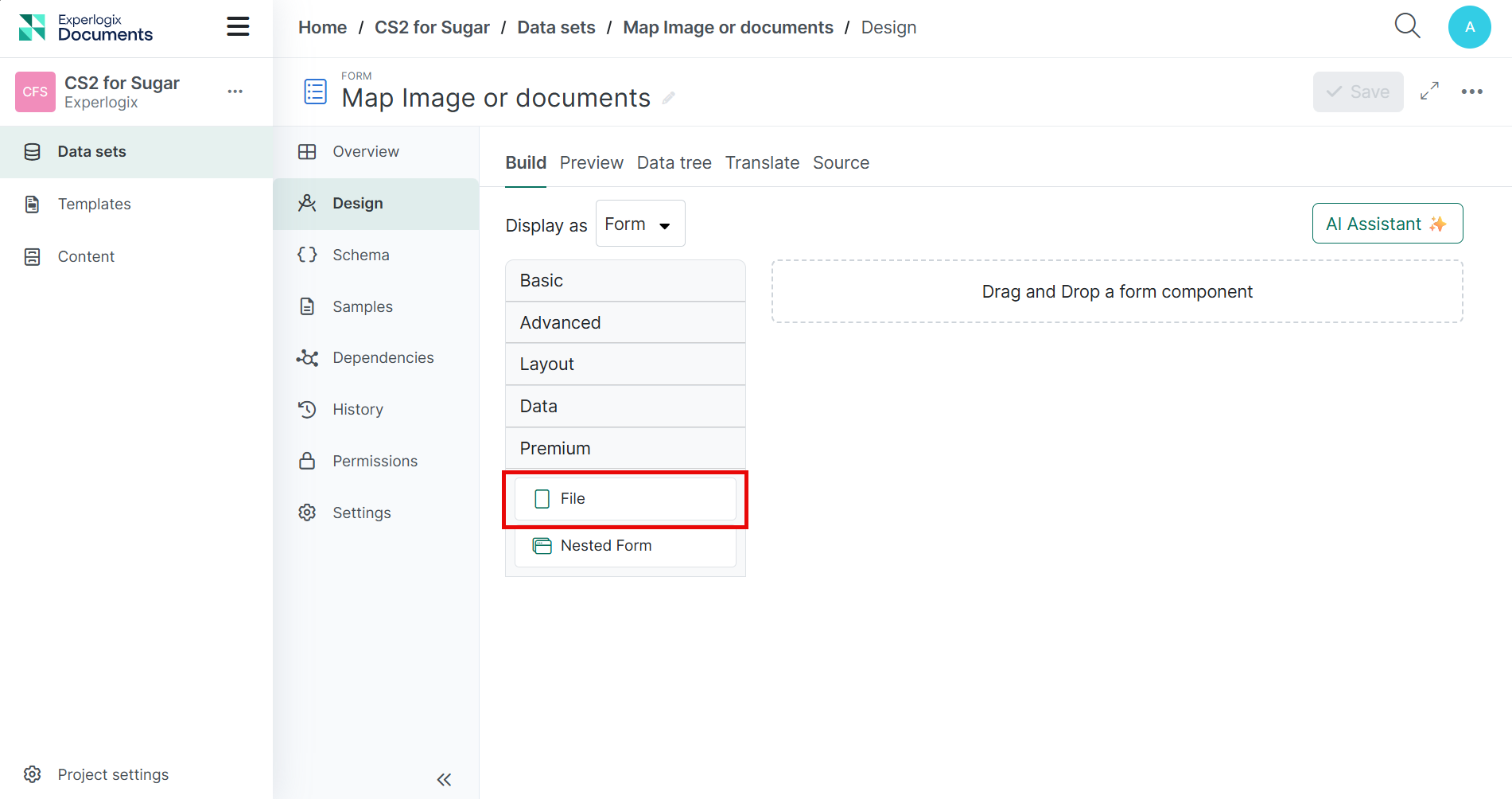
Drag and drop the File field.
-
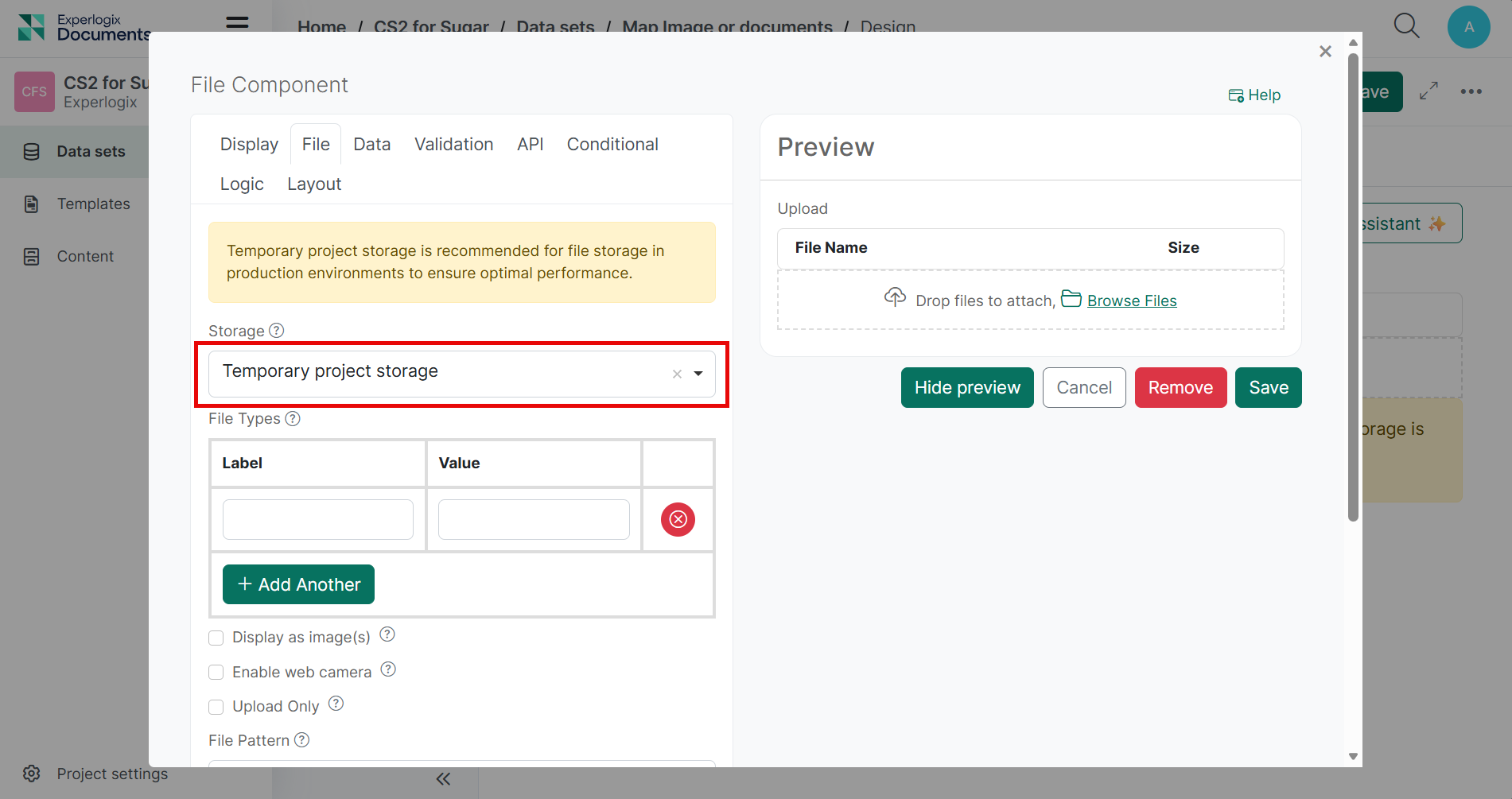
In the File section, under Storage field, select Temporary project storage.
-
Save the form.
-
In the Project Console create a Template with a Dynamics Data set. Also add the Smart Form dataset to the template. For more information, see Creating a template.
-
Open the Template within the Template Builder.
-
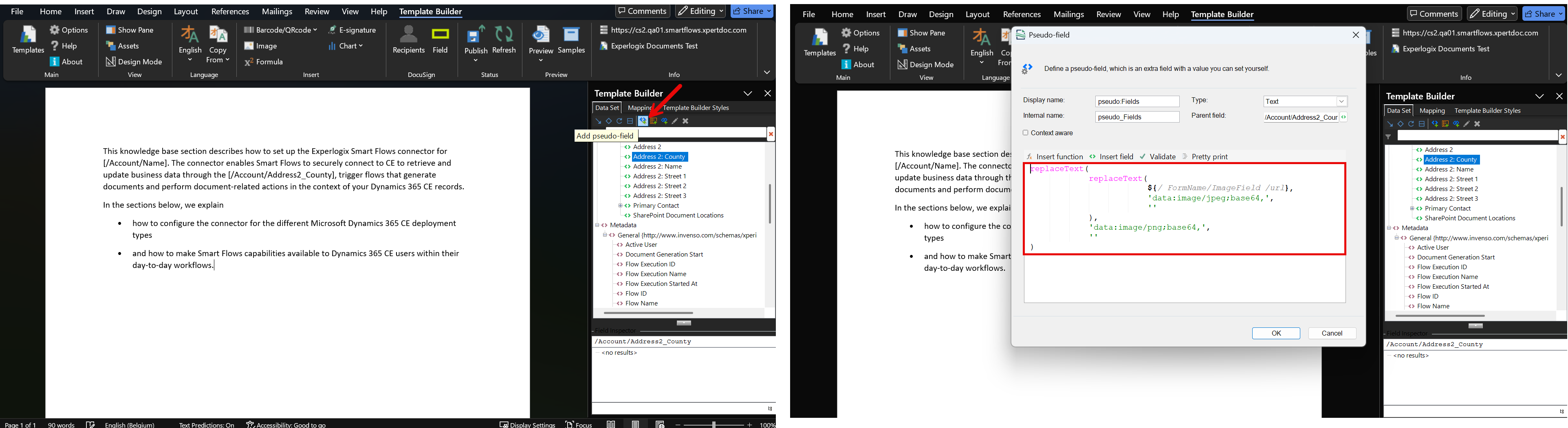
Create a Pseudo-field with one of the below values to create a mapping:
-
To map an image, use the following: replaceText ( replaceText( ${/ FormName/ImageField /url}, 'data:image/jpeg;base64,', ''), 'data:image/png;base64,', '')
-
To map a document, use the following: replaceText ( replaceText( ${/FormName/DocumentField/url}, 'data:application/vnd.openxmlformats-officedocument.wordprocessingml.document;base64,', ''), 'data:application/pdf;base64,', '' )
-
-
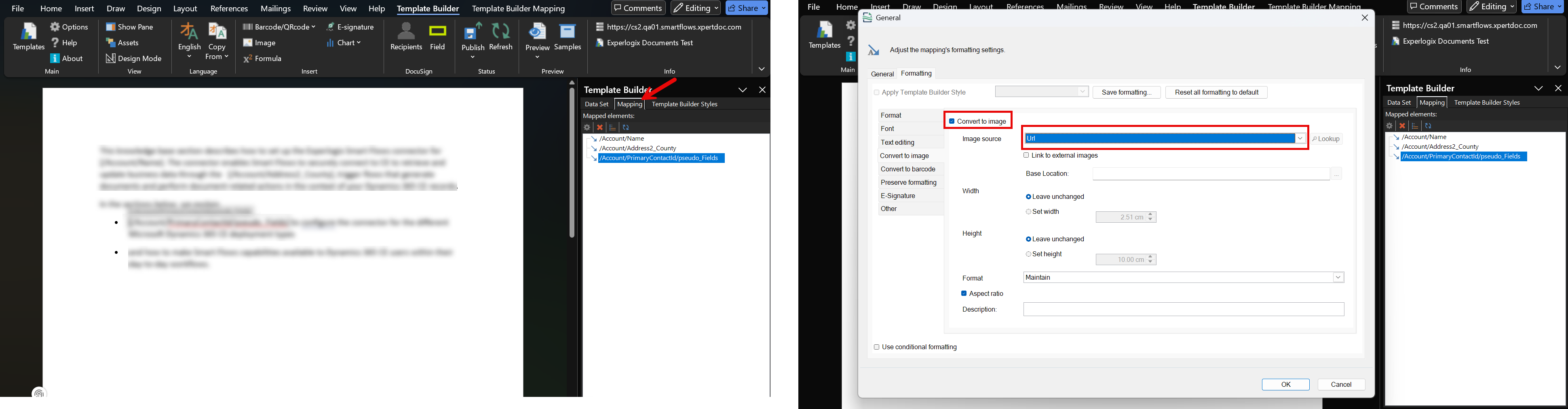
Under the Mapping section, double click the Pseudo-field.
-
Use the Convert To Image option to map the URL of the image.
-
Publish the Template.
-
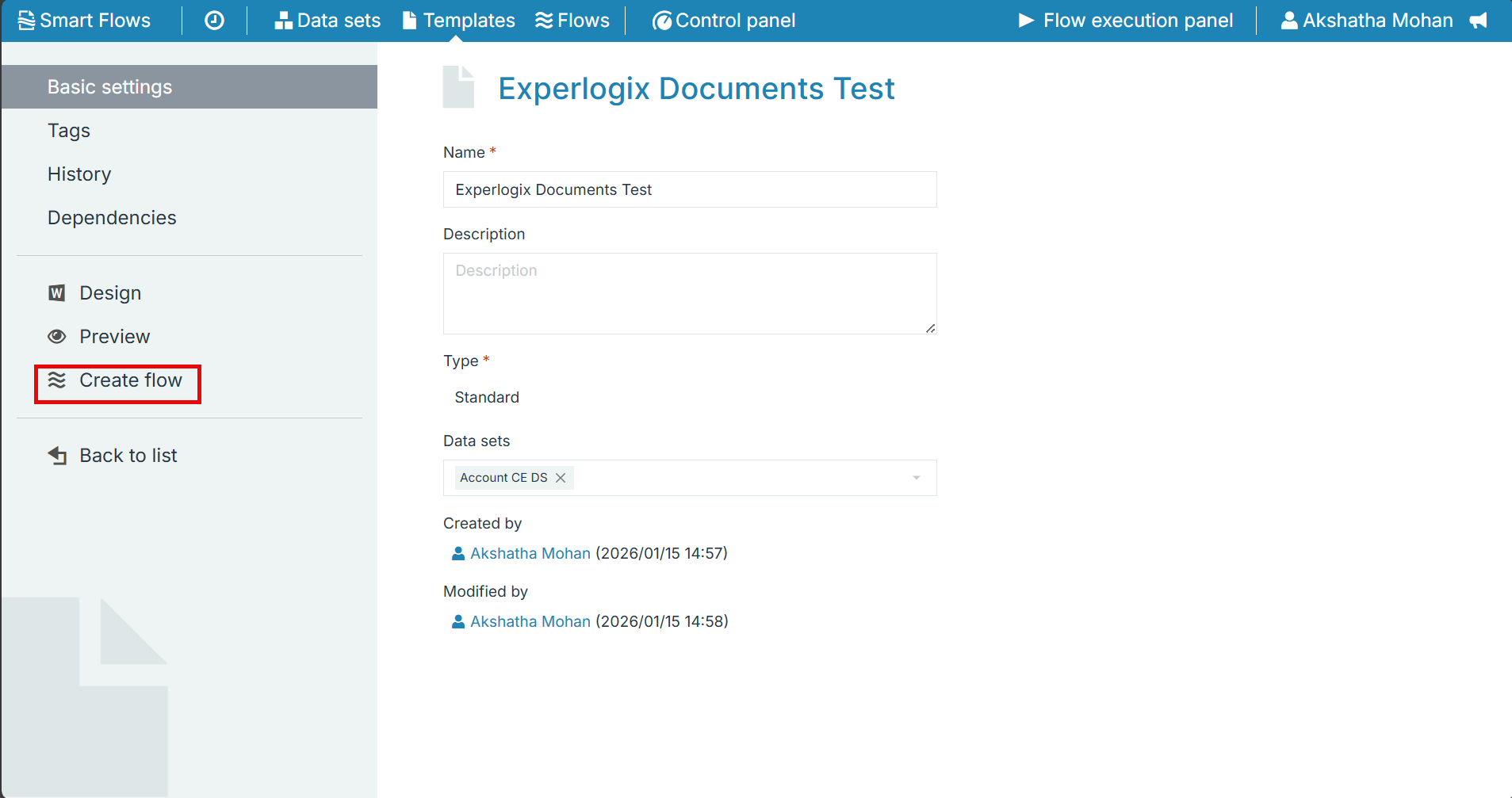
Navigate back to the Project Console and create a Flow based on this Template.
-
Run the Flow.
-
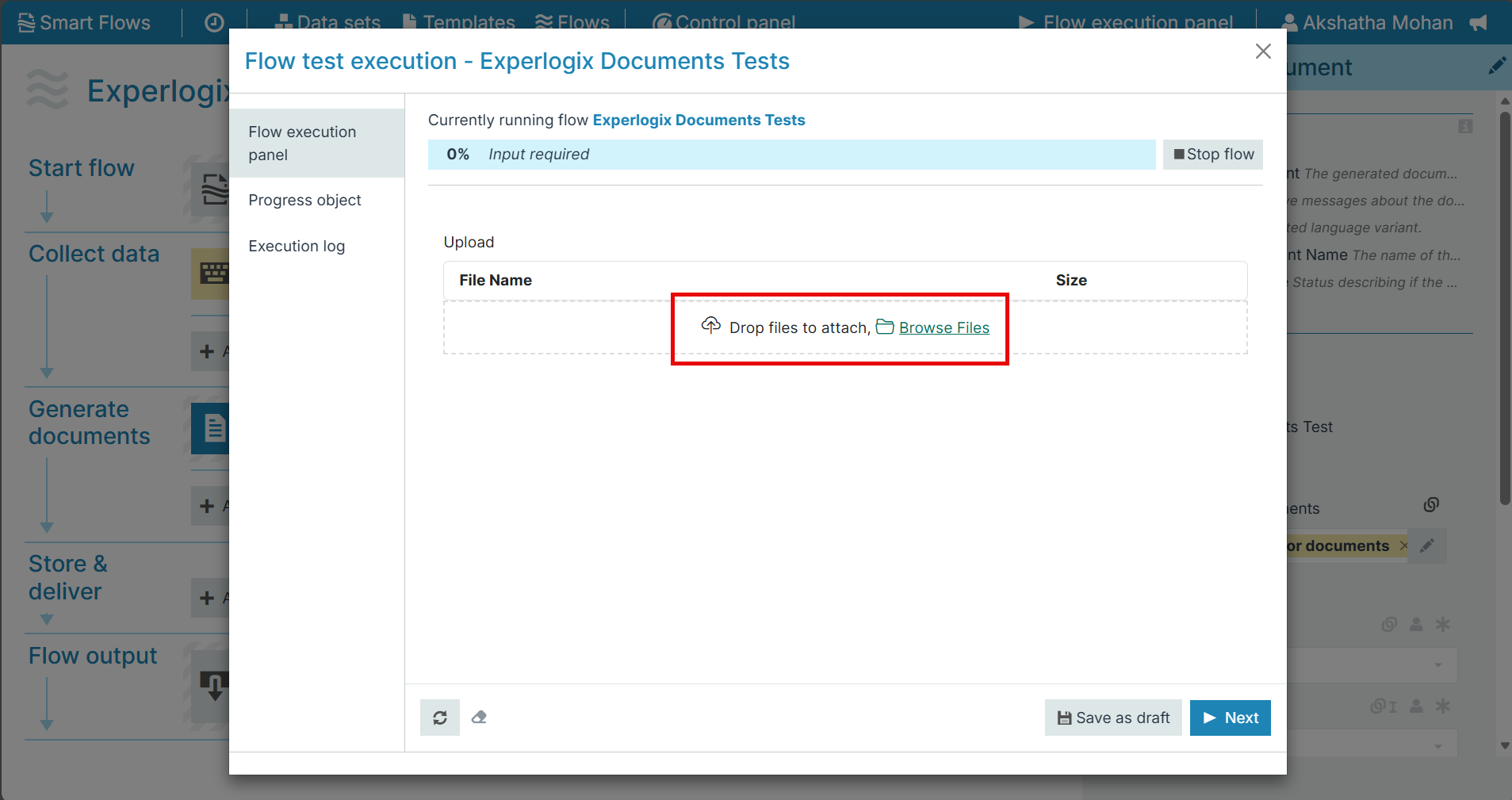
Upload an image. (The image should be a JPEG or a PNG image.)
The image (or document) that the user uploaded in the form is now mapped into the generated document.