
Capturing and storing dates entered through forms in Microsoft Dynamics 365 CE allows users to streamline their business processes and improve coordination across teams. For example, when a customer service representative records the installation date of a watercooler in a form, this information is saved directly in the corresponding Dynamics record. Hence, the installation team can easily access the scheduled date, ensuring timely service delivery and enhancing customer satisfaction.
To store the dates
-
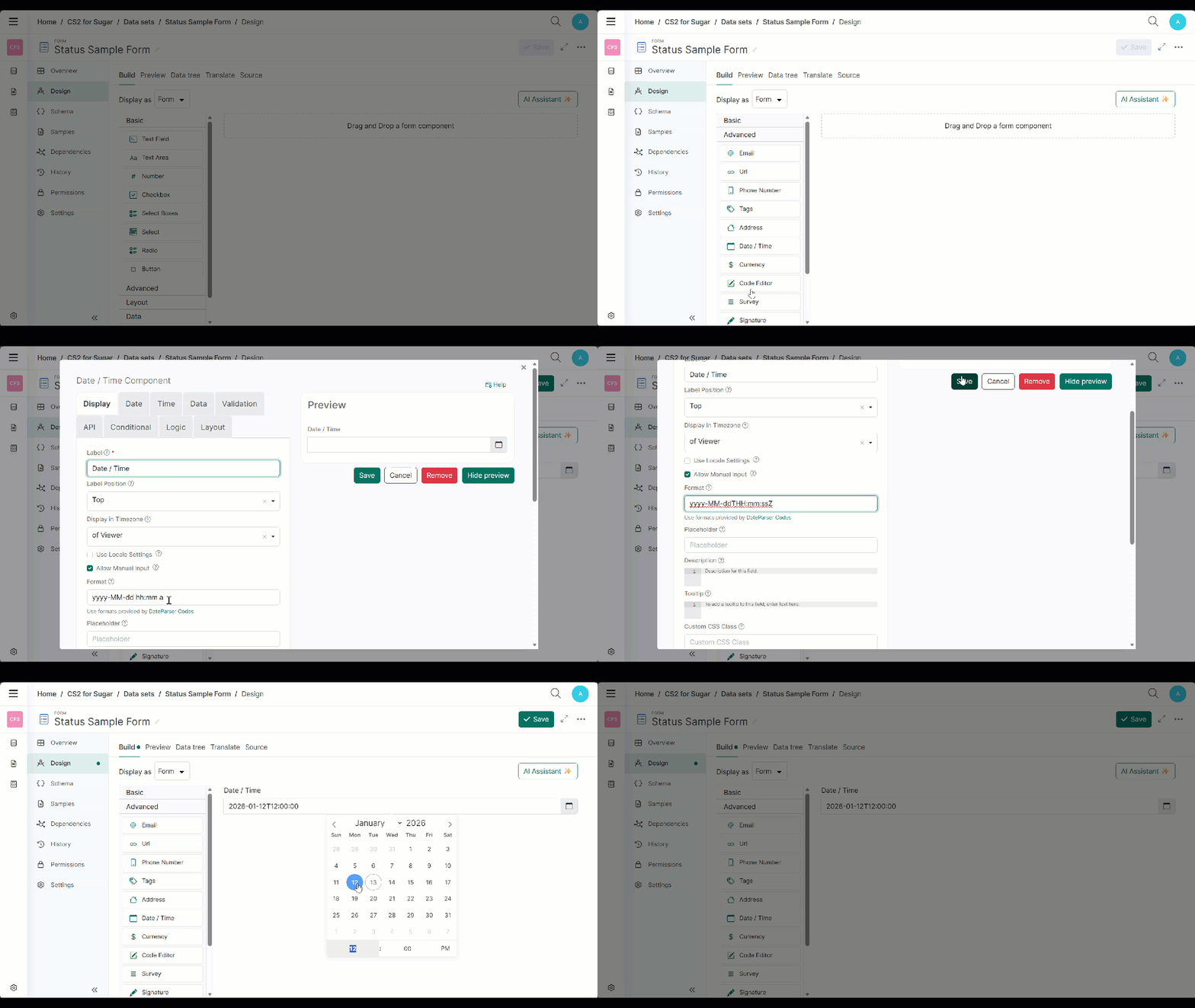
Create a Data set in the 'Form' type and select Design. For more information, see Creating a Data Set and Form Data Sets.
The Experlogix Documents site is displayed in a separate window.
-
Drag and drop the Date / Time field to the form.
-
Provide yyyy-MM-ddTHH:mm:ssZ as a format for the Date / Time field.
To view the stored dates
-
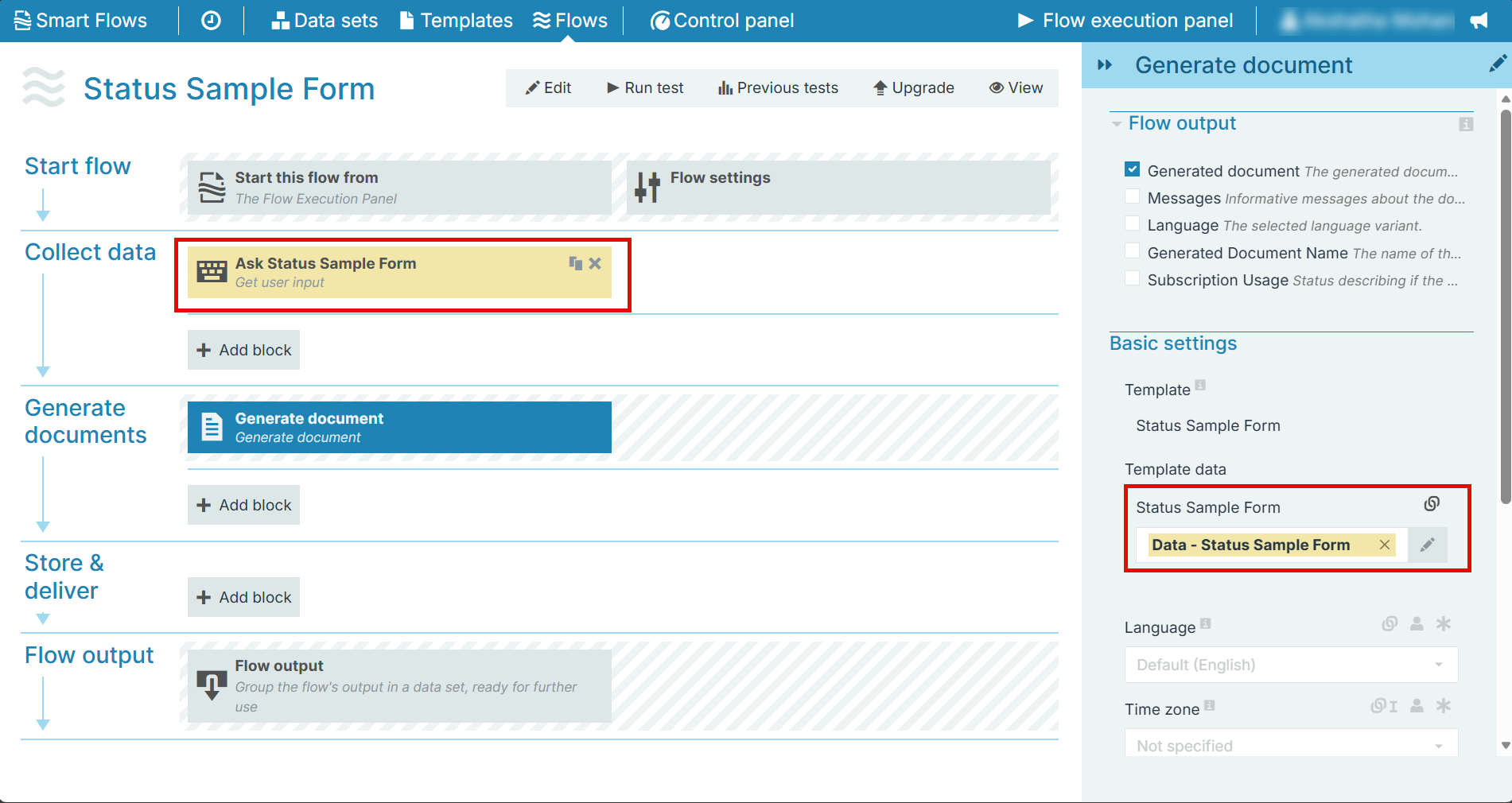
Navigate to the Project Console and open a flow with the Dataset type, Experlogix Documents form.
-
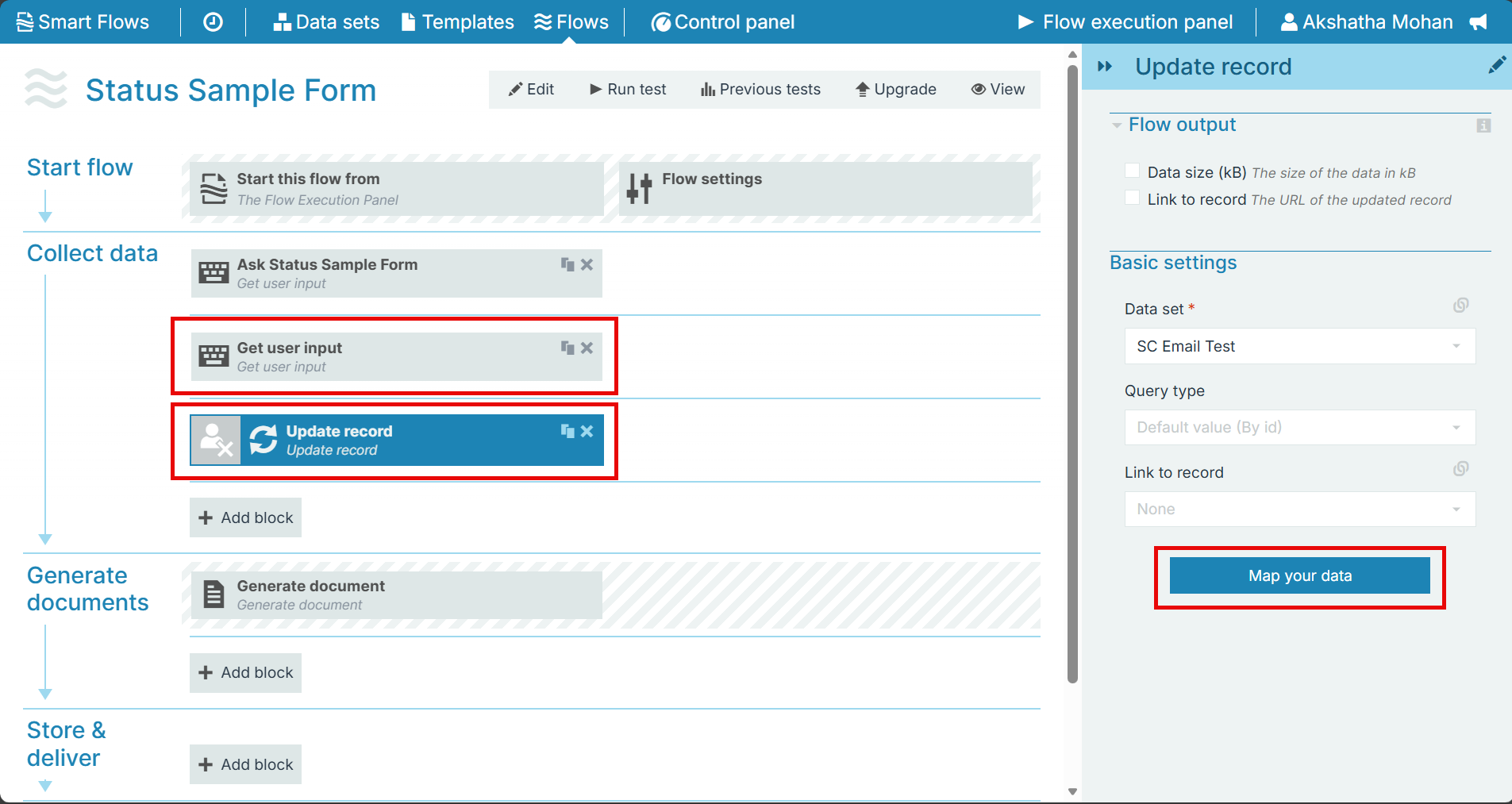
Add a Get user input block and an Update record block to the flow.
-
Under Link to record, select link > plus icon (+) > data set > Date / Time field.
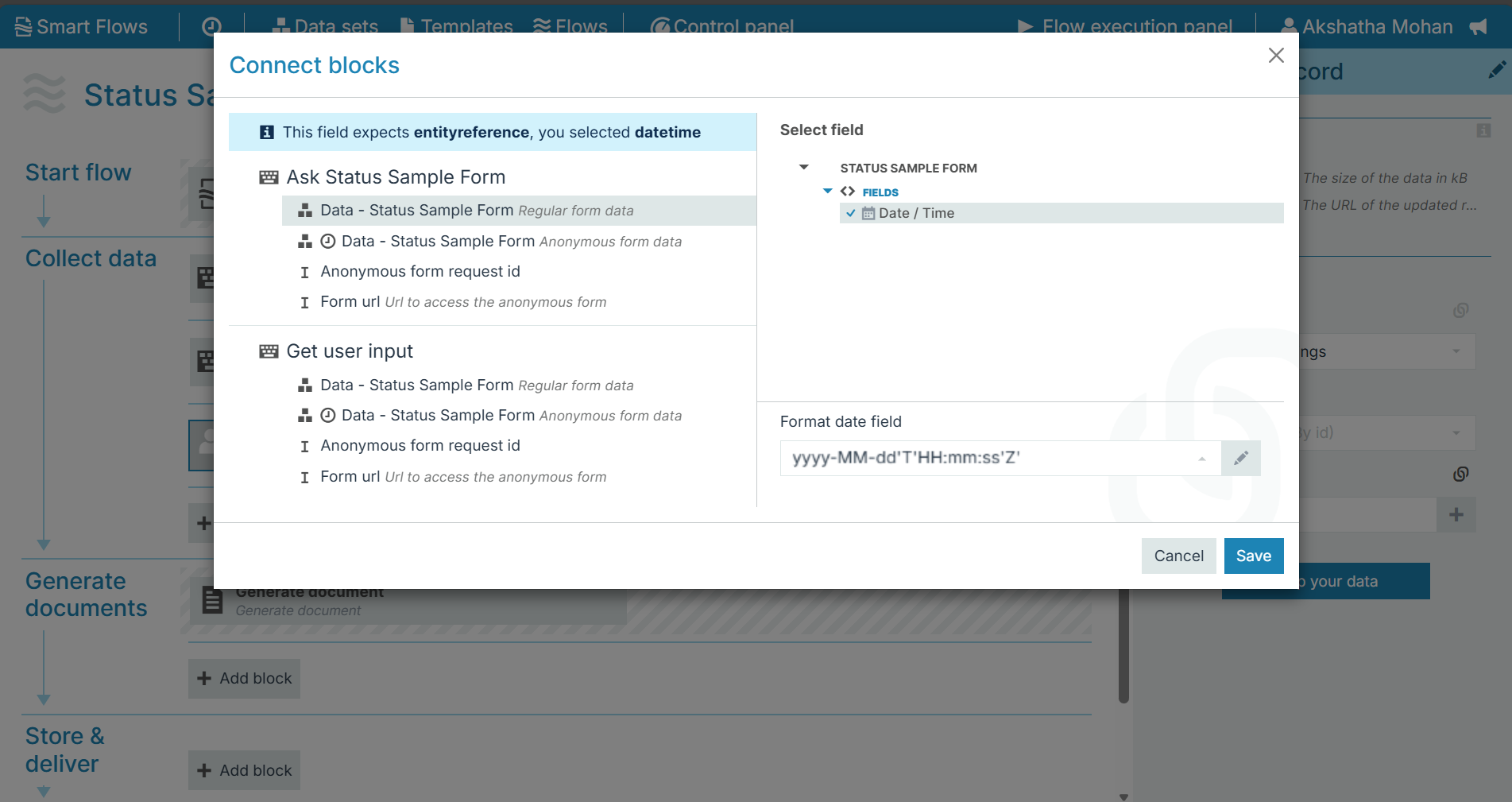
You can view the Date/Time format saved in the Experlogix Documents, which is stored in the flow block.
Ensure to provide 'yyyy-MM-dd'T'HH:mm:ss'Z' as the format for Date / Time field.