Unable to Open Templates in Template Builder
Unable to Open Templates in Template Builder
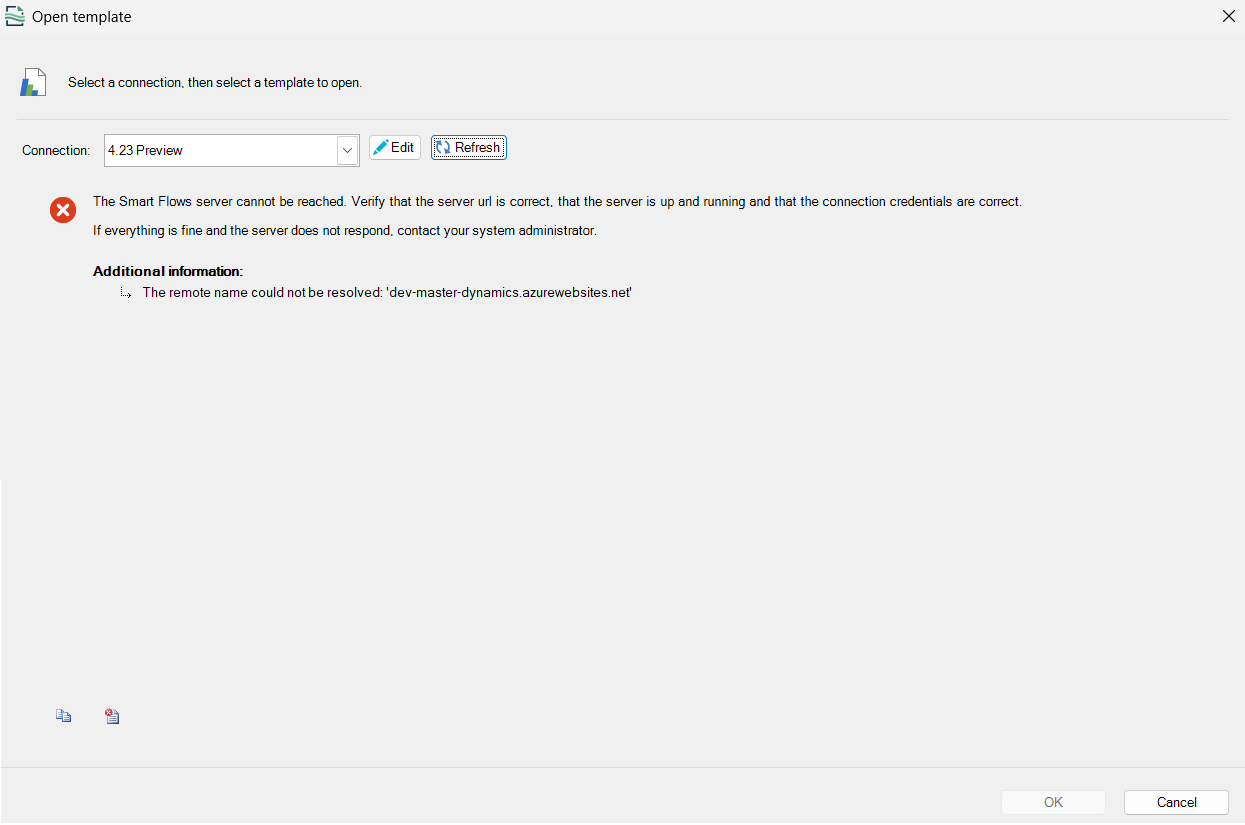
Problem: When attempting to open a template in Template Builder, an error message, "The Smart Flows server cannot be reached. Verify that the server URL is correct, that the server is up and running, and that the connection credentials are correct" is displayed.
The error occurs due to a communication failure between the Experlogix Template Builder and the Experlogix Smart Flows server. Possible causes include incorrect connection details, server unavailability, or configuration issues.
Solution: Follow the below steps:
-
Open the Open Template dialog and select Edit — or navigate to Options > Server Connections in the Microsoft Word ribbon.
-
Select your connection and click Test Connection.
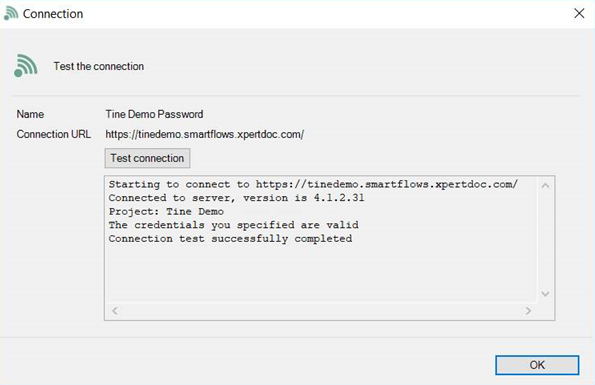
3. If the connection test fails:
-
Re-enter the connection URL and credentials for the user.
-
Test the connection again.
-
If the issue persists, contact your administrator to verify server availability.
If the test is successful:
-
Navigate to Options > Server Instances.
-
Select the connection from the list and click the Refresh command.
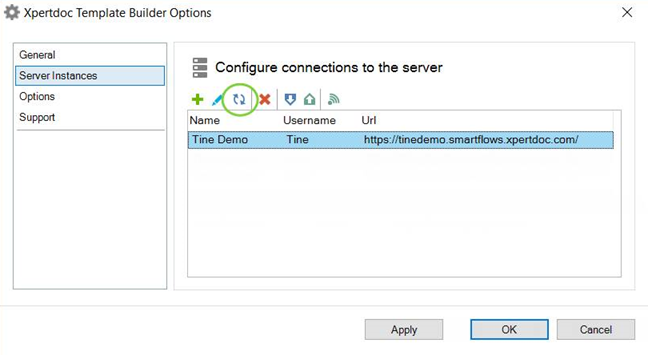
After refreshing the connection, you can open templates in this project.
If none of the above steps resolve the issue, consider the following options:
-
Submit a support ticket: Support Portal
-
Contact your system administrator for further assistance.
Template Builder Add-in Installation Error: Certificate Not Trusted
Template Builder Add-in Installation Error: Certificate Not Trusted
Problem: When installing the Template Builder Add-in for Microsoft Office, an error indicates that the certificate used to sign the deployment manifest is not trusted. This error occurs in environments with strict 'Group Policy' settings.
During installation of the Template Builder, the user may receive an error similar to:
Customized functionality in this application will not work because the certificate used to sign the deployment manifest for Template Builder Add-in or its location is not trusted. Contact your administrator for further assistance.
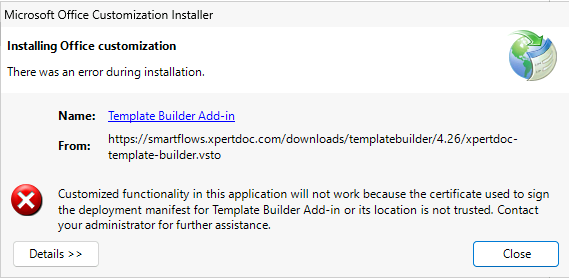
This issue is usually caused by 'Group Policy' restrictions that prevent untrusted pu
blishers from running Office customizations.
Solution:
-
As a Template Designer - Contact your IT Administrator
Ask your administrator to add the Experlogix signing certificate as a Trusted Publisher in your organization’s Group Policy.
-
As an Administrator
Add the Template Builder Certificate to the list of Trusted Publishers.
Follow the instructions below to add the certificate to the list of trusted publishers:
-
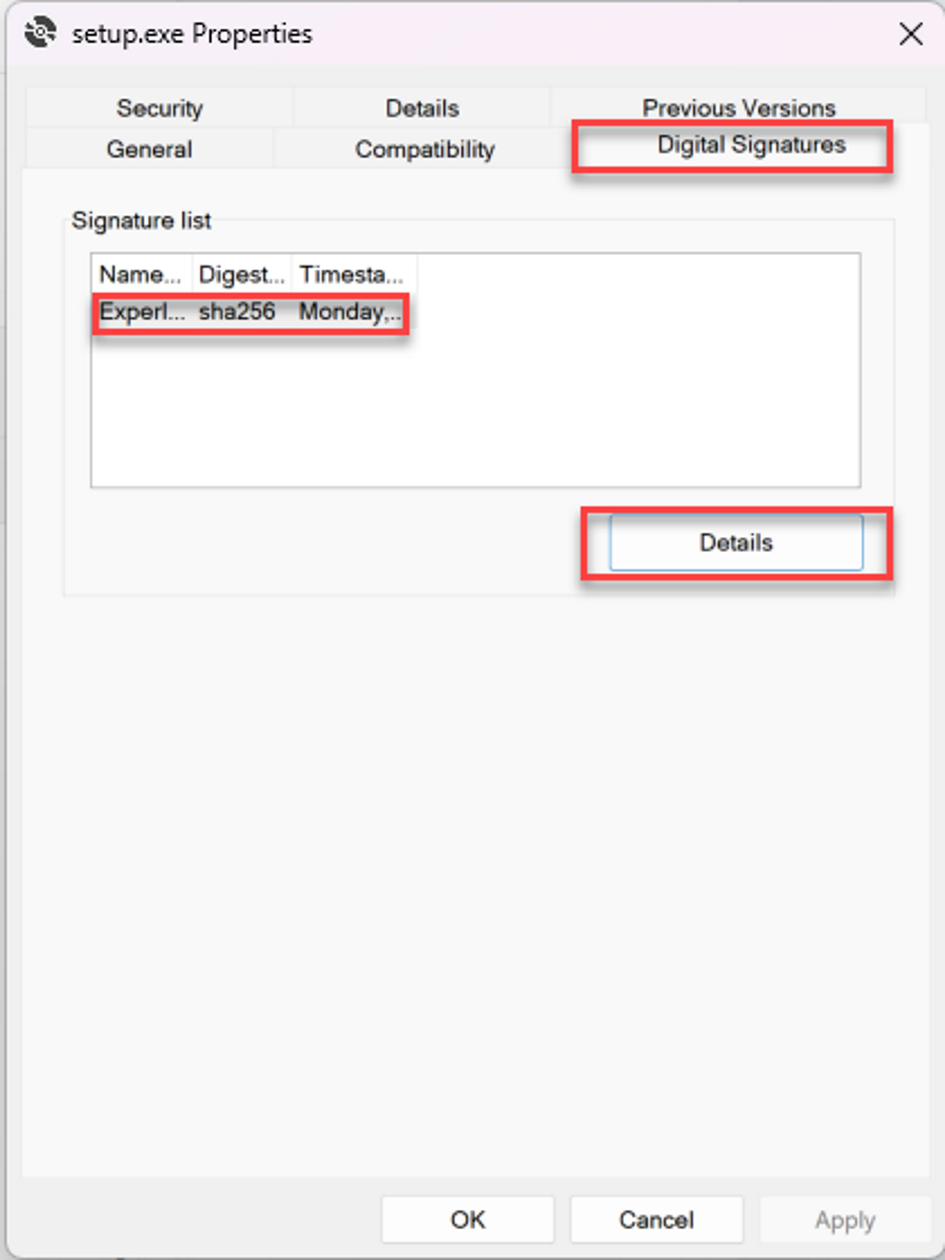
Open the properties in Template Builder installer (setup.exe) file - Right click the exe file and select Properties > Digital Signatures.
-
Select the 'Experlogix Certificate' and click Details.
-
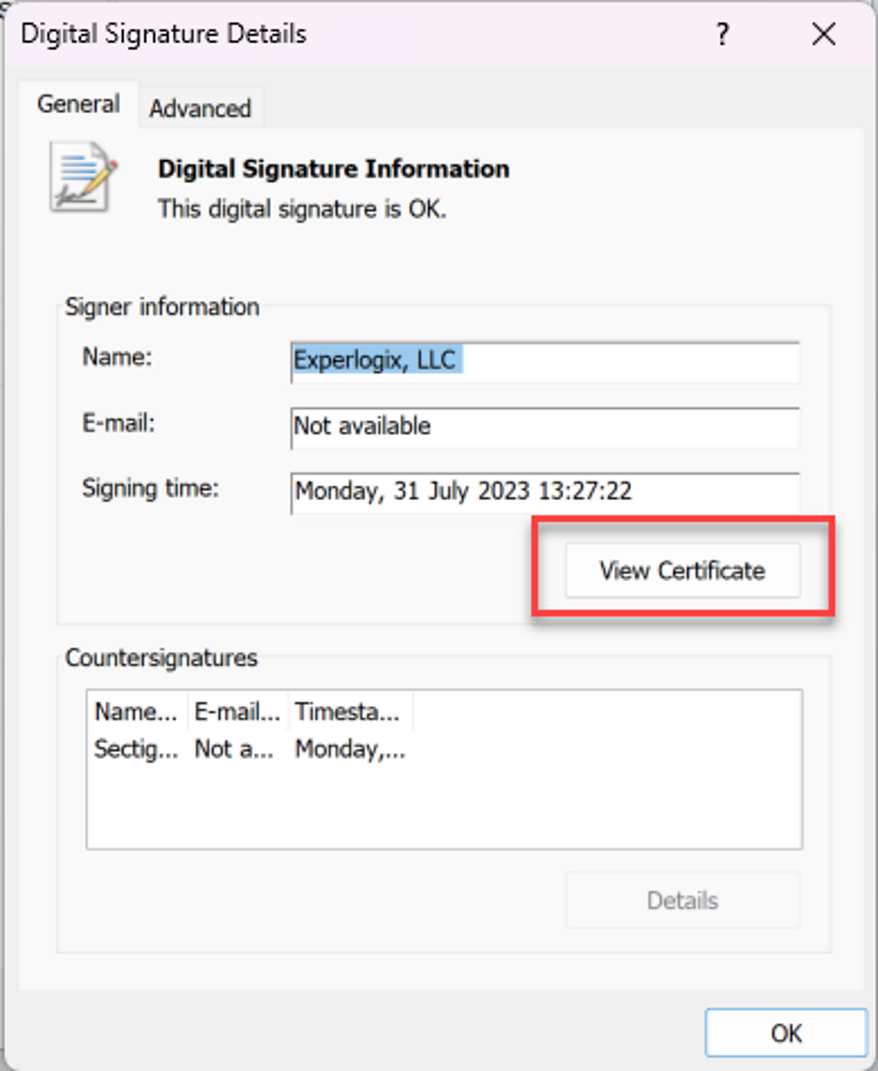
Click View Certificate.
-
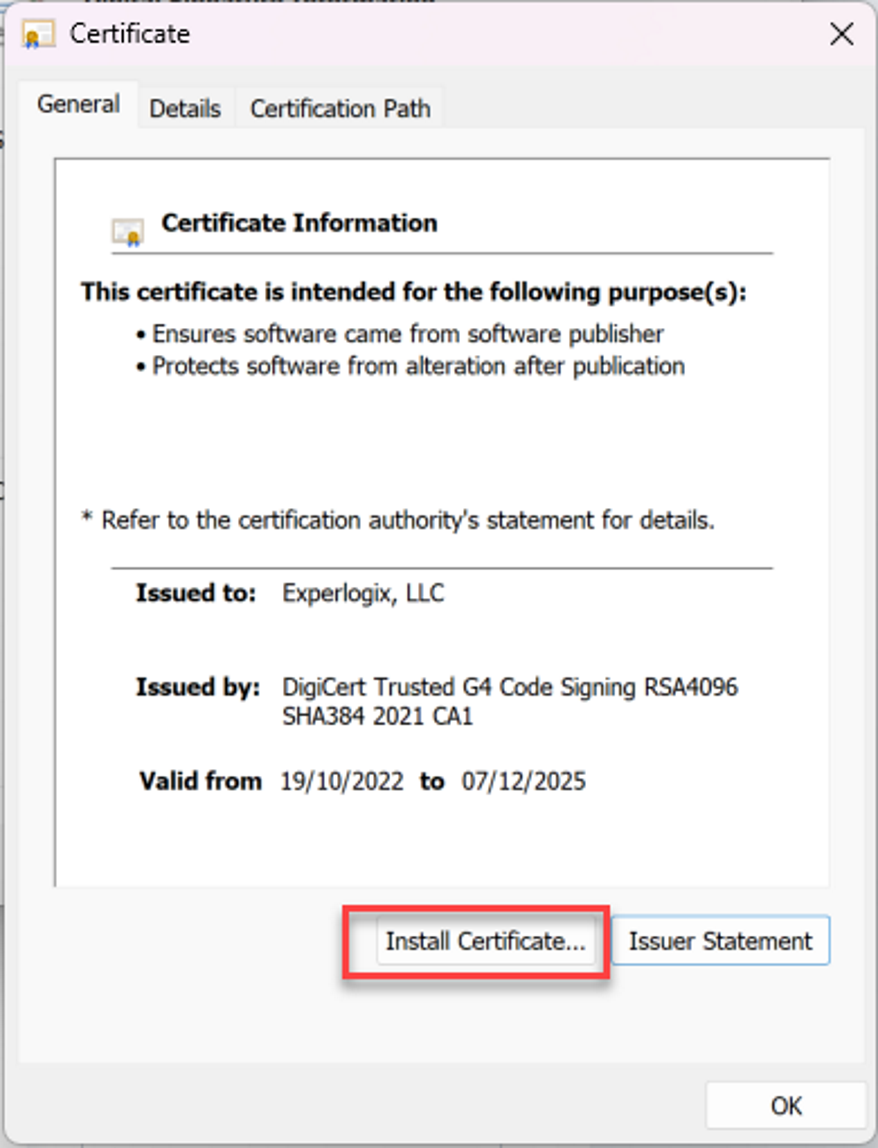
Select Install Certificate.
-
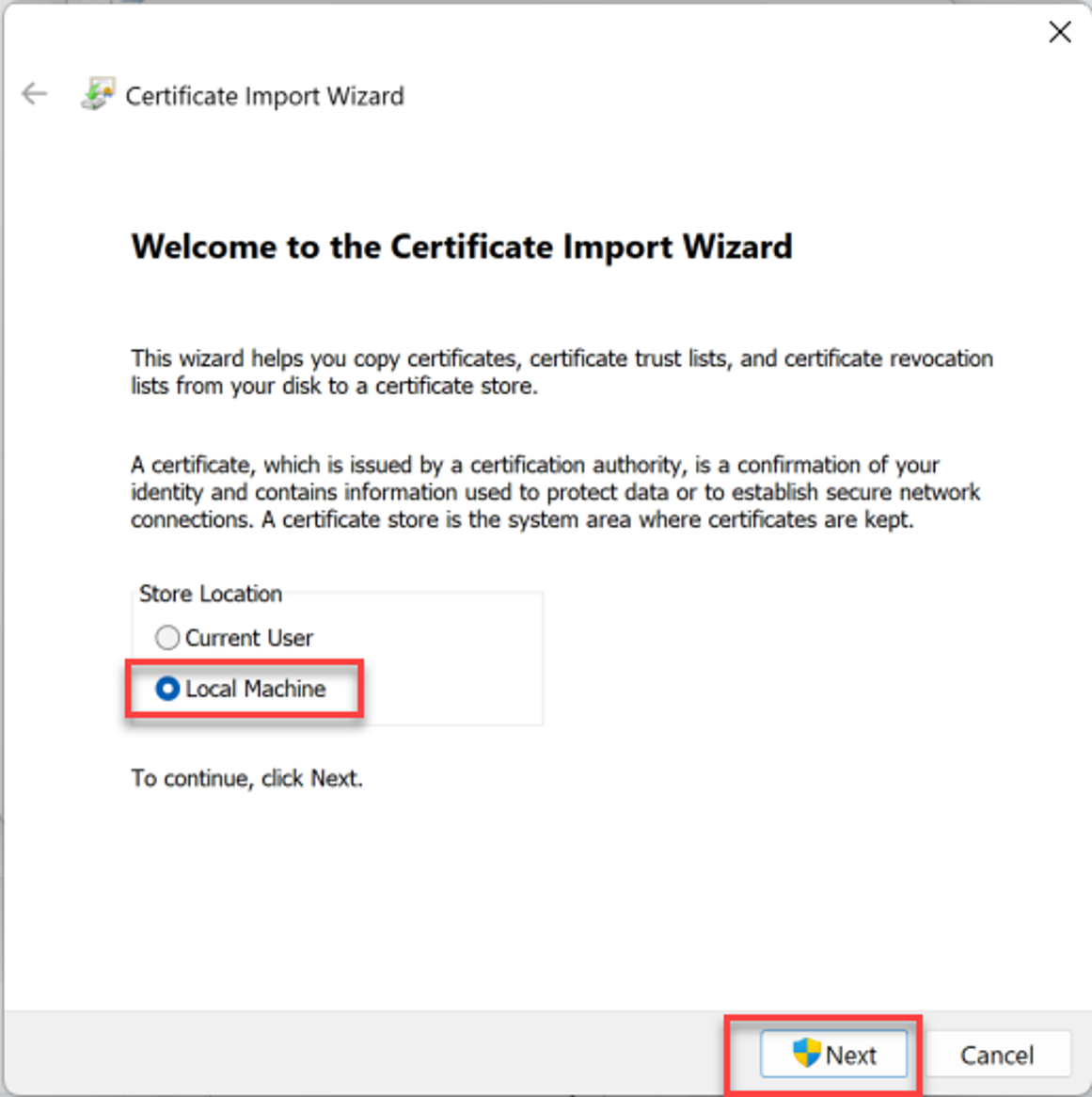
Select 'Local Machine' and select Next.
-
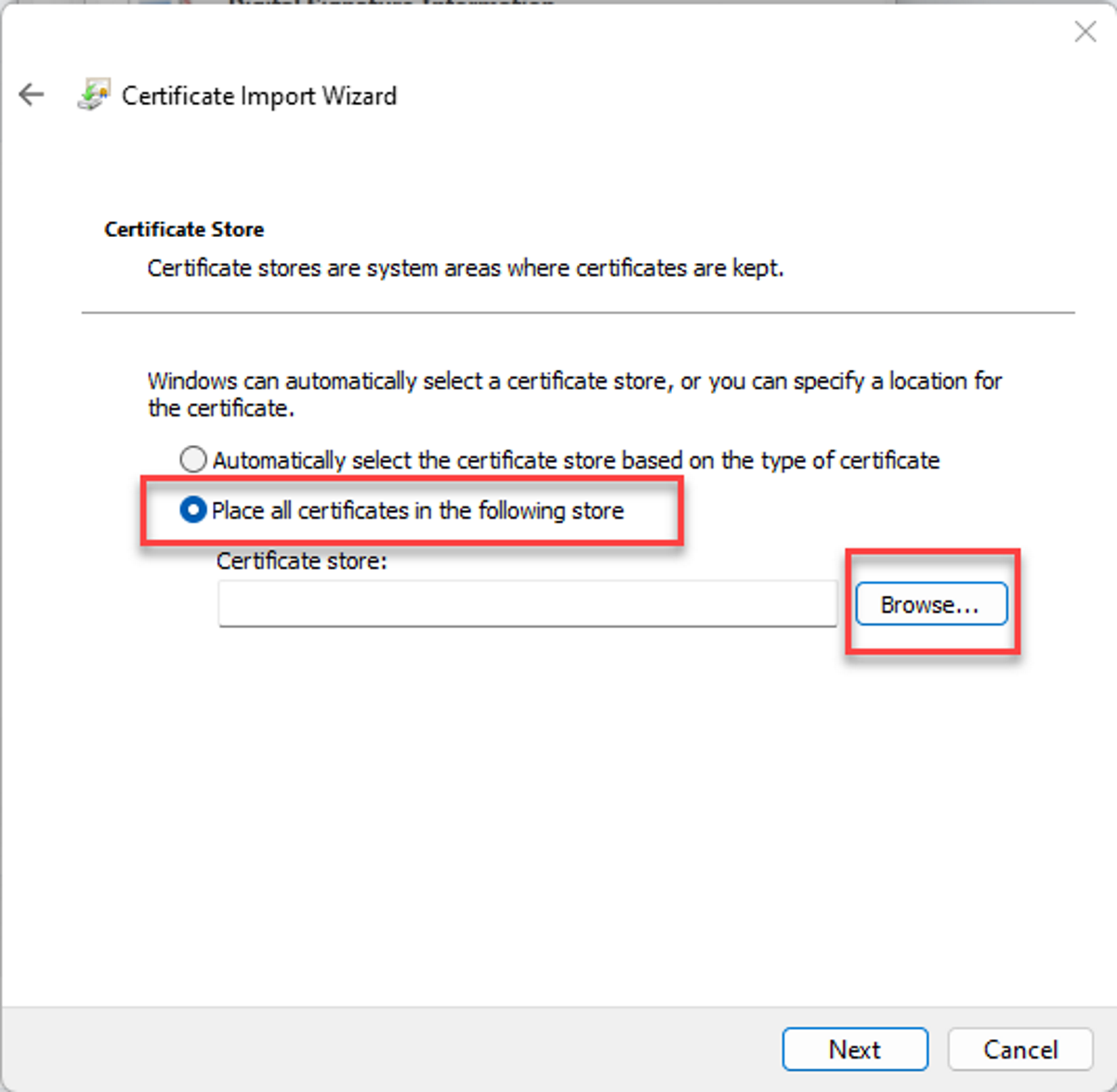
Choose 'Place all certificates in the following store', click Browse, select 'Trusted Publishers', then click OK. Then click Next.
-
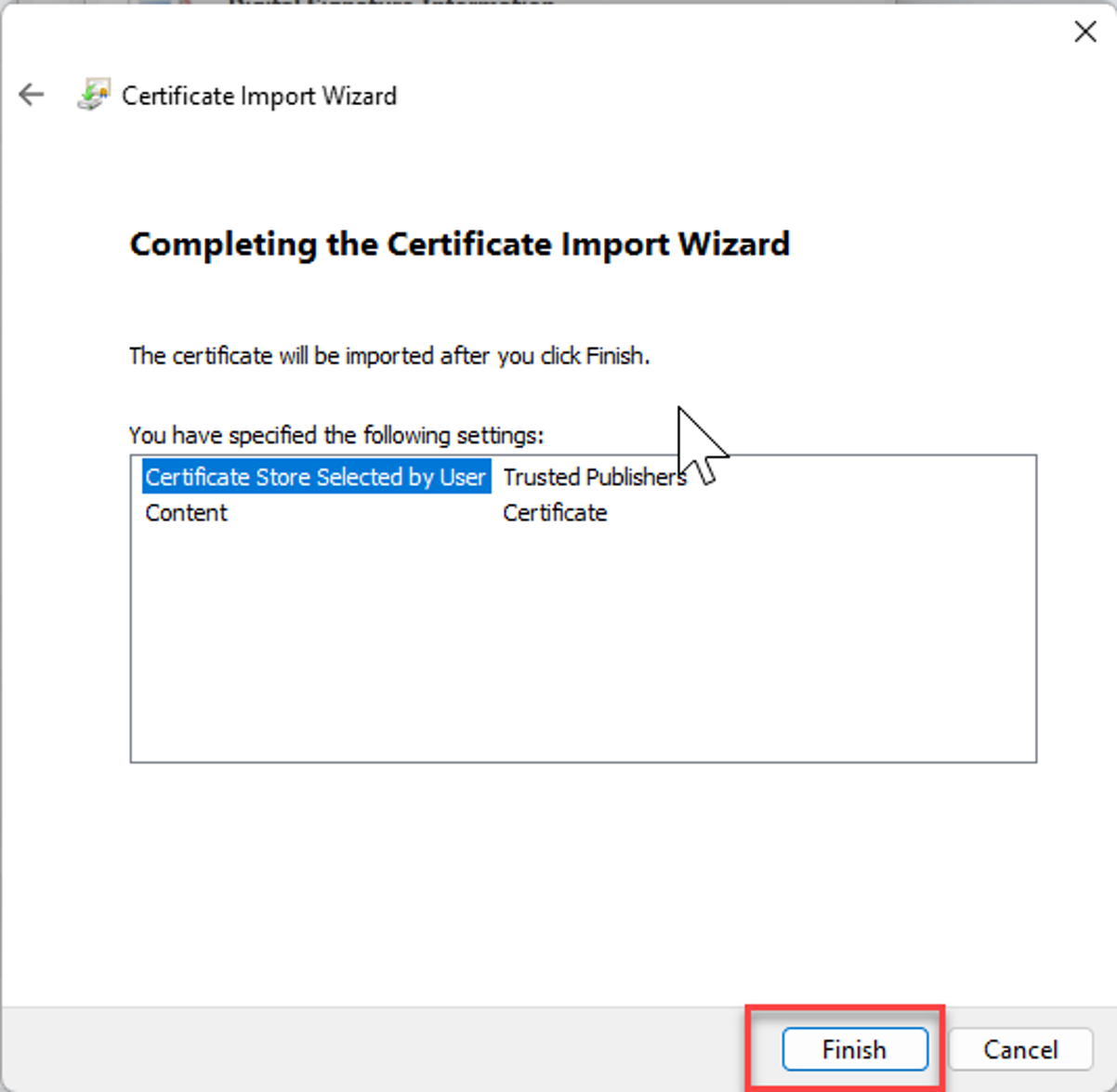
Select Finish.
-
Follow the instructions (steps 1-6) in this link: Import and Export Certificate.
-
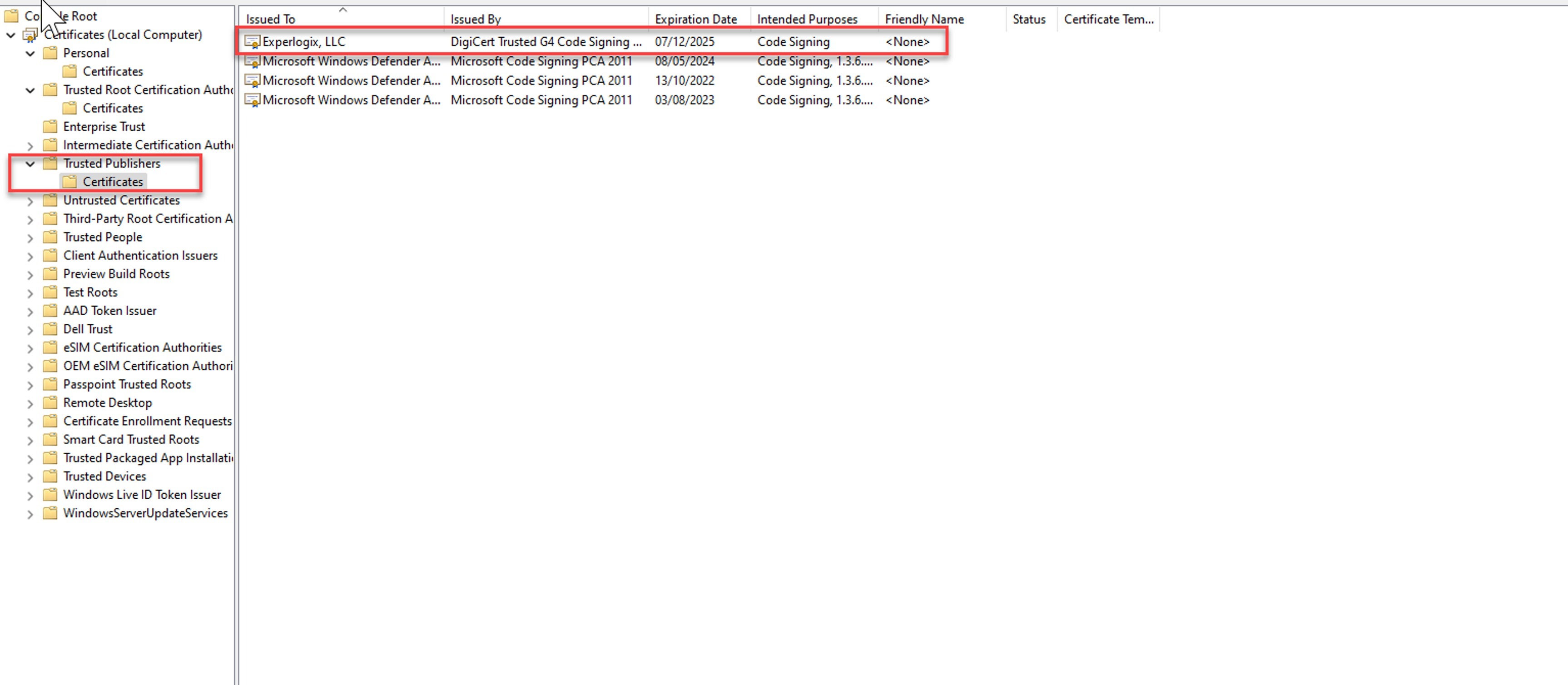
You can find the certificate under Trusted Publishers - Certificates.
Important Note on Certificate Expiration - Experlogix uses short-lived certificates to sign software builds. These certificates are valid for only a few days. However, all builds are timestamped, meaning the signature remains valid for the software created during the certificate’s validity window, even after the certificate itself expires.
Template field values don’t populate when Custom Data Set is added?
Template field values don’t populate when Custom Data Set is added?
Problem : The fields in the template may not populate with values from the custom data set if the data set isn’t mapped correctly in the Generate Document flow block. This often happens when a custom data set is added to the template or flow after it has been created, and the required mapping step is overlooked.
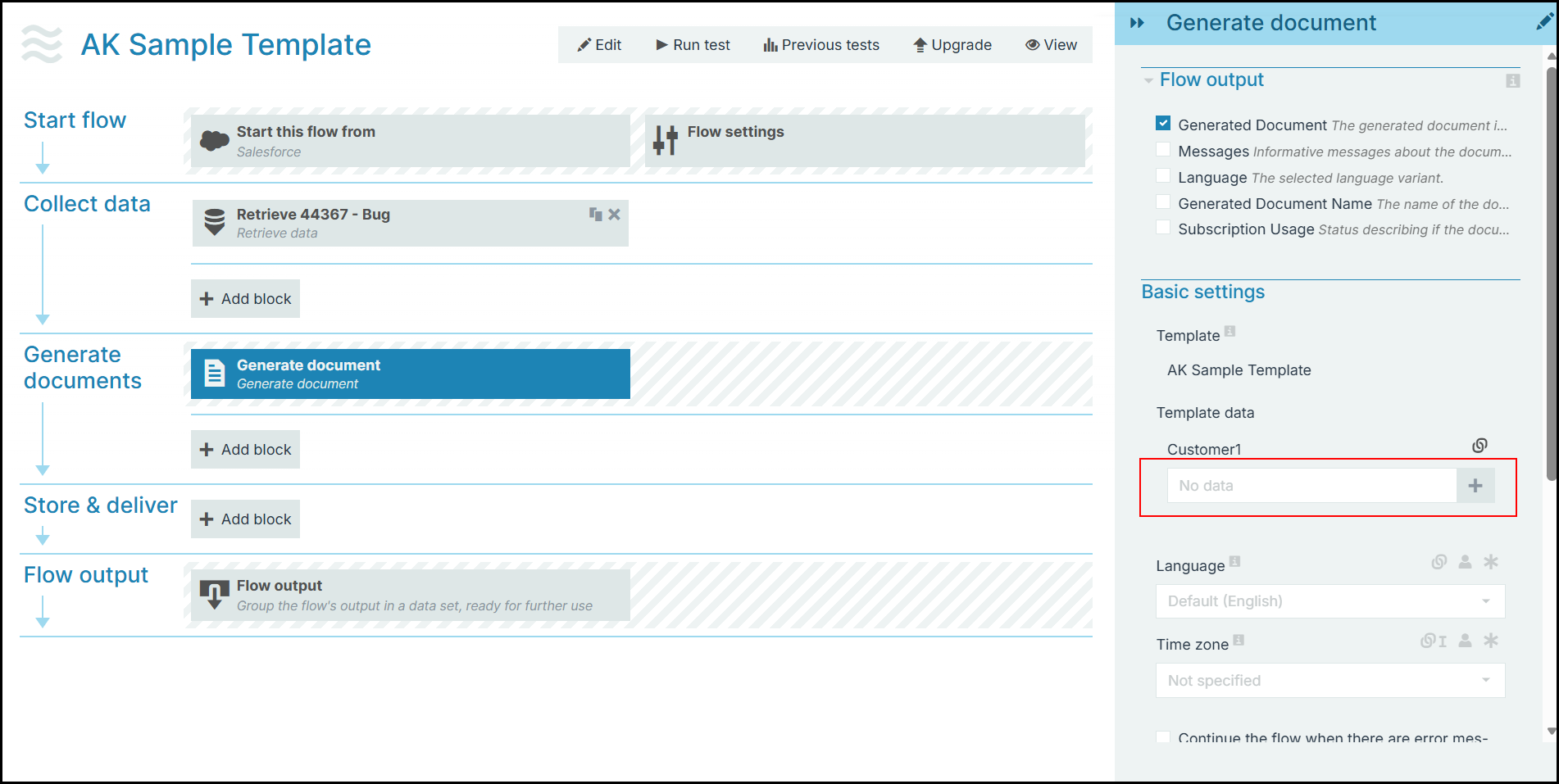
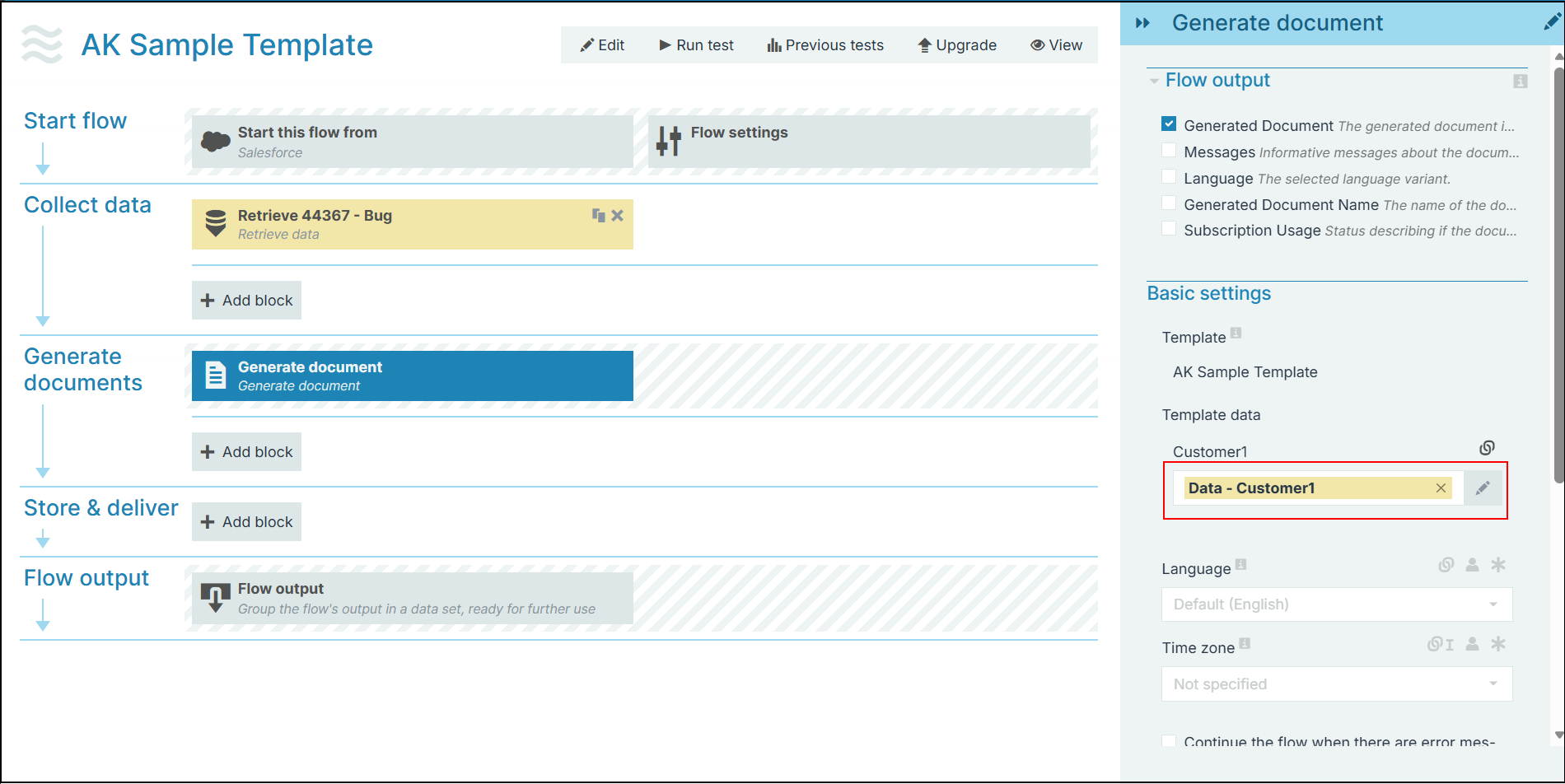
Solution: In the Flow Builder, use a Retrieve data flow block to fetch your custom dataset. Then, in the Generate Document flow block, map the custom dataset to the corresponding Template data field.
-
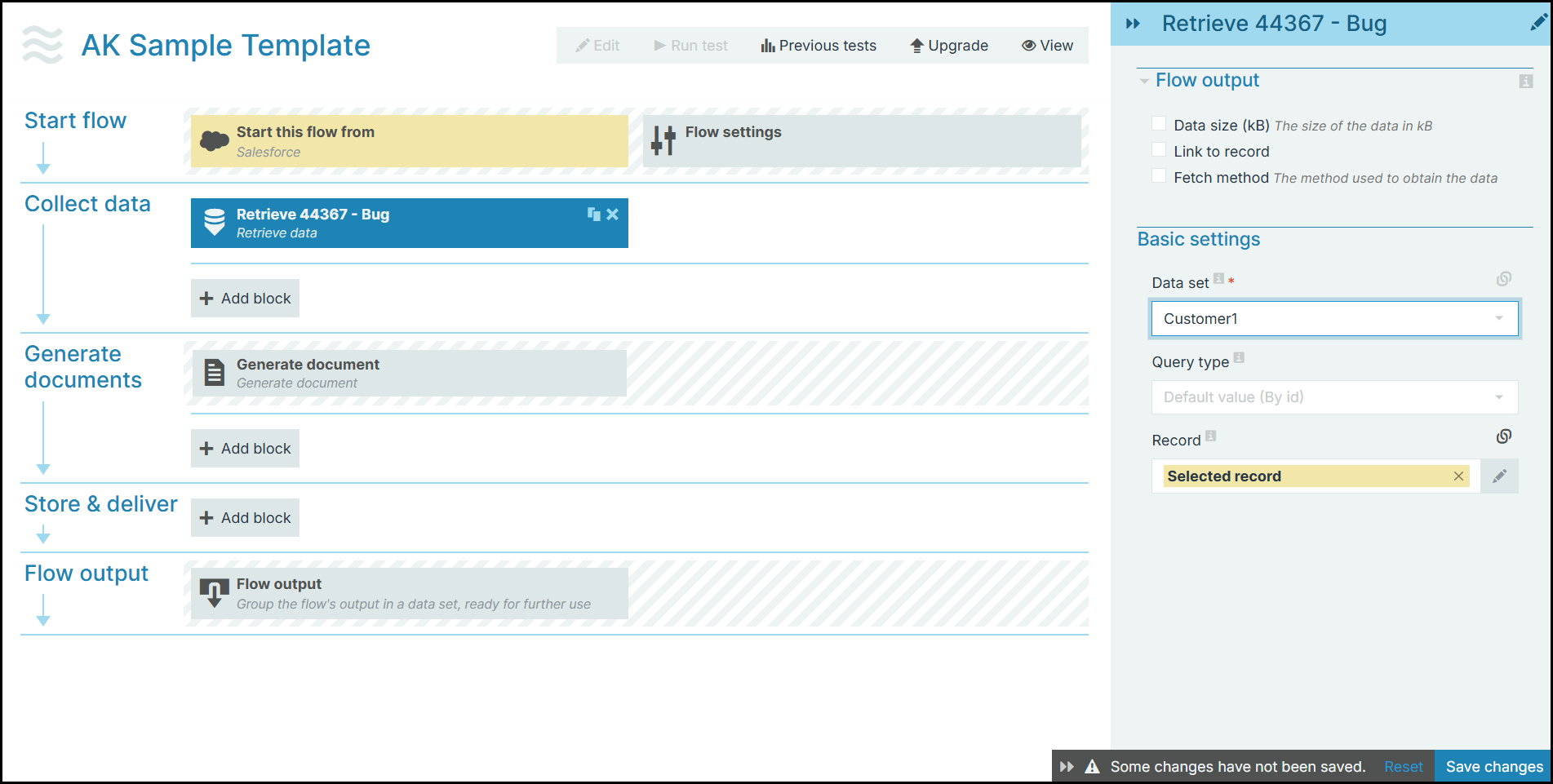
In Project Console, navigate to Flows > open a flow.
-
Select the Retrieve flow block and map the custom data set.
-
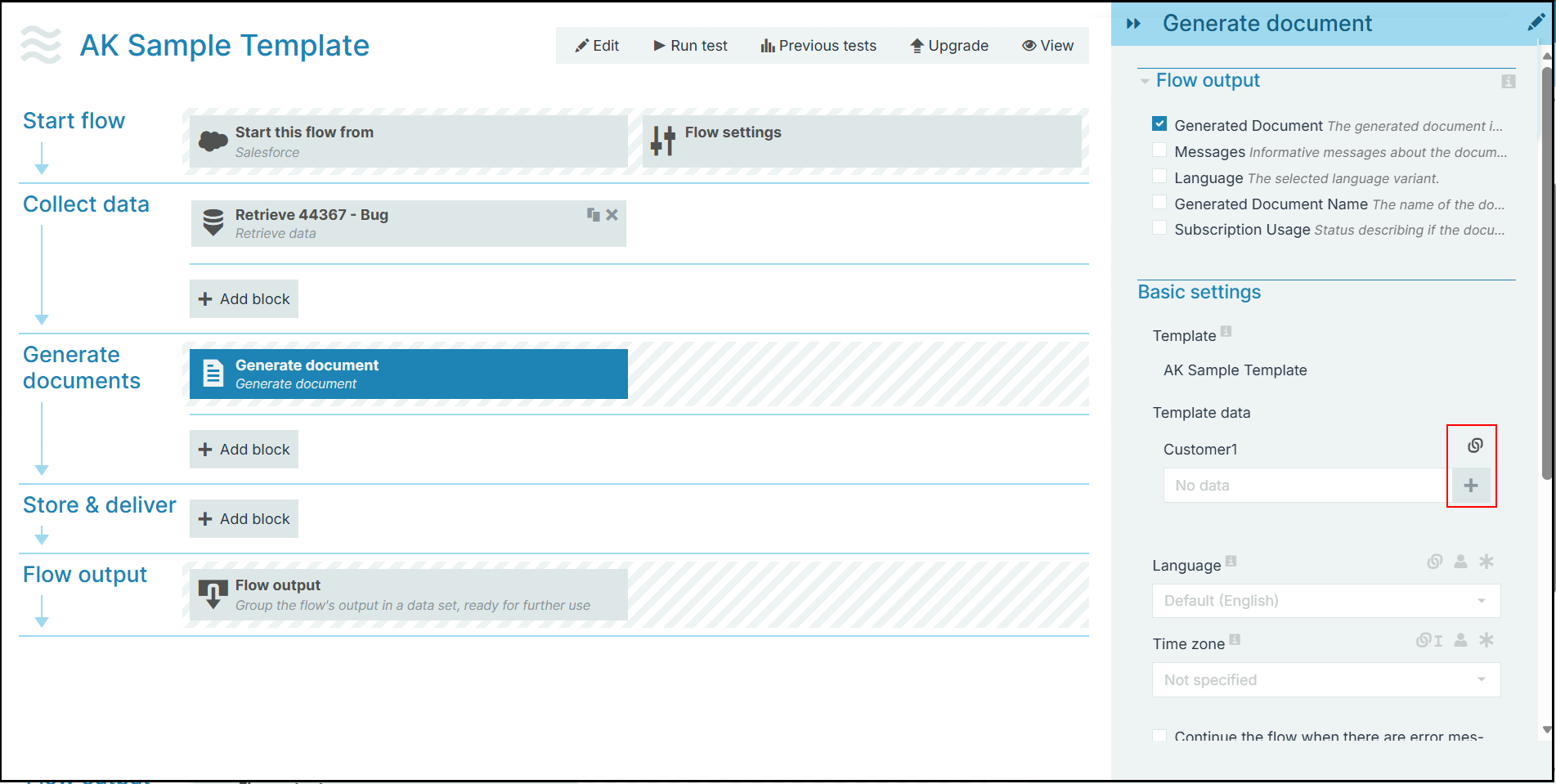
Select the Generate document flow block.
-
In the empty Template data field, select the linked field icon > + icon.
-
Map your custom data set to the field.
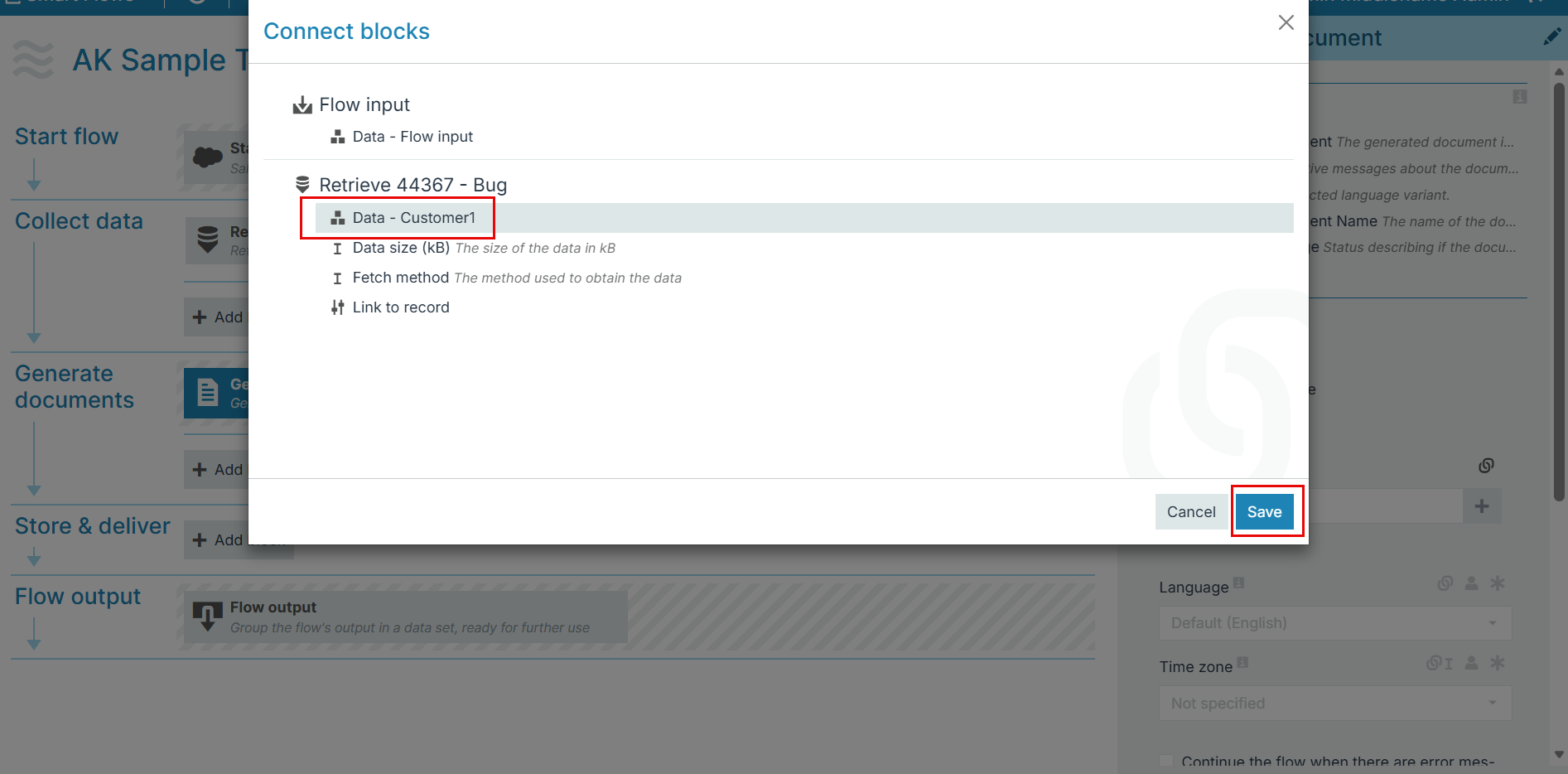
The custom dataset is now associated with the Template in the Generate document flow block.