
The user with the user name d365serviceuser was not found as an external user
The user with the user name d365serviceuser was not found as an external user
Problem: When triggering Smart Flows from Power Automate, the Execute Flow action of the Experlogix Smart Flows connector fails with the error message "The user with user name 'd365serviceuser' was not found as an external user". This happens when the API key used in the authentication of the connector is invalid.
Solution: An API key must be created for an existing D365 user directly within Smart Flows, and this newly generated key then needs to be updated in the Smart Flows Power Automate connector configuration so the flow uses the correct credentials.
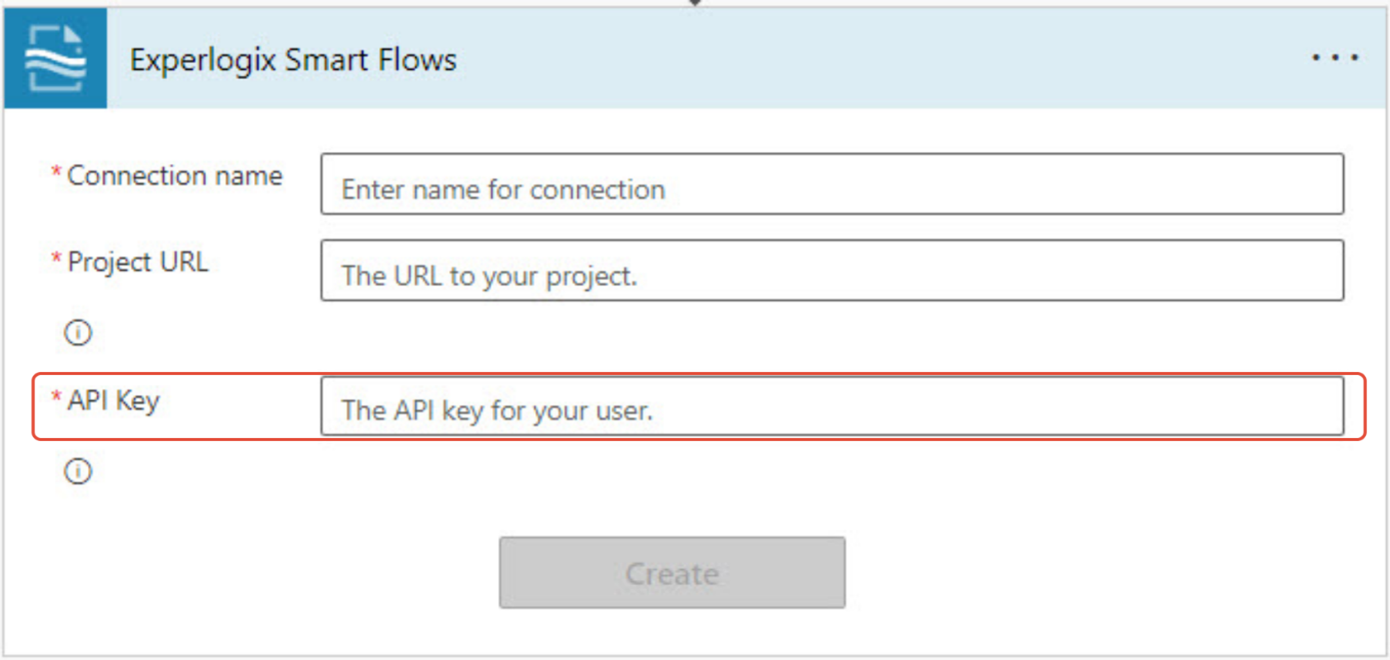
Configure the connection to Experlogix Smart Flows
-
Fill in the information to create the Execute Flow action:
-
Connection Name: Name to identify the connection to Smart Flows in Microsoft Power Automate
-
Project URL: URL to the Smart Flows project. (Ex: https://MyProject.smartflows.xpertdoc.com)
-
API Key: API key used to authenticate the user in Smart Flows. For more info on how to get an API key, see Using the API.
-
-
Select Create to continue.
The Execute Flow action displays.
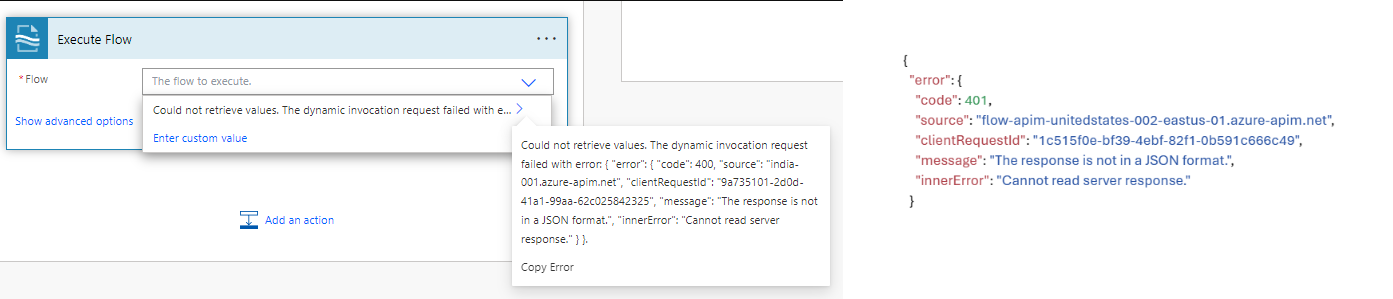
Could not retrieve values. The dynamic invocation request failed with error
Could not retrieve values. The dynamic invocation request failed with error
Problem: Power Automate flows utilizing the Smart Flows connector cannot be configured due to an error preventing the system from calling the API. Potential error messages are:
-
The response is not in a JSON format
-
Could not retrieve values. The dynamic invocation request failed with the error:
-
Inner error: Cannot read server response.
This error occurs when there is a problem with the connection to the Smart Flows environment. Potential causes include:
-
Incorrect URL used in the connector creation
-
Expired or invalid API key
-
Network problem preventing validation with the Smart Flows environment
Solution: Validate your connection configuration and connection values.
Try recreating a connection from Power Automate to Smart Flows to ensure your connection values are accurate. See Configure the connection to Experlogix Smart Flows.
-
Make sure that the URL is the Smart Flows Project URL with no appendages. For example, https://projectname.smartflows.com.
-
Create a new API key.