
Error - Could not find a property named 'fieldname'
Could not find a property named 'fieldname'
Problem: While creating or viewing samples, or running a flow, the following error is displayed:

This happens because a required CRM field has been deleted or is invalid.
Solution: The error can be resolved by either clearing the connector cache or removing any reference to the field.
-
Clear Connector Cache. This refreshes the connector metadata. If the error is caused by an update to the field in the CRM, this may resolve the issue.
-
Remove all references to the field in your flow. Fields can be referenced in the Smart Flows Dataset, Flow Builder, Conditions and Template mappings or expressions.
-
Review Advanced fields in the Dataset. Advanced fields ending in name are not reliably compatible with Smart Flows, may cause inconsistent behavior and should be removed from the dataset.
Sample Gives Error after Microsoft Dynamics 365 F&O Update
Sample Gives Error after Microsoft Dynamics 365 F&O Update
Error message "You have no access to this flow execution" in the Smart Flows - Flow Execution Panel.
Error message "You have inefficient rights to execute this flow" in the Smart Flows - Flow Execution Panel
Solution: Modify the 1:N relationship on the data set using the Relationship manager.
-
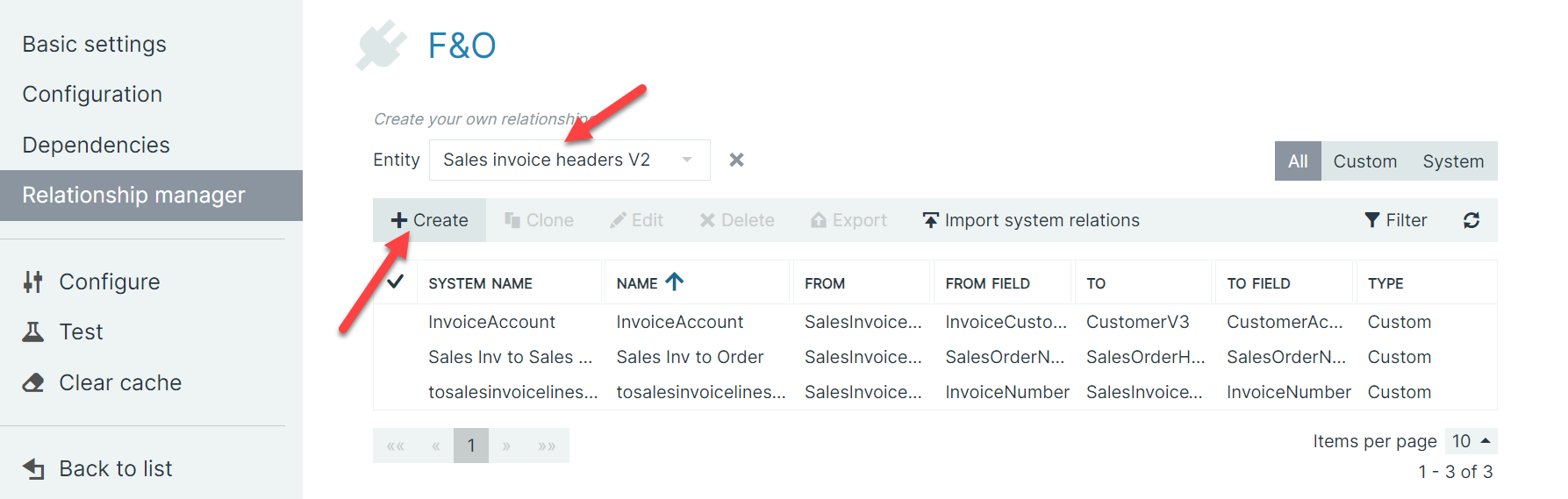
Navigate to the Relationship manager page for your Microsoft Dynamics 365 F&O connector.
In this example, we are using the Sales invoice headers V2. However, you should use the entity you used previously for the 1:N relationship.
-
In the Entity dropdown menu, search and select the Sales invoice headers V2.
-
Select +Create.
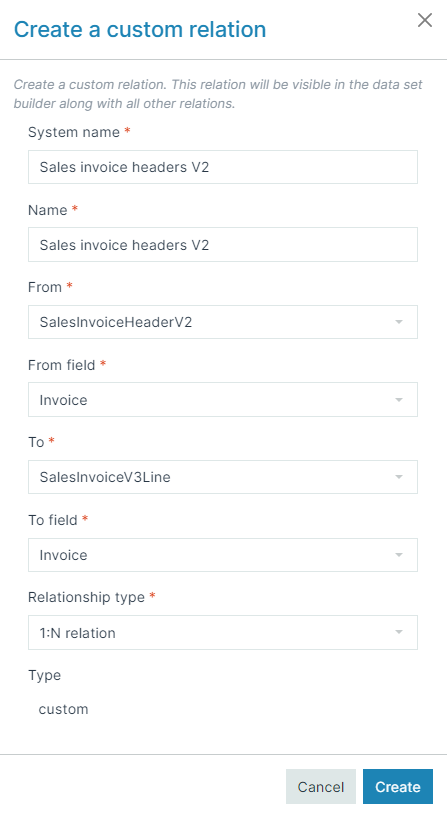
The Create a custom relation window displays.
-
Create the custom relationship.
-
In the System name dropdown menu, type tosalesinvoicelinesv3.
-
In the Name dropdown menu, copy and paste the value from the System name field.
-
In the From dropdown menu, search and select Invoice.
-
In the To dropdown menu, search and select SalesInvoiceV3Line.
-
In the To field dropdown menu, search and select Invoice.
-
In the Relationship Type, ensure 1:N relationship is selected.
-
Select Create.
-
Navigate to the Data Sets List view and select your Microsoft Dynamics 365 F&O data set.
-
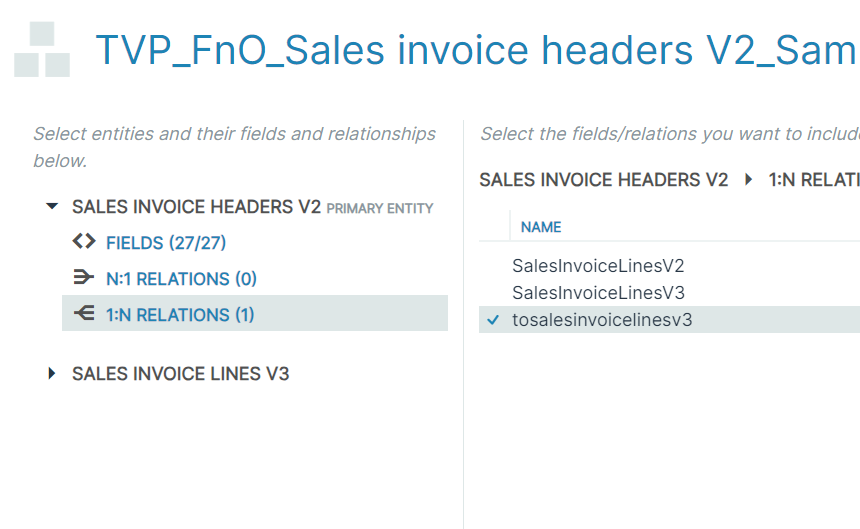
Select the primary entity.
The primary entity dropdown expands.
-
Select the 1:N relationship option.
-
In the right-hand List view, select the custom relationship you created in Step 4.
-
In the bottom right, select Save changes.
The system confirms that your changes have been saved.
When running flows from now on, you should no longer receive an error.
Reset Your Admin Password
Reset Your Admin Password
Solution: Follow the steps below to reset your Admin password.
If you have an on-premise Smart Flows deployment and need to reset your native admin password, please open a ticket in our Support Portal.
-
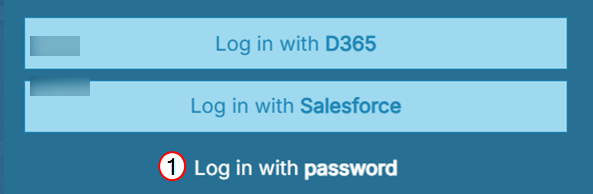
Navigate to the Smart Flows Login page and select Log in with password.
-
Select Forgot password? link.
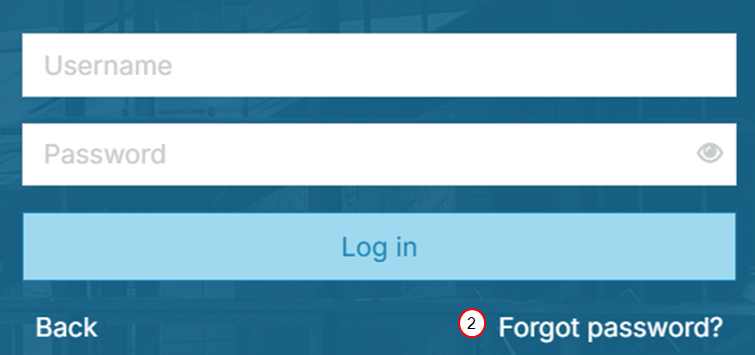
-
In the Username field, enter 'admin'.
-
Select Reset password.
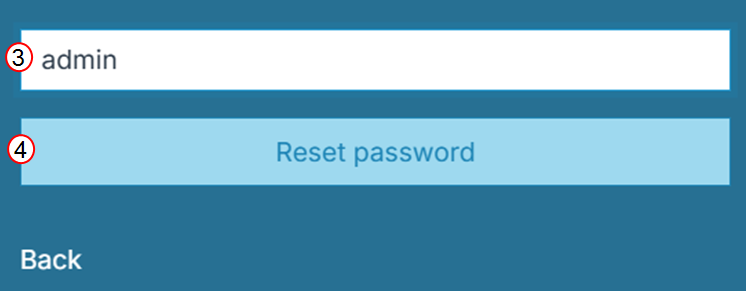
An email containing a reset link will be sent to the address associated with the Smart Flows native admin account.
If the email is not in the inbox, check the spam folder. For issues accessing the registered email address, contact Support.
How do I remove the "No label found for field" error message?
How do I remove the "No label found for field" error message?
Problem: Invalid data in the option set Metadata in Microsoft Dynamics 365 CE

Solution: Find the Entity ID, and the definitions of the option sets used by the fields. In Microsoft Dynamics 365 CE, do the following:
-
Go to Settings > Customization > Customize the system.
-
Navigate to the problem Entity and its respective field, and edit the field.
-
Scroll to the Options section, look for the Value 2.
-
Edit the Value field to 2, and save the entity definition.
-
Remove the newly opened option.
-
Save and close.