
This topic provides valuable insights, quick tips, and recommended best practices to help you optimize your usage of Document Automation Product Line tools across our platforms and products. The goal is to improve your efficiency, effectiveness, and overall experience by sharing expert insights and proven methods. The guidance in this topic is grouped based on the applicable product component.
Templates
Convert Time to Quarter-Hour Increments in Smart Flows
In Smart Flows, it’s often helpful to convert timestamps into decimal values based on quarter-hour increments for easier aggregation, billing logic, or standardized formatting. This topic explains a simple method to convert time values into quarter-hour fractions using a formula function within your template builder expressions.
Use Case Scenario
Suppose your flow retrieves timestamps such as 1:15 or 1:20 from a field, and you want to standardize them into decimal hour values such as 1.25. This is particularly useful in contexts like service reporting or billing, where partial hours must be expressed in decimal format.
Expression Logic
concat(
floor(FIELD/60),
formatNumber(FIELD%60/60,".00")
)
What the Formula Does
This formula takes a time value expressed in minutes and breaks it into two parts: the whole number of hours and the fractional remainder expressed as a decimal. This lets you display time in decimal-hour format, which is especially useful for reports, invoices, or calculations that require consistent units.
Formula Function Breakdown
|
Function |
Description |
|---|---|
|
floor(FIELD/60) |
Returns the number of full hours in the value. |
|
FIELD%60 |
Gets the remainder minutes after full hours are removed. |
|
formatNumber(..., ".00") |
Converts the remainder to a decimal and formats it to two decimal places. |
|
concat(...) |
Joins the hour and decimal together into a single string (e.g., 1.25). |
This formula assumes FIELD is expressed in total minutes (e.g., 1:15 = 75). If your field separates hours and minutes, you may need to first convert the full time into a single minute value before applying this formula.
Example Output
|
Input Time |
Converted Value |
|---|---|
|
1:15 |
1.25 |
|
1:20 |
1.33 |
|
1:45 |
1.75 |
Next Step
If you're building Smart Flows for time-sensitive templates or billing logic, consider pairing this formula with conditional formatting to round or validate time blocks.
Validate if a field end with a period if not add it
1
if(endsWith(${variable}, '.'), ${variable}, concat(${variable}, '.'))
Mapping Images & Documents from a Smart Form
-
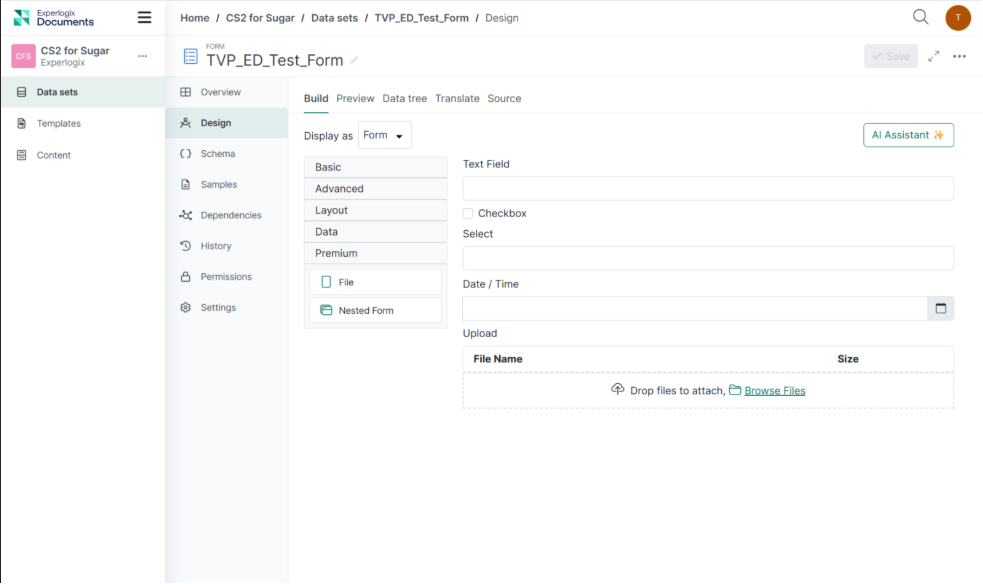
Create a Smart Form. Attach a 'File control' in the Form:
-
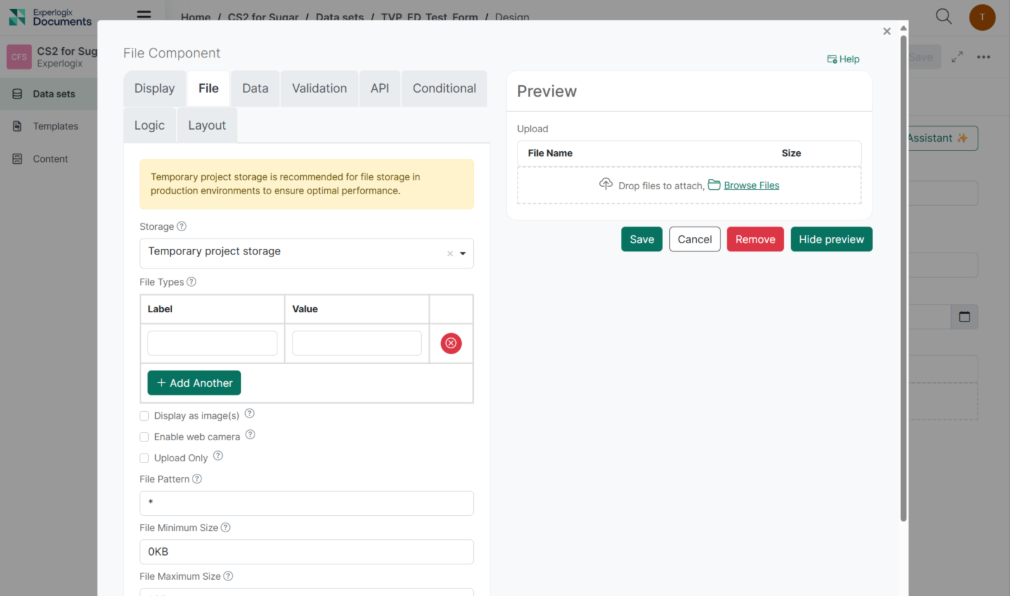
Under File > Storage, select an available option. In the image below, ‘Temporary project storage’ is selected. This will store the image uploaded by the form user within Experlogix Documents.
-
Save the Form.
-
Create a Template on a Dynamics dataset and add the Smart Form dataset to the template.
-
Create a Flow on that Template.
-
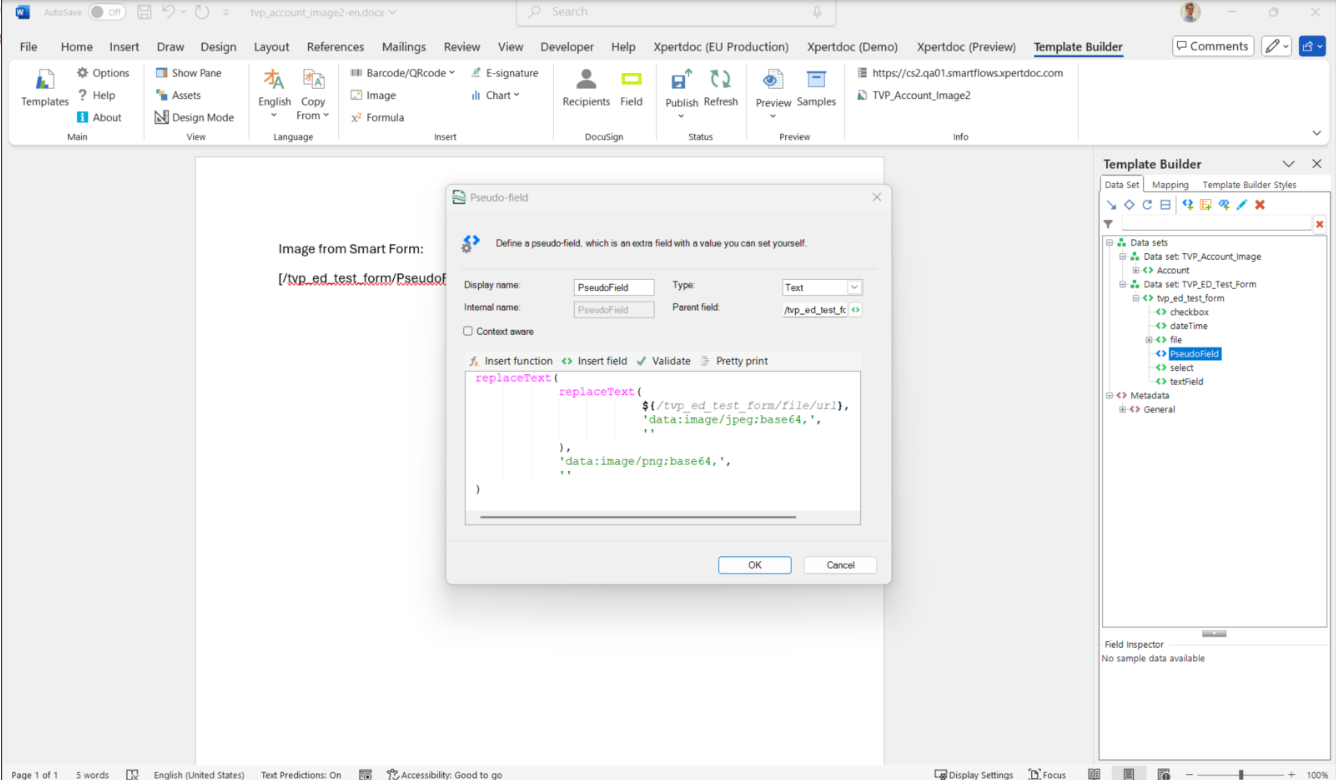
Open the Template within the Template Builder and create a Pseudo-field with this value:
replaceText ( replaceText( ${/ FormName/ImageField /url}, 'data:image/jpeg;base64,', ''), 'data:image/png;base64,', '' )
If you want to map a document instead of an image, use this instead:
replaceText ( replaceText( ${/FormName/DocumentField/url}, 'data:application/vnd.openxmlformats-officedocument.wordprocessingml.document;base64,', ''), 'data:application/pdf;base64,', '' )
-
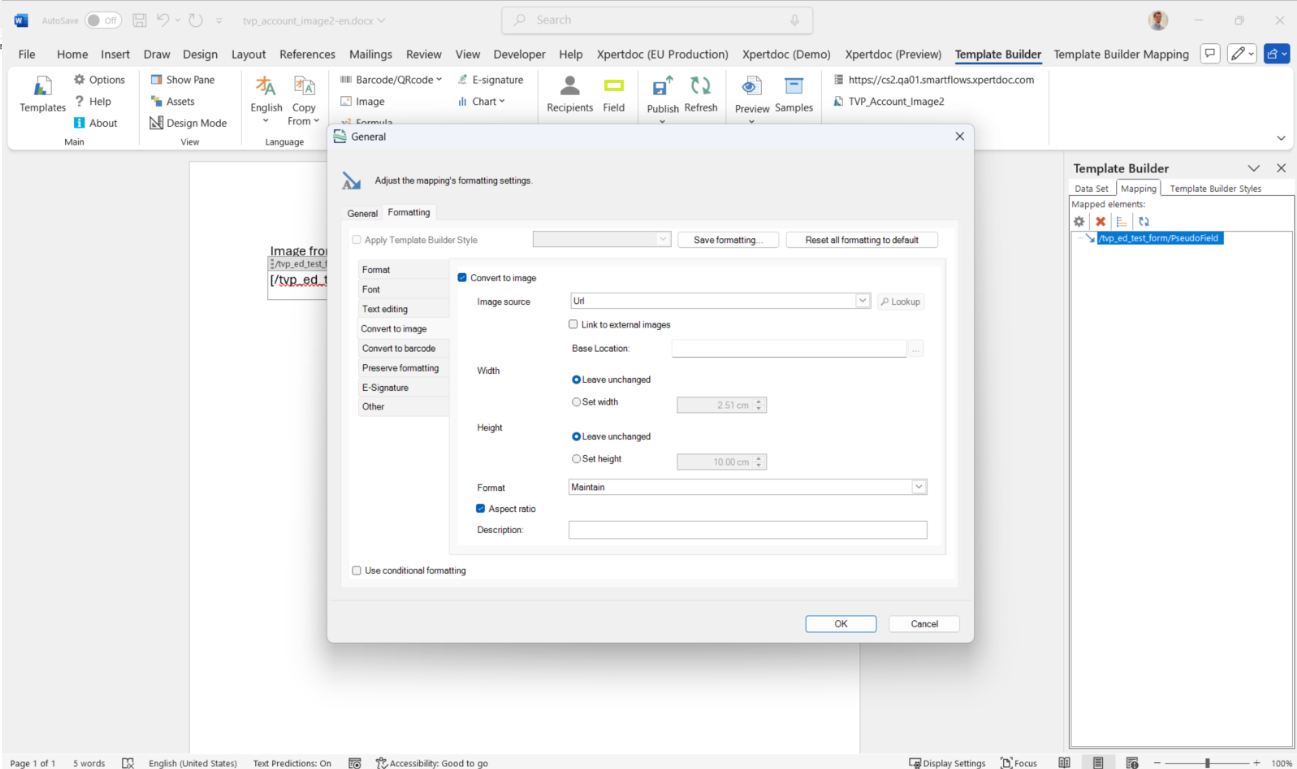
Map the Pseudo-field and use the Convert To Image option to map the URL of the image.
-
Publish the template.
-
Run the Flow.
-
Upload an image. The image should be a JPEG or a PNG image.
The image (or document) that the user uploaded in the form is now mapped into the generated document.
Get specific Item index from Entity
In case you want the first item you need to add [1] and to get the second item [2] and so on.
${/Account/contact_customer_accounts/Contact[1]/FullName}
Function for getting item number in a loop
Use the below function/formula:
getLoopIndex
Returns the number of the current iteration, with the first iteration being 0. This can be useful in loops, such as making your own numbered lists.
Making your own numbered lists.with:getLoopIndex()
If you have nested loops, you can get a higher-level loop's current iteration by specifying how many levels up you want to look. For instance, if you have loops A, B and C where C is inside B and B is inside A:
getLoopIndex() = return the iteration of loop C
getLoopIndex(0) = return the iteration of loop C
getLoopIndex(1) = return the iteration of loop B (1 level up)
getLoopIndex(2) = return the iteration of loop A (2 levels up)
Inside of loop B:
getLoopIndex() = return the iteration of loop B
getLoopIndex(0) = return the iteration of loop B
getLoopIndex(1) = return the iteration of loop A
getLoopIndex(2) = invalid (there is no loop 2 levels up)
Inside of loop A:
getLoopIndex() = return the iteration of loop A
getLoopIndex(0) = return the iteration of loop A
getLoopIndex(1) = invalid (there is no loop 1 level up)
getLoopIndex(2) = invalid (there is no loop 2 levels up)
safeValue
safeValue(C,D)
Returns 'C' unless an error occurs, in which case 'D' is returned. If 'D' is not specified, null is returned. This function can be useful when you cannot guarantee that the value will be what you need.
For instance, further calculations expect a number, but the field may also hold a string. Using this function guarantees that the document generation continues instead of running into an error.
valueOrDefault
valueOrDefault(C,D)
Returns 'C' unless it is null, in which case 'D' is returned. This function can be useful when you must avoid null values. Null values are, for instance, empty fields (for numbers or dates) .